 Steam · Sign in
How to Recover Your Steam Account When You've Lost Access to Your Email
If someone changed the email on your Steam account or you can't access it anymore, find the account by its account name on the Steam Support site. Then send a request with proof that you own it.
This guide helps you recover your own Steam account if you forgot your password or someone changed the email address on it. You do every step on Steam's official support site at help.steampowered.com.
Before you send a request
Steam only returns an account to someone who can prove they own it. Gather the information below first so you can fill everything in at once. This saves a lot of back-and-forth.
If you can still access the email or phone number on the account
This is the easiest case. You only need to reset your password.
Open Steam's Help with Login page.
Select I forgot my Steam Account name or password.
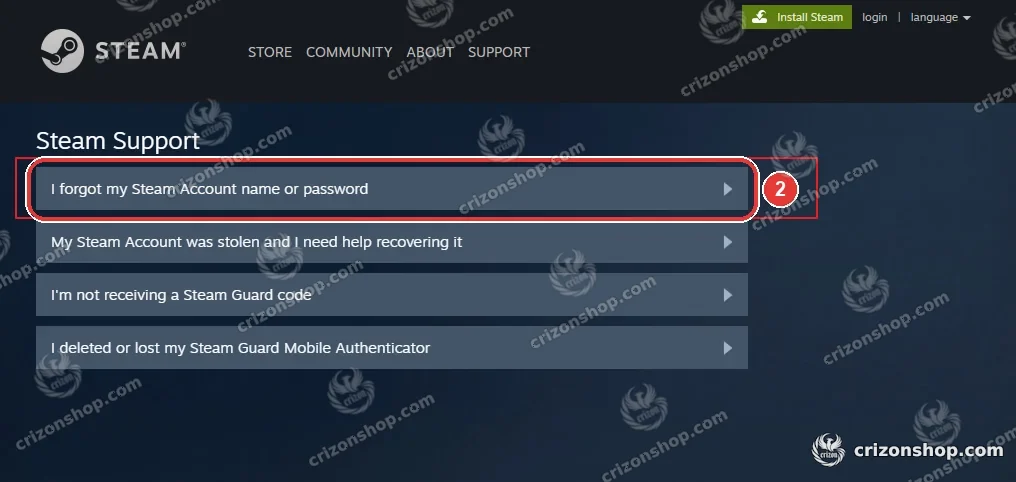
Click “I forgot my Steam Account name or password”. Enter the email address or phone number linked to the account in the Enter your email address or phone number field.
Type the captcha code, then click Search.
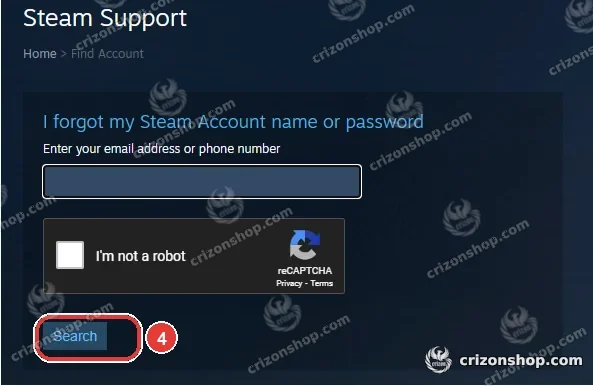
Type the captcha code, then click “Search”. Follow the on-screen instructions to get a verification code and set a new password.
If the email on the account was changed or you can't access it anymore
If your old email doesn't work anymore, look up your account by its account name. The support site has an option for this, so you don't need to try other email addresses.
Open Steam's login help page and select I forgot my Steam Account name or password.
On the page that opens, click the Search with my account name link.
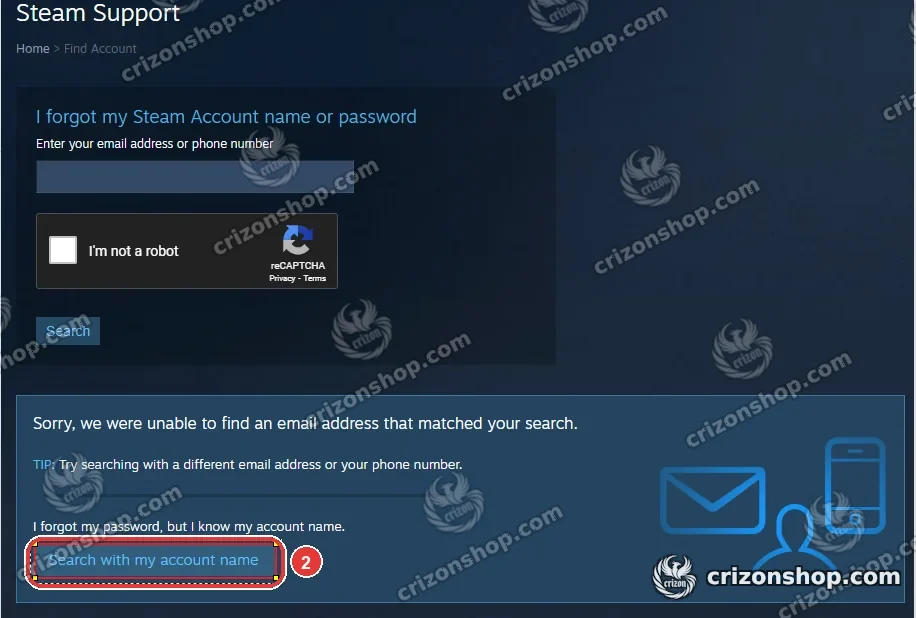
Click “Search with my account name”. Enter your Steam account name, type the captcha code, then click Search.
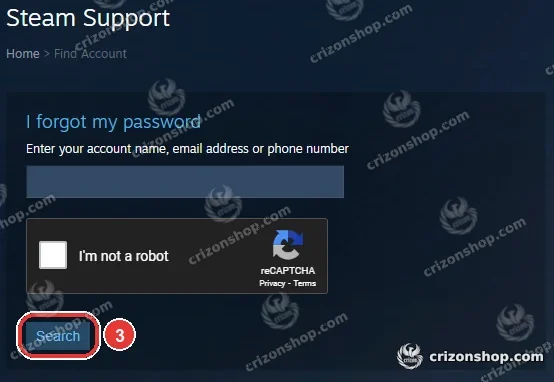
Enter your account name, complete the captcha, then click “Search”. When Steam shows the right account, select I no longer have access to this email address.
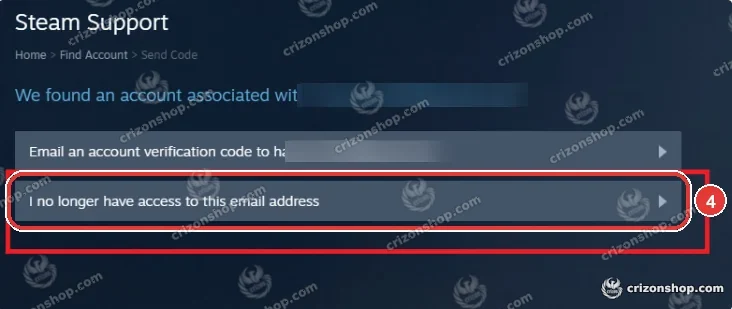
Click “I no longer have access to this email address” to continue. Fill in the form to Steam Support. In the contact email field, enter an email address you can access now.
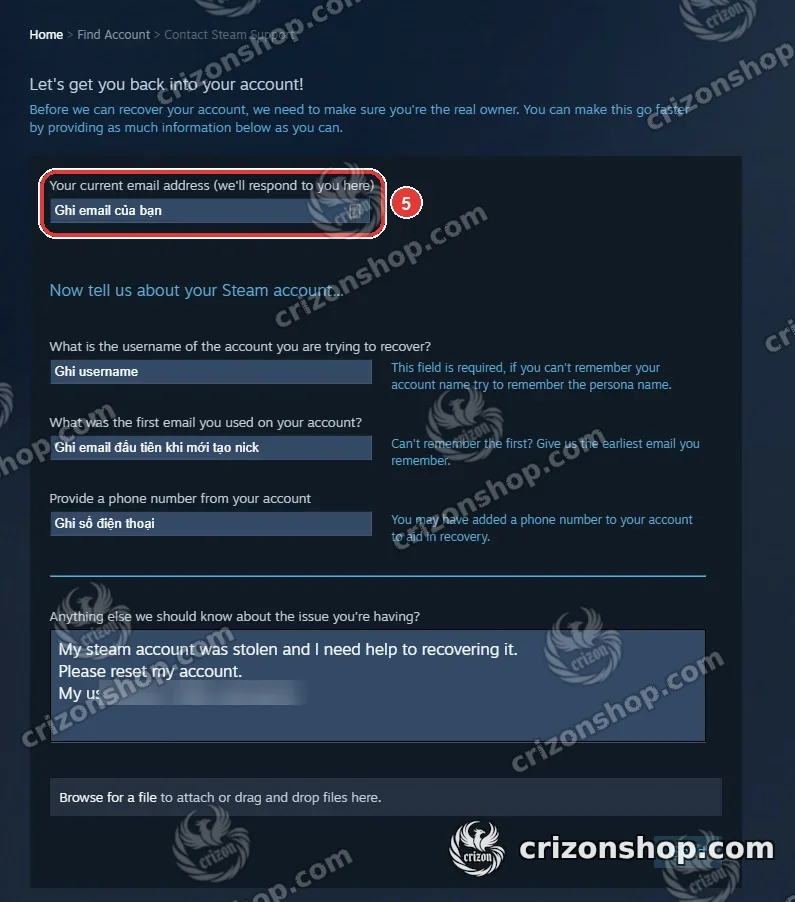
Enter the email you use now in the “Your current email address (we'll respond to you here)” field. In the description, list the proof of ownership you gathered earlier.
Click Send.
Open the contact email you entered and find the verification code from Steam. Enter it on the page to confirm your request.
After you confirm, Steam Support staff will review your request. They'll reply to your contact email. If they ask for more information, reply in that same request.
After you get your account back
- Set a new password that you've never used on any other site.
- Check the email address and phone number linked to the account, and remove any you don't recognize.
- Turn on Steam Guard, ideally through the Steam Mobile app, so every sign-in needs a code from your phone.
Frequently asked questions
On the I forgot my Steam Account name or password page, search with each email address or phone number you've used. If none of them work, use the option on that page to contact Steam Support directly. Describe your situation and include any details you still remember.
Steam needs proof that you own the account. Send whatever you have, such as email addresses you've used or details of past purchases. Then ask Steam Support staff what other information they accept.
Response times depend on how many requests Steam is handling. While you wait, keep an eye on the contact email you entered. If staff ask for more information, reply in that same request.
Follow the section above for when the email was changed. First, read Steam's My Steam Account was stolen page. Then scan your computer for viruses and change your email password so the attacker can't get back in.
Related guides
How to Sign In to Steam and Get a Steam Guard CodeHow to Switch Between Multiple Steam Accounts on One ComputerHow to Activate a Steam Game Key (CD Key) on the Web and in the AppStill need help?
Send your order code and we can sort it out faster.
