 Steam · Set up
How to Get Your Steam Trade Offer Link and Make Your Inventory Public
Your Trade Offer link is at the bottom of the Who can send me Trade Offers? page, under Trade Offers in your Steam inventory. To let others see your items, set My profile and Inventory to Public.
This guide shows you how to get your Steam Trade Offer link (also called a Trade URL) so others can send you trade offers. It also shows you how to set your profile and inventory to public so the other person can see your items.
What the Trade Offer link is for
Every Steam account has its own trade link. Anyone with this link can send you a trade offer, even if you aren't friends. They can only send an offer. Items leave your account only after you review the offer and accept it yourself. According to Steam Support, the link is at the bottom of the Who can send me Trade Offers? settings page.
Get your Trade Offer link
Open Steam and sign in to your account.
Hover over your account name in the top menu bar and select Inventory.
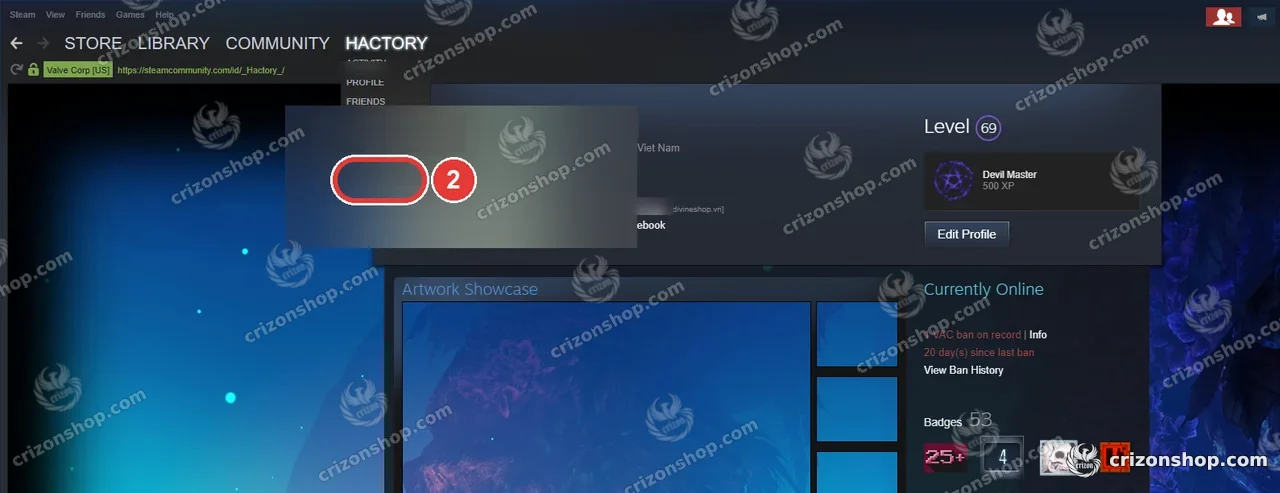
Select “Inventory” in the account menu. On the inventory page, click Trade Offers.
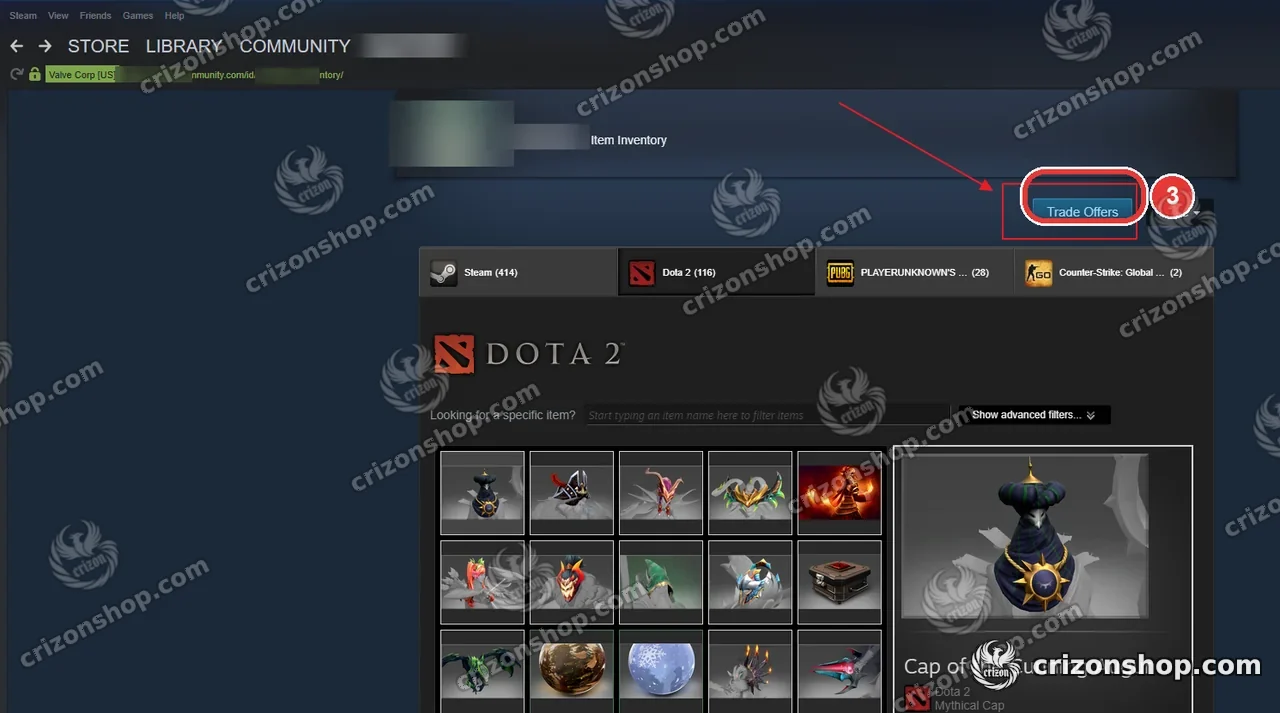
Click “Trade Offers” on the inventory page. In the right column of the Trade Offers page, click Who can send me Trade Offers?.
Scroll to the bottom of the page to the Trade URL box.
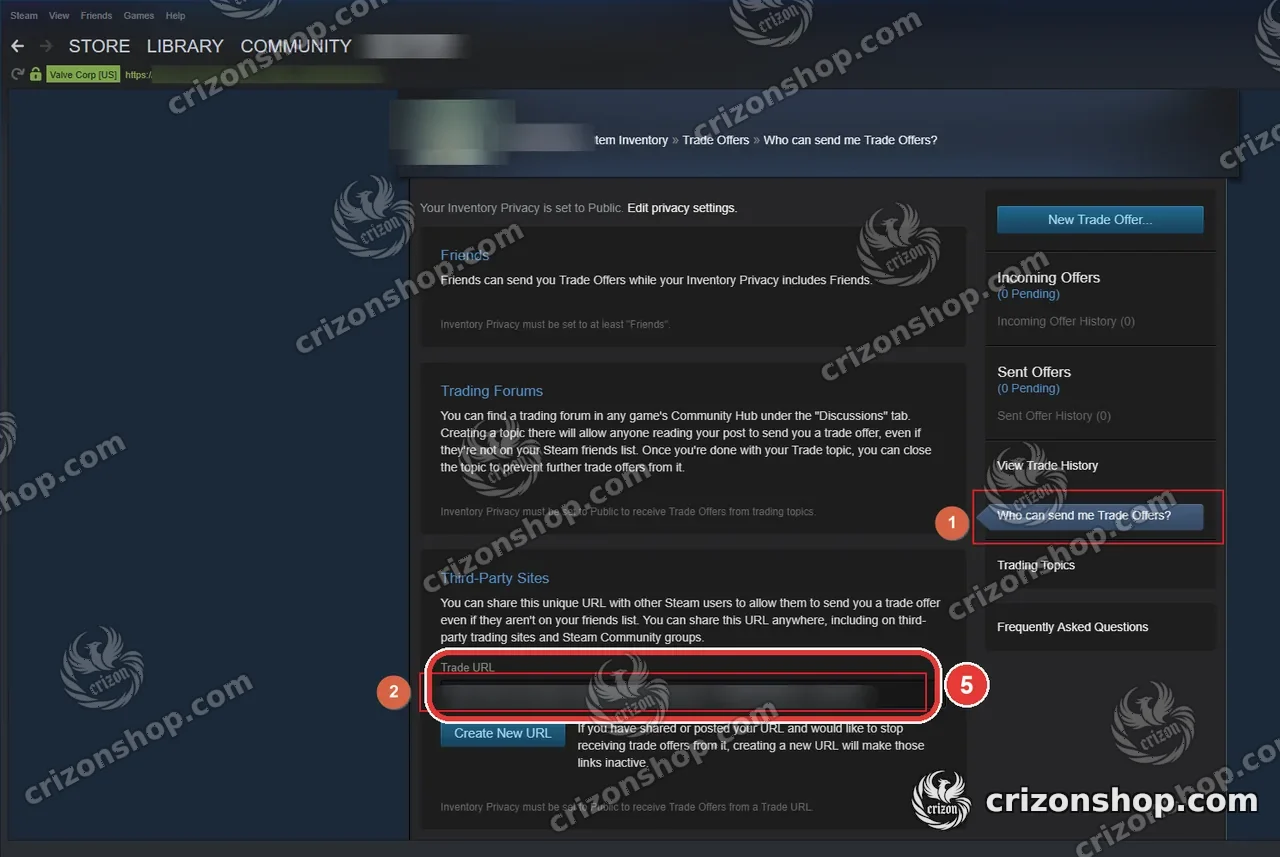
Find the “Trade URL” box at the bottom of the page. Copy the entire link in that box.
Sign in to Steam at steamcommunity.com.
Go straight to the Who can send me Trade Offers? page.
Scroll to the bottom of the page to the Trade URL box.
Copy the entire link in that box.
A valid link looks like the example below. The number and code after the equals signs are unique to your account.
https://steamcommunity.com/tradeoffer/new/?partner=123456789&token=AbCdEfGhSet your profile and inventory to Public
If your inventory is Private, people who open your link won't see any items to choose from. You only need to make two things public: your profile and your inventory. These steps follow Steam's Steam Profile Privacy guide.
Hover over your account name in the menu bar and select Profile.
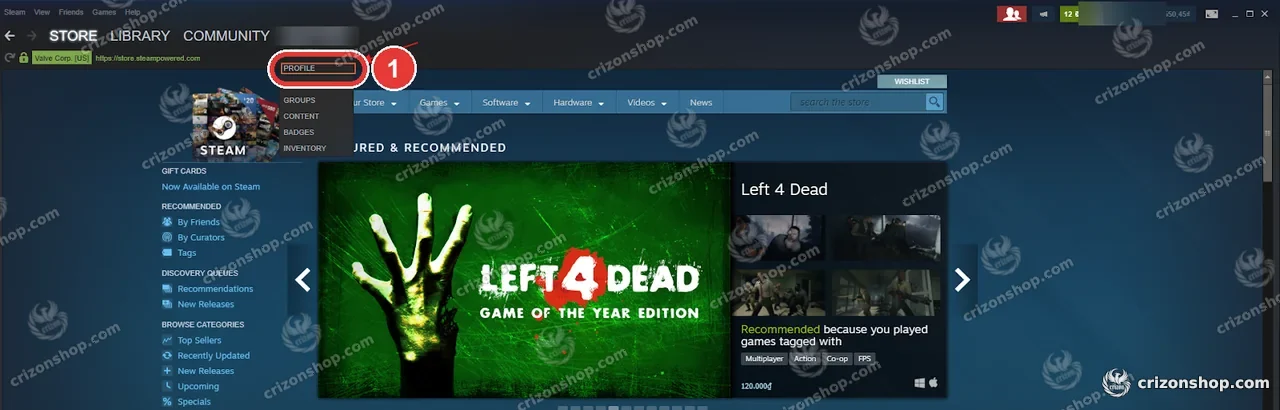
Select “PROFILE”. Click Edit Profile on the right side of your profile page.
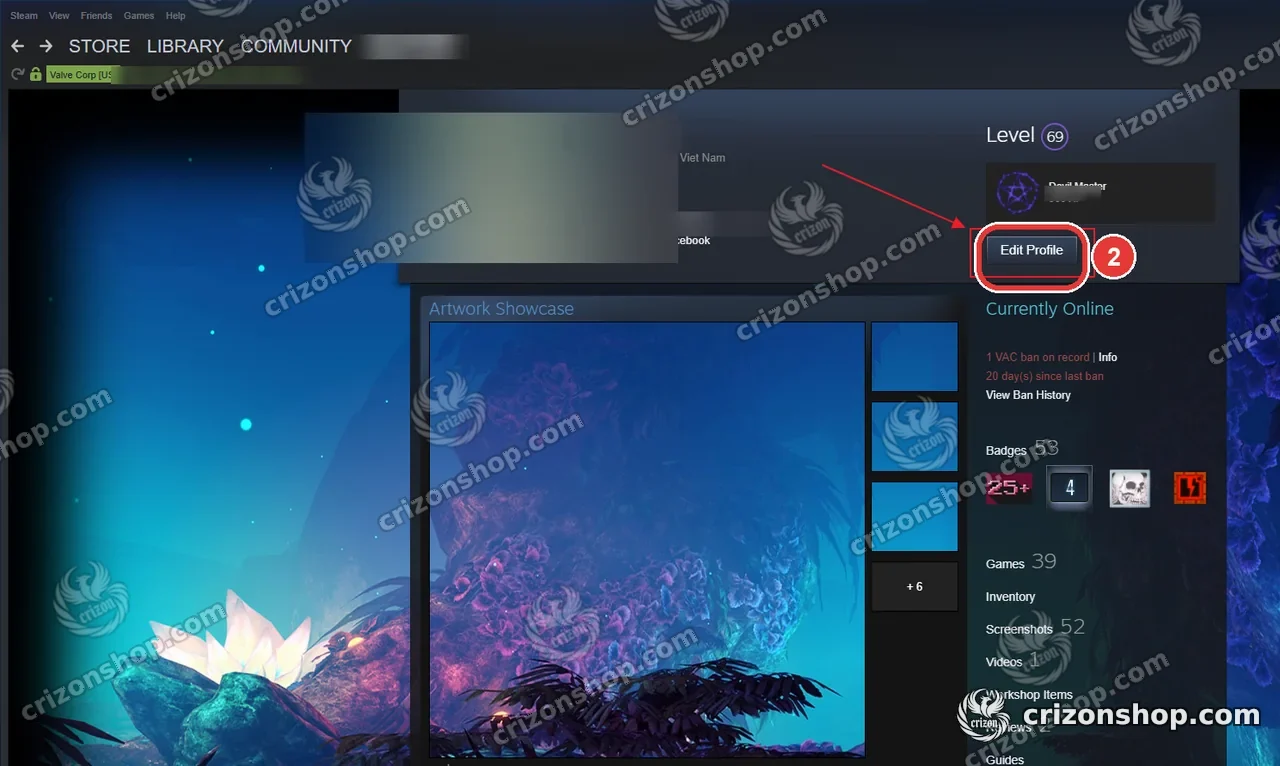
Click “Edit Profile” on the right side of the profile page. Select the Privacy Settings tab in the left column.
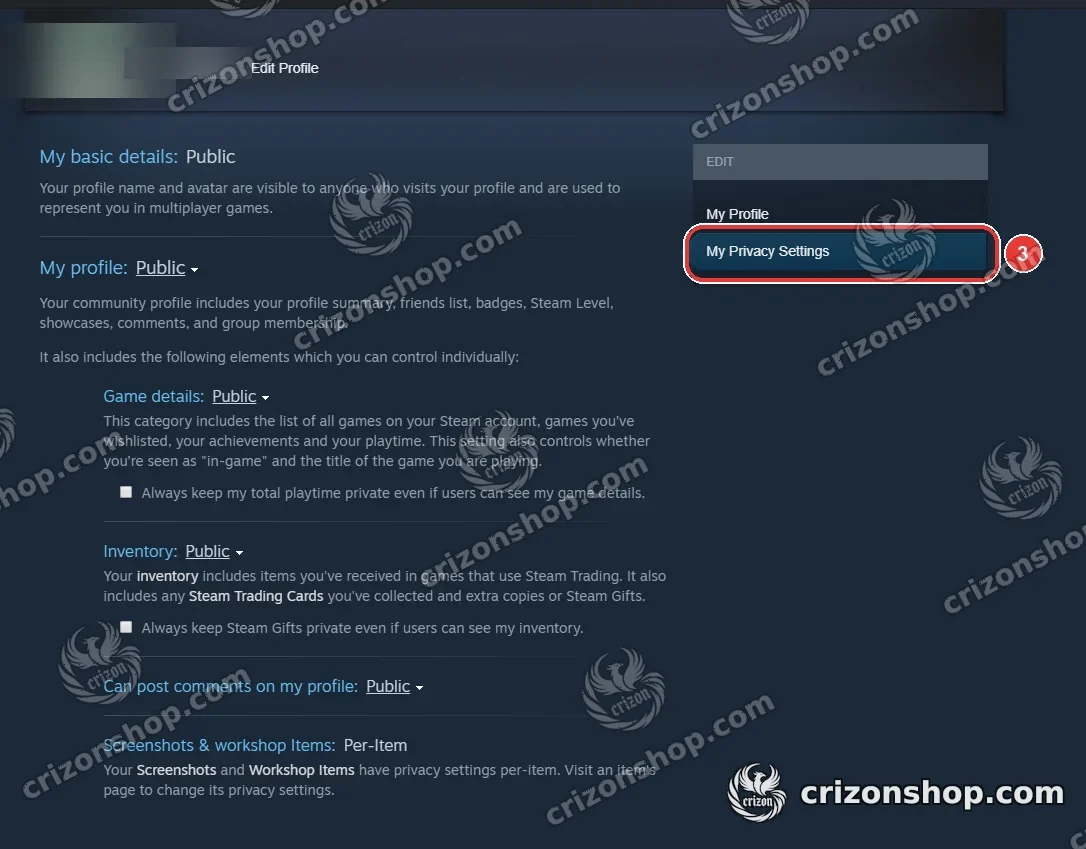
Click “My Privacy Settings”. In the My profile row, click the current setting and change it to Public.
In the Inventory row, change it to Public the same way.
Leave the page when you're done. Steam saves your changes right away, so there's no separate Save button.
Check before you send your link
Frequently asked questions
The link only lets others send you trade offers. They can't take your items on their own. Still, before you accept, check every item both sides are offering and only confirm offers you're expecting. Never sign in to Steam through an unfamiliar link someone sends you.
According to Steam Support, if your account hasn't been protected by Steam Guard Mobile Authenticator for at least the past 7 days, Steam holds items leaving your account for up to 15 days. Trades made in the first 7 days after you turn on the Authenticator can also be held this way.
Open the Privacy Settings tab again and make sure both My profile and Inventory are set to Public. A common mistake is changing only Inventory while the profile is still Private, which keeps the inventory hidden. After fixing it, ask the other person to reload your profile page or open your trade link again.
Go back to the Who can send me Trade Offers? page, scroll down to the Trade URL box, and click Create New URL. The old link will stop working. Just send the new link to the people you actually want to trade with.
Related guides
How to Recover Your Steam Account When You've Lost Access to Your EmailHow to Sign In to Steam and Get a Steam Guard CodeHow to Switch Between Multiple Steam Accounts on One ComputerStill need help?
Send your order code and we can sort it out faster.
