 Steam · Set up
How to Turn On Mature Content (18+ Games) on Steam
Open Store Preferences on your Steam account, find the Mature Content section, and tick the content types in the Store and Community columns. Steam saves right away, and filtered games show up again when you search.
Steam filters mature content based on each account's own settings. That's why some games never show up when you search, or only open after a warning page. This guide shows you how to turn those content types back on in Store Preferences on your Steam account.
Before you start
- You need to be signed in to your own Steam account. You can use the Steam desktop app or a web browser, because this setting is tied to your account, not your device.
- Button names in this guide match Steam's English interface. If your Steam is set to another language, the labels will be translated, but they stay in the same place.
Open the Store Preferences page
Open Steam and sign in to your account.
Click your account name in the top-right corner of the window.
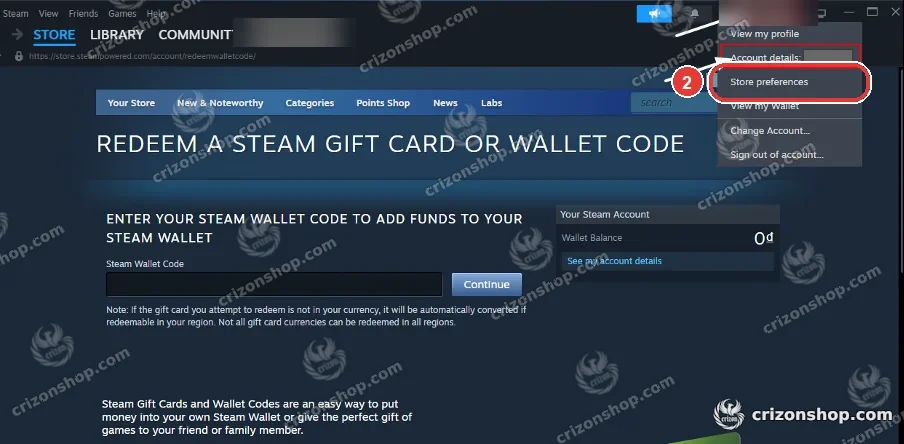
Click “Store preferences”. Choose Store Preferences from the menu that opens.
Go to store.steampowered.com and sign in.
Click your account name in the top-right corner of the page.
Choose Store Preferences.
Turn on mature content types
Scroll down to the Mature Content section (depending on the version, the heading may say Mature Content Filtering). Steam splits mature content into five types. Each type has one box in the Store column for the store and one box in the Community column for the community.
| Steam checkbox | Content type |
|---|---|
| General Mature Content | Adult themes in general, which may not suit all ages |
| Frequent Violence or Gore | Intense or frequent violence, including blood and gore |
| Some Nudity or Sexual Content | A small amount of nudity or sexual content |
| Frequent Nudity or Sexual Content | Frequent nudity or sexual content that is a core part of the game |
| Adult Only Sexual Content | Explicit sexual content, for adults only |
In the Store column, tick the content types you want to see in the store.
To find action games with lots of violence, tick at least General Mature Content and Frequent Violence or Gore.
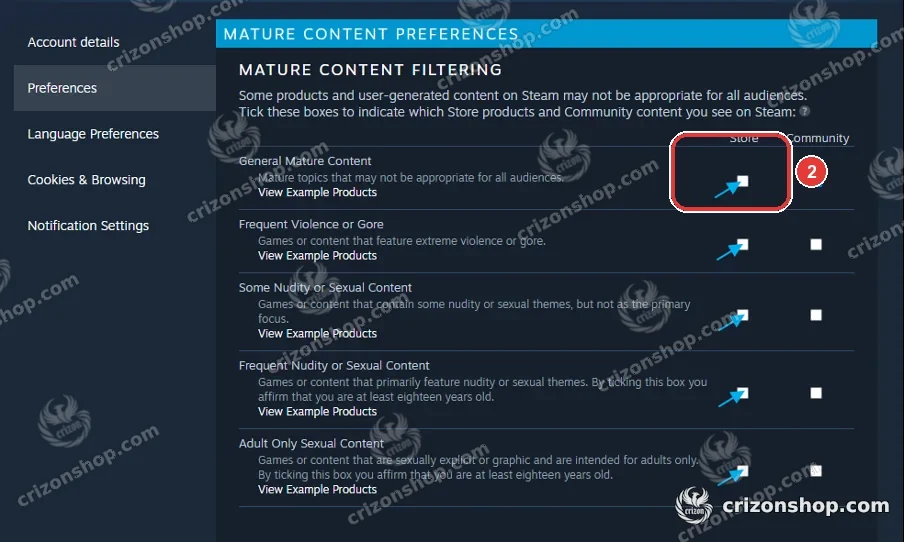
Tick “General Mature Content” and “Frequent Violence or Gore”. If you also want to see screenshots, videos, or posts with this content in the Steam Community, tick the matching boxes in the Community column.
Reload the page with F5 and check that the boxes are still ticked.
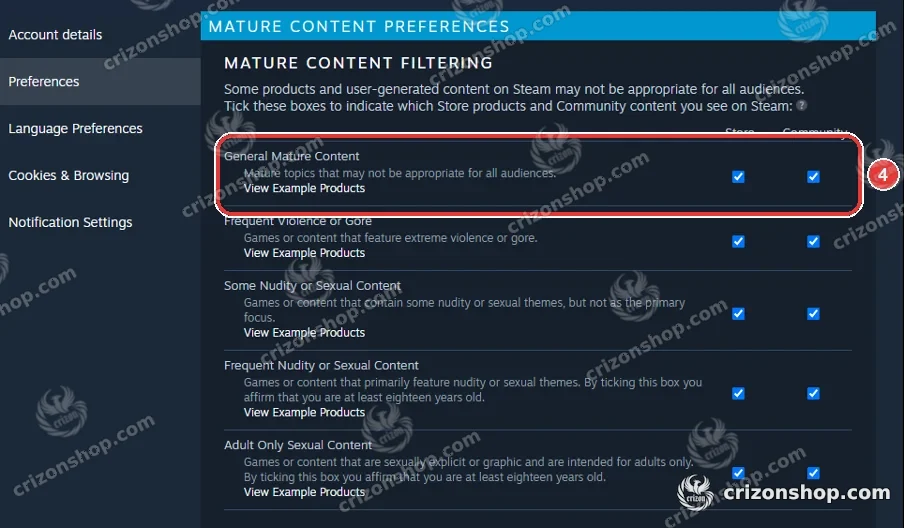
Press F5, then check that “General Mature Content” and “Frequent Violence or Gore” are still ticked.
Check the results in the store
Go back to the Steam store and search for the game you want to see. For games with content types you haven't turned on, Steam shows a warning page before taking you to the game's page, instead of opening it directly as usual.
Some games also ask for your date of birth before opening the page. This is an age check based on the game's rating and has nothing to do with the settings above. Just enter your real date of birth to continue.
Frequently asked questions
Reload the Store Preferences page to see whether the boxes are still ticked. If the ticks disappear after reloading, sign out, sign back in, and tick them again. If the boxes are set correctly but the game still doesn't appear, the publisher may not sell that game in your account's region. In that case, changing the content filter won't make the game show up.
The Store column controls which games appear in the store, in search results, and in recommendation lists. The Community column applies to content in the Steam Community, such as screenshots, videos, artwork, and other user-created content. You can turn on one and leave the other off, depending on what you need.
Yes. Open the Store Preferences page in your phone's browser and sign in. Some users find that the checkboxes don't load when the screen is in portrait mode. If that happens to you, turn your phone sideways and reload the page.
Related guides
How to Recover Your Steam Account When You've Lost Access to Your EmailHow to Sign In to Steam and Get a Steam Guard CodeHow to Switch Between Multiple Steam Accounts on One ComputerStill need help?
Send your order code and we can sort it out faster.
