 Steam · Activate
How to Activate a Steam Game Key (CD Key) on the Web and in the App
To activate a Steam game key, sign in and open the Activate a Product page on the web, or choose Games › Activate a Product on Steam in the app. Then paste your key and confirm.
When you buy a Steam game as a key (CD Key), you need to enter it on your Steam account. Only then will the game appear in your Library so you can download it. This guide covers two ways to enter the key: in a browser and in the Steam desktop app. It also shows how to fix common errors.
Before you enter the key
XXXXX-XXXXX-XXXXXHow to enter a Steam key
Both methods give the same result. If you don't already have the Steam app open, the browser method is faster. It also works on your phone.
Open the Steam sign-in page and sign in to your account.
If Steam asks for a Steam Guard code, enter the code sent to your email or shown in the Steam Mobile app.
Open the Activate a Product on Steam page.
Paste your key into the Product Code field.
Check the box to agree to the Steam Subscriber Agreement.
Click Continue.
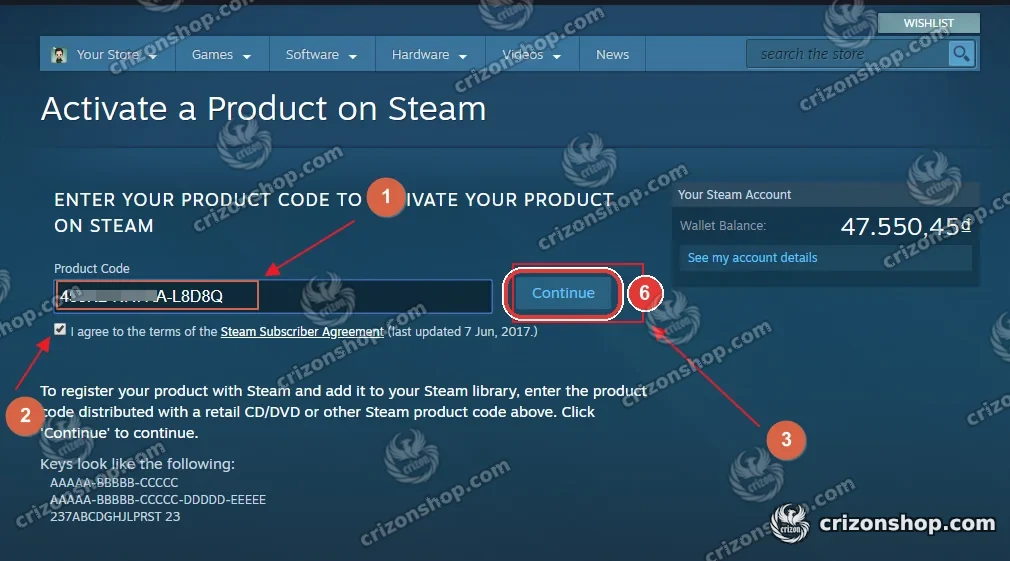
Click “Continue” to proceed. Wait for Steam to confirm the activation and show the game's name. The game is now in your Library.
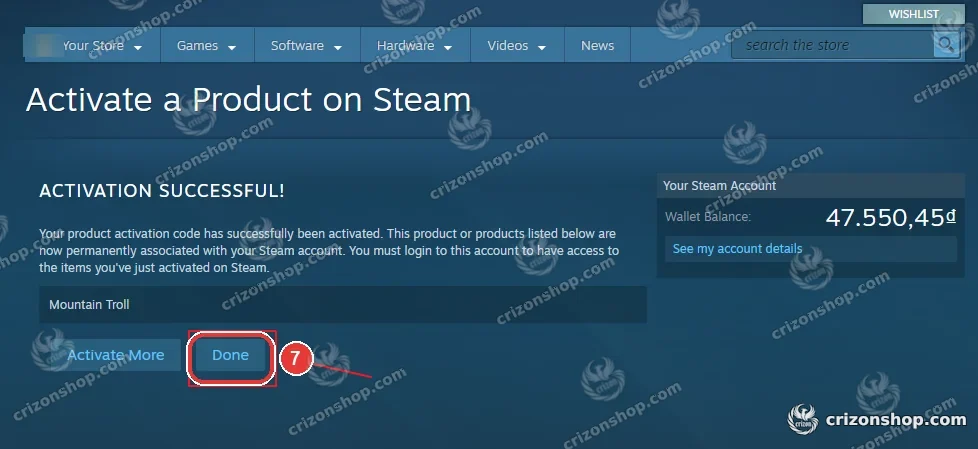
Click “Done” to finish.
Open the Steam app on your computer and sign in.
In the menu bar at the top, click Games, then choose Activate a Product on Steam....
Alternatively, click Add a Game in the bottom-left corner, then choose Activate a Product on Steam....
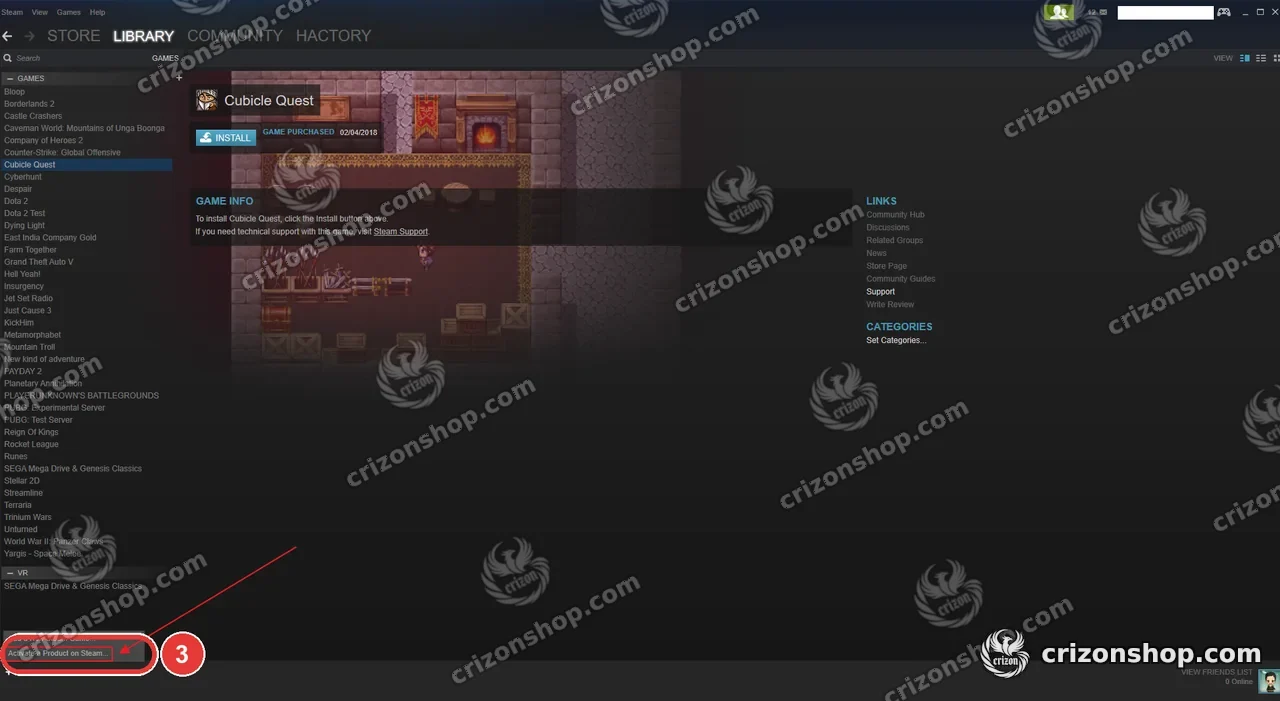
Click “Activate a Product on Steam...” (under Add a Game) to activate a product. In the window that opens, click Next, read the terms, then click I Agree.
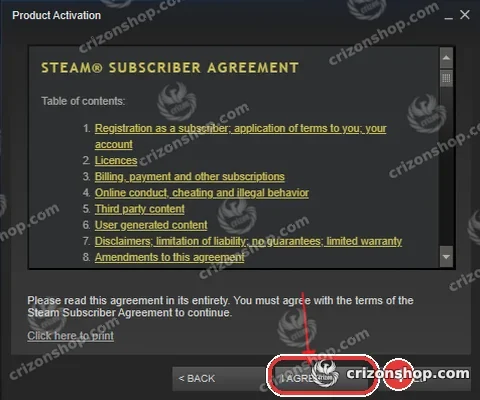
After “Next”, read the terms and click “I AGREE”. Paste your key into the Product Code field and click Next.
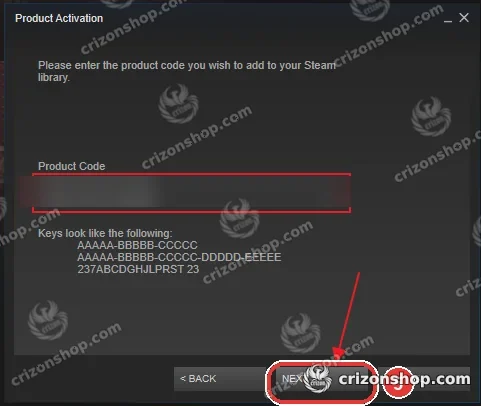
Paste the key into the Product Code field, then click “NEXT >”. When Steam confirms the activation, click Finish to close the window.
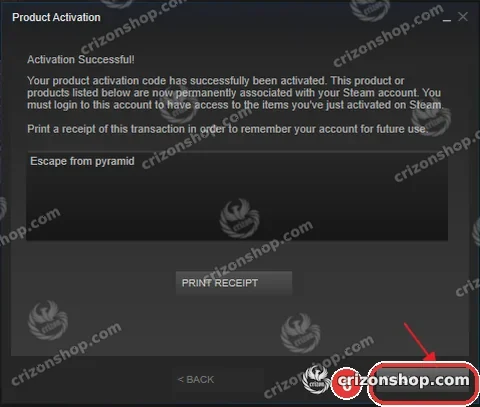
Click “FINISH” to close the window.
Download the game after activation
Once activated, the game belongs to your account, but it isn't on your computer yet. To install it:
Open the Steam app on your computer and sign in to the account you used to activate the key.
Click Library in the top bar.
Select the game you just activated from the list on the left.
Click Install, choose a drive with enough free space, then confirm to start the download.
Fixing key activation errors
If Steam doesn't accept your key, read the message carefully and compare it with the table below.
| Steam says | Common cause | What to do |
|---|---|---|
| Invalid Product Code | A typo, extra spaces, or the wrong code pasted | Copy the key again from the original source and paste it. Make sure there are no spaces at the start or end |
| Duplicate Product Code | The key has already been activated on another Steam account | Don't keep trying. Take a screenshot of the message and contact whoever sold you the key |
| Too many activation attempts | Steam has temporarily blocked key activation from your account or network | Stop, wait a while, then try again with a key you've double-checked |
| Product not available in your region | The key is region-locked and doesn't match your Steam account's country | Contact the seller to check the key's region |
| Requires ownership of another product | It's a DLC key, but your account doesn't own the base game | Buy or activate the base game first, then enter the DLC key again |
| Already Owned | Your account already owns this game | Check your Library. You don't need to enter the key |
FAQ
Yes. Open a browser on your phone, sign in to Steam, go to the Activate a Product on Steam page, and follow the browser steps above. The game will be waiting in your Library, and you can download it whenever you're on a computer.
No. The product activation page is for game and DLC keys. Wallet codes and Steam gift cards are redeemed on the Redeem a Steam Gift Card or Wallet Code page.
DLC doesn't show up as a separate entry in your game list. Open the base game's page in your Library to check whether the DLC has been added. If your account doesn't own the base game, Steam won't let you activate the DLC key.
For keys bought outside the Steam store, the seller who sold you the key is the one to check with. Send them a screenshot of the error and the time you entered the key. Don't keep retrying, because Steam may temporarily block key activation on your account.
Related guides
How to Recover Your Steam Account When You've Lost Access to Your EmailHow to Sign In to Steam and Get a Steam Guard CodeHow to Switch Between Multiple Steam Accounts on One ComputerStill need help?
Send your order code and we can sort it out faster.
