 Steam · Set up
How to Show Mature (Adult Content) Games on Steam
Open Steam's Store preferences page and tick the mature content types in the Store column. Tick the Community column too if you need it. Violent and 18+ games will then show up again when you search the store.
Depending on each account's content settings, Steam can hide games with violence, gore or sexual content, or show a warning before them. This guide shows you how to open those settings and choose what you want to see. Games like GTA V or Red Dead Redemption 2 will then show up again when you search the store.
Before you start
- Sign in to the Steam account you want to change. This setting is saved to your account, so you only need to change it once. It applies in both your browser and the Steam app.
- Mature content options are for people aged 18 and over. If you share your computer with young children, think carefully before turning them on.
- This guide uses Steam's English button names. If your Steam is set to another language, look for the option with the same meaning in the same place.
Open Store preferences
Open the Steam app and sign in.
Click your account name in the top-right corner of the window.
Select Store preferences from the menu that appears.
Sign in to your Steam account in your browser.
Go straight to Steam's Store preferences page.
On a computer, you can also click your account name in the top-right corner of store.steampowered.com and select Store preferences.
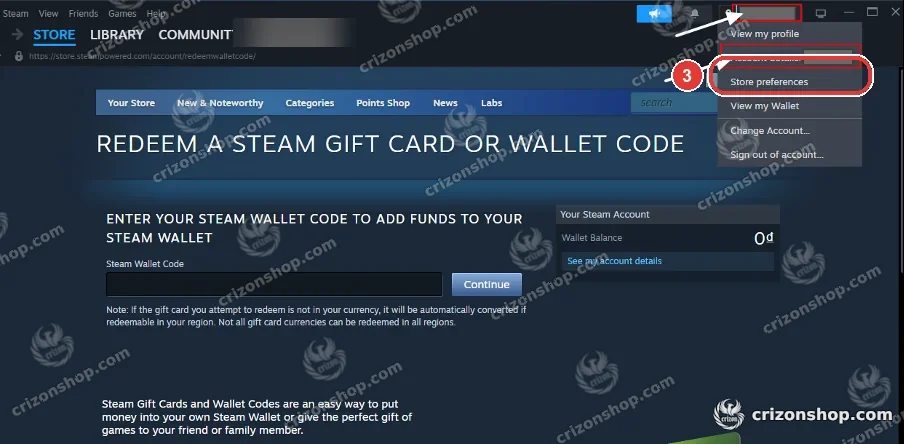
Click “Store preferences”.
Choose what content to show
The Store preferences page has a section for adult content with Mature Content in its heading. Each content type has two checkboxes. The Store column controls whether games appear in the store and in search results. The Community column covers content that players post in the Steam Community, such as screenshots, artwork and guides.
| Steam option | What it means |
|---|---|
| General Mature Content | Games meant for adults in general, with themes that aren't suitable for all ages |
| Frequent Violence or Gore | Violence or gore that appears often |
| Some Nudity or Sexual Content | A small amount of nudity or sexual content |
| Frequent Nudity or Sexual Content | Nudity or sexual scenes that come up many times in the game |
| Adult Only Sexual Content | Sexual content for adults only. It stays hidden unless you turn it on yourself |
Scroll down to the Mature Content section on the Store preferences page.
In the Store column, tick the content types you want to see in the store.
To see violent games like GTA V, tick at least General Mature Content and Frequent Violence or Gore.
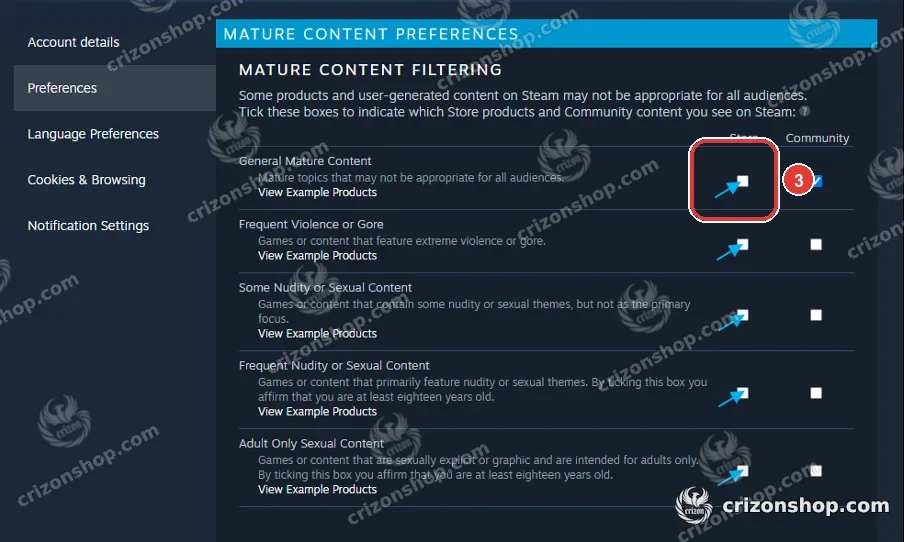
Tick the Store box for “General Mature Content” and “Frequent Violence or Gore”. To also see screenshots and posts with similar content in the Community, tick the same options in the Community column.
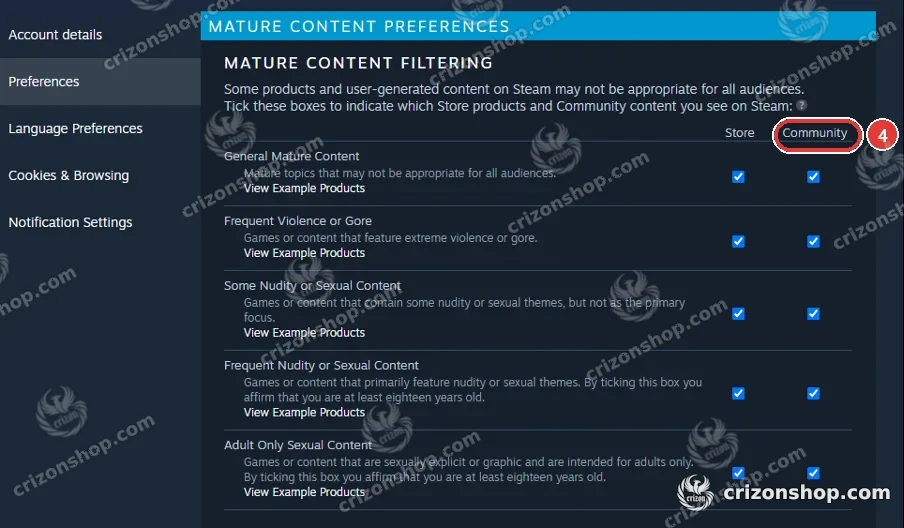
Tick the options you want in the “Community” column. If there's a save button at the bottom of this section, click it.
Go back to the store and search for your game again.
FAQ
Try reloading the store page, or quit Steam completely and open it again. Also check that you're signed in to the same account you just changed. If the game still doesn't show up, it may not be sold in your account's region, or it may no longer be for sale. In that case, content settings can't make it appear.
Some games with mature content have their own age check. It has nothing to do with the boxes you just ticked. Select your date of birth and confirm to open the game's page. Your Store preferences only decide whether a game shows up in the store or stays hidden.
Yes. The settings are tied to your Steam account, not your device. You'll see the same results when you sign in to that account in the app or on another computer. If the app doesn't update right away, restart Steam.
Open the Store preferences page again. Untick the options you don't want to see in both the Store and Community columns. Games and posts in those categories will stop showing up when you browse Steam with this account.
Related guides
How to Recover Your Steam Account When You've Lost Access to Your EmailHow to Sign In to Steam and Get a Steam Guard CodeHow to Switch Between Multiple Steam Accounts on One ComputerStill need help?
Send your order code and we can sort it out faster.
