 Steam · Activate
How to Enable Steam Guard Mobile and Get Steam Backup Codes
Install the Steam Mobile app, open the Steam Guard tab and tap Add Authenticator to secure your account. Then go to Account details › Manage Steam Guard › Get Backup Codes to create your backup codes.
This guide shows you how to turn on Steam Guard Mobile Authenticator in the Steam app on your phone. You'll then create a set of backup codes so you can still sign in when your phone isn't with you. If your account already uses the mobile authenticator, skip straight to the backup code section.
What you'll need
- An iPhone or Android phone that can run the Steam Mobile app.
- Your Steam username and password.
- Access to the email address registered with Steam, in case Steam sends you a confirmation email.
- A phone number you currently use for text messages. It's optional, but recommended.
- A notebook or another safe place to write down your recovery code and backup codes.
Turn on Steam Guard Mobile Authenticator
Install the app and sign in
On your phone, open the Steam Mobile app page and download the iOS or Android version.
Open the app and sign in with your Steam account.
Add the authenticator
Tap the shield icon in the bottom bar to open the Steam Guard tab.
Tap Add Authenticator.
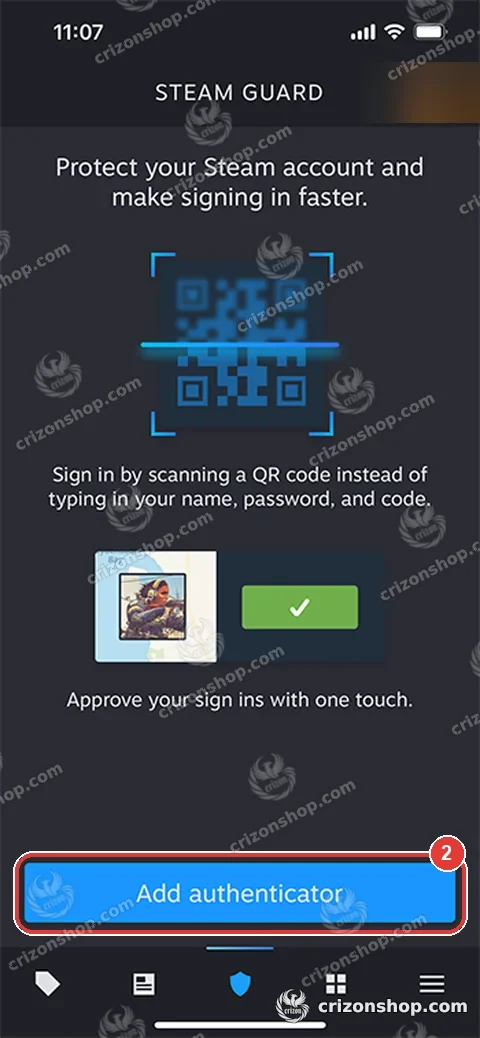
Tap “Add authenticator”. If your account doesn't have a phone number yet, Steam will ask you to add one. Choose your country code (+84 for a Vietnamese number) and enter your number.
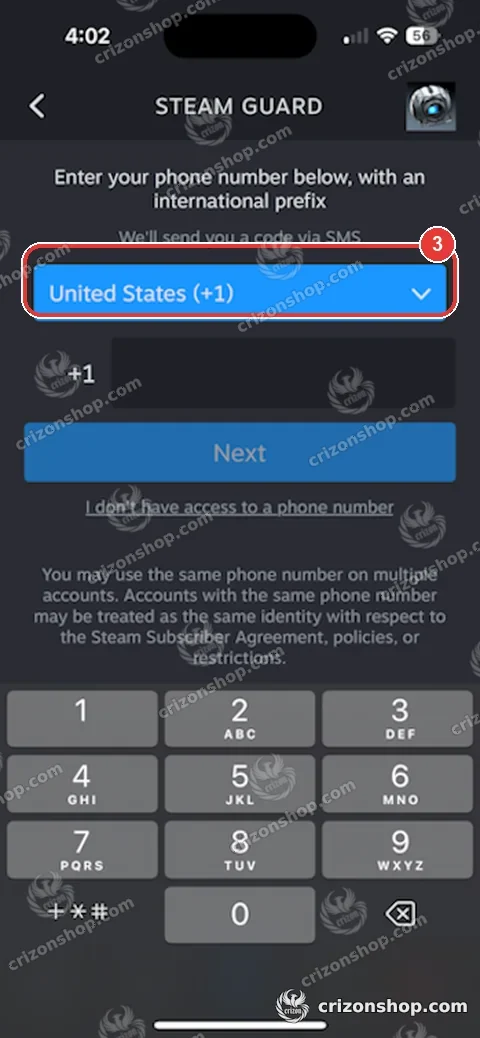
Tap “United States (+1)” to choose your country code, such as +84. Enter the confirmation code Steam sends you by text. If the message hasn't arrived, tap the resend link at the bottom of the screen.
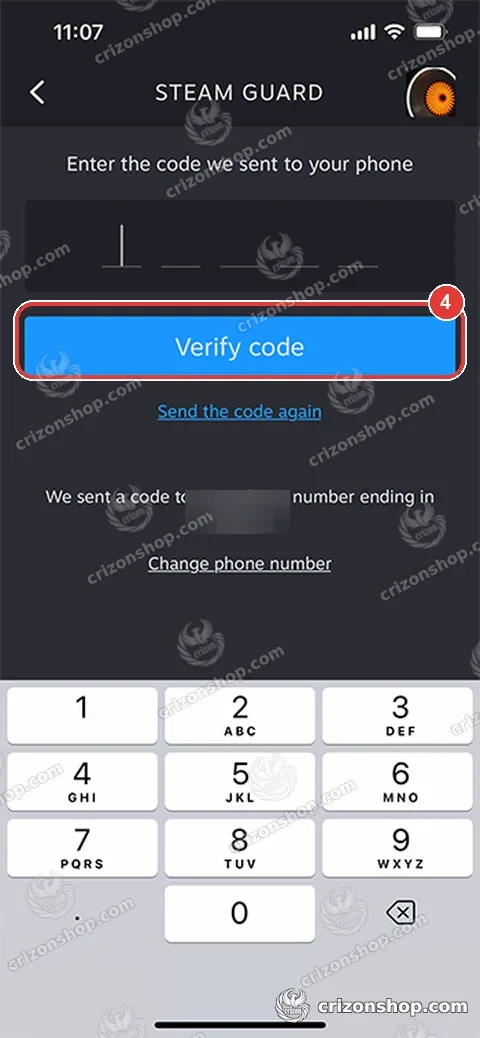
Enter the confirmation code and tap “Verify code”. If it hasn't arrived, use the link below to resend it. When the screen shows your recovery code (the letter R followed by 5 digits), write it down on paper or save it somewhere safe.
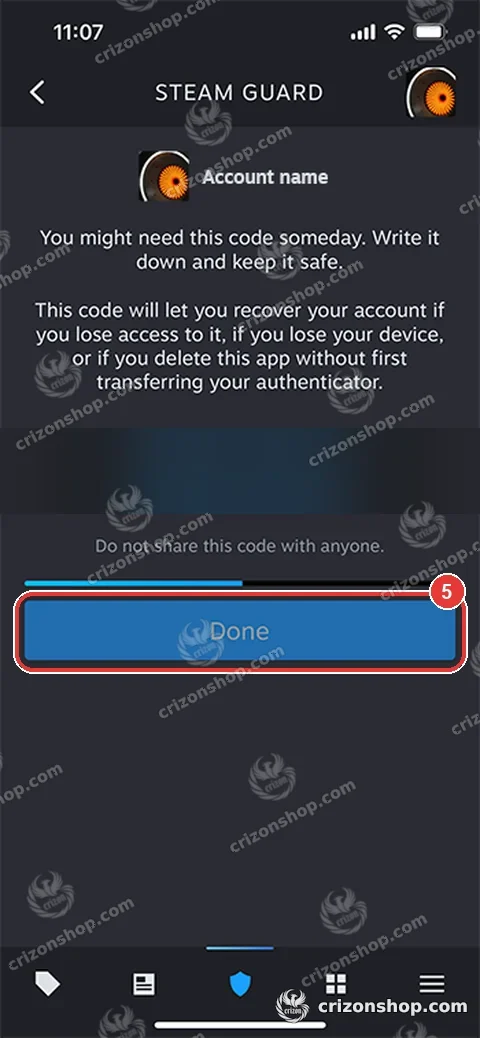
Copy your recovery code somewhere safe, then tap “Done”. Tap Done to finish.
From now on, the Steam Guard tab in the app shows a short code that changes about every 30 seconds. Steam asks for this code when you sign in on a new device, change your password or create backup codes. In the current version of the app, you can also approve a sign-in with a single tap or by scanning a QR code instead of typing the code.
Create your backup codes
Do this part on a computer, either in the Steam app or in a web browser.
Sign in to Steam on your computer or go to store.steampowered.com.
Click your account name in the top-right corner and choose Account details.
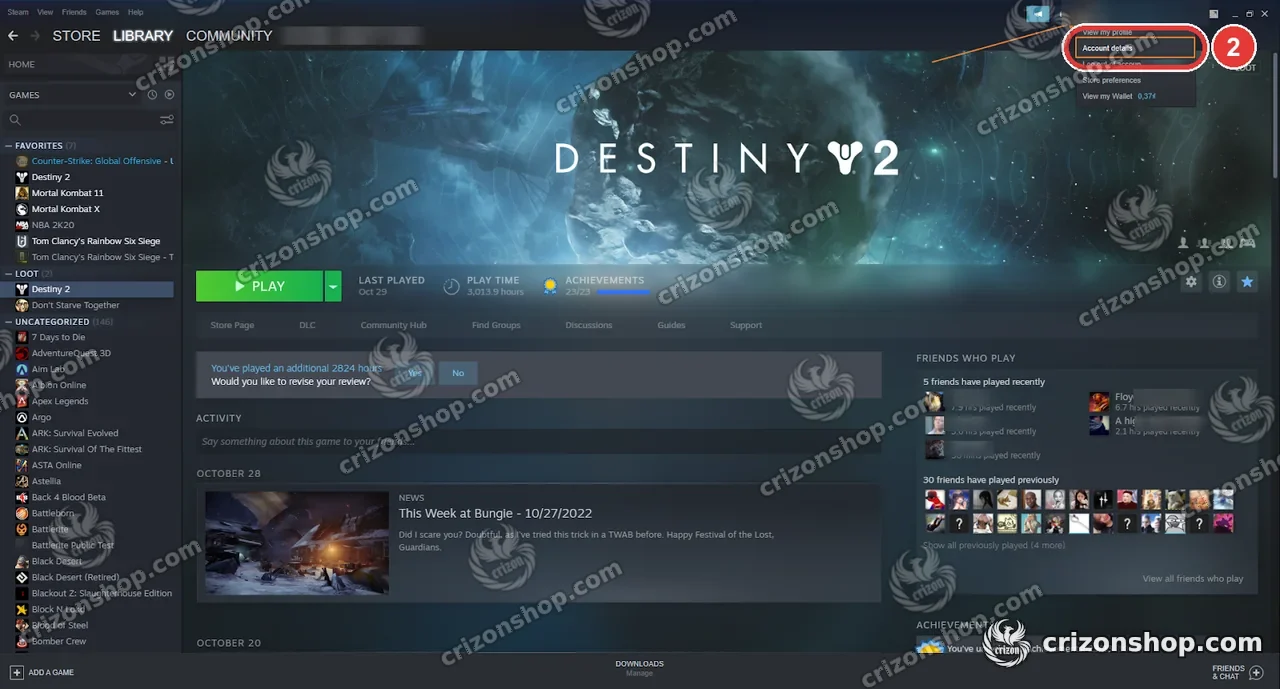
Click “Account details”. In the account security section, choose Manage Steam Guard.
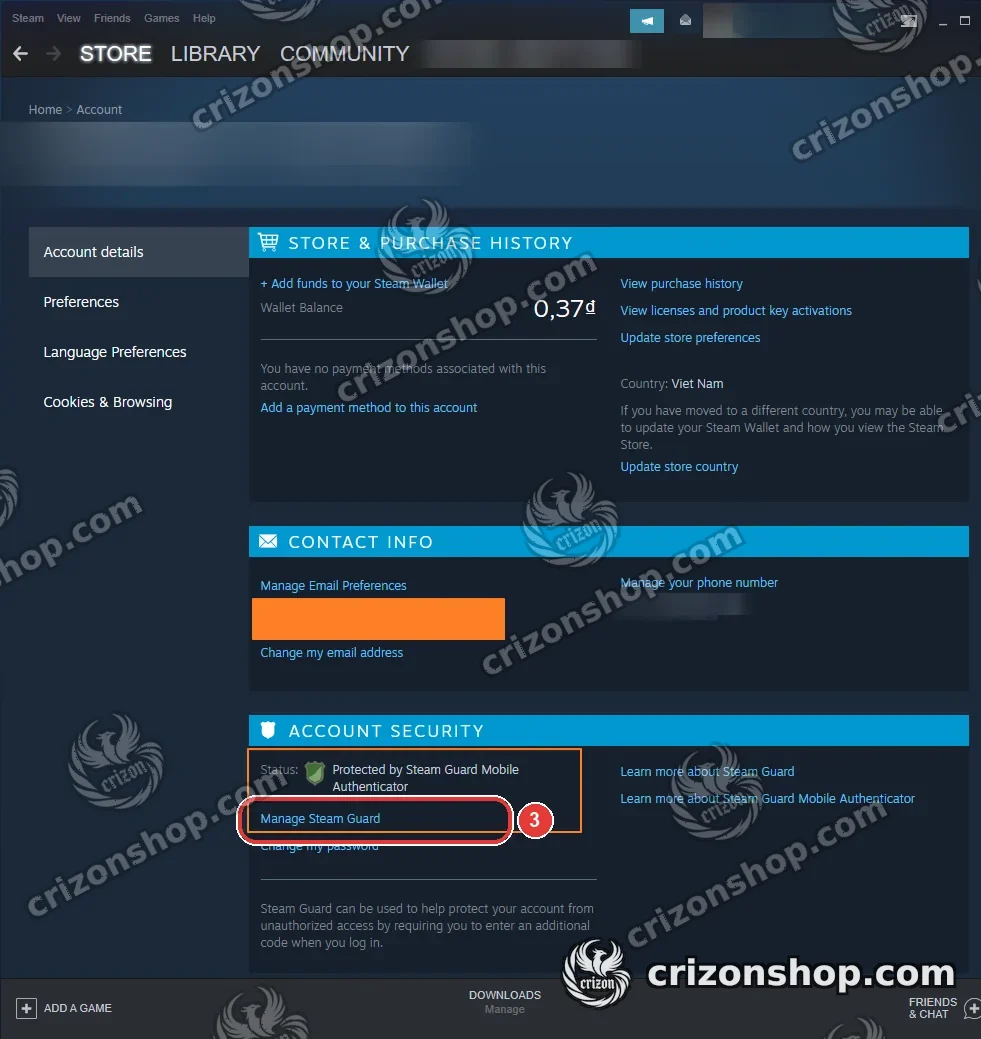
Click “Manage Steam Guard”. Click Get Backup Codes.
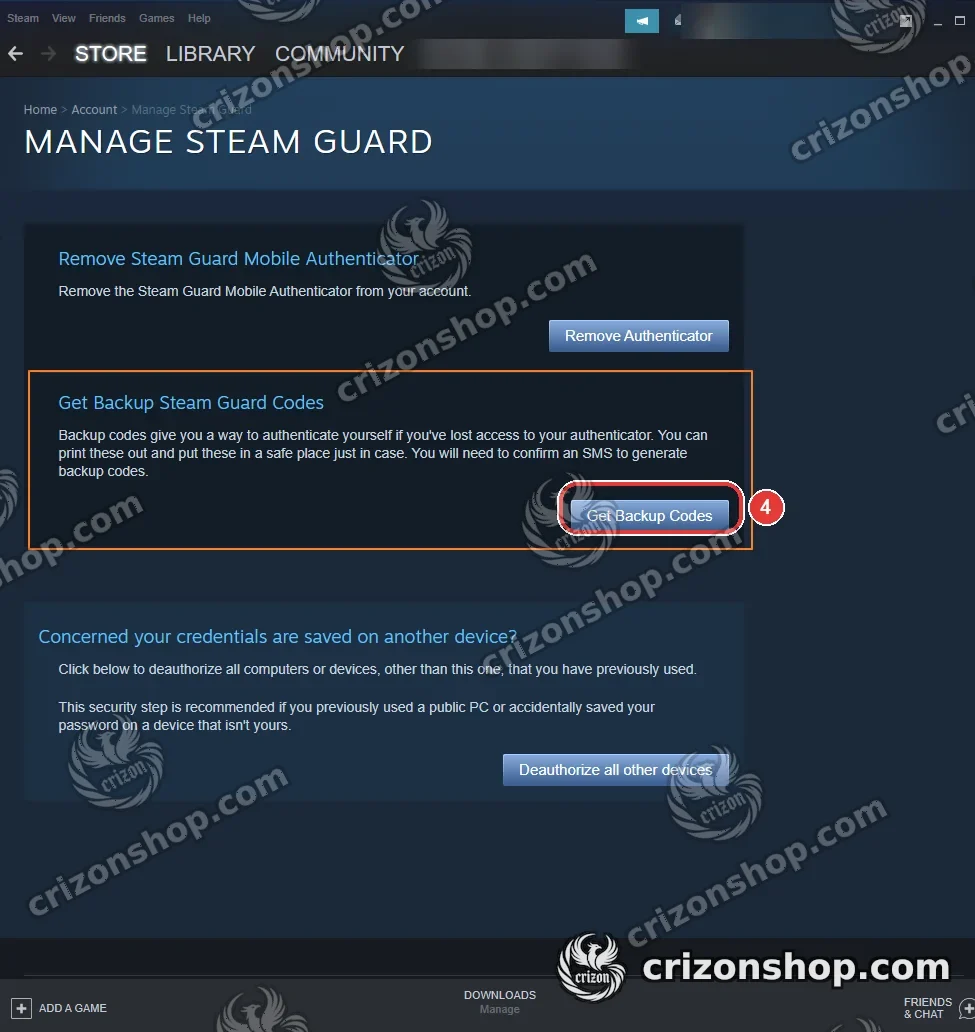
Click “Get Backup Codes” (Get Backup Steam Guard Codes). Enter the confirmation code Steam sends to the phone number linked to your account.
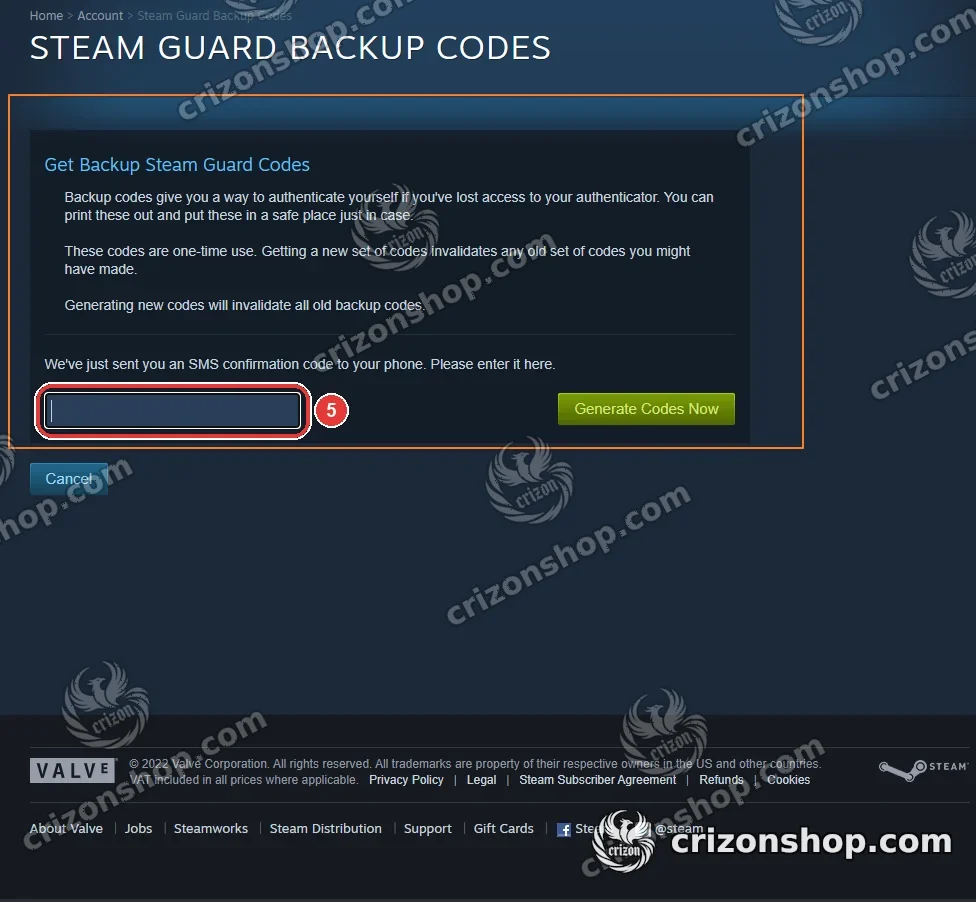
Enter the confirmation code in the box under “Please enter it here.” Click Generate Code Now to see your codes.
Print the codes or write them down, and keep them somewhere safe.
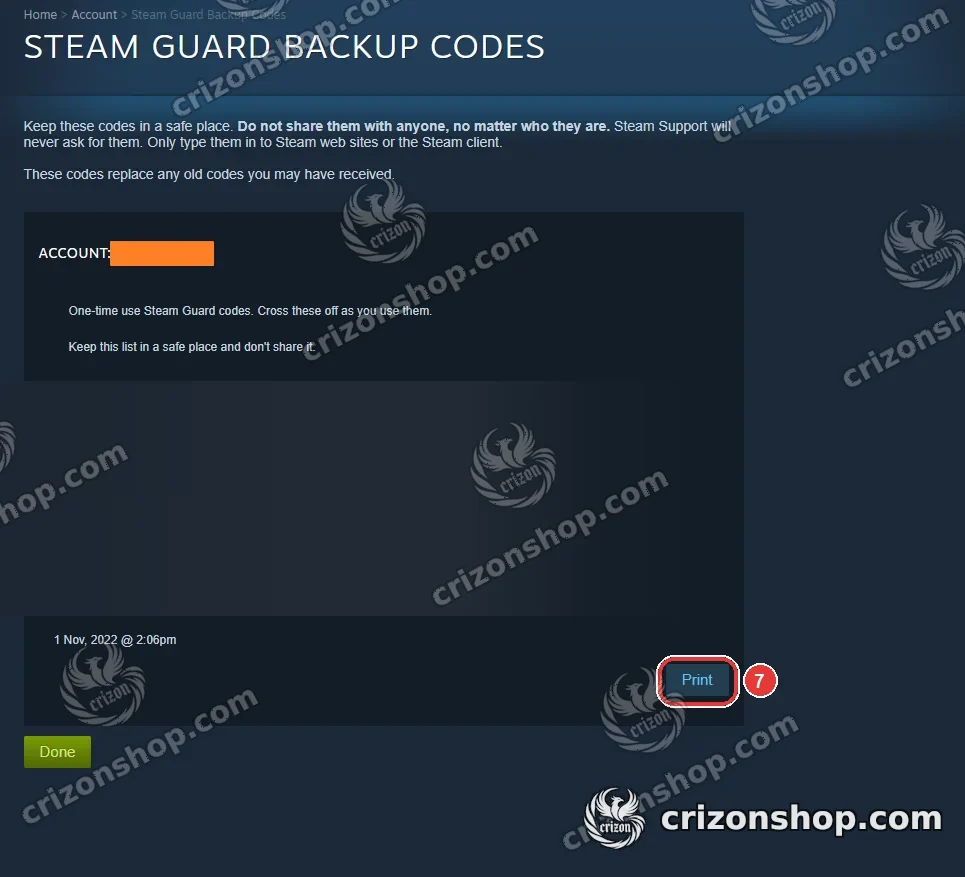
Click “Print” to print the codes, then keep them somewhere safe.
Use a backup code to sign in
When you sign in to Steam on a new device without your phone, enter one of your backup codes where Steam asks for your Steam Guard code. If the sign-in page offers an option to use a backup code, choose it first, then enter the code. Cross off each code once you've used it so you don't mix them up next time.
Frequently asked questions
The recovery code is a single code that starts with the letter R. You use it to remove Steam Guard Mobile Authenticator from your account if you lose or replace your phone. Backup codes are a set of one-time codes you can use to sign in instead of the code in the app. Keep both of them safe.
This usually means your account doesn't have Steam Guard Mobile Authenticator turned on yet and still gets codes by email. Turn on the authenticator in the Steam app using the steps above, then go back to the Manage Steam Guard page.
Check that you entered the right country code (+84 for Vietnam) and phone number. Wait a few minutes, then tap resend. Texts can arrive late, depending on your carrier. If nothing arrives after a few hours, contact Steam Support.
Go to Manage Steam Guard and generate a new set of codes. The old set stops working, so the other person can't use those codes anymore. If you think they also know your password, change your Steam password as well.
Related guides
How to Recover Your Steam Account When You've Lost Access to Your EmailHow to Sign In to Steam and Get a Steam Guard CodeHow to Switch Between Multiple Steam Accounts on One ComputerStill need help?
Send your order code and we can sort it out faster.
