 Steam · Activate
How to Redeem a Steam Wallet Code and Buy Games on Steam
Sign in to Steam and open Redeem a Steam Wallet Code to add the funds to your wallet. Then add a game to your cart, choose to buy it for yourself and pay with your Steam Wallet balance.
This guide shows you how to redeem a Steam Wallet code to your Steam account's wallet. Then you'll use that balance to buy games on the Steam store. You do every step on your own Steam account.
What you need
Step 1. Redeem the code to your Steam Wallet
Pick the method that fits your device. Both methods give the same result.
Open the Steam app and sign in to the account you want to add funds to.
In the menu bar at the very top, click Games.
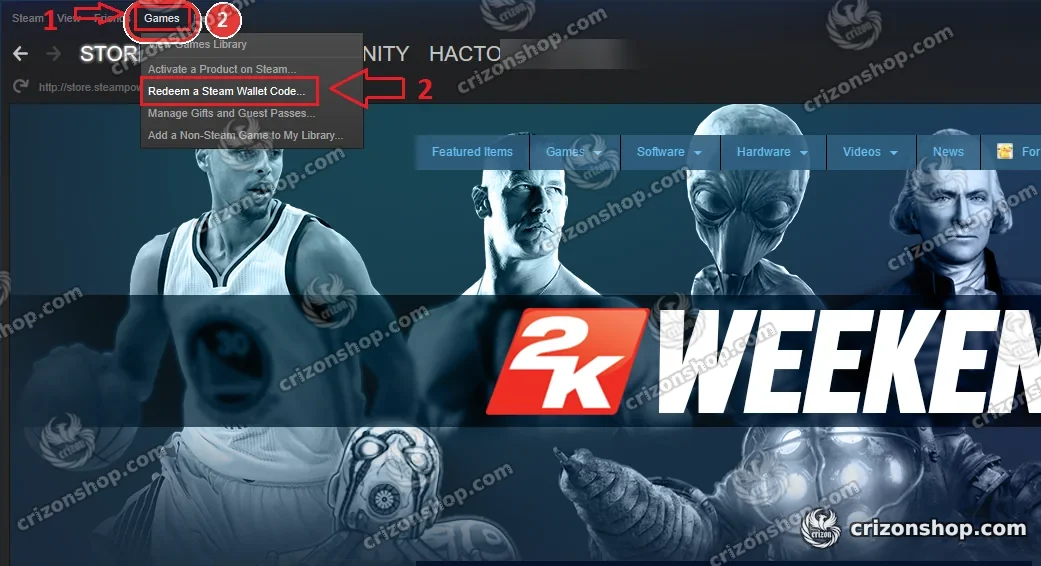
Click “Games” in the top menu bar. Select Redeem a Steam Wallet Code....
Paste the code into the Steam Wallet Code box.
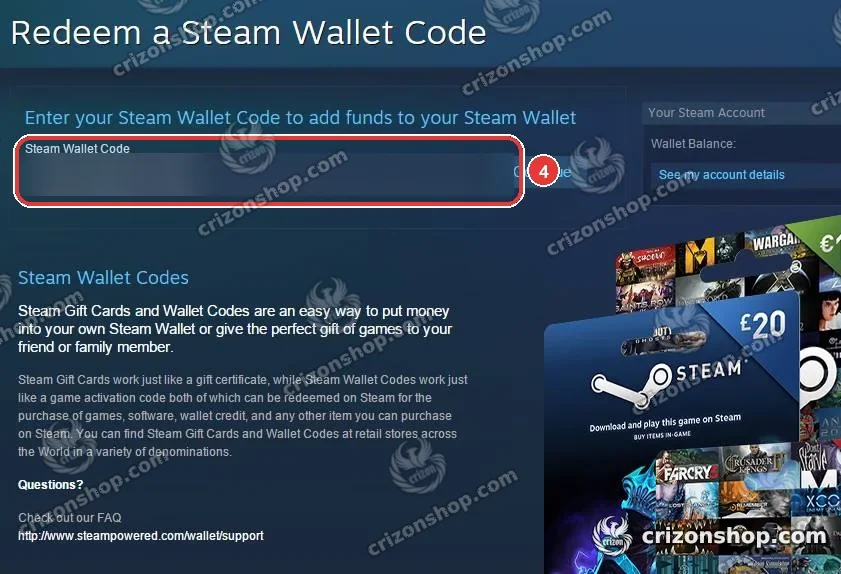
Paste the code into the “Steam Wallet Code” box. Click Continue and wait for Steam to confirm that the code was redeemed.
Open Steam's Redeem a Steam Gift Card or Wallet Code page.
Sign in to your Steam account if the page asks you to.
Paste the code into the Steam Wallet Code box.
Click Continue and wait for Steam to confirm that the code was redeemed.
After you redeem the code, your wallet balance shows next to your account name at the top of the Steam store. You can use this balance like a gift certificate to buy games, software and other items on the Steam store. Any money left after a purchase stays in your wallet for next time.
Step 2. Buy a game with your wallet balance
Before you buy, compare the game's price with your wallet balance. If your balance is too low, redeem another code first, then follow the steps below.
Go to the Steam store and search for the game by name.
Open the game's page and check the price and system requirements.
Click Add to Cart to add the game to your cart.
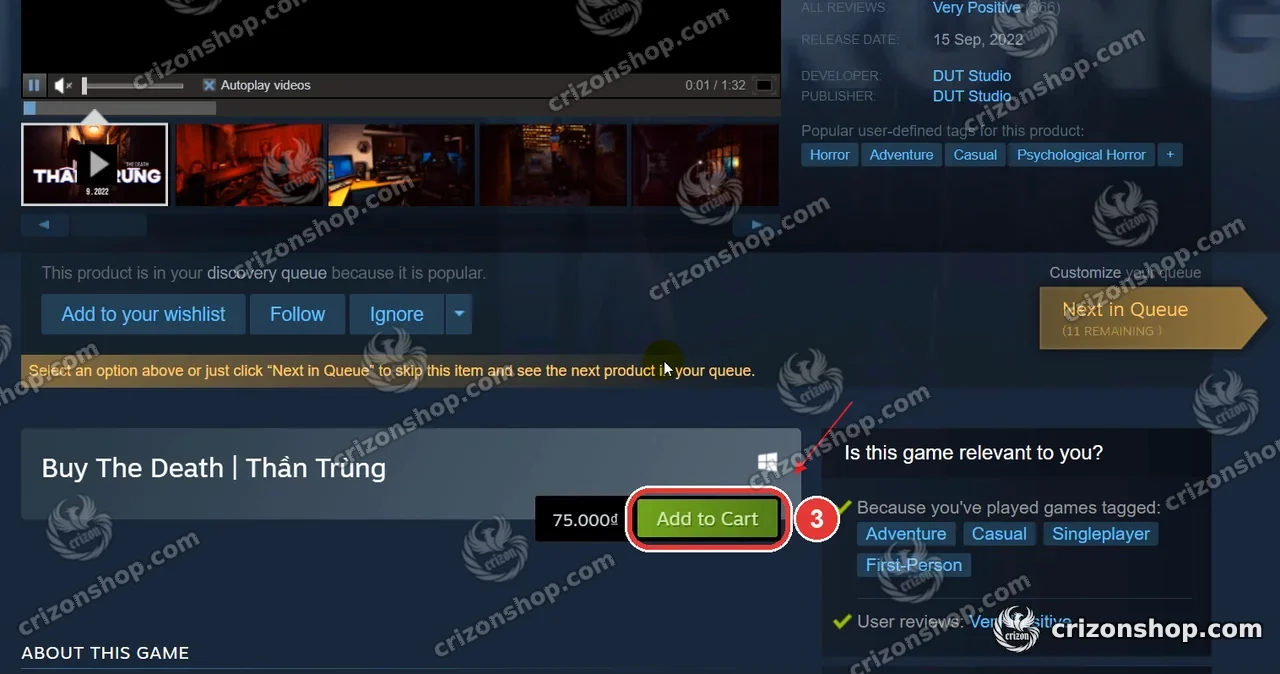
Click “Add to Cart” to add the game to your cart. Open your cart and choose to buy the game for your own account, not as a gift.
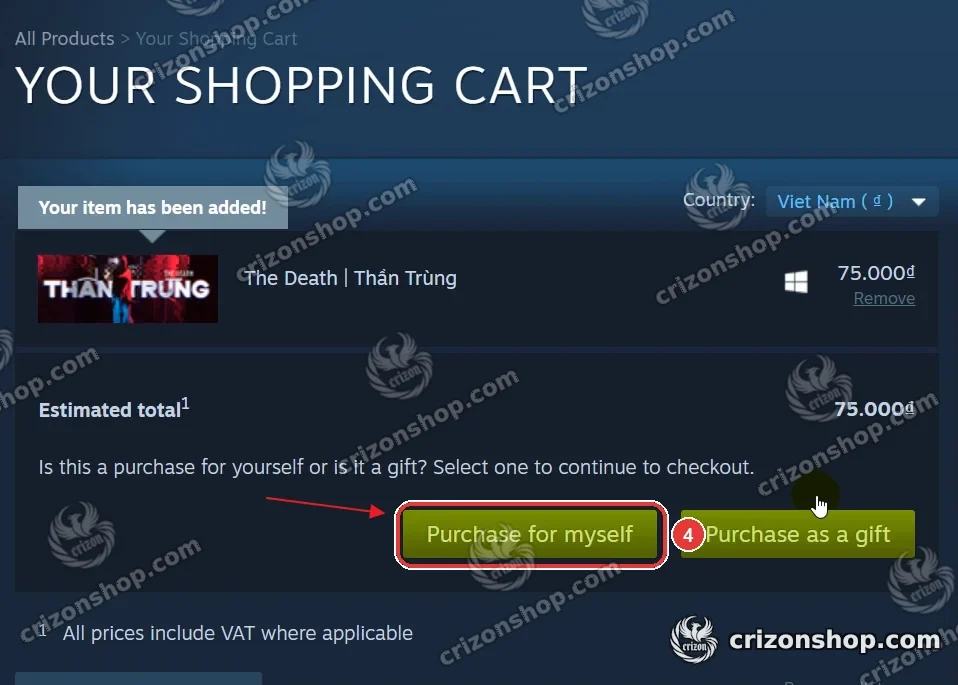
Click “Purchase for myself” to buy the game for your account. Click the continue button to go to checkout.
If Steam asks for a payment method, choose Steam Wallet.
Check the box to agree to the terms, then click Purchase.
Step 3. Download the game
When Steam confirms your purchase, the game is in your account's library. Open the Steam app on your computer, go to Library, select the game and click Install to download it. When the download finishes, the button changes to Play and you can start playing.
If the code won't redeem
- Check that you pasted the whole code, with no extra spaces at the start or end.
- If the code is printed directly on a receipt, Steam says it can't help with this. You need to contact the seller of the code.
- If the code on the card is scratched or faded and you can't read it, send a request to Steam Support. Include a clear photo of the whole back of the card and the receipt for the card.
- For any other questions about redeeming codes, contact Steam Support too so they can look into it.
Frequently asked questions
Steam converts the code's value to your wallet's currency when you redeem it. If the code's value is in a different currency, your balance shows the converted amount, so it may be slightly different.
No. The rest of the money stays in your account's Steam Wallet. You can keep using it to buy games, software or other items on the Steam store.
Yes. Open Steam's code redemption page in a browser on your computer or phone, sign in and enter the code as usual. You still need the Steam app on a computer to download and play games.
Contact Steam Support and include a clear photo of the whole back of the card and the receipt for the card so Steam can check it. If the code is printed on a receipt, contact the seller instead, because Steam doesn't support that type of code.
Related guides
How to Recover Your Steam Account When You've Lost Access to Your EmailHow to Sign In to Steam and Get a Steam Guard CodeHow to Switch Between Multiple Steam Accounts on One ComputerStill need help?
Send your order code and we can sort it out faster.
