 Steam · Sign in
How to Sign In to Steam and Get a Steam Guard Code
When you sign in to Steam on an unfamiliar device, you need a Steam Guard code sent by email or shown in the Steam Mobile app. This guide covers each way to sign in and what to do if the code never arrives.
This guide shows you how to sign in to Steam with your own account, get a Steam Guard code when Steam asks for one, and what to do if the code never shows up. The steps below follow Steam's official support site.
When Steam asks for a Steam Guard code
Steam Guard adds an extra layer of protection to your Steam account. When it's turned on, Steam asks for a special code every time you sign in on a device it doesn't recognize, such as a new computer or a PC at an internet café. Where you get the code depends on how you've set up Steam Guard.
| How you use Steam Guard | Where to find the code |
|---|---|
| Codes by email | The inbox of the email address linked to your Steam account |
| Steam Mobile app | The Steam Guard tab in the Steam app on your phone |
Sign in with a QR code from the Steam Mobile app
This is the fastest way if you've set up Steam Guard in the Steam Mobile app. You don't need to type your account name, password or any code on your computer.
Open the Steam app on your computer, or the sign-in page on store.steampowered.com.
Find the QR code on the sign-in panel.
On your phone, open the Steam Mobile app, already signed in to your account.
Go to the Steam Guard tab and choose the option to scan a QR code.
Point the camera at the QR code on your computer screen.
Check the sign-in details the app shows, including a map and the approximate location of the device.
If it's really you signing in, approve it. If not, deny it.
Sign in with your account name and password
If Steam isn't on your computer yet, download the installer from the official Steam download page and install it like any other program.
Open the Steam app on your computer.
Type your Steam account name in the account name field.
Type your password in the password field.
Click Sign in.
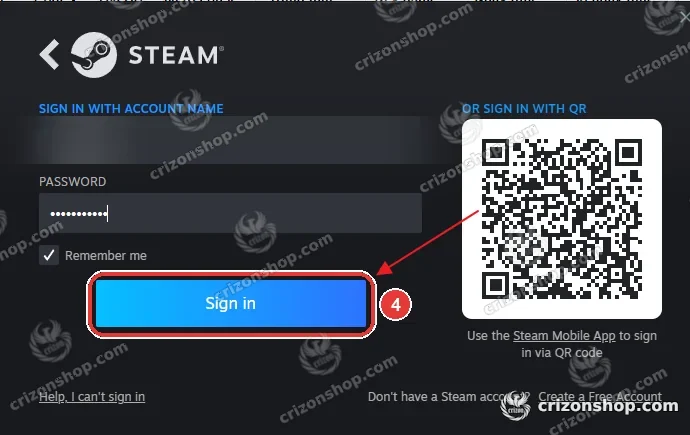
Click the Sign in button. If Steam asks for an extra verification step, follow one of the two sections below, depending on how you use Steam Guard.
If you use the Steam Mobile app
After you click Sign in, Steam may send a notification to your phone or ask for a code. Use either of these options.
- Approve the notification. Open the notification Steam sends to the app, check the sign-in details, then approve it.
- Enter the code from the app. Open the Steam Guard tab, read the code shown, then type it into the code field on your computer.
If you get codes by email
Open the inbox of the email address linked to your Steam account.
Open the latest email from Steam with your Steam Guard code.
Type that code into the field Steam is showing on your computer.
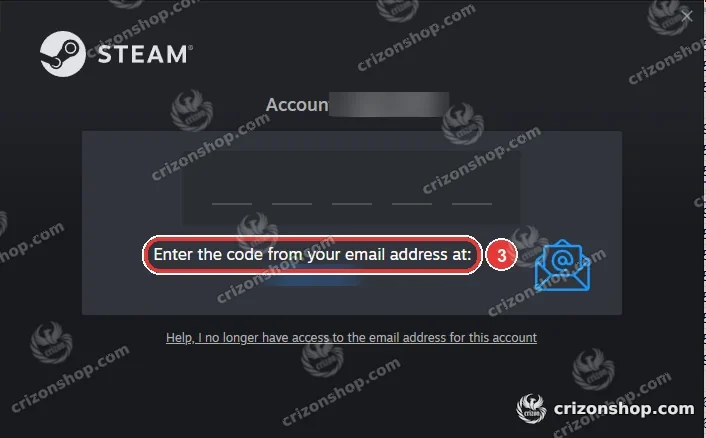
Enter the code in the field under 'Enter the code from your email address at:'.
Didn't get the Steam Guard code email?
Steam recommends going through the checks below, one by one, before trying anything else.
If the email linked to your account is old or you can no longer access it, go to the Steam Guard code help page and choose Verify and update my email address to check and update your email address.
Keep your Steam account safe
Frequently asked questions
That's how Steam Guard protects your account. Steam asks for a code whenever you sign in on a device it doesn't recognize. If you often play at internet cafés or on shared computers, being asked for a code a lot is normal.
Make sure you're checking the right inbox, look in your Spam folder, and add [email protected] and [email protected] to your safe senders list. If there's still no email after 30 minutes, sign in again so Steam sends a new code.
No. Steam's terms ban sharing and renting accounts. On top of that, Steam Guard codes always go to the account owner's email or phone, so you'd have to ask them every time you sign in, and they can change the password at any time.
According to Steam, the app needs iOS 15.1 or later, or Android 7.0 or later. Download it from the App Store or Google Play, and see the Steam app page for more details.
Related guides
How to Recover Your Steam Account When You've Lost Access to Your EmailHow to Switch Between Multiple Steam Accounts on One ComputerHow to Activate a Steam Game Key (CD Key) on the Web and in the AppStill need help?
Send your order code and we can sort it out faster.
