 Corel · Activate
How to Install CorelDRAW Technical Suite and Enter Your Serial Number
Download the right CorelDRAW Technical Suite installer from Corel's Downloads page, run setup, enter your Full name and Serial number, then sign in to your Corel account with the email you used to buy it.
This guide shows you how to download the right CorelDRAW Technical Suite installer from Corel's site, enter your serial number during setup, and register the license to your Corel account to activate the software.
Before you install
Download the right installer for your serial
The installer is on the CorelDRAW Downloads page or behind the download link in your order confirmation email. It's not on the product page. Find CorelDRAW Technical Suite, then pick the version that matches the first few characters of your serial using the table below.
| Serial starts with | Version to download |
|---|---|
| DE27 or DX27 | CorelDRAW Technical Suite 2026 |
| DE26 or DX26 | CorelDRAW Technical Suite 2025 |
| DE25 or DX25 | CorelDRAW Technical Suite 2024 |
Install and enter your serial number
Open the installer file you downloaded. If Windows asks whether to allow the app to make changes to your device, click Yes.
Wait while the installer downloads the files it needs. A progress bar shows on screen.
Read the license agreement, check I agree to the End User License Agreement, then click Accept.
On the details screen, keep the serial number option (I have a serial number) selected. Don't choose I do not have a serial number and want to try the product.
Type your name in the Full name field.
Paste or type your serial in the Serial number field, then click Next.
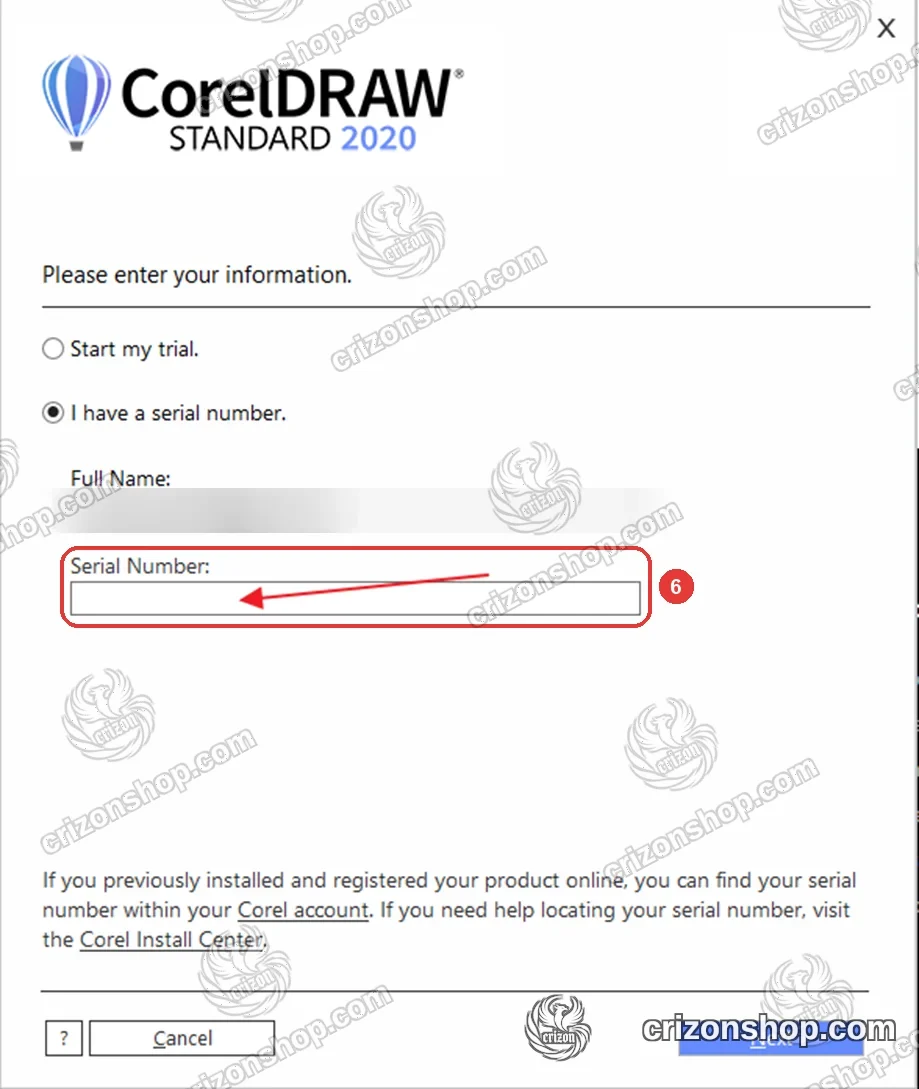
Paste or type your serial in the “Serial Number” field, then click “Next”. Choose Typical Installation to install with the default settings.
Wait for the installation to finish. The screen may flash black or desktop icons may flicker during this step. That's normal.
Register your license with your Corel account
When the installation finishes, a registration dialog appears. Then do the following.
Sign in with your email and password if you already have a Corel account, or create a new account right in this dialog.
Complete the registration.
Click the icon of the app you want to open to start using it right away, or click Finish to close the installer.
To check the original instructions, see Corel's support article on installing CorelDRAW Graphics Suite and Technical Suite.
Frequently asked questions
First, compare the first few characters of your serial with the version you downloaded, using the table above. Next, check that you downloaded the right installer type: subscription or one-time purchase. Finally, clear the Serial number field and type the serial by hand so there are no extra spaces. If it still doesn't work, contact Corel support and include your purchase invoice.
Sign in to your Corel account and check Subscription Products or Perpetual Products. If you bought from Corel's online store, search your inbox for emails from [email protected]. For other options, see how to find your Corel serial number.
Open CorelDRAW and go to Help › About CorelDRAW. The serial for your installed version appears in this window.
On Corel's download page, Technical Suite 2024, 2025, and 2026 come in Windows versions only. If you use a Mac, check the Downloads page to see whether the version that matches your serial has a Mac installer before you install.
Related guides
How to Activate a GRFX Studio Key for Corel PaintShop ProHow to Activate Corel AfterShot Pro 3 with a Serial NumberHow to Activate Corel ParticleShop with a Serial NumberStill need help?
Send your order code and we can sort it out faster.
