 Corel · Activate
How to Install Corel PaintShop Pro X7 and Enter Your Serial Number
Download the PaintShop Pro X7 installer from your order in your Corel account and run setup. Enter a user name and your serial number when asked, then open the program and activate it with the Connect button.
This guide shows you how to install Corel PaintShop Pro X7 on Windows and enter your serial number to unlock the full version. The steps follow the instructions on Corel's support site. They apply if you already have a valid serial number for X7 specifically.
Before you install
Install PaintShop Pro X7 and enter your serial number
Open your Corel order confirmation email and click Begin your download, or download the installer from the order page in your Corel account.
Save the setup file somewhere easy to find, such as your Downloads folder.
Double-click the downloaded file to extract it. Keep the default options.
When extraction finishes, the installer starts automatically. Follow the screens until you're asked for your license information.
Type a user name (any name works) and your serial number in the matching fields, then click Next.
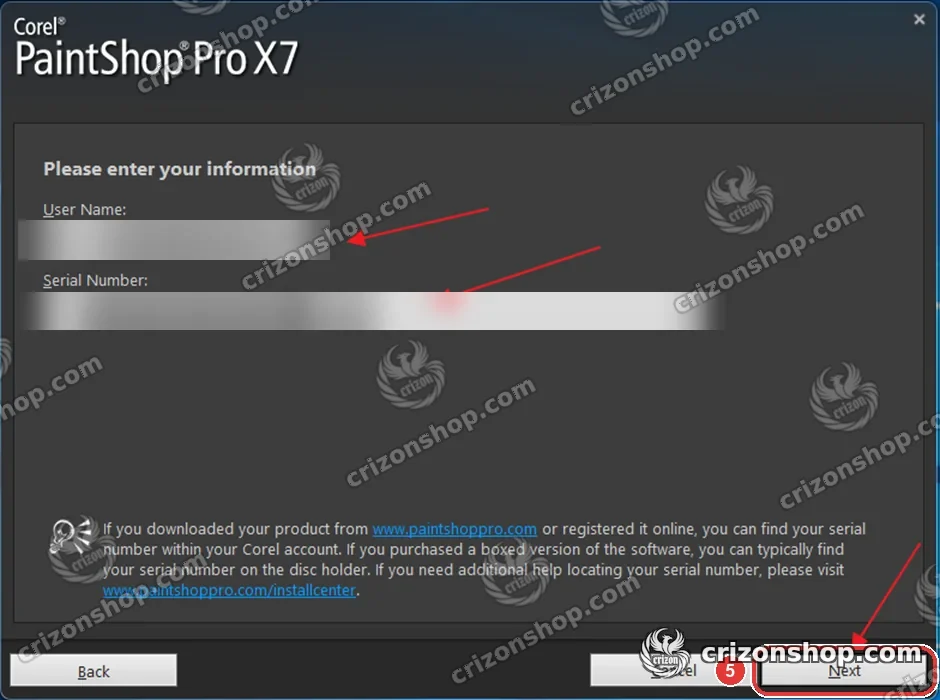
Enter a user name and your serial number, then click Next. Keep the default installation folder unless you have a reason to change it.
Wait for the installation to finish, then click Finish.
Activate when you open the program
According to Corel, you still need to activate online after installation to use the full version. These same steps also unlock X7 if you installed the trial earlier, so you don't need to uninstall and reinstall.
Open PaintShop Pro X7, then close it.
In the dialog box that appears, click Already Purchased? Click here to enter your serial number.
Enter your serial number and click Connect.
When the program offers to save or print your activation information, save a copy in case you need to reinstall later.
Activate manually without an internet connection
If online activation fails after you click Connect, you can get an activation code from Corel Support. Follow these steps.
Disconnect the computer from the internet.
Open PaintShop Pro X7, then close it.
Click Already Purchased? and enter your serial number.
Click Phone Corel.
Write down the Installation Code and Key shown on screen.
Send both codes to Corel Technical Support to get an Activation Code, then enter that code to complete activation.
Frequently asked questions
Retype the serial in capital letters and remove any extra spaces. It's best to type it by hand instead of pasting it from the email. Next, check that the first two letters of the serial match the product you're installing, since each Corel product has its own prefix. If it still doesn't work, contact Corel Support with your serial number and a screenshot of the error message.
Sign in to your Corel account, scroll down to Your Order Status & History, and click your order number to open the confirmation page that shows your serial. If you don't see the order, click See All Orders. For a boxed copy, the serial is on the sticker on the disc sleeve or case.
No. Open the trial, close it, click Already Purchased?, enter your serial number, and click Connect. The trial switches to the full version on the same computer.
Related guides
How to Activate a GRFX Studio Key for Corel PaintShop ProHow to Activate Corel AfterShot Pro 3 with a Serial NumberHow to Activate Corel ParticleShop with a Serial NumberStill need help?
Send your order code and we can sort it out faster.
