 Avast · Activate
How to Enter an Avast Premium Security Activation Code on Windows and Mac
Install Avast Premium Security from the Avast website. Open Menu and choose Enter activation code on Windows or My subscriptions on Mac, then paste your code with the hyphens intact.
This guide shows you how to install Avast Premium Security from Avast's official website and enter your activation code to unlock the paid version on a Windows PC or Mac. If your code shows an error, the end of this guide lists common causes and how to fix them.
What you need
Step 1. Install Avast Premium Security
Download the installer from the Avast Premium Security installation guide on Avast's website. This makes sure you install Premium Security and not the free version.
Open the Avast installation guide linked above and download the Windows installer.
Go to your Downloads folder, right-click
avast_premium_security_setup_online.exe, and select Run as administrator.When the User Account Control dialog appears, click Yes.
Change the language in the top-right corner if you want, then click Install.
Wait for the installation to finish, then click Get Started.
If the app asks you to choose between Activate and Start free trial, click Activate, since you already have a code. If you close this screen by mistake, that's fine. Just continue with Step 2.
Open the Avast installation guide linked above and download the Mac installer.
Double-click the
avast_security_online.dmgfile you downloaded.Double-click the Install Avast Security icon.
Click Allow when macOS asks for permission.
Go through the language, terms of use, and privacy policy screens.
If asked, choose which users on this Mac can use Avast.
Click Install to install to the default location.
Confirm with Touch ID or your Mac's password.
Allow Avast's network extension when macOS asks.
Step 2. Enter your activation code
Open Avast Premium Security.
Click ☰ Menu.
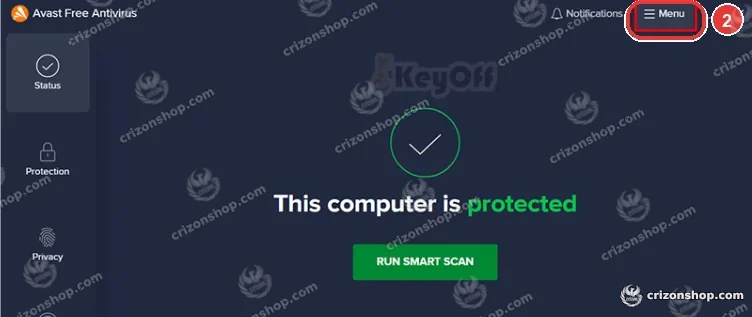
Click ☰ Menu. Select Enter activation code.
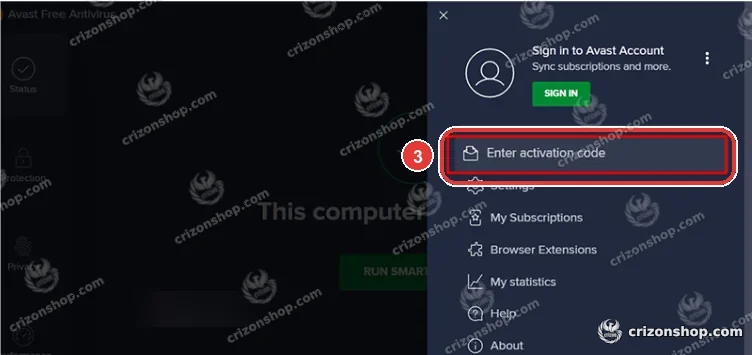
Click Enter activation code. Type or paste your code into the empty field. Keep the hyphens.
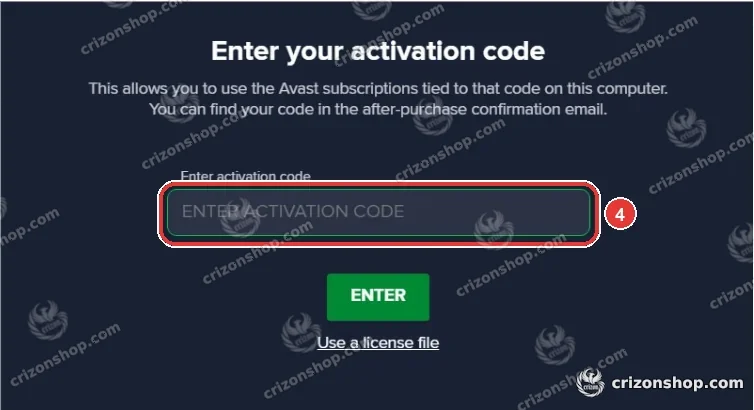
Type or paste your code into the ENTER ACTIVATION CODE field, keeping the hyphens. Click Next, then click Next again.
If your code includes multiple apps, check the ones you want to use and click Activate & install.
Open Avast Security.
Click ☰ Menu and select My subscriptions.
Select Activate paid features.
Type or paste your code into the empty field. Keep the hyphens.
Click Activate.
If your code includes multiple products, click Install next to each product you want to install.
Step 3. Check that your plan is active
After you enter the code, check your plan's expiration date to make sure the license was applied. The steps are the same on Windows and Mac.
Open the Avast app.
Click ☰ Menu and select My subscriptions.
Find your Avast Premium Security plan in the list and check its expiration date.
What to do if your code shows an error
| Problem | Common cause | Fix |
|---|---|---|
| The code shows as invalid | Missing hyphens or mistyped characters | Paste the full code again with all the hyphens |
| The code doesn't match the app | You have Avast Free Antivirus or another Avast product open | Install Premium Security from the Avast website and enter the code again |
| The plan shows as expired | The code's subscription period has ended | Renew your plan or use a new code |
| The device limit has been reached | The code is already active on the maximum number of devices for the plan | Move the plan from an old device to your new one |
| You entered a Google Play or App Store order number | That isn't an Avast activation code | Use the activation code for your Premium Security plan |
If you've checked everything above and it still doesn't work, Avast recommends fully uninstalling the app, reinstalling it, and activating again. For more details, see Avast's activation troubleshooting guide.
Frequently asked questions
No. Entering an activation code is a separate method, and it's enough to unlock the paid version. Signing in to your Avast Account is just an alternative if you bought the plan with your own email on the Avast website, because Avast automatically creates an account with that email when you buy.
Yes. A Single-device plan can be moved to another device on the same platform, but it only runs on one device at a time. Follow Avast's guide to moving your subscription to another device so you don't get a device limit error.
Avast Premium Security is a separate paid product. It includes every feature of the free version, plus extras like Email Guard, Bank Mode, and Remote Access Shield. Avast lists using the free version by mistake as a common activation problem. If you enter the code in the free version and get an error, install Premium Security as shown in Step 1 and enter the code again.
A Multi-device plan works on Android and iOS too, for up to 10 devices in total. A Single-device plan only works on the platform you bought it for, so a code bought for Windows won't work on a phone. This guide only covers activation on Windows and Mac.
Related guides
How to Activate Avast BreachGuard with a Sign-in KeyHow to Enter an Avast AntiTrack Premium Activation Code on Your ComputerHow to Enter an Avast Driver Updater Activation Code on WindowsStill need help?
Send your order code and we can sort it out faster.
