 Avast · Activate
How to Enter Your Avast Cleanup Premium Activation Code
Open Avast Cleanup Premium, go to Settings › My subscription › Enter activation code, paste your code with the hyphens intact, then click Next twice. That's all it takes on Windows.
This guide shows you how to install Avast Cleanup Premium from the official Avast site and enter your activation code (key) to unlock the paid features. Windows, Mac, and Android each have their own steps, so follow the ones for your device.
Before you start
Download and install Avast Cleanup Premium
Get the installer from Avast's Avast Cleanup Premium installation guide. It has a download button for each operating system. If the app is already installed, skip ahead to entering your code.
On the Avast download page, choose Windows and download the
avast_cleanup_online_setup.exefile.Right-click the downloaded file and select Run as administrator.
If Windows shows a User Account Control prompt asking for permission, click Yes.
Read the end user license agreement and privacy policy, then click Install.
Wait for the installation to finish, then restart your computer so the app runs properly.
Download the
avastcleanup.dmgfile from the Avast download page.Double-click the downloaded file, then double-click the Avast Cleanup Premium icon.
Click Continue to confirm you've read the privacy policy.
Click Continue, then Agree to accept the license agreement.
Choose which users can use the app, then click Continue.
Click Install, enter your Mac password, then click Install Software.
When the installation finishes, click Close, then Move to Bin to delete the installer.
Open Google Play, search for Avast Cleanup, and tap Install.
When it's installed, tap Open, then tap Get started.
When the subscription screen appears, tap the back arrow to leave it. You already have a code.
Grant the permissions the app asks for and let it run its first scan.
Enter your Avast Cleanup Premium activation code
Open Avast Cleanup Premium.
Hover over the left menu bar and click Settings.
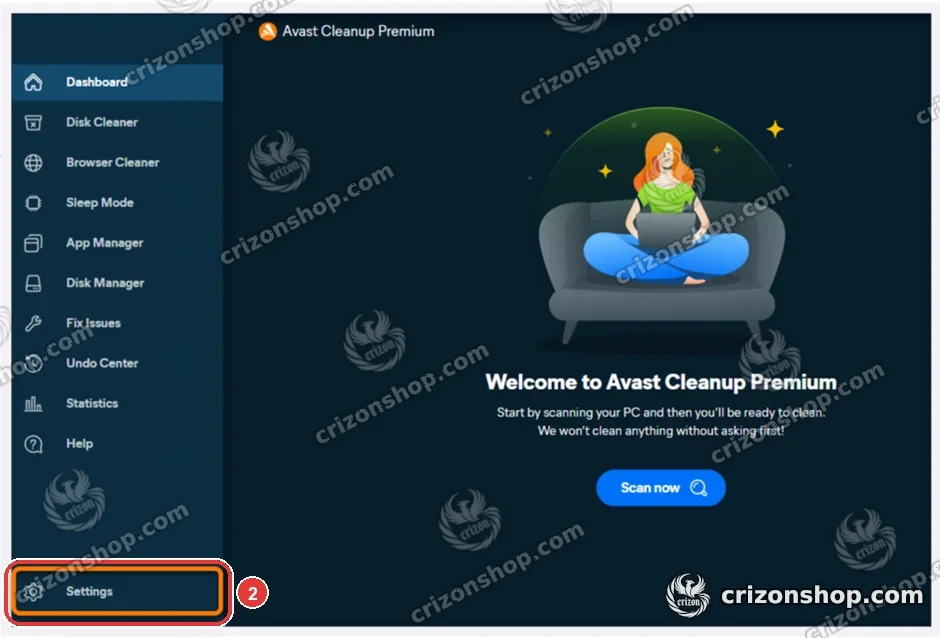
Hover over the left menu bar and click Settings. 🙂 Select the My subscription tab.
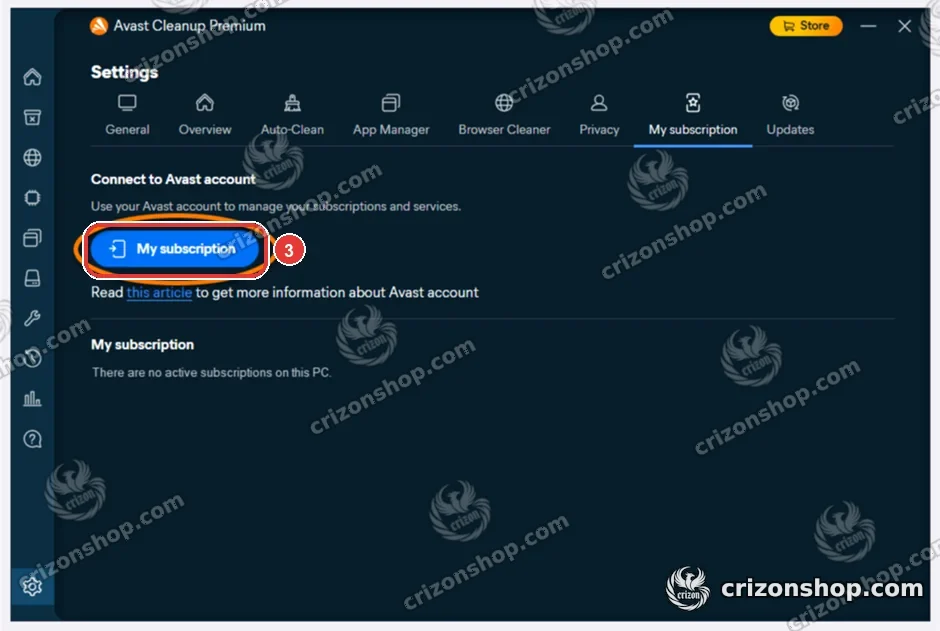
Click My subscription. Click Enter activation code.
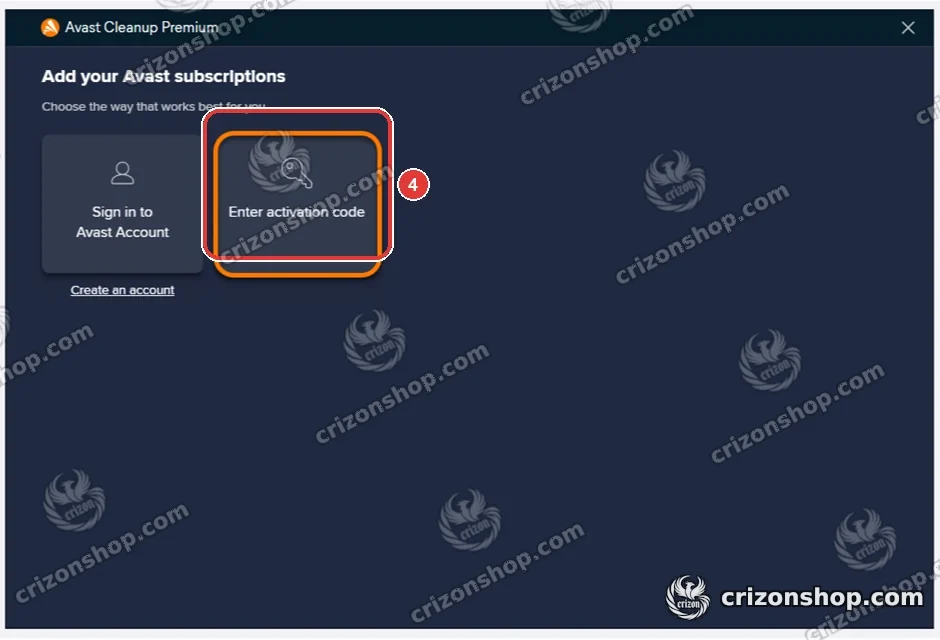
Click Enter activation code. Paste your activation code into the empty field. Keep the hyphens.
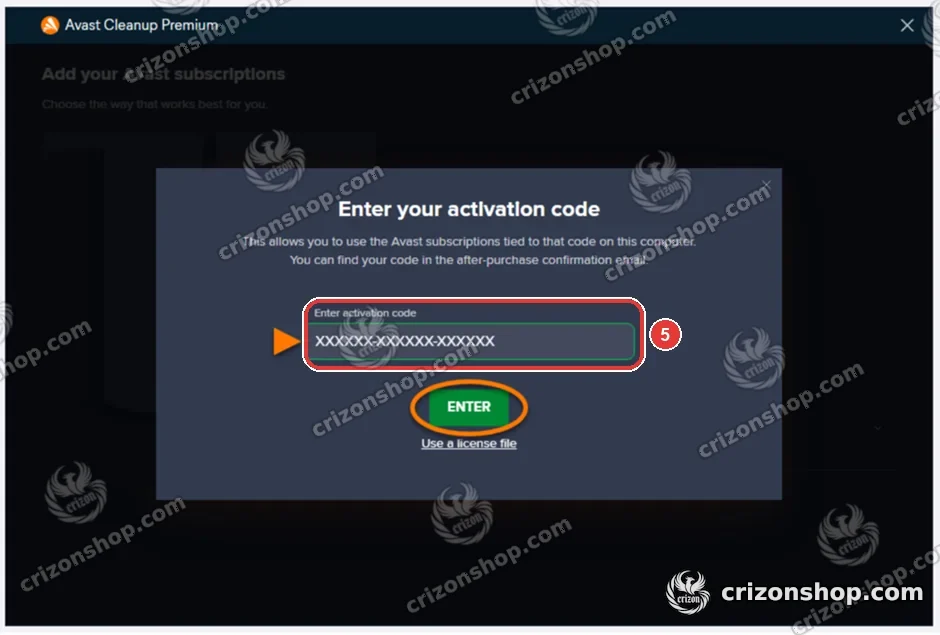
Paste your activation code into the Enter activation code field, hyphens included. Click Next, then click Next again to finish.
Open Avast Cleanup.
Click Insert activation code on the main screen. You can also go to Avast Cleanup › Insert activation code in the menu bar at the top of the screen.
Paste your activation code. Keep the hyphens.
Click Activate.
Open Avast Cleanup.
Tap Account in the bottom navigation bar.
Tap Already have a subscription?, then choose Use an activation code.
Paste your activation code. Keep the hyphens.
Tap Use this code.
Sign in to your Avast Account instead of entering a code
If your subscription is already linked to an Avast Account, you can sign in to that account on Windows instead of entering a code.
Open Settings from the left menu bar.
Select the My subscription tab.
Click Sign in.
Enter your Avast Account email, then enter your password.
Forgot your password? After clicking Sign in, choose Request one-time passcode and enter your email. You'll get a one-time code to sign in with.
If your code won't activate
The table below explains what each Avast error message means and what to do next.
| Message shown | Common cause | What to do |
|---|---|---|
Incorrect code. Please try again or sign in with your Avast Account | The code was mistyped or is missing characters | Paste the code again with all its hyphens, or sign in to your Avast Account |
Sorry, you've used this code too many times | You've used all the devices your plan allows | Uninstall Avast Cleanup Premium from your old device, then activate it on the new one |
Sorry, this code is for a different app | The code belongs to a different Avast app | Check the product name in your confirmation email or Avast Account, then enter the code in the right app |
Sorry, this code has expired | Your subscription has expired | Check the expiry date in your Avast Account and renew if needed |
If your code is correct but still won't activate, the cause is usually your network connection, a temporary Avast server outage, or your device's DNS settings. Switch to a different network and try again. If it still fails, check Avast's activation troubleshooting guide and list of common activation errors, or contact Avast Support.
FAQ
It depends on the plan you bought. The Multi-Device plan lets you use the same code on Windows, Mac, and Android, up to your plan's device limit. You'll find the exact number in your order confirmation email or in your Avast Account.
No, not while your subscription is active. Uninstall Avast Cleanup Premium from your old computer to free up a device slot. Then install the app on your new computer and enter your code again using the steps above.
Avast Ultimate includes several apps, so you enter the code in Avast Premium Security, not in Avast Cleanup. On Windows, open Avast Premium Security, go to ☰ Menu › Enter activation code, paste your code, and click Enter. When the window lists the included apps, click Activate & install to install and activate the whole bundle. For device-specific steps, see Avast's Avast Ultimate activation guide.
After installation, Avast Cleanup on Mac runs in scan-only mode. Enter your code using Insert activation code to unlock the cleanup features.
Related guides
How to Activate Avast BreachGuard with a Sign-in KeyHow to Enter an Avast AntiTrack Premium Activation Code on Your ComputerHow to Enter an Avast Driver Updater Activation Code on WindowsStill need help?
Send your order code and we can sort it out faster.
