 Avast · Activate
How to Enter an Avast Mobile Ultimate Activation Code on Android
Open the Avast app on Android, tap Already purchased?, choose Use an activation code, and paste your code with the dashes. The new Avast One is gradually replacing Avast Mobile Security.
This guide shows you how to enter an Avast Mobile Ultimate activation code on your Android phone to unlock the paid features. Avast is replacing the Avast Mobile Security app with the new Avast One, so this guide covers both apps.
Before you start
Install the Avast app from Google Play
Open Google Play on your phone.
Search for Avast One. If it doesn't show up, search for Avast Mobile Security (on Google Play, this app may be listed as Avast Antivirus & Security).
Tap Install and wait for the download to finish.
Tap Open to launch the app.
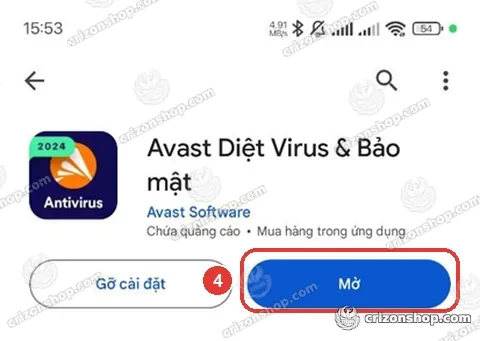
Tap Open to launch the app.
Enter your code the first time you open the app
The first setup screen already has an option for people who have bought a plan. Follow the steps for the app you installed.
Tap Already purchased? on the first screen.
From the options that appear, tap Use an activation code.
Type or paste your code into the field. Keep the dashes.
Tap Next to finish activating.
On the setup screen, tap Already purchased?.
Tap Use an activation code.
Type or paste your code into the field. Keep the dashes.
Tap Continue. You're done when the app says activation was successful.
If you skipped the first screen
If you've already been using Avast Mobile Security, you can still enter your code with these steps.
Open the Avast Mobile Security app.
Tap the Account icon, then choose Subscription.
Tap Use an activation code.
Enter the code with the dashes, then tap Continue.
In Avast One, Already purchased? appears during the initial setup. If you no longer see it, look for the option to enter an activation code in the app's account or subscription section. If your plan is already linked to your Avast Account, signing in to that account also unlocks the paid version (see the troubleshooting section below).
Activate the other apps in Mobile Ultimate
According to Avast's mobile bundles FAQ, Mobile Ultimate is an Android plan that includes Avast Mobile Security Premium, Avast Cleanup Premium, and Avast SecureLine VPN. Install each app separately from Google Play, then enter your plan's code using the path in the table.
| App | Where to enter the code |
|---|---|
| Avast Cleanup | Upgrade › ⋮ (Options) › Already purchased? › Use an activation code |
| Avast SecureLine VPN | ⋮ (Options) › Already purchased? › Enter activation code |
If your code won't activate
- Check the code again, especially the dashes and any characters that are easy to mix up.
- Try signing in with your Avast Account. Tap Already purchased?, choose Sign in to your account, enter your email and tap Continue, then enter your password and tap Sign In.
- If it still doesn't work, see Avast's guide to activating Avast One on Android or contact Avast Support.
Frequently asked questions
Avast is removing this app from Google Play and replacing it with the new Avast One. Install Avast One, then enter your code using the Avast One tab above. If Avast One doesn't accept your code, contact Avast Support and ask them to check your plan.
According to Avast's support page, Mobile Ultimate is a plan for Android devices. If you use an iPhone or iPad, you need an Avast plan that supports iOS.
Avast says the code is usually in the order confirmation email you get after buying the plan. Search your inbox, including your spam folder, then copy the full code with all the dashes.
Related guides
How to Activate Avast BreachGuard with a Sign-in KeyHow to Enter an Avast AntiTrack Premium Activation Code on Your ComputerHow to Enter an Avast Driver Updater Activation Code on WindowsStill need help?
Send your order code and we can sort it out faster.
