 Avast · Activate
How to Activate Avast BreachGuard with a Sign-in Key
An Avast BreachGuard sign-in key is a code your browser creates after you sign in to your Avast Account. Copy the code, paste it into the app and click Continue to finish activation.
This guide shows you how to install Avast BreachGuard and activate your paid subscription with your Avast Account. If the app doesn't find your subscription after you sign in, you can activate it with a sign-in key from your browser.
Before you start
Install Avast BreachGuard
Download the installer from Avast's BreachGuard installation guide. Choose the right version for your computer, then follow the steps below.
Download the installer and save it to your Downloads folder.
Right-click
avast_breachguard_online_setup.exeand select Run as administrator.Click Yes when the User Account Control dialog asks for permission.
Read the license agreement and privacy policy, then click Install.
When setup finishes, go to the Windows activation section below.
Download the installer and save it to your Downloads folder.
Double-click
avast-breachguard.dmg.Drag the Avast BreachGuard icon into the Applications folder.
Open the Applications folder and double-click Avast BreachGuard.
Click Open when macOS asks you to confirm, then go to the Mac activation section below.
Activate on Windows
Standard method: sign in with your Avast Account
Try this method first. In most cases, the app activates without a sign-in key.
Open Avast BreachGuard and click Sign in. The sign-in page opens in your default browser.
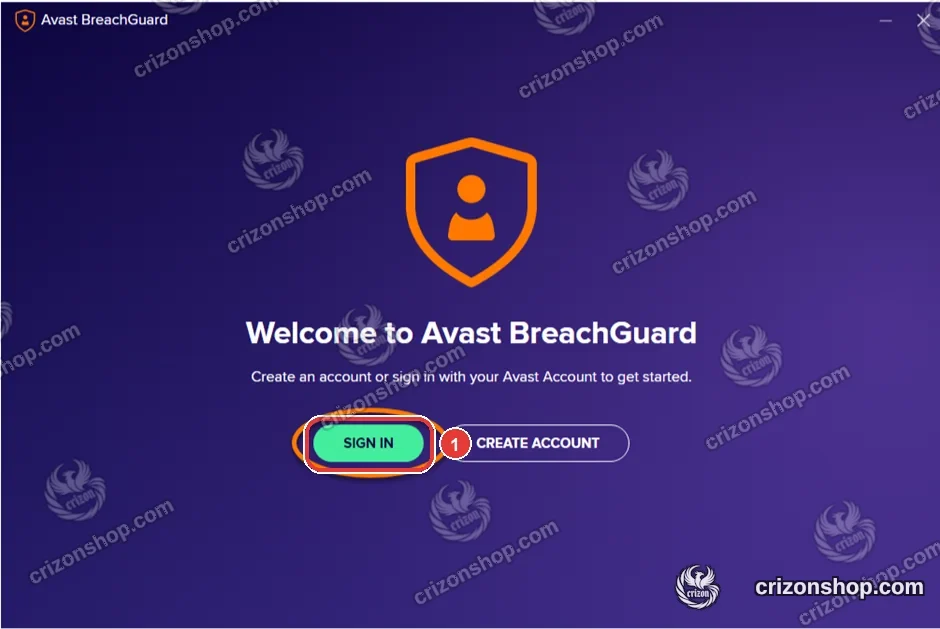
Click “SIGN IN” to open the sign-in page. Make sure the Avast Account on the page is the one that holds your BreachGuard subscription.
If it is, click Yes, continue. If it isn't, click Sign in as someone else, enter your email and password, then click Continue.
Follow the prompts in your browser to reopen BreachGuard.
The app activates automatically if the account has an active subscription.
If the app doesn't activate, use a sign-in key
Open Avast BreachGuard and click Sign in to open the sign-in page in your browser.
Confirm the account with Yes, continue. To use a different account, click Sign in as someone else, sign in, then click Continue.
On the next page, click Get a sign-in key instead.
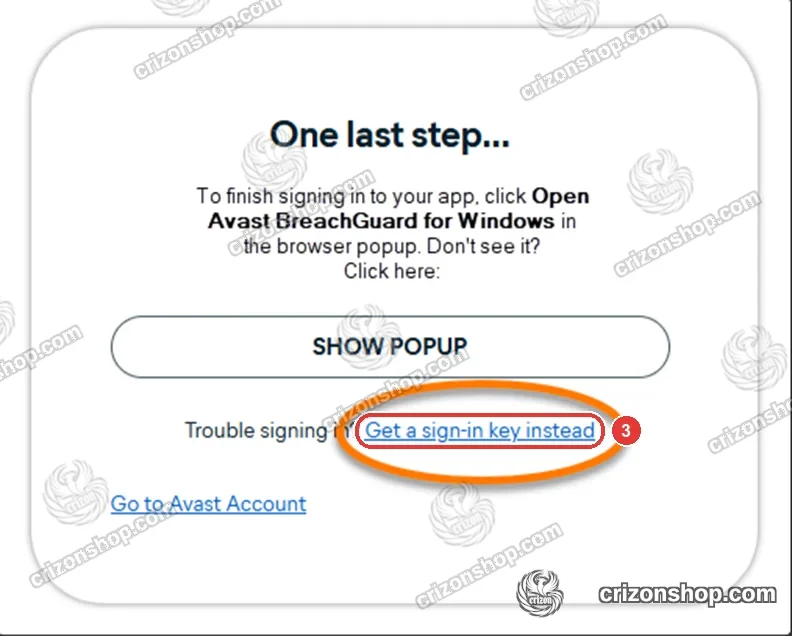
Click “Get a sign-in key instead”. Click Copy to clipboard to copy the sign-in key.
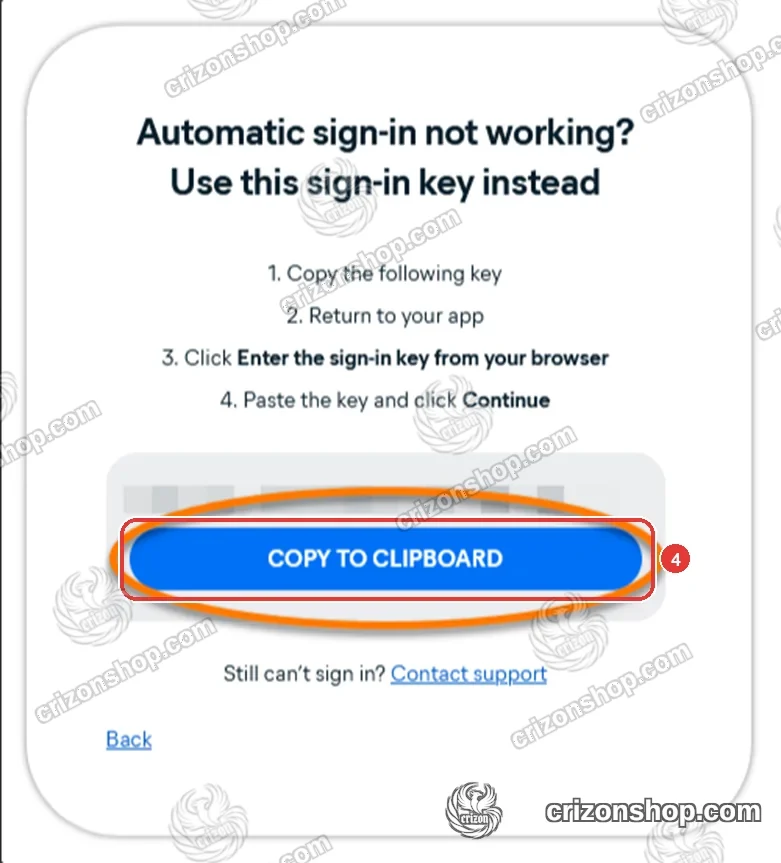
Click “COPY TO CLIPBOARD” to copy the sign-in key. Go back to the BreachGuard window and click enter the sign-in key from your browser.
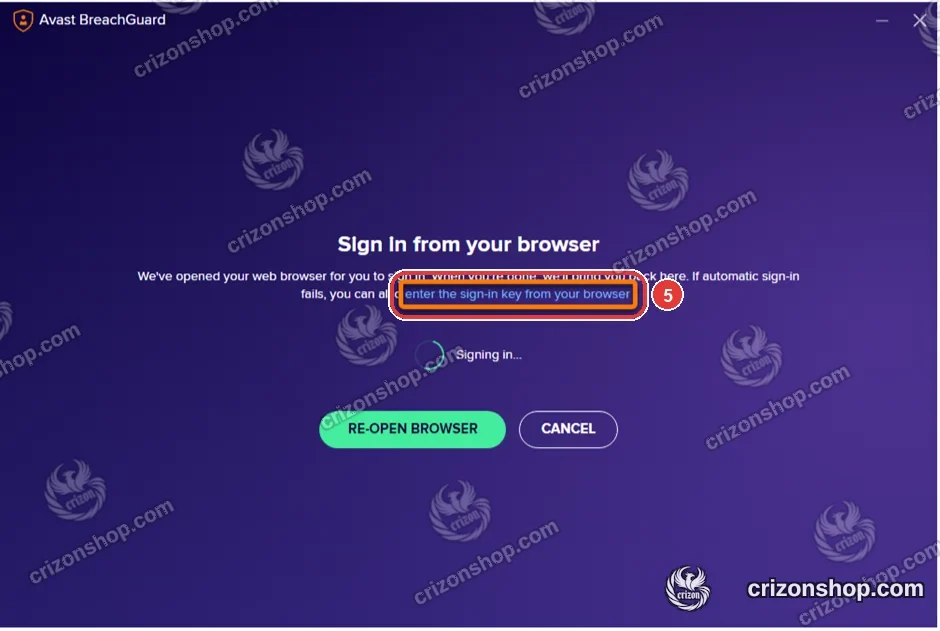
Click “enter the sign-in key from your browser”. Click the text box and press Ctrl + V to paste the key.
Click Continue to finish activation.
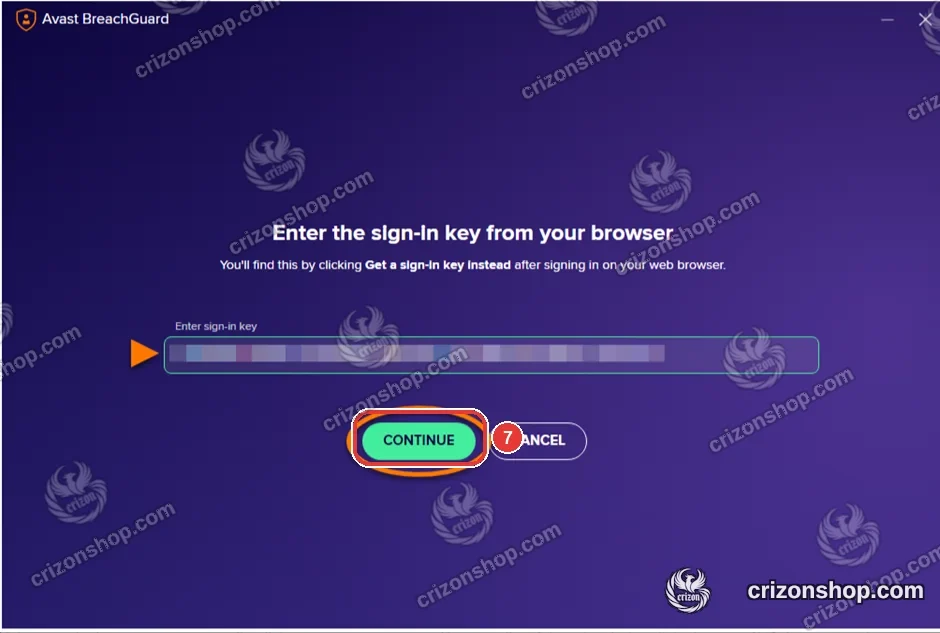
Click “CONTINUE” to finish activation.
Activate on Mac
According to Avast, you sign in to the Mac version right in the app, so you don't need a sign-in key.
Open Avast BreachGuard and select the Log in tab.
Enter your Avast Account email and password, then click Log in.
The app activates automatically if the account has an active subscription.
If the app can't find your subscription, it asks for an activation code. Enter the code in the empty box with the hyphens included, then click Activate.
Check your subscription in your Avast Account
If neither method works, your subscription is most likely not linked to the account you signed in to. Here's how to check.
Sign in to your Avast Account in your browser.
On the My subscriptions tile, click Manage subscriptions to see the subscriptions linked to your account.
If BreachGuard isn't listed, go back to the main page and click Go to account settings on the Account settings tile.
Under Email management, click + Add another email.
Enter the email you used to buy the subscription and your Avast Account password, then click Add.
Follow the on-screen instructions to verify that email. Once you verify it, subscriptions bought with that email appear in My subscriptions.
When the subscription appears in your account, go back to the app and activate it again. For details on each method, see Avast's BreachGuard activation article.
Frequently asked questions
It's best not to. Each sign-in key is created for one sign-in only. If you need to activate again, click Sign in in the app and get a new key with Get a sign-in key instead.
First, make sure the Avast Account you signed in to is the one that holds your subscription. Then open My subscriptions and check that the subscription is still active. If the subscription shows up there but the app still doesn't recognize it, contact Avast Support at support.avast.com.
Yes. In the Avast Account you want to use, go to Email management, click + Add another email and add the email you used to buy the subscription. After you verify that email, the subscription appears in that account.
Not according to Avast's current instructions. On Mac, you sign in on the Log in tab in the app. If the app can't find your subscription, enter your activation code and click Activate.
Related guides
How to Enter an Avast AntiTrack Premium Activation Code on Your ComputerHow to Enter an Avast Driver Updater Activation Code on WindowsHow to Enter an Avast Mobile Security Premium Activation CodeStill need help?
Send your order code and we can sort it out faster.
