 Avast · Activate
How to Enter an Avast Driver Updater Activation Code on Windows
Open Avast Driver Updater, go to ☰ Menu › Settings › My subscription, click Enter activation code, paste the code with its hyphens, then click Enter to activate your paid subscription.
This guide shows you how to install Avast Driver Updater on a Windows PC and enter your activation code to switch from the trial to your paid subscription. If the code doesn't work, you can still activate by signing in to the Avast Account that holds the subscription.
Before you start
Step 1. Download and install Avast Driver Updater
Download the installer from the Avast Driver Updater page on Avast's official website. The file is named avast_driver_updater_online_setup.exe and is usually saved to your Downloads folder.
Right-click
avast_driver_updater_online_setup.exeand select Run as administrator.When the User Account Control prompt appears, click Yes.
To change the language, choose a different one in the top-right corner of the setup window.
Click Install and wait for the installation to finish.
Click Continue to open the app.
Step 2. Enter your activation code
Open Avast Driver Updater.
Click the ☰ Menu icon and select Settings.
Select the My subscription tab, then click My subscription.
Click Enter activation code.
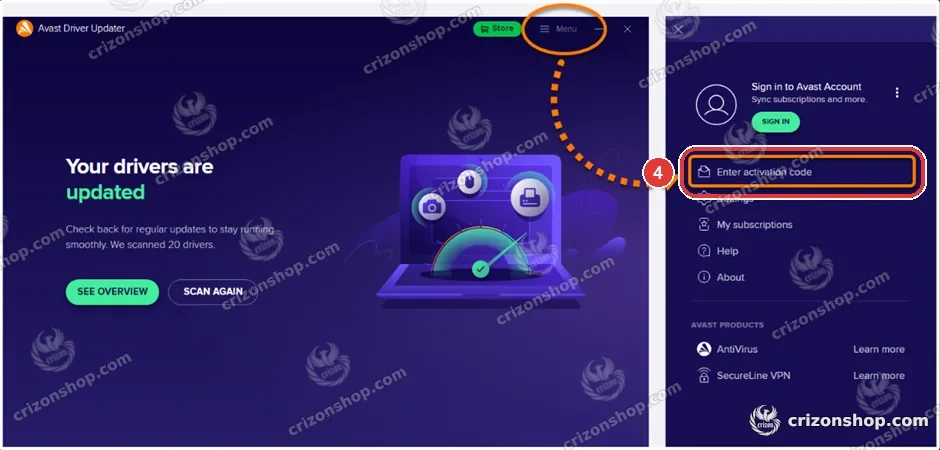
Click ‘Enter activation code’. Type or paste your activation code into the empty field. Keep all the hyphens in the code.
Click Enter.
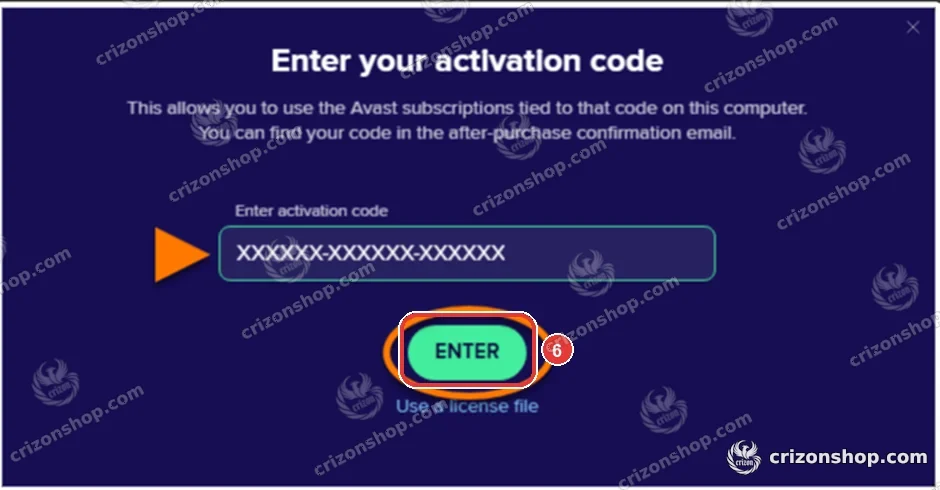
Click ‘ENTER’. If your code covers several Avast apps, tick the ones you want to use and click Activate & install. The selected apps install and activate automatically.
Avast activation codes follow the format below. Enter every letter, number, and hyphen.
XXXXXX-XXXXXX-XXXXXXOther options if the code doesn't work
Sign in to your Avast Account
This works if your Avast Driver Updater subscription is already in your Avast Account, for example if you bought it on the Avast website with that email address.
Open Avast Driver Updater and go to ☰ Menu › Settings.
Select the My subscription tab and click Go to account.
Your Avast Account page opens in your browser. If the account shown is the one with the subscription, click Yes, continue.
If it's the wrong account, click Sign in as someone else and sign in with the account that has the subscription.
Follow the prompts in your browser to reopen Avast Driver Updater.
Select the apps you want to use and click Activate & install.
Use a sign-in key
If your browser can't take you back to the app automatically, get a sign-in key and paste it in manually.
In Avast Driver Updater, go to ☰ Menu › Sign in.
Complete the verification steps that appear in your browser.
Click Get a sign-in key instead.
Click Copy to clipboard to copy the key.
Go back to Avast Driver Updater, press Ctrl + V to paste the key, then click Continue.
Select the apps you want to use and click Activate & install.
If none of the three methods works, see Troubleshooting Avast product activation or Activating Avast Driver Updater on Avast's support site.
FAQ
Go to ☰ Menu › Settings › My subscription and check the status again. If the subscription still isn't applied, make sure you entered all the hyphens, there are no extra spaces at the start or end, and your computer is online. Then try entering the code again, or use the Avast Account sign-in method above.
If you bought from the Avast website, the code is in the order confirmation email from Avast, under Your products, on the Your activation code line. If you bought elsewhere, the code is wherever the seller delivered it with your order.
No. According to Avast, the app only runs on Windows 10 and Windows 11 and doesn't support devices with ARM chips.
Your code covers several apps in the same subscription. Just tick the apps you want on this computer and click Activate & install. Untick any you don't need.
Related guides
How to Activate Avast BreachGuard with a Sign-in KeyHow to Enter an Avast AntiTrack Premium Activation Code on Your ComputerHow to Enter an Avast Mobile Security Premium Activation CodeStill need help?
Send your order code and we can sort it out faster.
