 Avast · Activate
How to Enter an Avast SecureLine VPN Activation Code on Any Device
On Windows, open Avast VPN, go to Menu and choose Enter activation code. On Mac, go to My subscription. On a phone, tap Already purchased?. Then paste the code with the dashes.
This guide shows you how to install the Avast VPN app (formerly Avast SecureLine VPN) and enter your activation code on Windows, Mac, Android or iPhone. The steps on a computer are different from the steps on a phone, so pick the tab for the device you're using.
Before you enter your code
Install the Avast VPN app
Download the installer from Avast's guide to installing Avast VPN and choose your operating system. For phones, that page sends you to Google Play or the App Store.
Click Download Avast VPN for Windows to download the
avast_vpn_online_setup.exefile.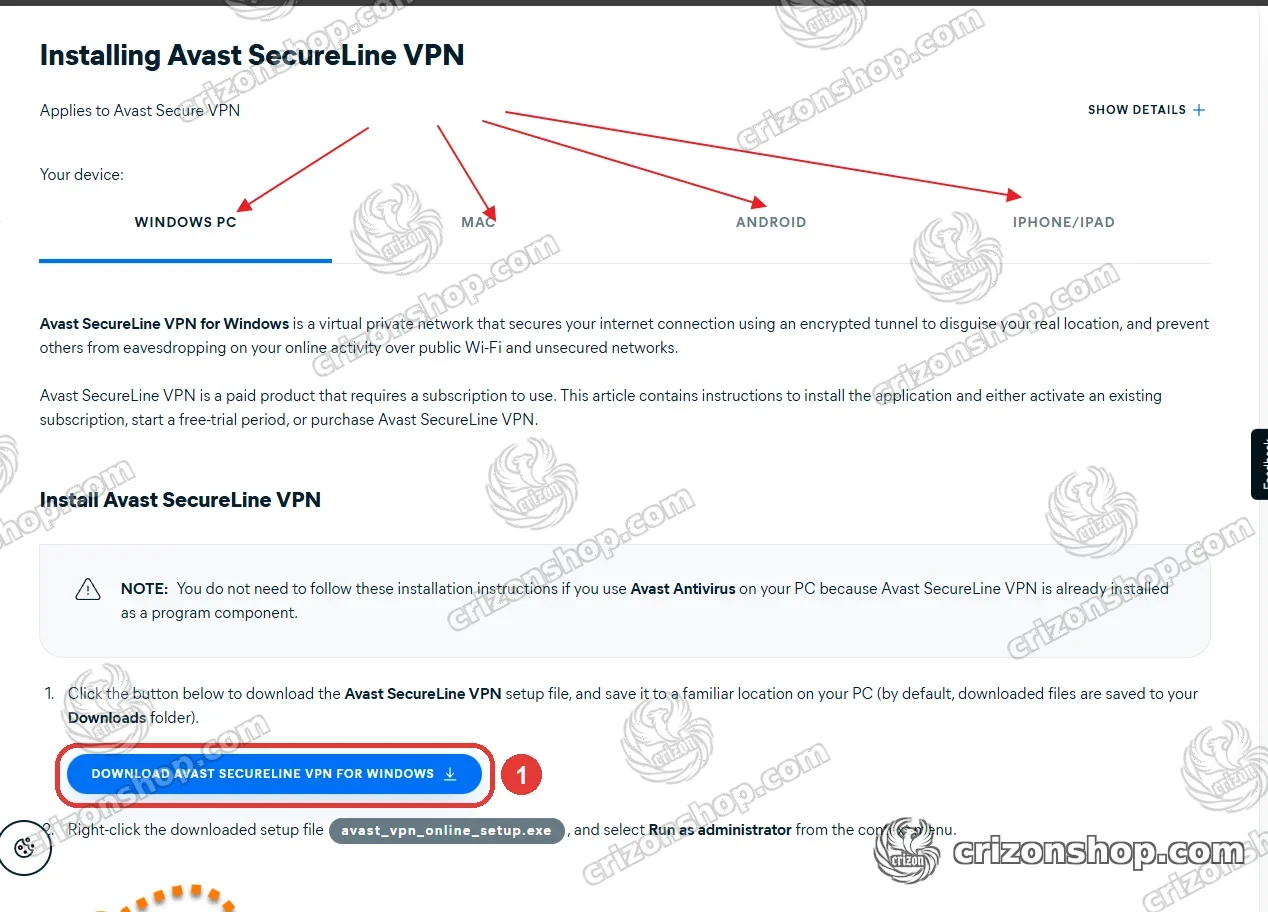
Click “DOWNLOAD AVAST SECURELINE VPN FOR WINDOWS” (Download Avast VPN for Windows) to download the installer. Right-click the downloaded file and select Run as administrator.
Click Yes if Windows asks for permission.
Click Install and wait for the installation to finish.
Click Continue through the intro screens until you reach the main screen.
Click Download Avast VPN for Mac and open the downloaded installer.
Double-click the Avast VPN icon, then click Allow and Continue.
Click Install, enter your Mac password, then click Install Software.
The app opens on its own after installation. Go through the intro screens.
Open the Avast VPN page on Google Play (Android) or the App Store (iPhone, iPad) using the link in Avast's guide.
Tap Install or Get, wait for the download to finish, then tap Open.
On the first screen, tap Already purchased? because you already have a code.
Enter your activation code
You don't need to sign in to an Avast Account before entering the code. Type or paste the code exactly as you received it, with the dashes.
Open the Avast VPN app.
Click ☰ Menu and select Enter activation code.
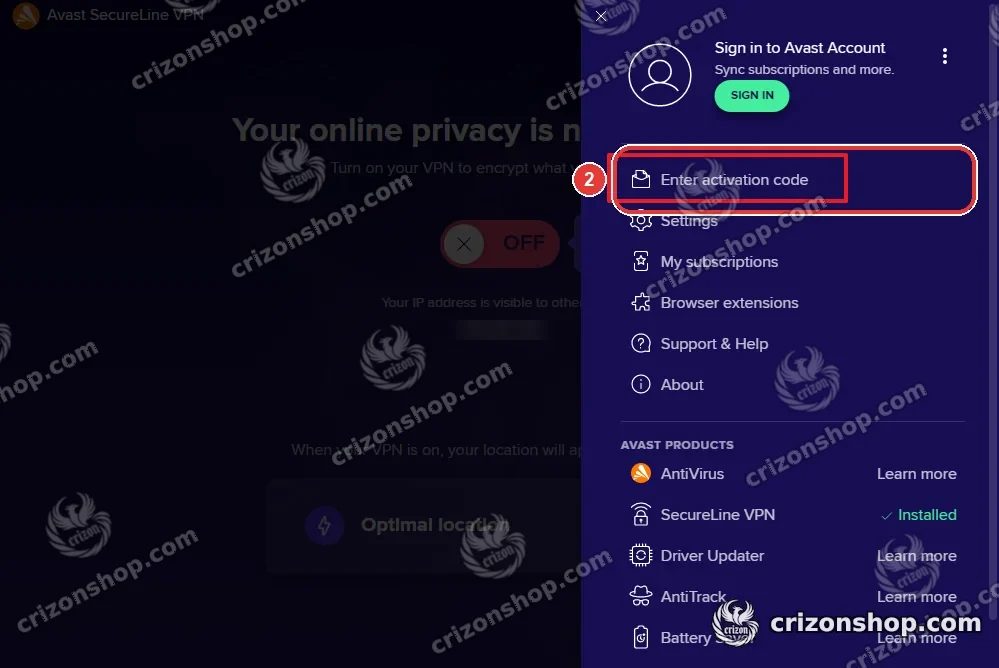
Select “Enter activation code” (☰ Menu). Type or paste the code into the empty field, with the dashes.
Click Enter to confirm.
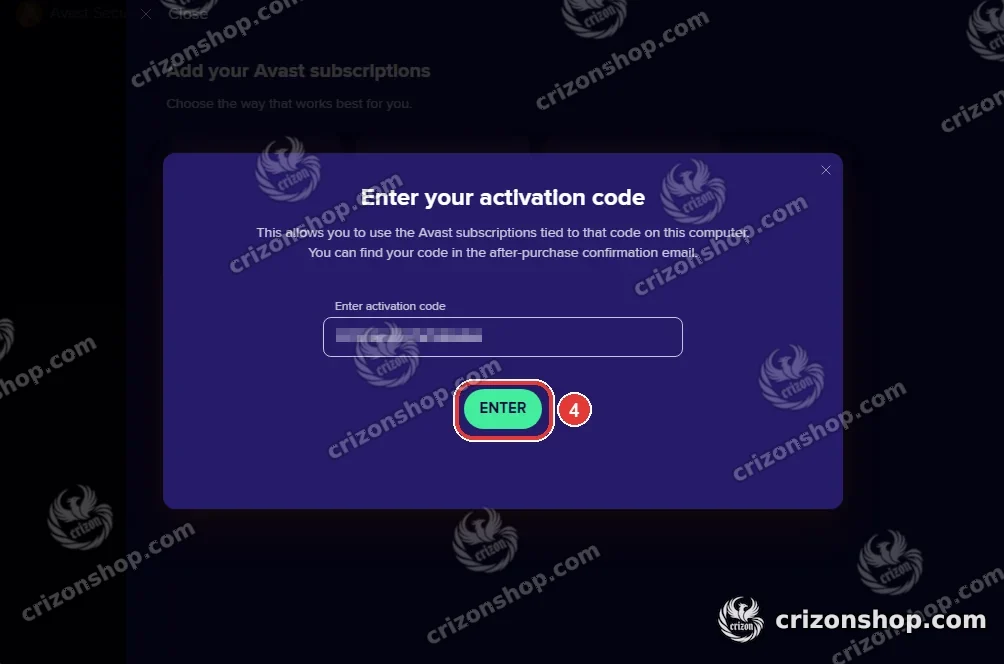
Click “ENTER” to confirm. If the app shows a list of products, select Avast VPN and click Activate & install.
Open the Avast VPN app.
Click ☰ Menu and select My subscription.
On the Subscription tab, click Enter Activation Code.
Enter the code with the dashes and click Activate.
Click OK to return to the subscription screen.
Tap the Avast VPN icon on your home screen.
Tap ⋮ Options and select Already purchased?. You can also go to Settings › Subscription › Already purchased?.
Select Enter activation code.
Type or paste the code with the dashes, then tap Activate.
Tap the Avast VPN icon on your home screen.
Tap Already purchased?, or go to Settings › Subscription › Already purchased?.
Select Enter activation code.
Enter the code with the dashes, then tap Continue.
Activate with your Avast Account
If your VPN plan is already in your Avast Account, you can sign in instead of entering a code.
- Windows: click ☰ Menu › Sign in. Your browser opens so you can sign in and click Continue. Follow the browser prompt to return to the app, then click Activate & install.
- Mac: click ☰ Menu › Sign in, enter your Avast Account email and password, then click Sign in.
- Android, iPhone, iPad: go to Already purchased? › Sign in to Avast Account, enter your details, then tap Sign in.
Use one code on multiple devices
An Avast VPN (Multi-Device) code works on Windows, Mac, Android and iOS. Once your first device is activated, install the app on the next device. Then enter the code again or sign in with the same Avast Account. The number of devices you can use at the same time depends on the plan you bought.
If your code won't activate
Check that the code is an Avast VPN code. Codes for other Avast products won't be accepted.
Enter the code again with all the dashes and no extra spaces.
Try activating by signing in to your Avast Account instead of entering the code.
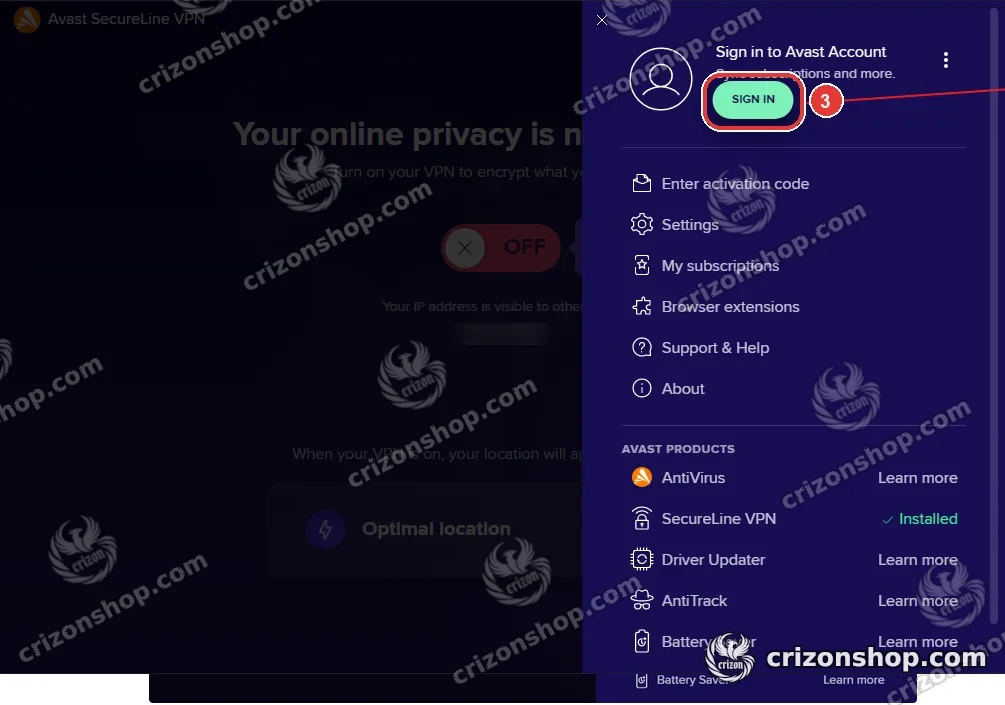
Click “SIGN IN” to sign in to your Avast Account. Fully uninstall Avast VPN, restart your device, then reinstall it from Avast's website.
If it still doesn't work, see the troubleshooting section in Avast's activation guide or contact Avast Support.
Frequently asked questions
No. Avast's guide lists entering a code and signing in to your account as two separate ways to activate. You only need to do one of them.
Avast has renamed the product to Avast VPN. Download the app called Avast VPN and enter your code as usual.
No. Plans bought through an app store activate automatically on the device you used to buy them. If you reinstall the app, go to Already purchased? and select Restore from Google Play on Android or Get my App Store purchase on iPhone. Make sure you're signed in with the same Google account or Apple ID you used to buy the plan.
Fully close the app and open it again so it can update your plan status. If it still doesn't recognize the plan, go through the steps in the “If your code won't activate” section above, in order.
Related guides
How to Activate Avast BreachGuard with a Sign-in KeyHow to Enter an Avast AntiTrack Premium Activation Code on Your ComputerHow to Enter an Avast Driver Updater Activation Code on WindowsStill need help?
Send your order code and we can sort it out faster.
