 AVG · Activate
How to Install and Activate AVG BreachGuard with a Key
After you install AVG BreachGuard, sign in to your AVG Account and the app activates automatically. On Mac, if your account doesn't have a subscription yet, enter your activation code and click Activate.
This guide shows you how to install AVG BreachGuard on Windows or Mac and activate it with your AVG Account or the activation code (key) you have. Activation works differently on each operating system, so follow the tab for your computer.
Before you start
Step 1. Download and install AVG BreachGuard
Download the installer from the AVG BreachGuard installation guide. The file is usually saved to your Downloads folder.
Right-click the setup file, named something like
avg_breachguard_online_setup.exe, and select Run as administrator.If the User Account Control dialog asks for permission, click Yes.
Read the License Agreement and Privacy Policy, then click Install.
Wait for the installer to finish.
Download
AVG-BreachGuard.dmgfrom the AVG BreachGuard installation guide.Double-click the downloaded file to open it.
Drag the AVG BreachGuard icon into the Applications folder.
Open AVG BreachGuard from the Applications folder. If macOS asks you to confirm, click Open.
Step 2. Sign in and activate
Open AVG BreachGuard and click Sign in. If you don't have an account, select Create account.
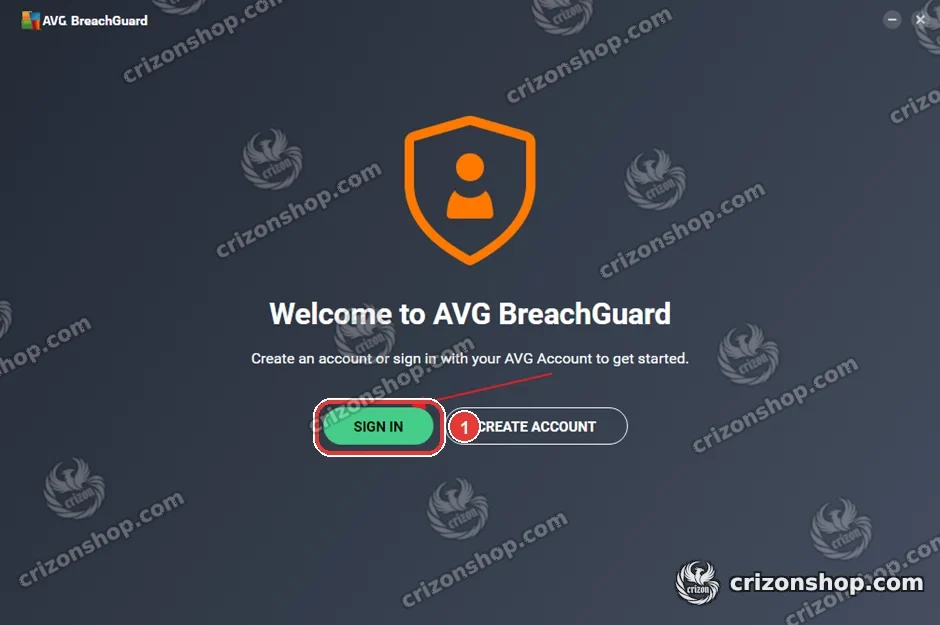
Click SIGN IN (or CREATE ACCOUNT) to sign in. Your browser opens automatically. Click the account shown if it's yours, or select Sign in as someone else to use a different account.
Enter your AVG Account email and password, then click Continue.
When your browser asks whether to open the app, click Open… or Choose… (the button name depends on your browser).
Go back to AVG BreachGuard. If your account has an active BreachGuard subscription, the app activates automatically.
Open AVG BreachGuard and keep the Log in tab selected.
Enter your AVG Account email and password, then click Log in.
If your account already has an active BreachGuard subscription, the app activates automatically and you're done.
If the app can't find a subscription, an activation code field appears. Type or paste your code, keeping the hyphens.
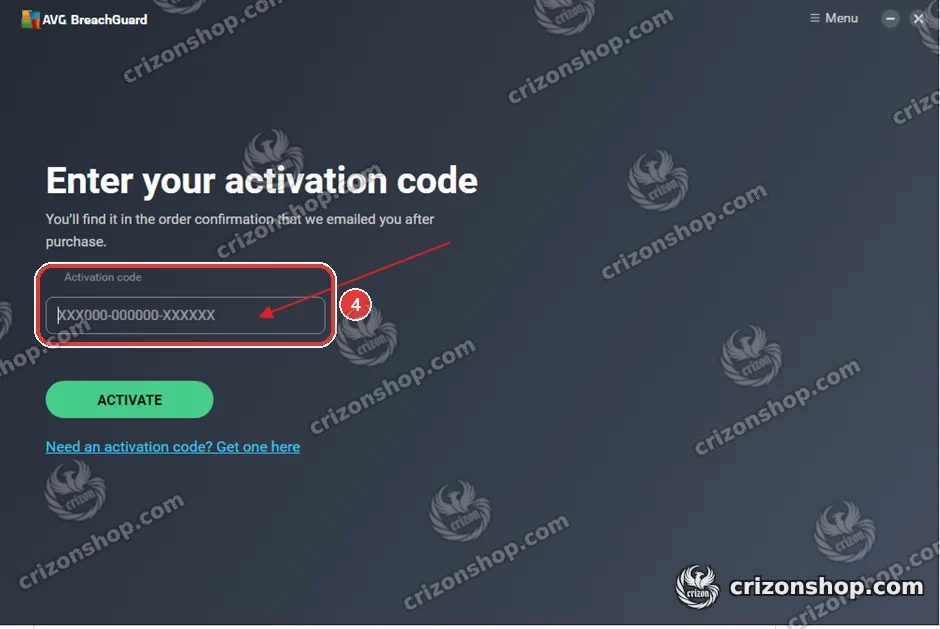
Type or paste your code into the Activation code field, keeping the hyphens. Click Activate.
If the browser doesn't take you back to the app (Windows)
If you've signed in through your browser but AVG BreachGuard doesn't pick it up, you can use a sign-in key, as AVG recommends.
Open AVG BreachGuard and click Sign in.
Sign in to your AVG Account in the browser as usual.
Click Get a sign-in key instead.
Select Copy to clipboard to copy the key.
Go back to AVG BreachGuard and press Ctrl + V to paste the key.
Click Continue.
If you have an activation code on Windows
The Windows version gets its subscription from your AVG Account. So if you've signed in and the app still says you don't have a subscription, sign in to your AVG Account in a browser, open the My subscriptions tile, and add the subscription with your activation code. Once it shows up in the list, go back to AVG BreachGuard and sign in again so the app picks it up.
AVG's original instructions are on the AVG BreachGuard activation page and the Windows quick install page.
Frequently asked questions
According to AVG, the Windows version is activated through your AVG Account. Add your activation code in the My subscriptions tile of your AVG Account in a browser, then sign in to AVG BreachGuard again with that same account.
First, check that you signed in with the email of the account that holds the subscription. Next, open the My subscriptions tile in your AVG Account and check that your BreachGuard subscription is there and still active. If it isn't there, add it with your activation code and sign in again. If that still doesn't work, contact AVG Support through AVG's support site.
Re-enter the code exactly as it was given, including the hyphens, with no extra spaces at the start or end. AVG recommends copying the code directly from your AVG Account and pasting it to avoid typos. Also check that the code is actually for BreachGuard and not for another AVG product.
Use the sign-in key method in If the browser doesn't take you back to the app. Click Get a sign-in key instead in your browser, copy the key, paste it into AVG BreachGuard, and click Continue.
Related guides
How to Activate AVG AntiTrack Premium with an Activation CodeHow to Activate AVG Ultimate with an Activation CodeHow to Enter an AVG Driver Updater Activation Code on WindowsStill need help?
Send your order code and we can sort it out faster.
