 AVG · Activate
How to Enter an AVG TuneUp Activation Code on Windows and Mac
Open AVG TuneUp, go to Settings › My subscription, choose Enter activation code, paste your code with the hyphens, and click Enter. On a Mac, click Insert activation code on the main screen.
This guide shows you how to install AVG TuneUp from AVG's website and enter your activation code to unlock the paid version on a Windows PC or Mac. You do everything inside the app, and it only takes a few minutes.
What you need
Step 1. Download and install AVG TuneUp on Windows
If AVG TuneUp is already installed, skip this step and go to Step 2.
Open AVG's AVG TuneUp download page for Windows and click the download button.
Open the file you just downloaded,
avg_tuneup_online_setup.exe. It's usually in your Downloads folder.Click Install and follow the on-screen instructions until setup finishes.
Double-click the AVG TuneUp icon on your desktop to open the app.
Step 2. Enter your activation code
Open AVG TuneUp, hover over the side menu, and click Settings.
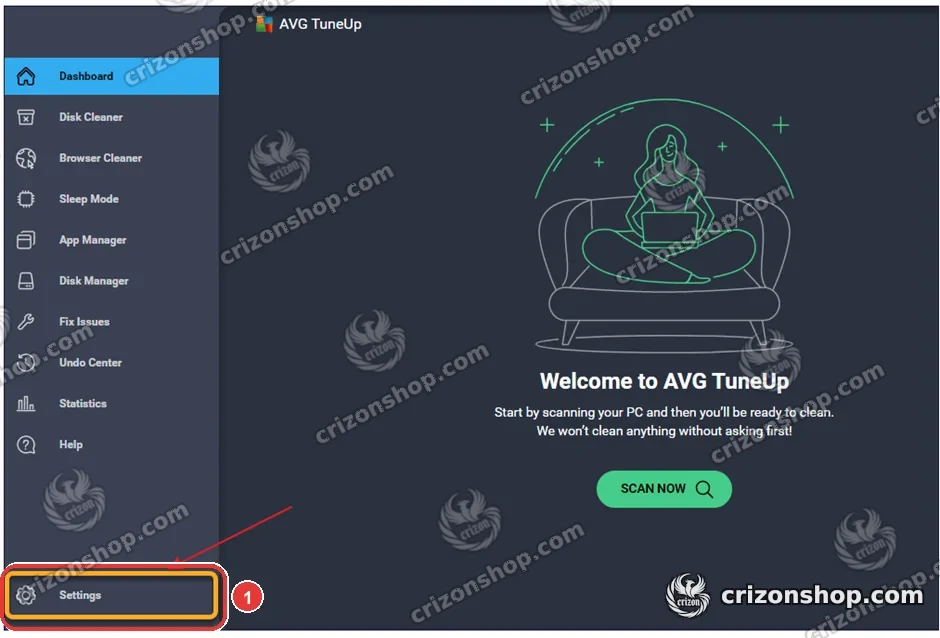
Click “Settings” at the bottom of the left menu. Select the My subscription tab.
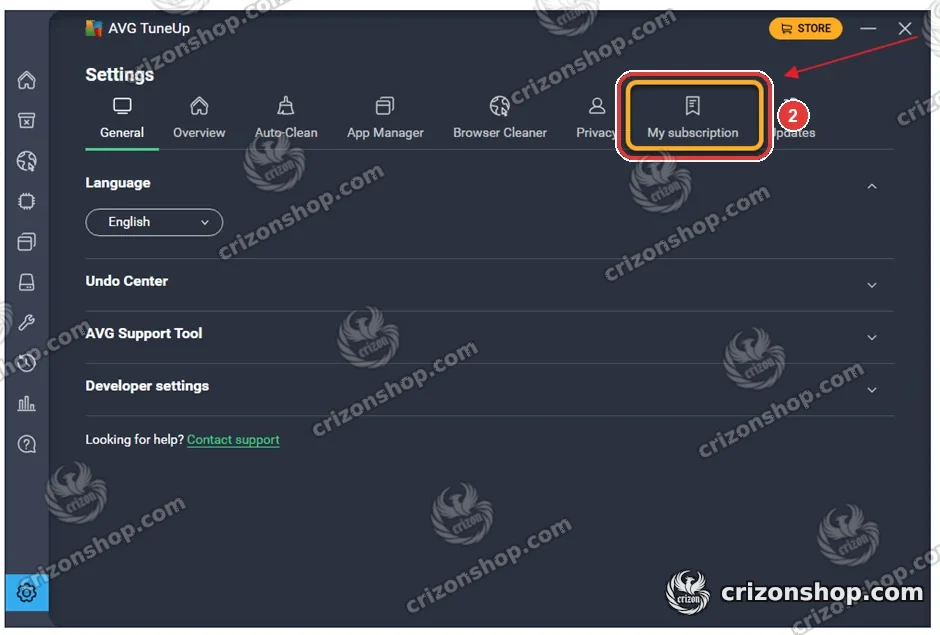
Click “My subscription”. Then click the My subscription button on this tab.
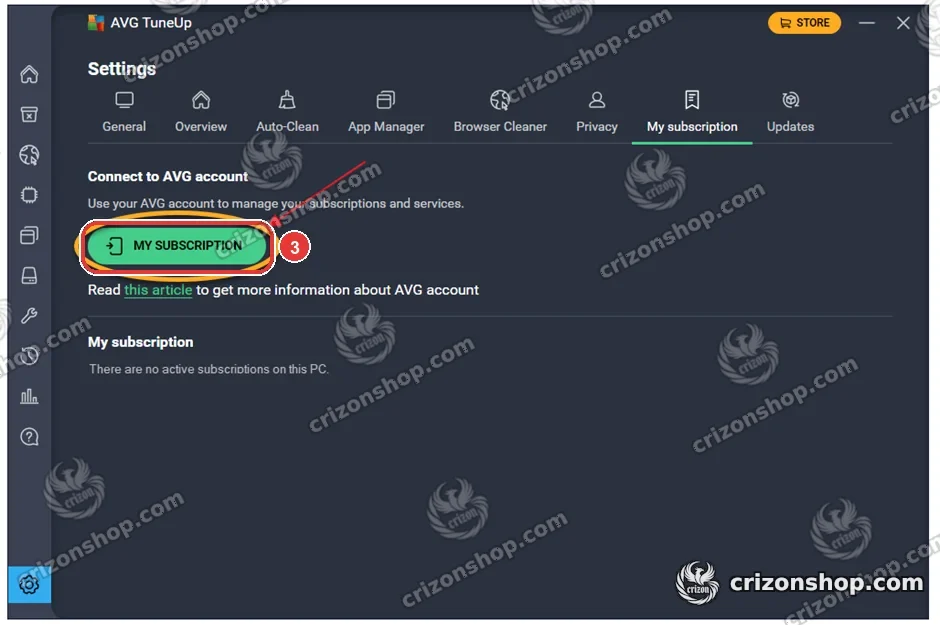
Click “MY SUBSCRIPTION”. Choose Enter activation code.
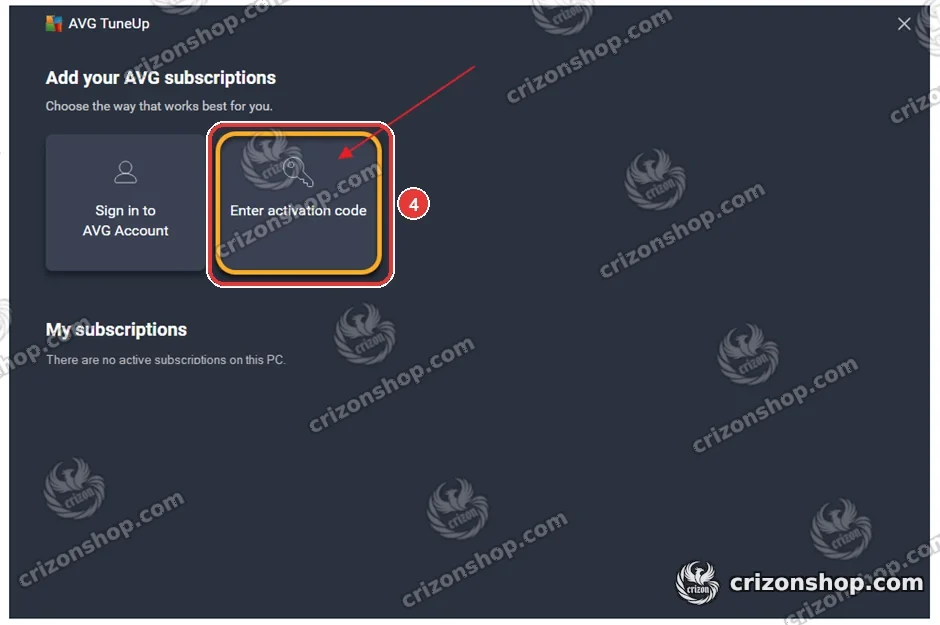
Click “Enter activation code”. Type or paste your code into the empty field, keeping all the hyphens, then click Enter.
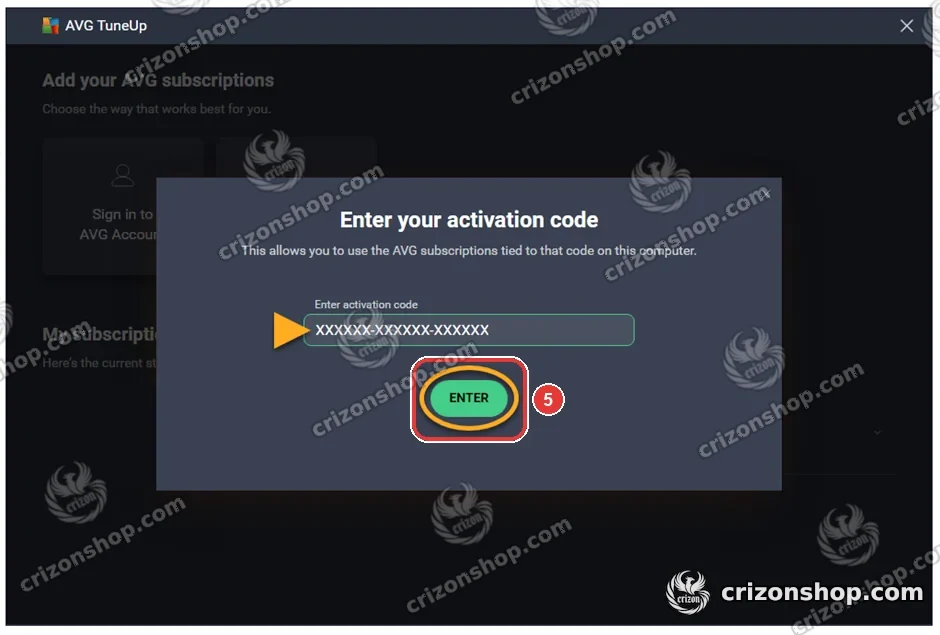
Enter your code in the field, then click “ENTER”. If your code covers several AVG apps, tick the ones you want to use and click Activate & install.
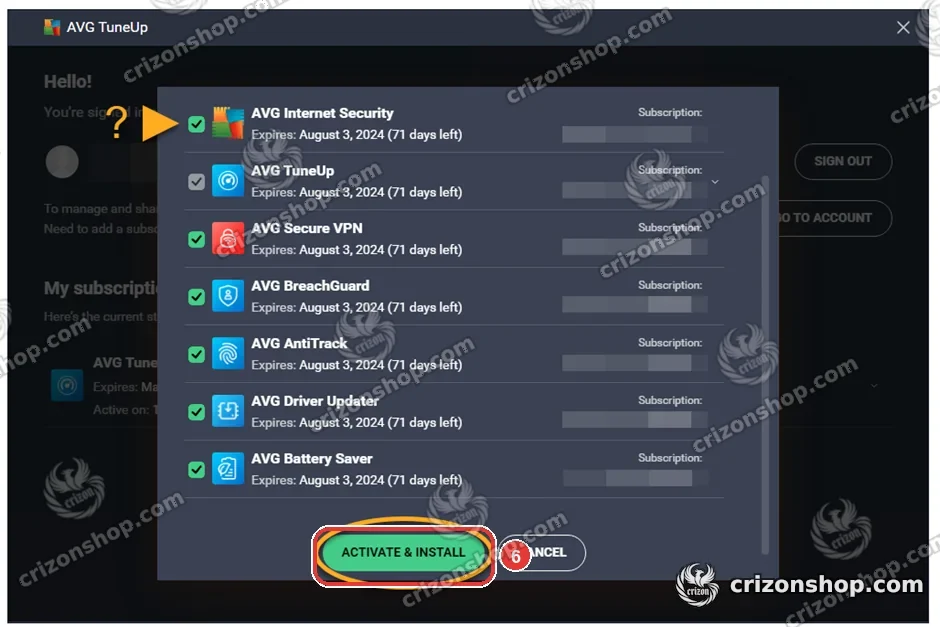
Click “ACTIVATE & INSTALL” to activate and install. If the app asks for more details, enter your name, email, and postal code to finish.
Open AVG TuneUp on your Mac.
Click Insert activation code on the main screen. You can also go to the menu bar at the top and choose AVG TuneUp › Insert activation code.
Type or paste your code into the empty field, keeping all the hyphens, then click Activate.
Once you activate, AVG automatically installs and activates the apps you selected. To make sure it worked, open the My subscription tab again and check that your plan now shows the paid version.
If you have AVG TuneUp (Multi-Device)
With the Multi-Device plan, AVG lets you use the same code to activate AVG TuneUp on Windows, Mac, and Android. On each computer, install the app and enter that same code as shown in Step 2. On Android phones, the matching AVG app is AVG Cleaner.
If your code is reported as invalid
- Check that you pasted the whole code, with all the hyphens and no extra spaces at the start or end.
- Make sure it's an AVG TuneUp code, not a code for a different AVG product.
- If your plan is still active but the code keeps getting rejected, AVG has an activation form you can use to get a working code through your AVG Account.
- See also the AVG TuneUp activation guide on AVG's support site. It links to articles on fixing activation errors.
Frequently asked questions
No. Entering your code with the steps above is enough to activate. Signing in to an AVG Account is another method AVG supports. It's usually used when you bought the plan directly and it's linked to your email.
Yes. AVG says to enter the full code, including the hyphens. The safest way is to copy the whole code and paste it into the field.
On Windows, this button only appears after you go to Settings, select the My subscription tab, and then click the My subscription button inside it. On a Mac, the button is called Insert activation code and it's on the main screen. If you still can't find it, uninstall your current version and reinstall it from AVG's download page.
Only if you bought AVG TuneUp (Multi-Device). This plan lets you use the same code on Windows, Mac, and Android. Standard plans only cover the device type listed on the plan.
Related guides
How to Activate AVG AntiTrack Premium with an Activation CodeHow to Activate AVG Ultimate with an Activation CodeHow to Enter an AVG Driver Updater Activation Code on WindowsStill need help?
Send your order code and we can sort it out faster.
