 AVG · Activate
How to Enter an AVG Internet Security Activation Code on Your Computer
Open the AVG app, go to ☰ Menu › Enter activation code, paste your code with the hyphens, and click Enter. If your subscription includes several products, tick them and click Activate & install.
This guide shows you how to download AVG Internet Security from AVG's official website, install it, and enter your activation code to unlock every feature of your paid subscription. There are separate steps for Windows and Mac.
Before you start
Step 1. Download and install the app
Go to AVG's AVG Internet Security installation page and click the download button.
Open the downloaded file
avg_internet_security_setup.exe. It's usually in your Downloads folder.If Windows asks whether to allow the app to make changes to your device, click Yes.
Click Install and follow the on-screen instructions until the installation is complete.
Go to AVG's AVG Internet Security installation page, choose the Mac section, and download the
.dmgfile.Open the downloaded file and follow the on-screen installation instructions.
Grant the system permissions the app asks for so AVG can fully protect your Mac.
Step 2. Enter your activation code
Double-click the AVG icon on your desktop to open the app.
Click ☰ Menu and select Enter activation code.
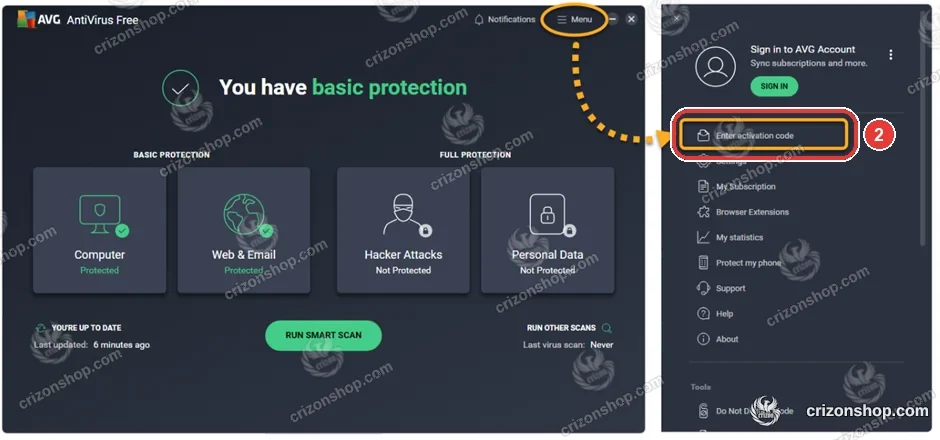
Click Enter activation code under ☰ Menu. Paste the code into the field with Ctrl + V. Keep all the hyphens in the code.
Click Enter.
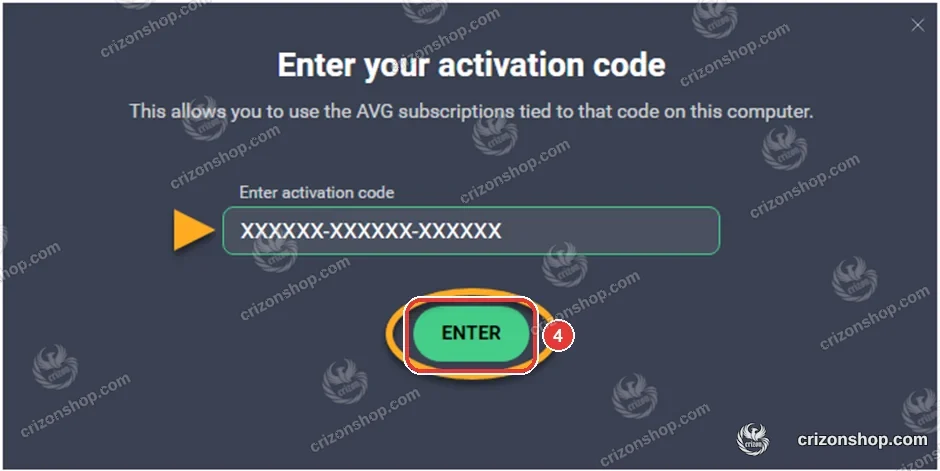
Click ENTER. If the app asks for more details, enter your name, email address, and postal code.
If your subscription includes several products, tick the ones you want to use and click Activate & install. AVG installs and activates those products automatically.
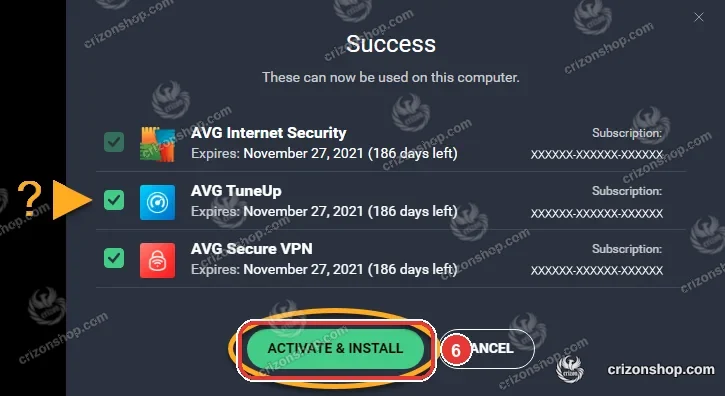
Click ACTIVATE & INSTALL to install and activate the selected products.
Open the AVG app on your Mac.
Go to ☰ Menu › My subscriptions.
Select Activate paid features.
Paste the code into the field with Cmd + V, keeping all the hyphens, then click Activate.
If your subscription includes several products, click Install next to each product you want to install.
Activate with your AVG Account instead of a code
If your subscription is already linked to an AVG Account, you can sign in to that account in the app instead of entering a code. AVG creates this account using the email address you used to buy the subscription.
Open the AVG app and go to ☰ Menu › Sign in. Your browser opens the sign-in page automatically.
If the account shown is correct, confirm it. Otherwise, click Sign in as someone else and sign in to the account that holds your subscription.
Follow the instructions in your browser to return to the AVG app.
Select the products you want to use and click Activate & install.
If your activation code is rejected
- Check that the pasted code has every character and hyphen, with no extra spaces at the start or end.
- Make sure the code is for AVG Internet Security and not for a different AVG product.
- If your subscription is still active but the code keeps getting rejected, AVG recommends using the form at avg.com/activation to get a working code through your AVG Account.
- For other errors, see AVG's activation troubleshooting guide.
Frequently asked questions
No. According to AVG, this button only appears when your subscription includes several products. If your subscription only covers AVG Internet Security, the app activates as soon as you click Enter, and there's nothing else to do.
AVG lets you activate on the number of devices you chose when you bought the subscription. If you've used all of them and want to move to a new computer, see the subscription transfer instructions on AVG's support page.
If you bought directly from AVG, sign in to your AVG Account with the email you used at purchase to see your subscription. You can also activate by signing in, as described in the section above, without entering a code.
Related guides
How to Activate AVG AntiTrack Premium with an Activation CodeHow to Activate AVG Ultimate with an Activation CodeHow to Enter an AVG Driver Updater Activation Code on WindowsStill need help?
Send your order code and we can sort it out faster.
