 AVG · Activate
How to Enter an AVG Secure VPN Activation Code on Your Computer and Phone
Open AVG Secure VPN, go to ☰ Menu, select Enter activation code, and enter the code with its hyphens. On Android, use Already purchased?. On iPhone, you sign in to your AVG Account instead.
This guide shows you how to enter an activation code to unlock your paid AVG Secure VPN subscription on your computer and phone. The steps differ slightly on each operating system. On iPhone and iPad, you don't enter a code. You activate by signing in to your AVG Account.
Before you activate
Enter the activation code on your device
Double-click the AVG Secure VPN icon on your desktop to open the app.
Click ☰ Menu, then select Enter activation code.
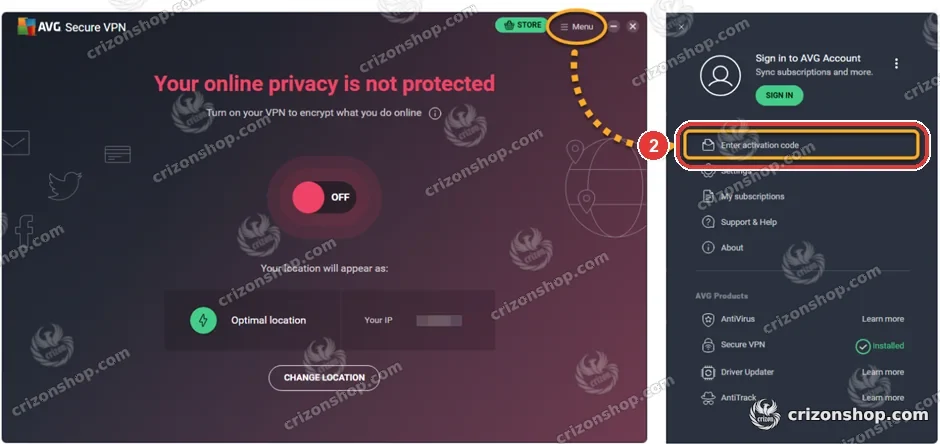
Click “Enter activation code” in ☰ Menu. Paste or type your activation code into the empty field, then click Enter.
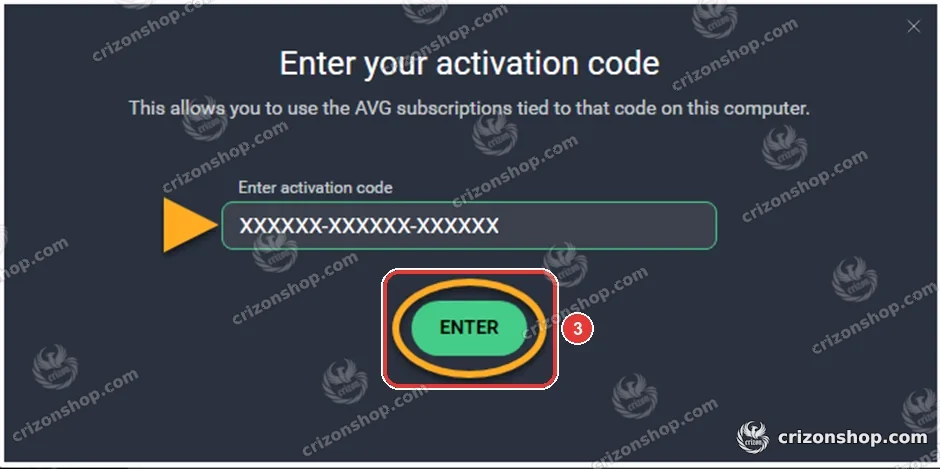
Paste or type the activation code, then click “ENTER”. If your code covers several AVG products, tick the ones you want to use, then click Activate & install.
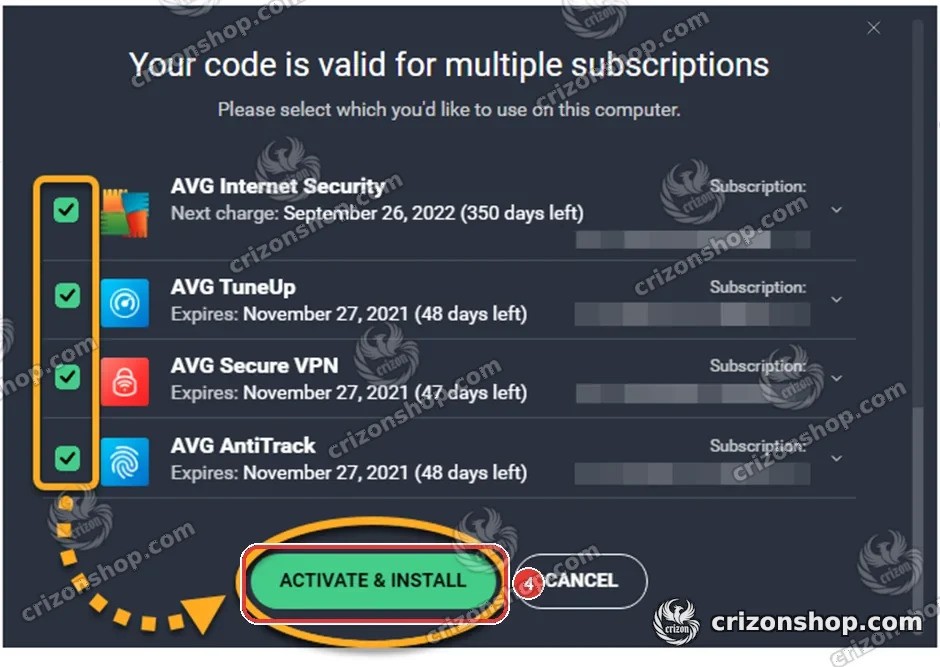
Choose the AVG products you want, then click “ACTIVATE & INSTALL”. Wait while the app installs and activates the products you selected.
Open AVG Secure VPN from your Applications folder.
Click ☰ Menu, then select My subscriptions.
On the subscriptions page that opens, click Activate Paid Features.
Paste or type your activation code into the empty field, then click Enter.
In some versions, the menu shows Enter activation code directly. If you see it, select it, paste your code, and click Activate.
Tap the AVG Secure VPN icon on your home screen.
Tap Get Started to accept the terms.
Tap ⋮ Options, then select Already purchased?
Select Enter activation code.
Paste or type your activation code, then tap Activate.
If the first screen already shows an Already purchased? button, tap it and continue from step 4.
Starting with version 2.0, the iOS app no longer has an activation code field because of App Store rules. You activate by signing in to the AVG Account linked to your subscription.
Open the AVG VPN app on your iPhone or iPad.
Tap Already purchased?
Select Sign in to AVG Account.
Enter the email and password of the AVG Account linked to your subscription, then tap Sign in.
If you only have a code and your subscription isn't linked to an AVG Account yet, follow the section below first.
Link your subscription to an AVG Account to use it on more devices
After you enter the code on your computer or Android phone, sign in to your AVG Account in the same app so the subscription is linked to your account. Then, on iPhone or iPad, you just sign in with that account to activate the subscription.
- On Windows and Mac, click ☰ Menu ▸ Sign in, enter your AVG Account details, then click Sign in. If you don't have an account yet, you can create one on this screen.
- On Android, tap the gear icon (Settings) ▸ Subscription ▸ Link to AVG Account, then sign in.
If the code isn't accepted
- Double-check the code, especially the hyphens and characters that are easy to mix up, like the number 0 and the letter O.
- Check how many devices are already activated. The code won't accept another device once you've used up all the devices in your subscription.
- Wait a while, then reopen the app. In some cases, a subscription can take up to 24 hours after purchase to finish syncing.
- If it still doesn't work, read AVG's article on activating AVG Secure VPN or the guide to fixing activation problems in the mobile app.
Frequently asked questions
Starting with version 2.0, AVG removed the code field on iOS to comply with App Store rules. Link your subscription to an AVG Account on another device first. Then sign in to that account on your iPhone through Already purchased? ▸ Sign in to AVG Account.
The code activates exactly the number of devices you chose when you bought the subscription. If you need more devices, you'll need a subscription that covers more.
On Windows, after you enter the code, the app shows a list of the products linked to it. Tick the ones you want to use and click Activate & install. The app then installs and activates them for you.
Check whether there's still a trial on the device that you haven't canceled. Then close the app completely and open it again. If you just bought the subscription, wait a little longer, because syncing can take up to 24 hours.
Related guides
How to Activate AVG AntiTrack Premium with an Activation CodeHow to Activate AVG Ultimate with an Activation CodeHow to Enter an AVG Driver Updater Activation Code on WindowsStill need help?
Send your order code and we can sort it out faster.
