 AVG · Activate
How to Activate AVG Ultimate with an Activation Code
Install AVG Internet Security, go to ☰ Menu › My Subscription › Enter activation code, paste your code and click Enter. Then check that the apps in your plan show Active.
This guide shows you how to install AVG Internet Security and enter your AVG Ultimate activation code to unlock the paid features on Windows. If you have the multi-device version, the end of the guide also covers activation on Mac, Android, and iPhone.
Before you start
Activate AVG Ultimate on Windows
On Windows, you activate AVG Ultimate inside the AVG Internet Security app. Install the app first, then enter your code to unlock the full plan.
Step 1. Download and install AVG Internet Security
Open AVG's AVG Ultimate installation guide for Windows.
Click Download AVG Internet Security to download the setup file.
Open
avg_internet_security_setup.exein your Downloads folder.Click Install and follow the on-screen instructions until setup finishes.
Step 2. Enter your activation code
Double-click the AVG Internet Security icon on your desktop to open the app.
Click ☰ Menu and select My Subscription.
Select Enter activation code.
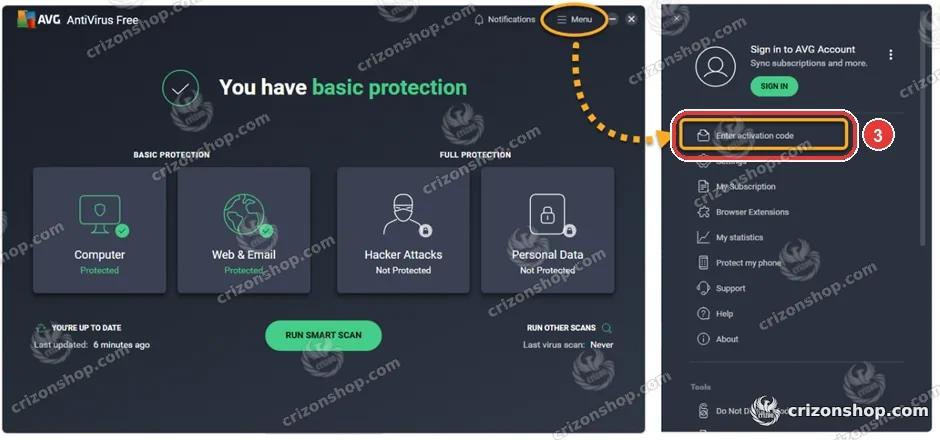
Click “Enter activation code”. Paste the code into the empty field with Ctrl + V, then click Enter.
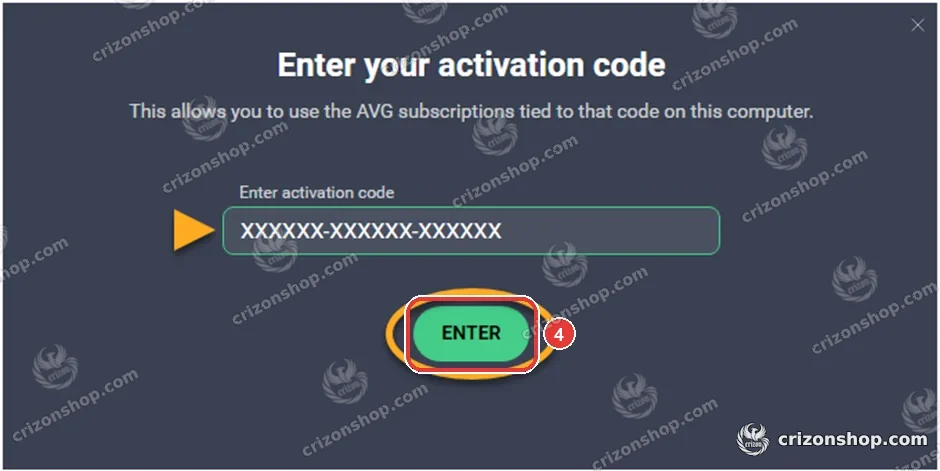
Paste the code into the field, then click “ENTER”. If AVG asks for your name, email, or postal code, fill them in and confirm.
Step 3. Check the apps in your plan
After entering the code, go back to the My Subscription screen.
Under Subscriptions on this PC, every product in your plan should show Active.
If a product isn't installed yet, click Activate & install next to it.
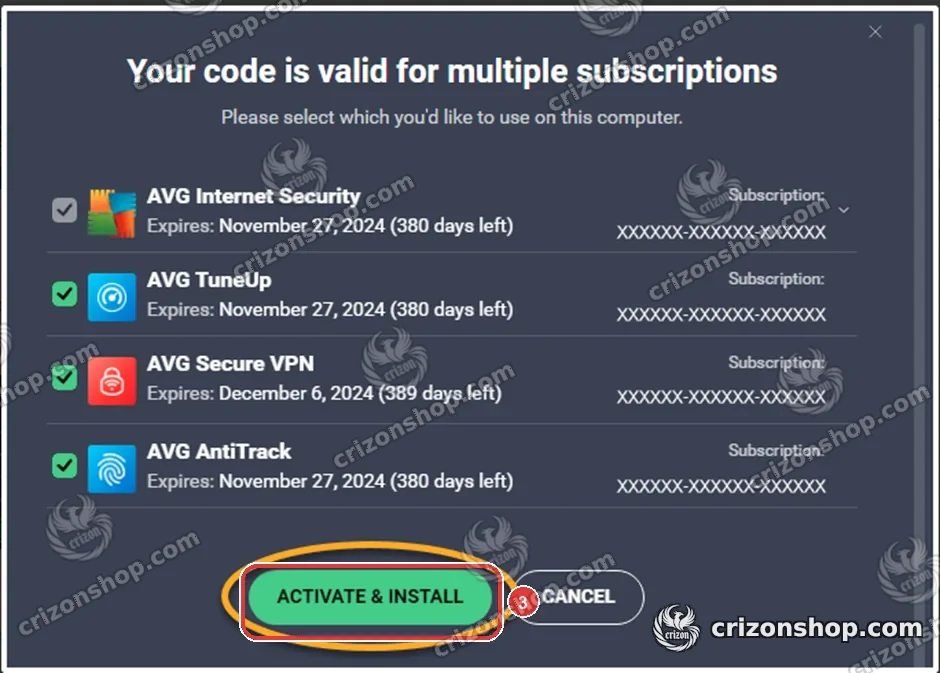
Click “ACTIVATE & INSTALL” to activate and install. Wait for the installation to finish, then check again to make sure every product shows Active.
Step 4. Sign in to your AVG Account
AVG recommends signing in to your AVG Account after activation. Your subscription is linked to this account, which makes it easier to manage your plan and use it on other devices.
In AVG Internet Security, click ☰ Menu and select Sign in.
Enter your AVG Account email and password, or select Create account if you don't have an account yet.
Activate on Mac, Android, and iPhone
This section is for the AVG Ultimate (Multi-Device) plan. You use the same activation code on all your devices. Here's how to enter it on each type of device. AVG's full instructions are on the AVG Ultimate (Multi-Device) page.
Open the AVG Ultimate (Multi-Device) page, go to the Mac section, and click Download AVG AntiVirus.
Open
avg_mac_security_online.dmg, double-click AVG AntiVirus, and follow the on-screen instructions.Open AVG AntiVirus from your Applications folder.
Click ☰ Menu and select My Subscriptions (some versions show Activate paid features instead).
Paste your activation code and click Activate.
When prompted, select See my apps.
Click Install next to each product under Subscriptions on this Mac.
Go to ☰ Menu › Sign in to AVG Account and sign in with the same AVG Account you use on your other devices.
Each AVG app on Android is activated separately. Install the app you need from Google Play, then follow the matching section below.
AVG AntiVirus
Open the app, select Get started, then select Already purchased?.
Select Use an activation code.
Paste the code and tap Continue.
AVG Cleaner
Open the app, select Get started, then select Already purchased?.
Select Use an activation code.
Paste the code and tap Use this code.
AVG Secure VPN
Open the app and select Already purchased?.
Select Enter activation code, paste the code, and tap Activate.
To link your plan to your AVG Account, tap the Settings gear icon, select Subscription, then select Link to AVG Account.
AVG Mobile Security
Install AVG Mobile Security from the App Store and open the app.
Select Not now, then tap Upgrade.
Select Already purchased?, then select Enter AVG subscription code.
Paste the code and tap OK.
AVG Secure VPN
Install AVG Secure VPN from the App Store and open the app.
Select Already purchased?, then select Sign in to AVG Account.
Sign in with the AVG Account you used on your other device, then tap Sign in.
On iPhone, AVG Secure VPN gets your plan through your AVG Account, not through an activation code. So you need to sign in to your AVG Account on a computer or Android phone first.
Frequently asked questions
In the current version, it's inside My Subscription. Click ☰ Menu, select My Subscription, and you'll see Enter activation code.
Check that you pasted the full code, including the hyphens, with no extra spaces. On Windows, the AVG Ultimate code must be entered in the AVG Internet Security app downloaded from AVG's site. If your plan is still active and the code keeps getting rejected, AVG says to enter the code in the activation form linked from the AVG Ultimate (Multi-Device) page to get a working code through your AVG Account.
Open ☰ Menu › My Subscription in AVG Internet Security. For any product that doesn't show Active under Subscriptions on this PC, click Activate & install next to it and wait for the installation to finish.
AVG only provides Mac, Android, and iPhone installation guides for AVG Ultimate (Multi-Device). The standard AVG Ultimate guide covers Windows only, so check the exact name of the plan you bought before you install it on another device.
Related guides
How to Activate AVG AntiTrack Premium with an Activation CodeHow to Enter an AVG Driver Updater Activation Code on WindowsHow to Enter an AVG Internet Security Activation Code on Your ComputerStill need help?
Send your order code and we can sort it out faster.
