 Google · Set up
How to Leave a Google Family Group on Your Computer or Phone
To leave a Google family group, open the Your family on Google page, select Leave family group, then select Leave. Family managers and supervised accounts can't leave on their own.
This guide shows you how to leave a Google family group (Google Family) yourself, using your own account. You can do it in a web browser or in the Play Store and Google One apps. You usually need to do this before you can accept an invite to another family group.
Check before you leave
- Family managers can't leave the group. If you created the group, you won't see a leave option.
- Supervised members can't leave the group on their own either. These are children's accounts managed by a parent.
- Family groups only work with personal Google Accounts. Accounts from your work or school can't join a family group.
- As soon as you leave, you lose the shared benefits you were using, such as a YouTube Premium family plan, Google One storage or a Google AI plan.
Leave in a web browser (computer or phone)
Open Your family on Google and sign in with the Google Account that's in the group.
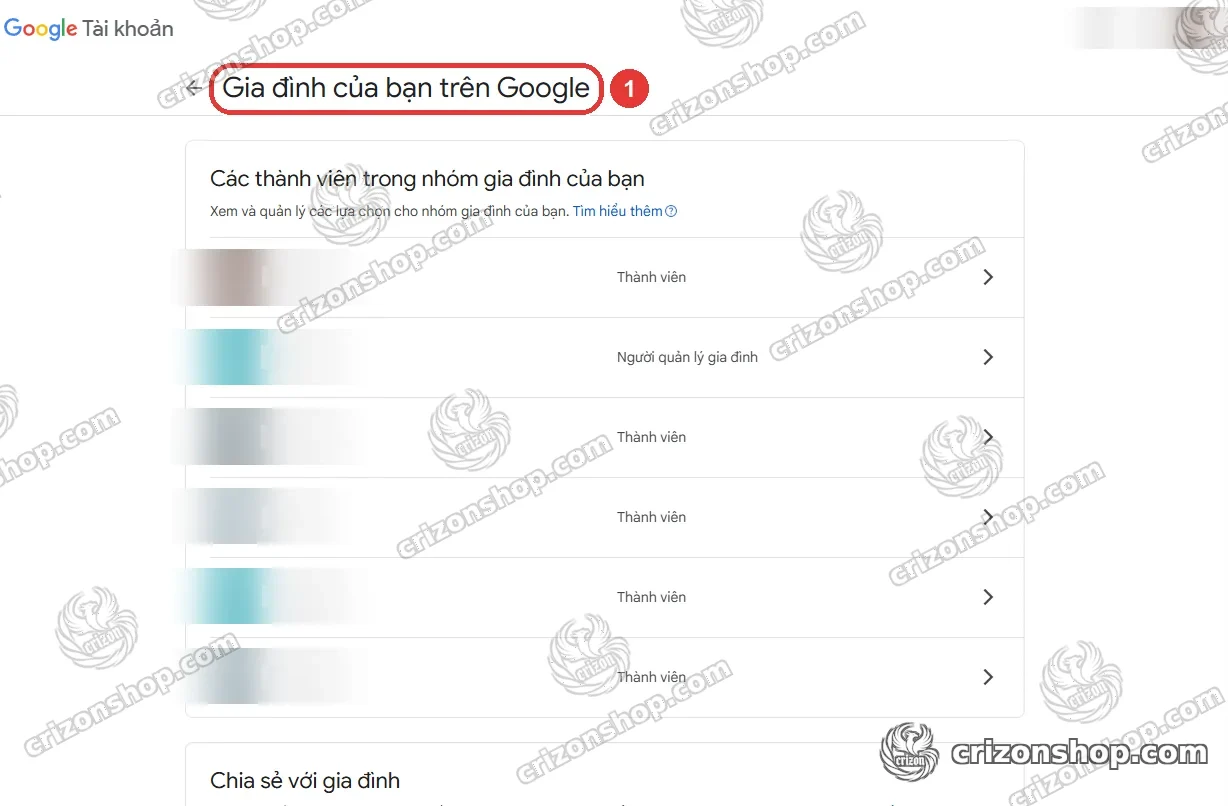
Open “Your family on Google”. Scroll to the bottom of the page and select Leave family group.
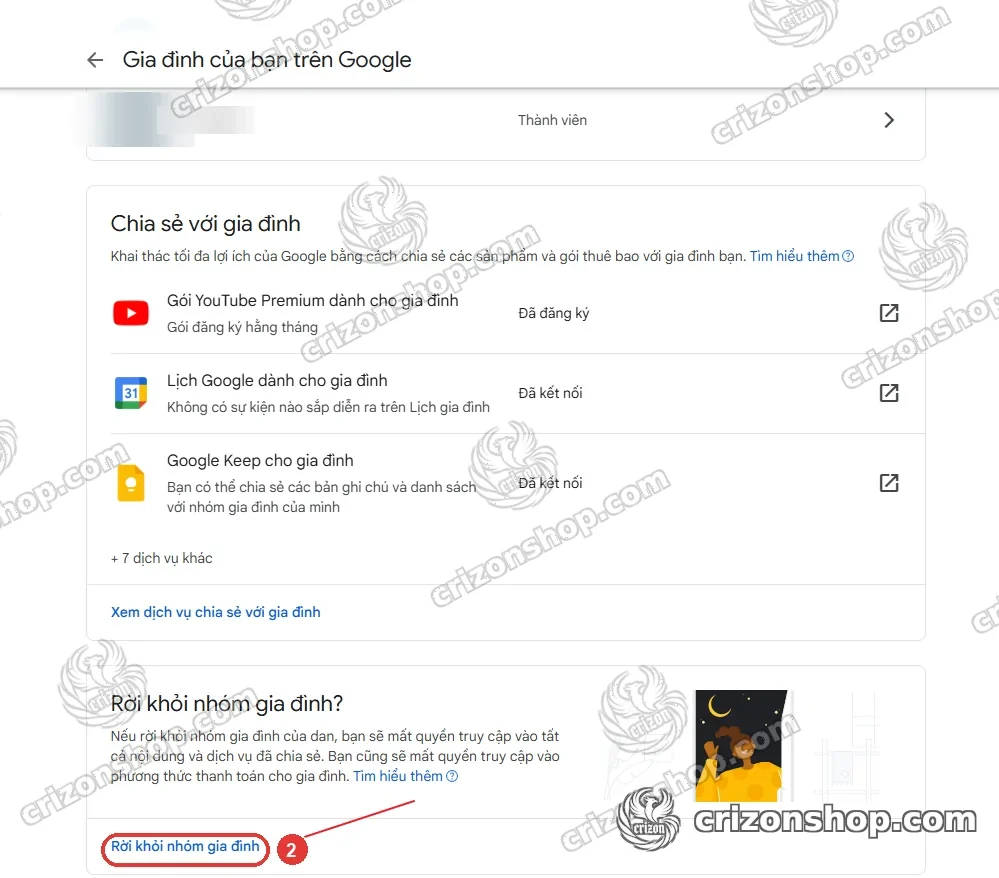
Select “Leave family group”. Select Leave to confirm. If Google asks for your password, enter your account password.
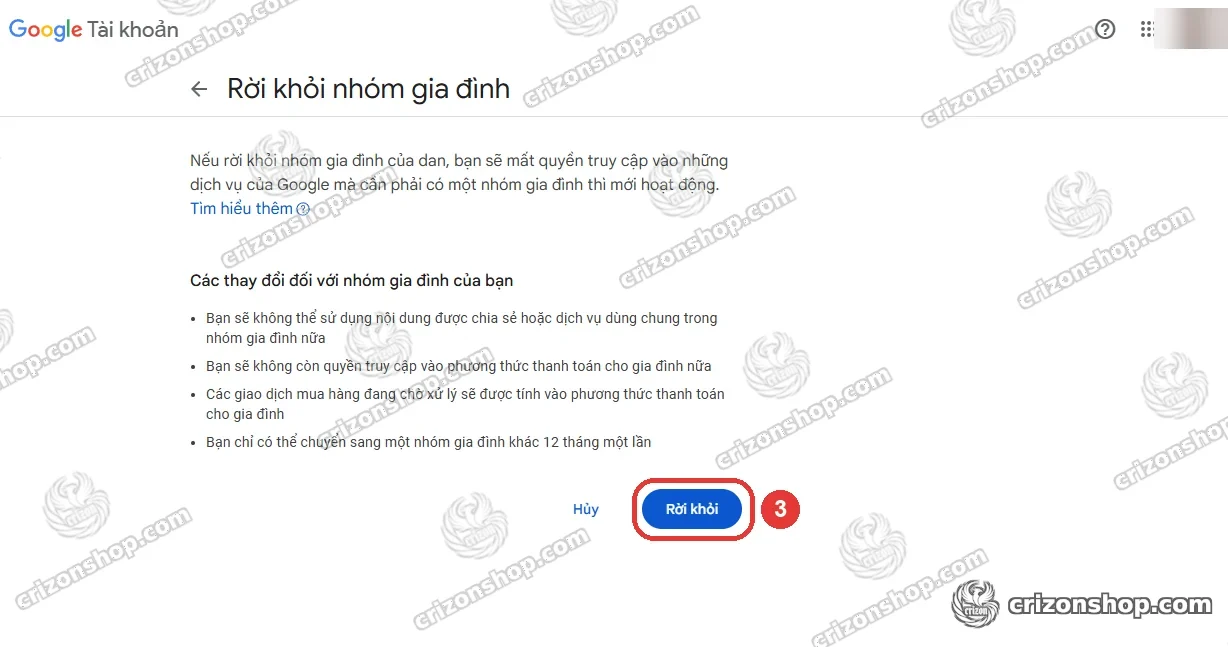
Select “Leave” to confirm that you're leaving the family group.
Leave using the mobile apps
Open the Play Store app.
Tap your profile picture at the top right, then select Settings → Family.
Tap Manage family members.
Tap More (three dots) at the top right, then select Leave family group.
Tap Leave group, then enter your Google Account password.
Tap Confirm.
Open the Google One app.
Tap Menu, then select Settings → View family group.
Tap Manage family group → Family group settings → Leave family group?
Tap Leave.
Open the Google One app.
Tap Menu → Settings → Family settings.
Tap View family group. Sign in again if the app asks you to.
Scroll down to Leave family group? and tap Leave family group.
Enter your password and tap Next.
Tap Leave.
Check that you've left the group
Open Your family on Google again. If the page no longer shows your old group and its member list, you've left. You may also get an email from Google saying you're no longer a member of that family group.
What changes after you leave
Your Google Account and anything you bought yourself stay the same. The things you were using through the family group stop, as listed below.
- You can no longer make purchases with the family payment method.
- You lose access to Family Library on Google Play. Any items you added to the library are also removed from it.
- You no longer share the storage and other benefits of the group's Google One plan.
- You lose access to the Google AI plan (Gemini) if the group shares one.
- Your YouTube Premium family plan benefits end as soon as you leave the group.
After that, you can accept an invite to another family group. The new group's family manager sends it by email or text message. To join, you need to live in the same country as the family manager and must not have switched family groups in the past 12 months. For the YouTube Premium family plan, Google also requires members to live at the same address as the family manager and checks this again every 30 days.
Frequently asked questions
There are usually three reasons. You're signed in to the wrong account, you're the family manager, or your account is supervised. The family manager can't leave the group. They can only delete the whole group, and every member then loses the shared benefits. If your account is supervised, ask the parent who manages it to handle this.
Yes. Google doesn't limit how many times you can leave and rejoin the same family group. The 12-month limit only applies when you switch to a different group. To rejoin, the old group's family manager needs to send you a new invite.
No. Your data stays in your account. However, you'll no longer get the shared Google One storage, so check how much space you're using at Google One Storage before you leave. If your data takes up more than your account's own storage, delete some files or buy more storage so you don't run out of space.
If you haven't switched family groups in the past 12 months, you can accept an invite to a new group right after leaving. If you have switched groups during that time, Google won't let you join until 12 months have passed since your last switch.
Related guides
How to Join a Google Family Group by InvitationHow to Create a Google Family Group and Get an Invite LinkHow to Create a New Gmail Account for Personal UseStill need help?
Send your order code and we can sort it out faster.
