 Google · Activate
How to Join a Google Family Group by Invitation
Open the invitation email or text, accept it, select Get started, and confirm with the right personal Google Account. You must live in the same country as the family manager and not already belong to another family group.
When someone in your household subscribes to a Google family plan, such as YouTube Premium or Google One, and sends you an invitation, you just need to accept it with your Google Account to share the benefits. This guide walks through each step and covers Google's requirements, so you don't get blocked halfway through.
Requirements for joining
According to Google's help page on family groups, your account must meet all of the requirements below before you can join.
- It's a personal Google Account. Accounts issued by a company, school, or organization (Google Workspace) can't join a family group.
- You live in the same country as the family manager.
- The account isn't currently part of another family group.
- You haven't switched to a different family group in the past 12 months.
The YouTube Premium family plan has two extra requirements. You must be 13 or older and live at the same household address as the family manager. For details, see the YouTube family plan requirements page.
Accept the invitation
Google sends the invitation by email or text message to the exact email address or phone number the family manager entered. You can accept it on a phone or a computer.
Open the family invitation email or text message from Google.
Select Accept invitation in the message. Your browser opens Google's invitation page.
Check the profile picture in the top right to make sure you're signed in to the account you want to add to the group.
If a different account is signed in, select the profile picture and switch to the correct account.
Select Get started.
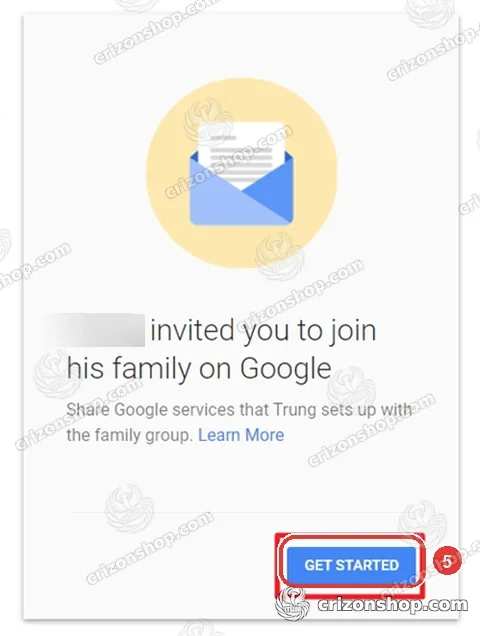
Select GET STARTED. Review the group name and your account, then select Join family to confirm.
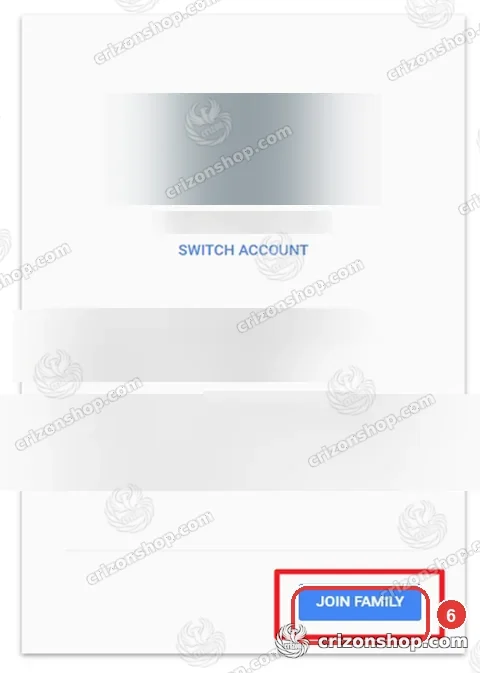
Review the details, then select JOIN FAMILY to confirm. Open YouTube, Google One, or the shared service with the account that just joined, and start using it.
Check that you've joined the group
After confirming, open the member list to make sure your name is in the group.
Open the Play Store app and tap your profile picture.
Select Settings, then Family.
Tap View family members to see the member list.
Open the Google One app and tap Menu.
Select Settings, then Family settings.
Tap View family group to see the member list.
Open your browser and sign in to the Google Account that joined the group.
Go to
g.co/yourfamilyto open your Google family page.Check the member list on this page.
Leave the family group if needed
Regular members can leave the group at any time. The family manager and supervised accounts (children's accounts) can't leave on their own.
Open the Play Store and tap your profile picture.
Select Settings, then Family, then View family members.
Tap More at the top, then select Leave family group.
Tap LEAVE GROUP and enter your Google Account password to confirm.
Open Google One, tap Menu, then Settings.
Select Family settings, then View family group.
Scroll to the bottom and tap Leave family group.
Enter your password, tap Next, then tap Leave.
Go to your Google family page at
g.co/yourfamily.Select Leave family group.
Click Leave to confirm.
Once you leave, you lose access to the family payment method, Family Library, and shared subscriptions. Your Google Account and anything you bought yourself stay as they are.
FAQ
Invitations are only valid for a limited time. Ask the family manager to send it again. According to Google, to resend an invitation they need to remove you from the invited list and then add your email address or phone number again.
The most common reasons are that you're using a Google Workspace account from work or school, you're in a different country from the family manager, you already belong to another family group, or you've switched groups in the past 12 months. If you're still in your old group, leave it first, then accept the new invitation.
YouTube checks whether members live at the same address as the family manager. If it can't confirm this, your benefits may be paused, and YouTube will email you instructions on how to verify. Follow that email together with the family manager to get access back.
Yes. The 12-month limit only applies when you switch to a different family group. Google doesn't limit how many times you can rejoin your original group. You just need the family manager to send you a new invitation.
Related guides
How to Create a Google Family Group and Get an Invite LinkHow to Create a New Gmail Account for Personal UseHow to Leave a Google Family Group on Your Computer or PhoneStill need help?
Send your order code and we can sort it out faster.
