 Google · Set up
How to Create a Google Family Group and Get an Invite Link
Sign in to Google, go to g.co/yourfamily, create a family group, then click Send invitations and enter your family members' emails. To get a link you can share in a message, invite your own Gmail address with +1 and copy the link from that email.
This guide shows you how to create a family group on your Google Account, invite family members by email, and get an invite link you can send through Messenger or another messaging app. A family group lets you share plans like YouTube Premium, Google One, or the Google Play Family Library with up to 5 other people.
Check the requirements before you create a group
Google sets a few requirements for both the family manager and the members. Check them first so the invite doesn't fail when your family member tries to join.
- The family manager (the person who creates the group) must be an adult under the laws of their country. In Vietnam, that means 18 or older.
- You can't create or join a group with a Google Account from your work, school, or another organization.
- All members must live in the same country as the family manager. The Google Play country on each account also needs to match.
- A group can have up to 6 people, including the family manager, so you can invite 5 more people.
- Members must be 13 or older (or the equivalent age in your country). Younger children can join only if the family manager created their account as a supervised account.
- The person you invite can't already be in another family group.
Create a family group
Open a browser on your computer or phone and sign in to the Google Account you want to use as the family manager.
Go to g.co/yourfamily.
Click Create a family group, then click Get started.
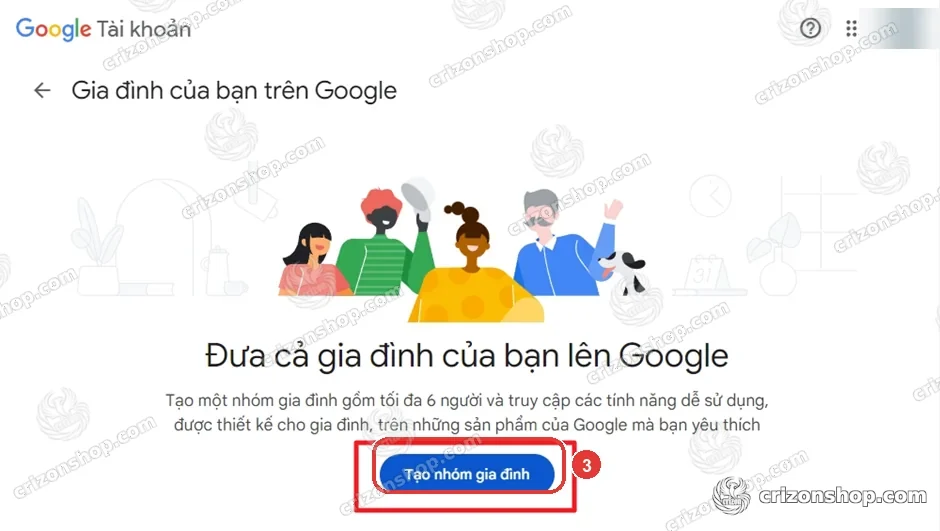
Click “Create a family group” to start setting up your group. When Google asks if you're ready to be the family manager, click Confirm.
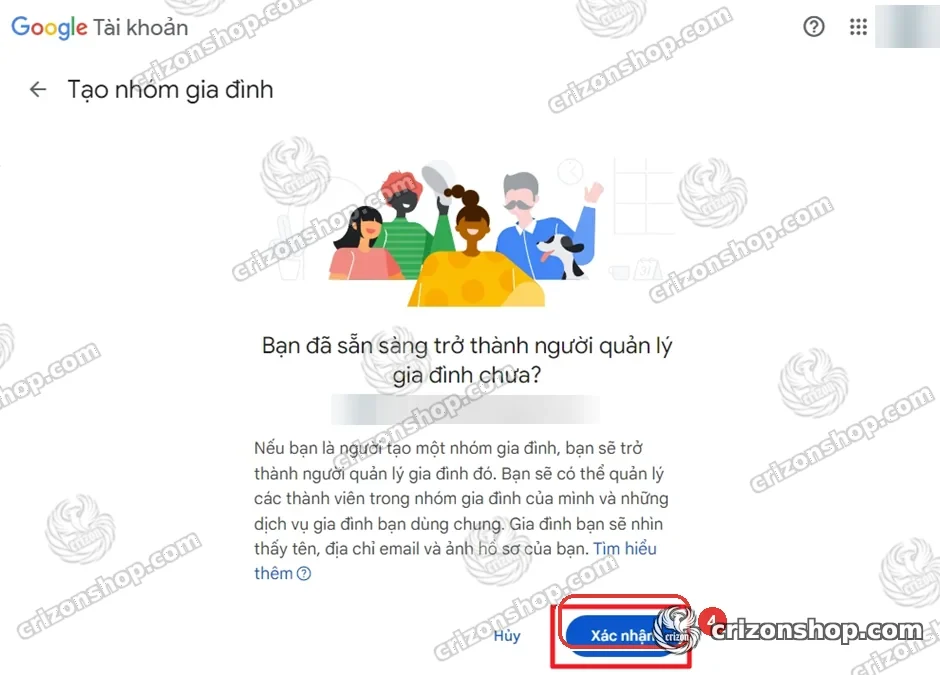
Click “Confirm” to continue. Enter the email addresses of the people you want to invite.
Click Send.
Once you click Confirm, your account becomes the manager of the family group. For full instructions for each device, see Google's guide to creating a family group.
Invite more members by email
Go back to g.co/yourfamily with the family manager account.
Click Send invitations.
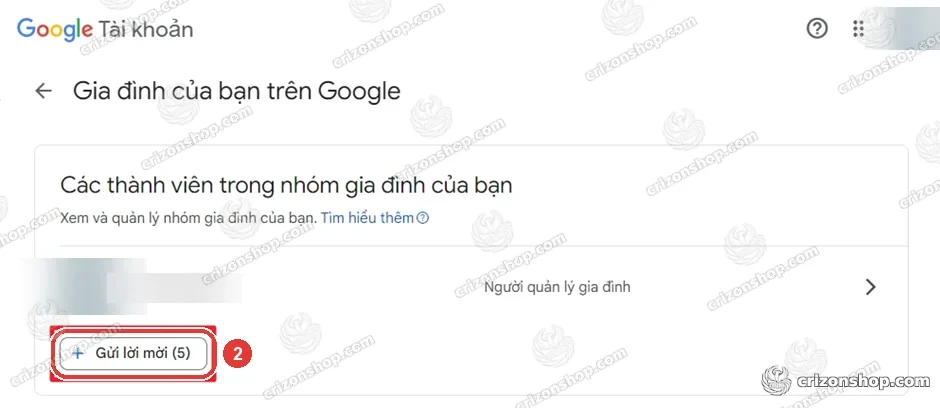
Click “Send invitations (5)” to send an invite. Enter your family member's email address.
Click Send.
The person you invite will get an email or text message from Google. When they accept, you'll get an email letting you know they've joined the group.
Get an invite link to share by message
Google's help pages only cover inviting people by email or phone number, and there's no button to copy an invite link. The method below is a workaround that many people use. You send an invite to your own Gmail address with +1 added, because Gmail delivers mail sent to an address with a plus sign to the same inbox. Then you take the link from that email and send it to your family member.
Take the Gmail address of the family manager account and add
+1right before the@. For example,[email protected]becomes[email protected].Go to g.co/yourfamily, click Send invitations, enter the address you just made, and click Send.
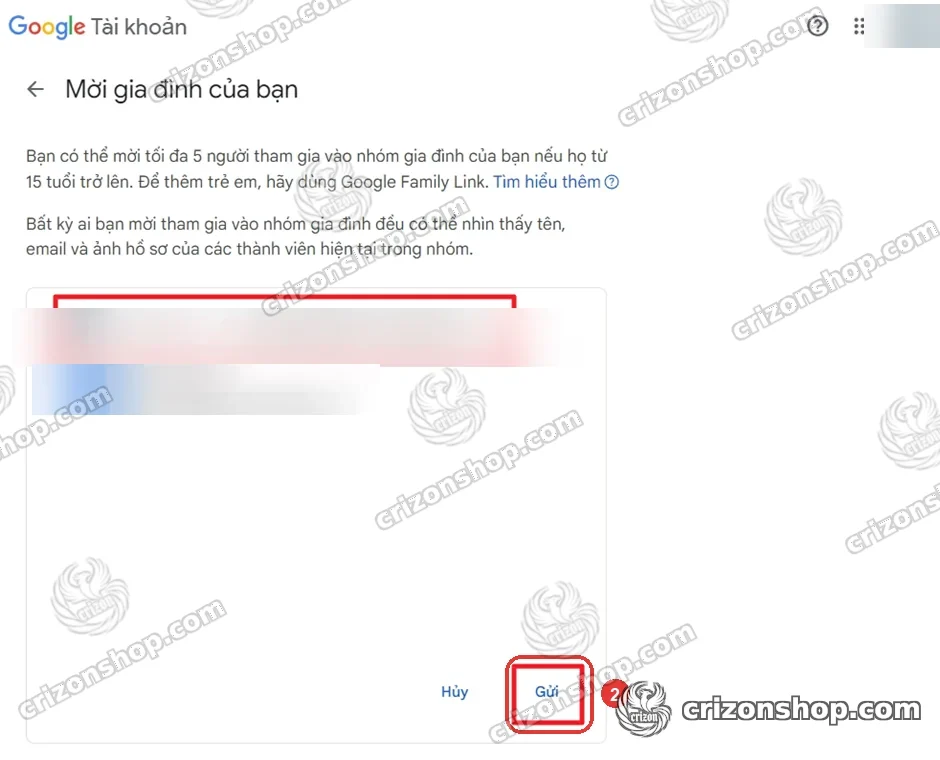
Click “Send” to send the invite. Open Gmail for the family manager account and find Google's invitation to join the family group (the subject line usually looks like Join ...'s family group?).
Click the Accept invitation button in the email.
When a new page opens in your browser, copy the full address from the address bar. That's your invite link.
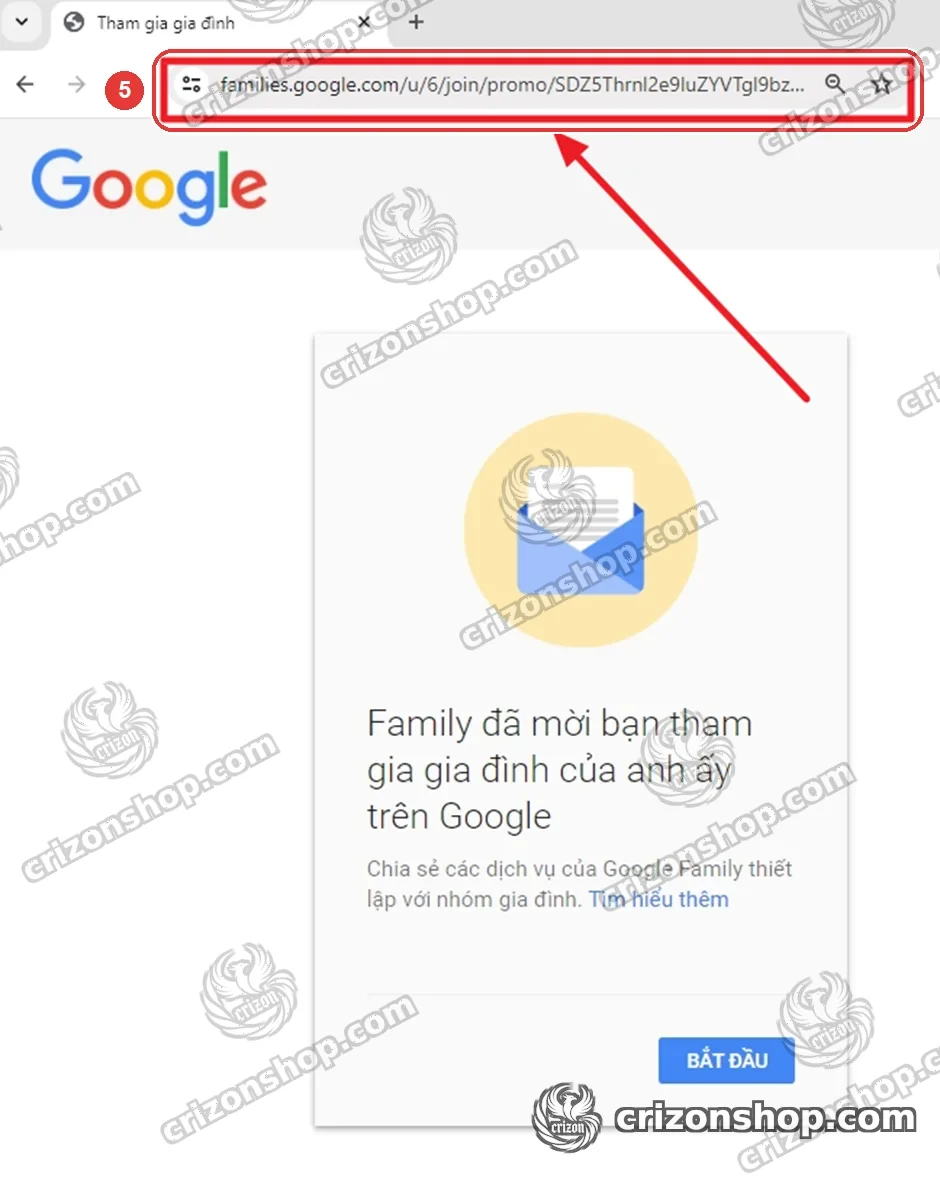
Copy the full invite link from the address bar. Send the link to your family member. They open it while signed in to their own Google Account, then follow the on-screen steps.
How the invited person joins the group
On a phone or computer, sign in to the Google Account you want to add to the group.
Open the email, message, or invite link the family manager sent.
Follow the on-screen steps to accept the invite.
Once you join, other members can see your name, profile picture, and email address. For more details, see Google's page on joining or leaving a family group.
Leave the group if you need to
Go to g.co/yourfamily with the member account.
Scroll down and click Leave family group.
Click Leave to confirm.
Frequently asked questions
Invites expire after 2 weeks. If your family member didn't join in time, the family manager just needs to send a new invite using the steps above.
Common reasons: the account is already in another family group, has switched groups in the last 12 months, is a work or school account, or is in a different country from the family manager. Invites older than 2 weeks also stop working. Check the requirements at the top of this guide, then send a new invite.
Each group can have up to 6 people, including the family manager, so you can invite 5 more members. Once the group is full, you have to remove a member before you can invite someone else.
No. The address with +1 added is still your Gmail inbox, so the invite lands right in your main inbox. This trick only works if the family manager account is a Gmail address.
Related guides
How to Join a Google Family Group by InvitationHow to Create a New Gmail Account for Personal UseHow to Leave a Google Family Group on Your Computer or PhoneStill need help?
Send your order code and we can sort it out faster.
