 Google · Set up
How to Create a New Gmail Account for Personal Use
Go to accounts.google.com/signup, enter your name and birthday, choose a Gmail address, set a password, verify your phone number if Google asks, then click I agree. That's it.
This guide shows you how to create a new Gmail address on your own. That address is also your Google Account, which you use to sign in to YouTube, Google Drive, Google Play and other Google services. You can do this on a computer or in your phone's browser.
Before you start
- You need to be at least 15 years old to manage your own Google Account in Vietnam, according to Google's age requirements. If you're younger, a parent can create and manage an account for you with Family Link.
- Keep your own phone nearby. The number should be able to receive SMS, because Google may ask you to verify it during sign-up.
- If your browser is already signed in to another Google account, sign out first or open an incognito window so the accounts don't get mixed up.
- Think of a few usernames you like in case your first choice is already taken.
Steps to create a Gmail account
Open your browser and go to the Google Account sign-up page.
If you're coming from the Google sign-in page, click Create account and choose For my personal use.
Enter your first and last name, then click Next.
Choose your birthday and gender, then click Next.
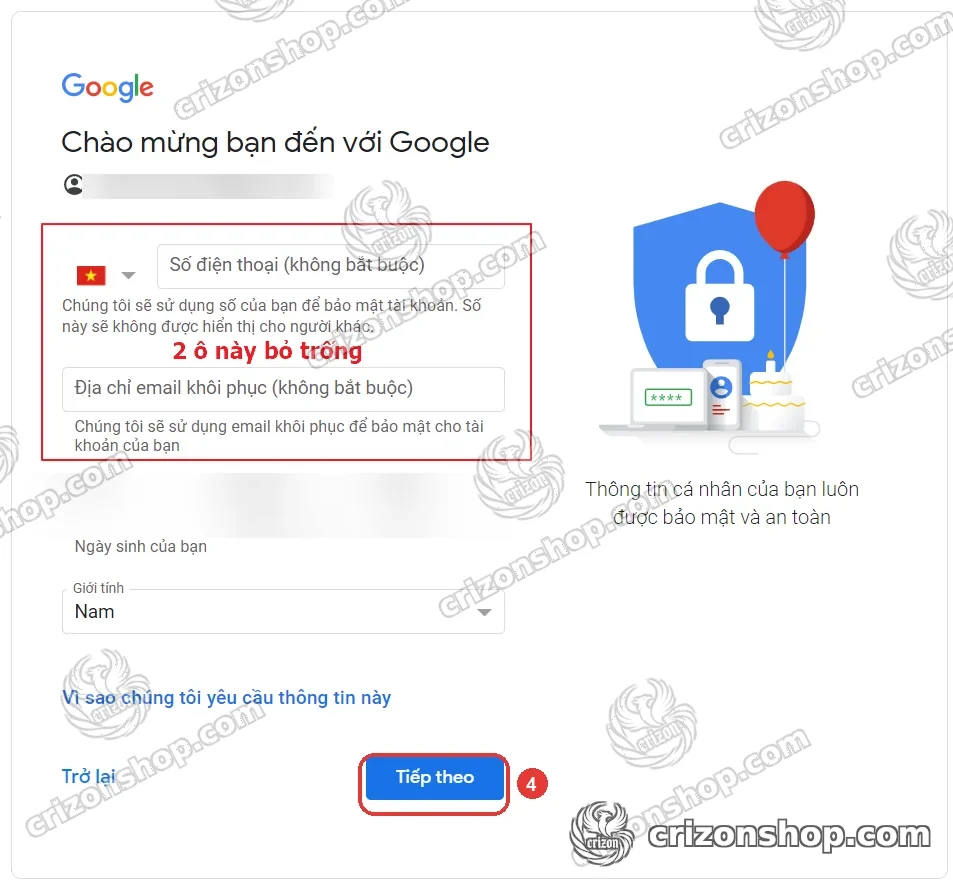
Choose your birthday and gender, then click “Next”. Pick one of the Gmail addresses Google suggests or create your own, then click Next.
Create a password, enter it again in the confirm field, then click Next.
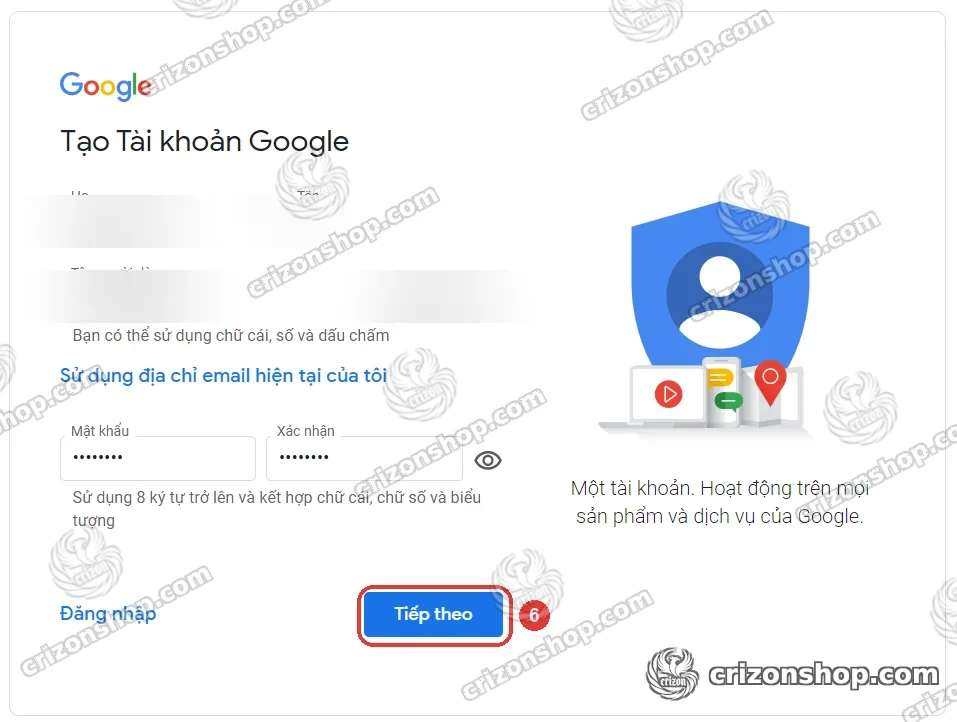
Create a password, enter it again in the confirm field, then click “Next”. If Google asks for a phone number, enter yours and type in the verification code you get by SMS.
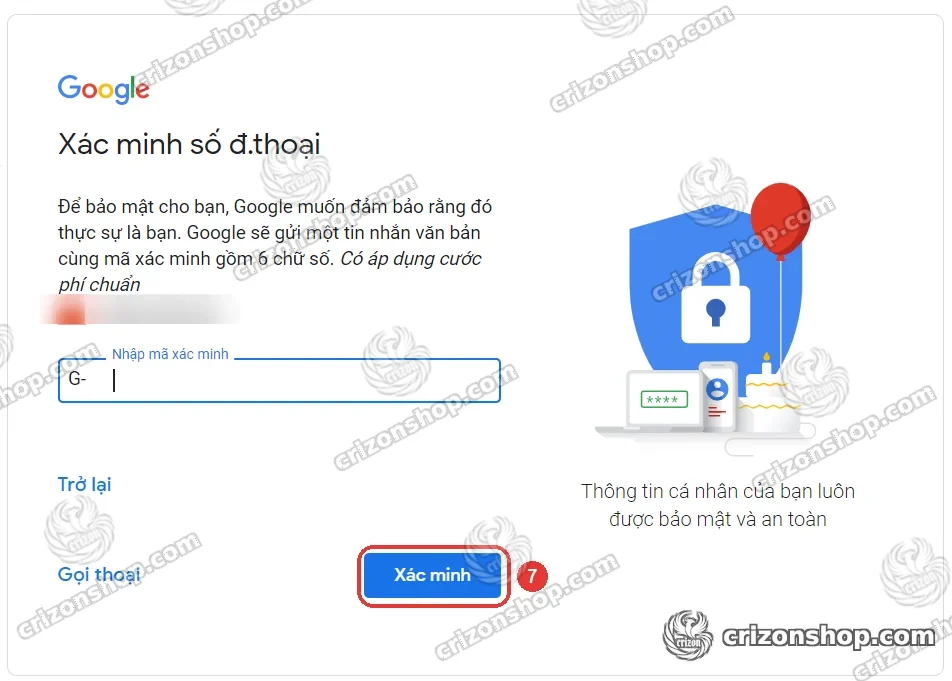
Enter the SMS code, then click “Verify”. Add a recovery email when asked.
Review your account info, read the privacy and terms, then click I agree.
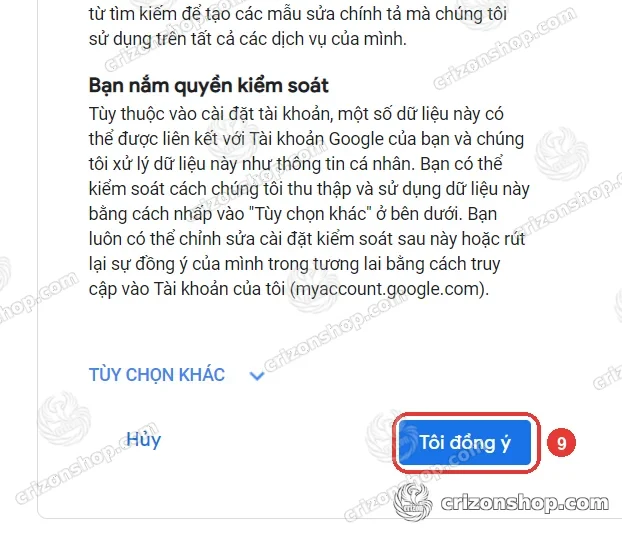
Read the information, then click “I agree”.
After the last step, Google signs you in to your new account automatically. Open Gmail and your inbox is right there.
Choosing a username and password
According to Google's guide to creating a Gmail account, Google won't let you use a username in these cases:
- The username is already taken.
- It's too similar to an existing username.
- Someone used it before and then deleted their account.
- Google has reserved it to prevent spam or abuse.
If Google says a username isn't available, add a few numbers or combine the words differently until it's accepted. Make your password long and mix uppercase and lowercase letters, numbers and symbols. Don't reuse a password from another site. If you're typing on a phone, note that the first character of your password isn't case-sensitive.
Add a phone number and recovery email
The phone number and recovery email fields are optional, but you should fill them in. As Google explains, they help keep your account secure and help you get back in if you forget your password or can't sign in.
If you skipped them during sign-up, you can add them later on your account management page at myaccount.google.com.
Frequently asked questions
Google's help page says adding and verifying a phone number is optional. However, in some cases Google still requires SMS verification before you can continue. If the screen has no Skip button, you'll need to verify with your own number.
Not on your own. A parent can create and manage a Google Account for you with Family Link. Once you're old enough, you can manage the account yourself.
Yes. At the step where you choose a Gmail address, choose to use your existing email address. Enter it, then verify it with the code Google sends to that inbox. You'll get a Google Account for Google services, but no new Gmail inbox.
Check the number you entered, make sure the country code is set to Vietnam (+84) and that your phone has signal. Wait a few minutes, then request a new code. If it still doesn't arrive, wait a while and try again.
Related guides
How to Join a Google Family Group by InvitationHow to Create a Google Family Group and Get an Invite LinkHow to Leave a Google Family Group on Your Computer or PhoneStill need help?
Send your order code and we can sort it out faster.
