 Google · Fix a problem
How to Delete a Google Family Group With a Child Account Under 15
Google won't let you delete a family group while it still has a supervised child account. First delete the child's account or transfer supervision in Family Link. Then you can delete the group.
If you're the family manager on Google and your group still has an account for a child under 15, Google won't let you delete the group. This guide shows you how to handle the child's account in Family Link, delete your old family group, and then join a new one.
Why Google won't let you delete the family group
According to Google's Families Help page, before the family manager can delete the group, they must transfer supervision of or delete the supervised Google Account of every underage child in the group. In Vietnam, you must be at least 15 to manage your own Google Account, so 15 is the age that matters here (see Google's age requirements).
Use the table below to find the right option for your child's account.
| Child's account | What to do before deleting the group |
|---|---|
| You created it, the child is under 15, and no one uses it anymore | Delete the child's account (see Step 1) |
| The child still uses the account | Transfer supervision to another parent instead of deleting it |
| The child is 15 or older but still supervised | Stop supervision. You can't delete this account yourself |
Before you start
Step 1. Delete the child's account in Family Link
Sign in with the parent's Google Account, not the child's. If your group has more than one child account to delete, repeat these steps for each one.
Open familylink.google.com in your browser.
Sign in with the parent's Google Account.
Select the child whose account you want to delete.
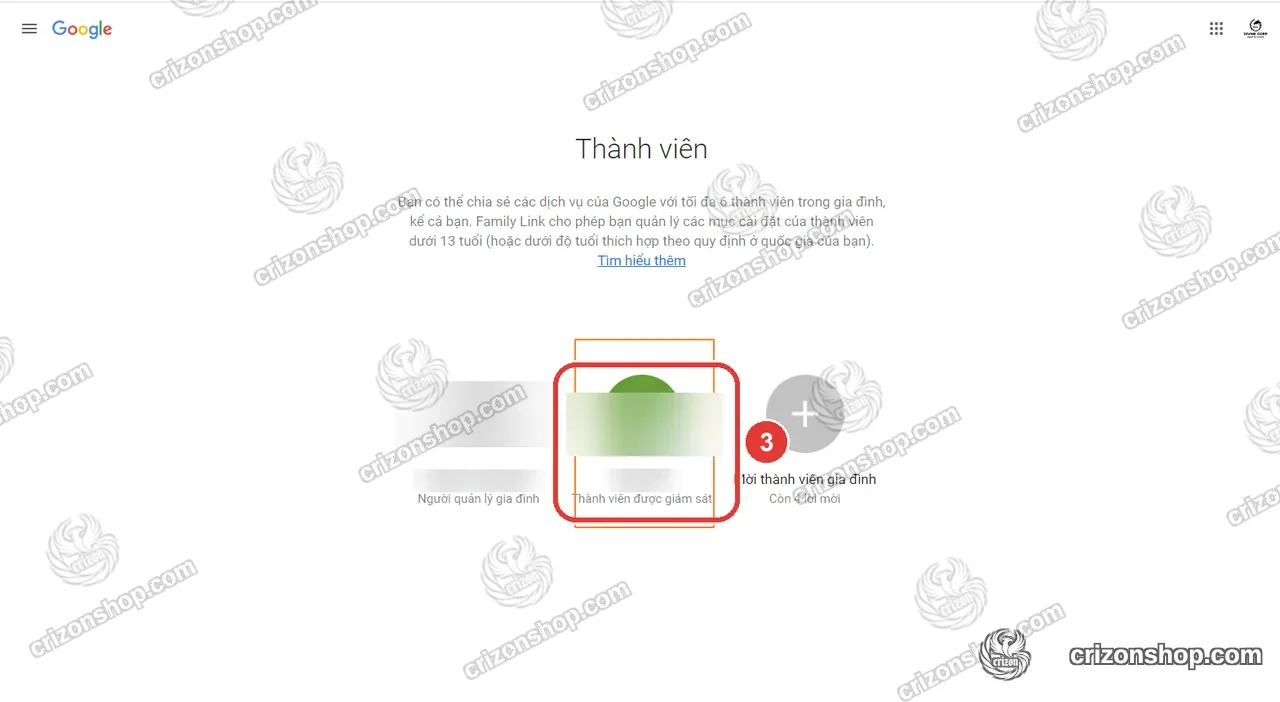
Click “Hằng Phi” to select the child's account. Select Controls.
Select Account settings.
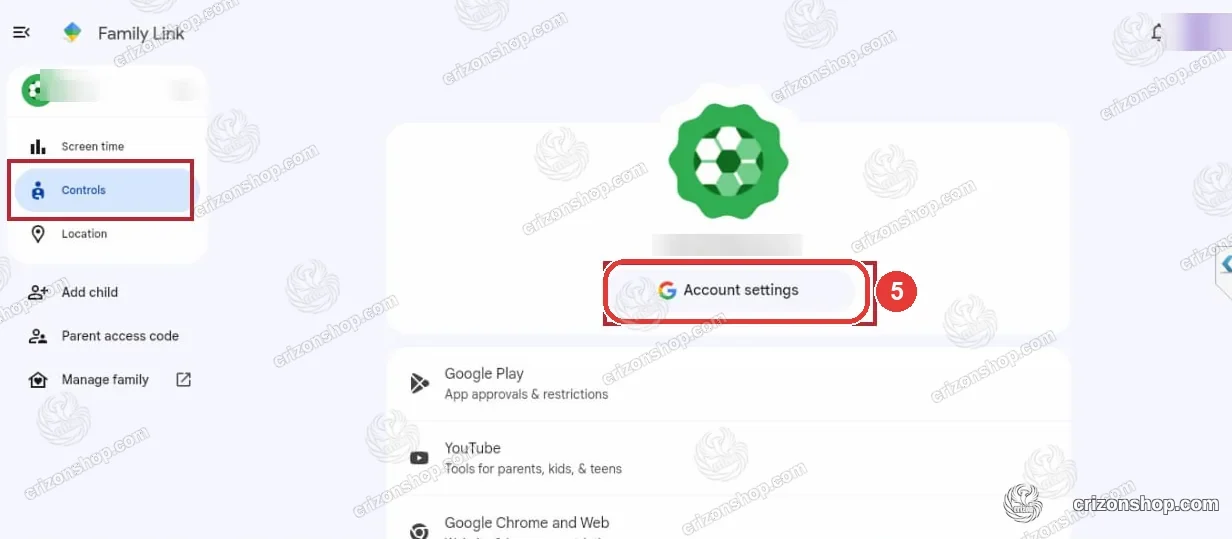
Click “Account settings” to open the account settings. Scroll to the bottom of the page and select Delete account.
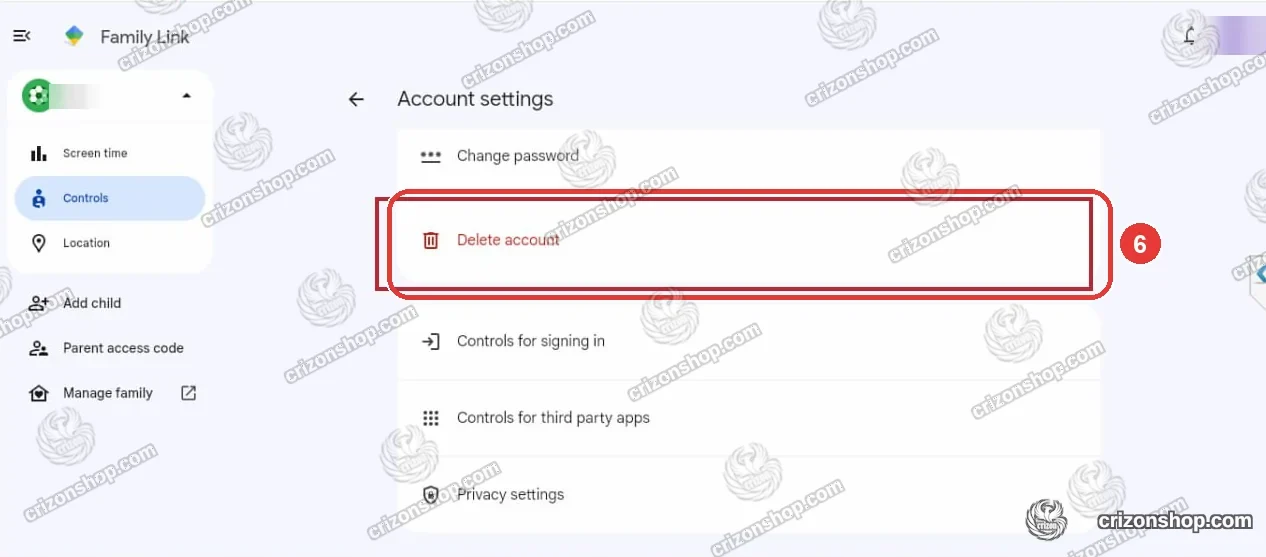
Select “Delete account” to delete the account. Read the information carefully, then check all the confirmation boxes.
Click Delete account at the bottom of the screen to finish.
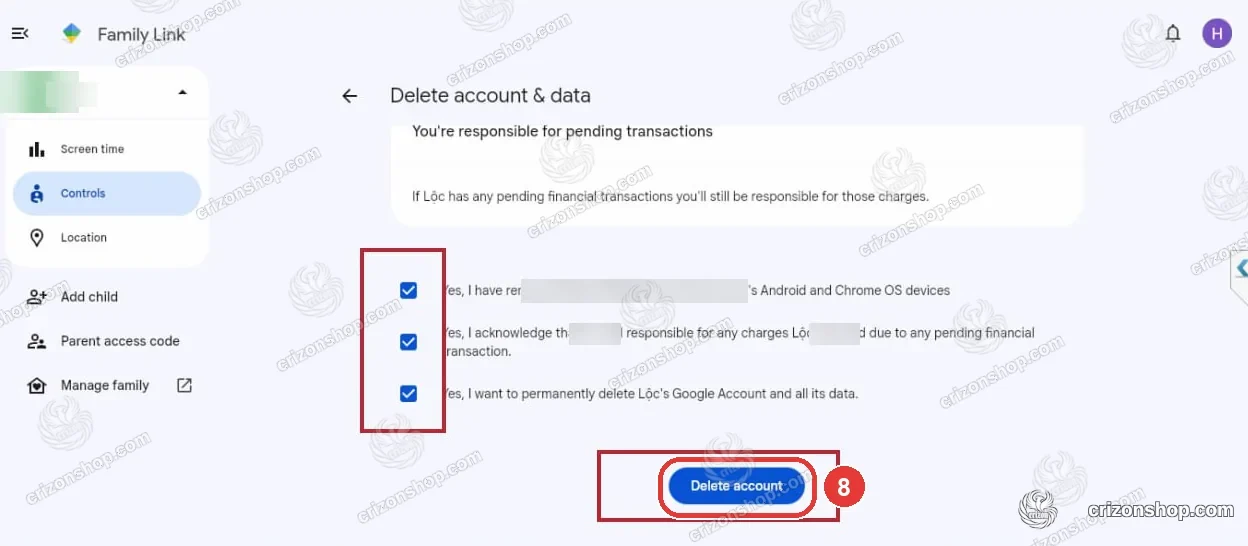
Click “Delete account” to finish.
Open the Family Link app on your phone.
Select the child whose account you want to delete.
Tap Controls.
Tap Account settings.
Tap Delete account.
Follow the on-screen instructions, check the confirmation boxes, then confirm the deletion.
Step 2. Delete the family group
Open g.co/YourFamily on your computer or phone.
Sign in with the family manager account.
Select Delete family group.
Enter your password when asked, then confirm the deletion.
Open the Family Link app.
Go to Manage family.
Find the option to delete the family group and tap Delete family group.
Enter your account password.
Tap Delete to finish.
After you delete the group, your account and the content you've bought stay intact. What you lose is everything shared in the group, such as the family library, family plans, and shared Google One storage.
Step 3. Join a new family group
Your account is no longer in any family group and is ready for a new invitation. Open the invitation the new group's family manager sent to your email and accept it. For more details, see Google's guide to joining or leaving a family group.
Frequently asked questions
Google gives you a limited time to restore your child's account in Family Link, as long as you haven't deleted the family group. If you've already deleted the group, the child's account can't be recovered. Check carefully before you do Step 2.
Yes. Instead of deleting it, transfer supervision of the child's account to another parent. Once there are no underage children supervised by you left in the group, you can delete the group. Learn more on Google's help page.
Google only lets a parent delete a child's account if that parent created the account and the child is under 15 (the age that applies in Vietnam). If the child is old enough, they manage and delete their own account.
Adults keep their accounts and the content they've bought. However, members lose access to the family plan and shared Google One storage, even if you're the one paying for it.
Related guides
How to Join a Google Family Group by InvitationHow to Create a Google Family Group and Get an Invite LinkHow to Create a New Gmail Account for Personal UseStill need help?
Send your order code and we can sort it out faster.
