IObit · Activate
How to Activate IObit Uninstaller PRO with a License Code
Install IObit Uninstaller from the official site and open it. Click Enter Code in the bottom-left corner, paste your license code, and click Register Now to upgrade to PRO.
This guide shows you how to install IObit Uninstaller from the official site and enter a license code to upgrade the free version to PRO. The steps follow IObit's current instructions and apply to Windows PCs.
Before you start
Download and install IObit Uninstaller
Open the IObit Uninstaller page on iobit.com.
Click Free Download to download the installer.
Open the downloaded file and follow the setup wizard. Read each screen carefully before you continue, and uncheck any extra items you don't want to install.
When setup finishes, open IObit Uninstaller. At this point, it's still the FREE version.
Enter your license code to upgrade to PRO
Open IObit Uninstaller.
In the bottom-left corner of the main screen, click Enter Code.
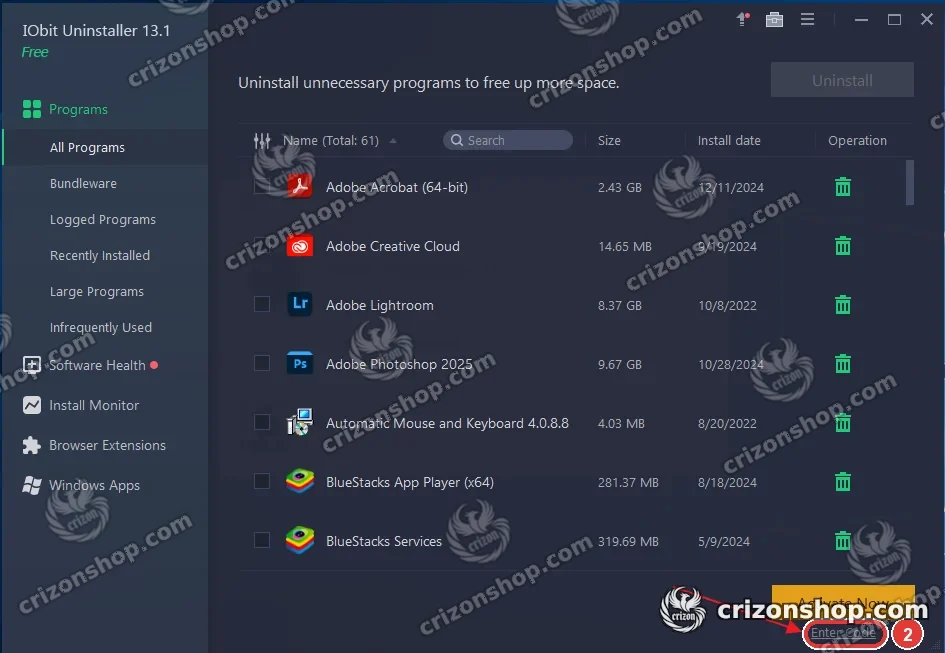
Click Enter Code in the bottom-left corner. The registration window opens. Paste your license code into the box.
Click Register Now.
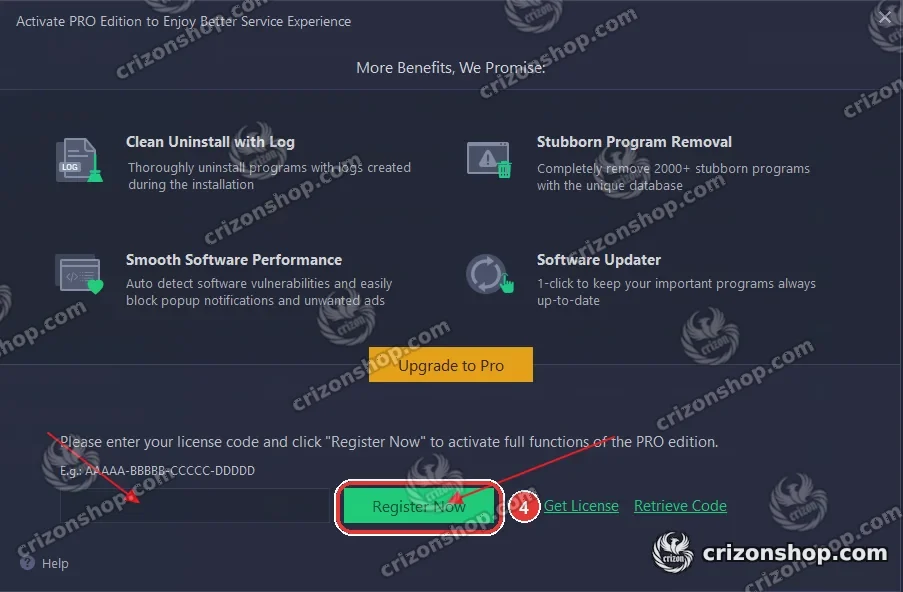
Click Register Now. After you register, the app switches to PRO and all features are unlocked.
Check your status and renew
After activation, everything related to your license is in one place in the app. That includes checking its status, entering a renewal code, and exporting your license to keep a copy.
Open IObit Uninstaller PRO.
Click Options in the top-right corner.
Select My subscription to see the status of your current license.
To renew or switch to a new code, click Refresh.
Paste the new code into the registration window and click Register Now to update your expiration date.
If your code isn't accepted
If the app doesn't accept your code after you click Register Now, try these fixes one at a time.
- Copy the code again from where you saved it, paste it in again, and check that there are no extra spaces.
- Make sure the code is actually for IObit Uninstaller PRO. Each IObit product uses its own code, so a code for Advanced SystemCare or Driver Booster won't activate IObit Uninstaller.
- Update IObit Uninstaller to the latest version from IObit's site, then enter the code again.
- Make sure your PC is online and that your firewall or antivirus isn't blocking IObit Uninstaller.
Frequently asked questions
No. According to IObit's instructions, just open the FREE version you already have, click Enter Code, and enter your code to upgrade to PRO. You only need to update first if your installed version is old.
When we last checked, IObit's site was offering IObit Uninstaller 16, and IObit recommends installing the latest version before you register. If the newer version doesn't accept your code, ask the seller which version your code works with.
If you bought it directly from IObit, the IObit Uninstaller user manual has a link for retrieving your license code. If you bought it elsewhere, look for the email or message the seller sent with your code. On a PC that's already activated, go to Options › My subscription and export your license so you have a copy for next time.
Click Options in the top-right corner, then select My subscription. This screen shows the status of your current license. If you still see Enter Code in the bottom-left corner of the main screen, the app is most likely still on the FREE version.
Related guides
How to Activate IObit Driver Booster PRO with a License CodeHow to Activate IObit Malware Fighter Pro with a License CodeHow to Activate IObit Software Updater Pro with a License CodeStill need help?
Send your order code and we can sort it out faster.
