 YouTube · Set up
How to Turn On YouTube Picture-in-Picture on iPhone and iPad
On an iPhone or iPad with iOS 15 or later, turn on Start PiP Automatically in your device Settings. Then turn on Picture-in-picture under Playback in the YouTube app. You don't need a VPN or a trial page.

Picture-in-Picture (PiP) shrinks a YouTube video into a small floating window. You can keep watching while you text or use other apps. This guide shows you how to turn on PiP on iPhone and iPad with the YouTube Premium account you got from CrizonShop.
What you need
- An iPhone or iPad running iOS or iPadOS 15.0 or later. PiP won't work in YouTube on older versions.
- The latest version of the YouTube app from the App Store.
- The YouTube Premium account details from your order on crizonshop.com.
Step 1. Sign in to YouTube with your account
Log in to crizonshop.com, go to Account → My orders, and open your YouTube Premium order.
Use the copy button next to each field to copy the email and password. If the password is hidden, tap the show button to see it.
Check the screenshots in the Guide section right below the product to see how to sign in.
Open the YouTube app and sign in with the Google account you just copied.
Check that the logo in the top-left corner now says YouTube Premium.
Step 2. Turn on PiP in your iPhone settings
According to YouTube's help page, PiP only works when it's turned on in both your device settings and the YouTube app. Start with your device.
Open Settings on your iPhone or iPad.
Tap General.
Tap Picture in Picture.
Turn on Start PiP Automatically.
Step 3. Turn on PiP in the YouTube app
Open the YouTube app and tap the You tab in the bottom-right corner.
Tap the gear icon at the top to open Settings.
Tap Playback.
Turn on Picture-in-picture.
Step 4. Watch a video in a floating window
Open any video and let it play.
Swipe up from the bottom edge of the screen, or press the Home button if your device has one, to go to the Home Screen.
The video shrinks into a floating window. Drag it wherever you like, then use your other apps as usual.
To close it, tap the window to show the controls, then tap the X in the top-left corner.
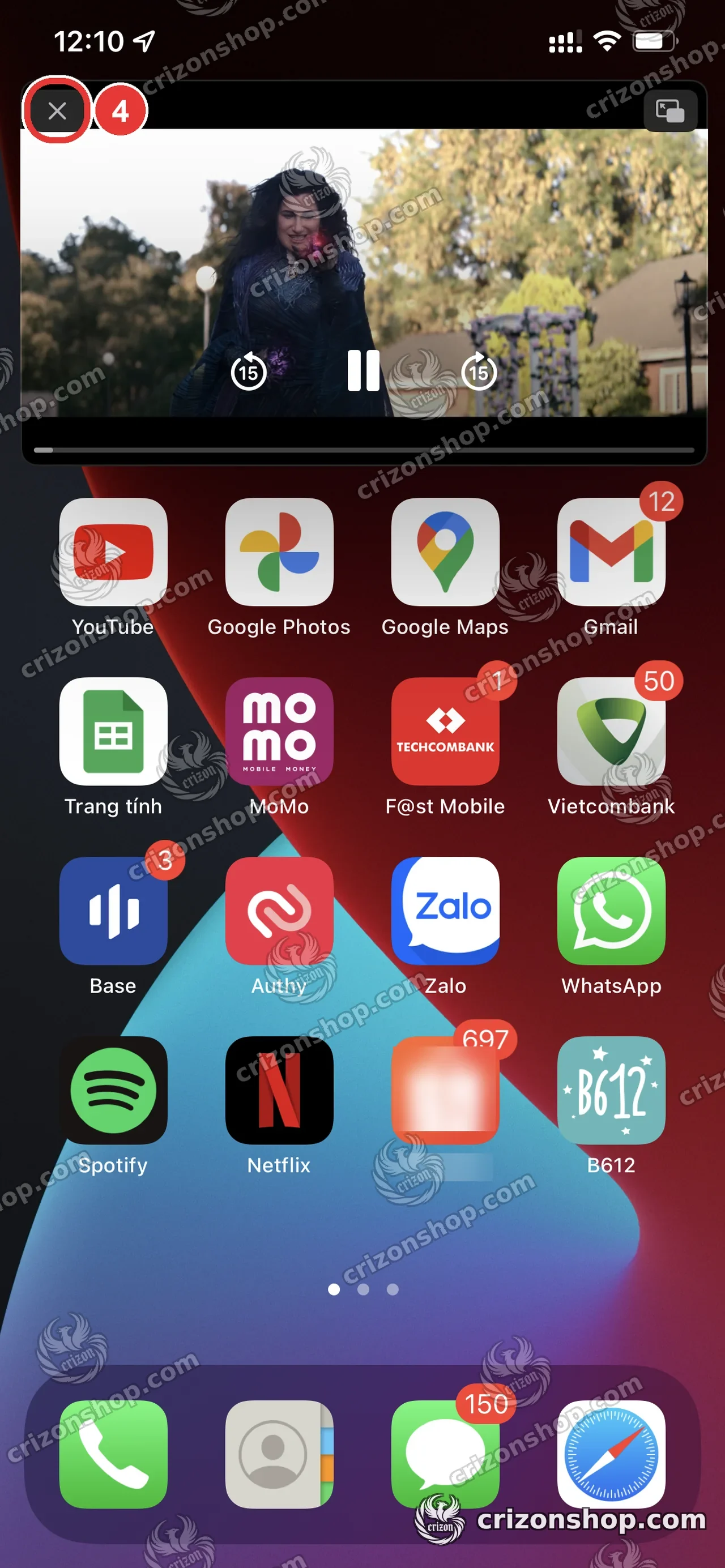
Tap the window to show the controls, then tap X to close it.
FAQ
Check these one by one: Is the video playing, or is it paused? Is Start PiP Automatically on in your device Settings? Is Picture-in-picture on in the YouTube app? Is your device on iOS 15 or later? Next, update YouTube from the App Store, then close the app completely and open it again. If it still doesn't work, tap Report a problem on the product in your order details, or message us through Chat with Support in the corner of crizonshop.com.
No. That workaround was only needed back when PiP on iPhone was still being tested. Now you just need to turn on the two settings in Step 2 and Step 3. Use your account from CrizonShop in the country where it's registered, and don't use a VPN to change your location.
Yes, as long as you're signed in to a Premium account. According to Google's help page, music content like official music videos, Art Tracks, children's songs, and covers uploaded by users only plays in PiP for YouTube Premium members. If regular videos shrink into a floating window but music videos don't, make sure the app is signed in to the account you got from CrizonShop.
It's best not to. This plan plays on only one device at a time, so starting a video on a second device may stop playback on the first one. It works most reliably when you use the account on one main device.
Related guides
How to Sign In to Your Private YouTube Premium AccountHow to Sign In to YouTube Premium on a TV and Smart BoxHow to Move a YouTube Channel From an Old Gmail to a New OneStill need help?
Send your order code and we can sort it out faster.
