 YouTube · Set up
How to Move a YouTube Channel From an Old Gmail to a New One
Move the channel into a Brand Account, invite your new Gmail as an owner, wait 7 days, then transfer primary ownership. Your videos move with the channel, but your watch history may not be kept.

This guide shows you how to move a YouTube channel from your old Gmail to a new Gmail without losing the videos you've posted. It uses a Google Brand Account. This type of account lets more than one Gmail own the same channel.
Which type of account is your channel on?
Every YouTube channel is linked to one of two account types, and the steps depend on which type you have. Check this before you go any further.
| Account type | How to tell | What to do |
|---|---|---|
| Google Account (personal) | The channel uses the same name and photo as your Gmail, and only you can access it | Do every part in order, starting with Part 1 |
| Brand Account | The channel can have its own name and shows up on your Gmail's Brand Accounts page | Skip Parts 1 and 2 and start at Part 3 |
For a quick check, sign in with your old Gmail and open Google's Brand Accounts page. If your channel name appears under Your Brand Accounts, your channel is already a Brand Account.
Part 1. Create an empty Brand Account
In this part, you create an empty channel that your old channel will replace later. The empty channel gets deleted during the move, so don't post anything to it.
On a computer, sign in to YouTube with your old Gmail.
Open the YouTube account page.
Choose Create a new channel.
Enter any channel name, then click Create.
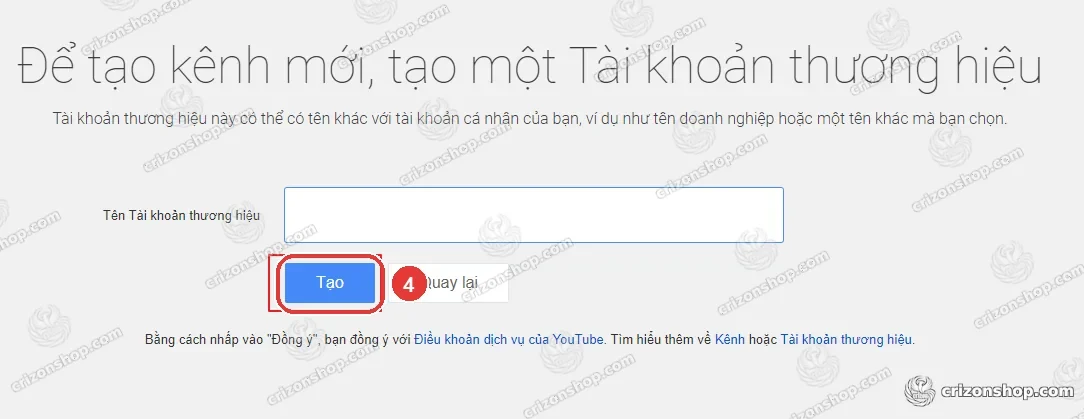
Enter a channel name, then click Create. If Google asks you to verify, enter your phone number and follow the on-screen instructions.
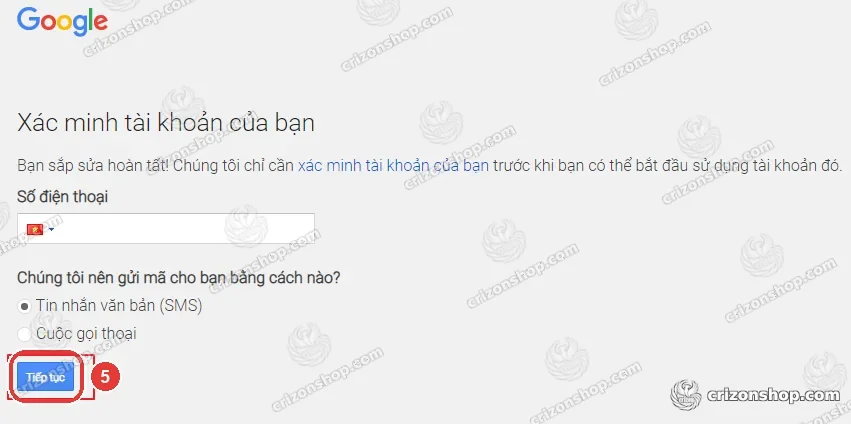
Enter your phone number if asked, then click Continue.
Part 2. Move your old channel into the Brand Account
Before you move the channel, make sure it meets every requirement on YouTube's help page.
On YouTube, click your profile picture in the top right and make sure you're on the account that has your old channel.
Go to Settings, then select Advanced settings. You can also go straight to the advanced settings page.
Under Move channel, select the option to move your channel.
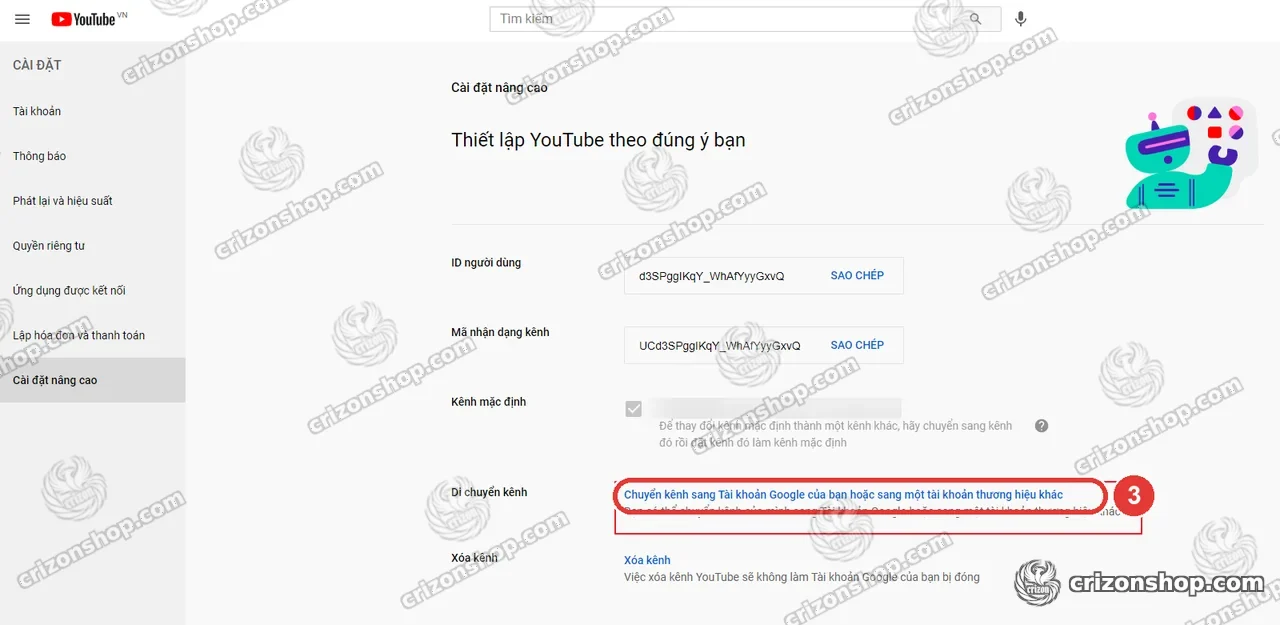
Click the option to move your channel to your Google Account or to another Brand Account. Select the empty Brand Account you created in Part 1.
Click Replace, then choose Delete channel to delete the empty channel.
Review the new channel name, then click Move channel.
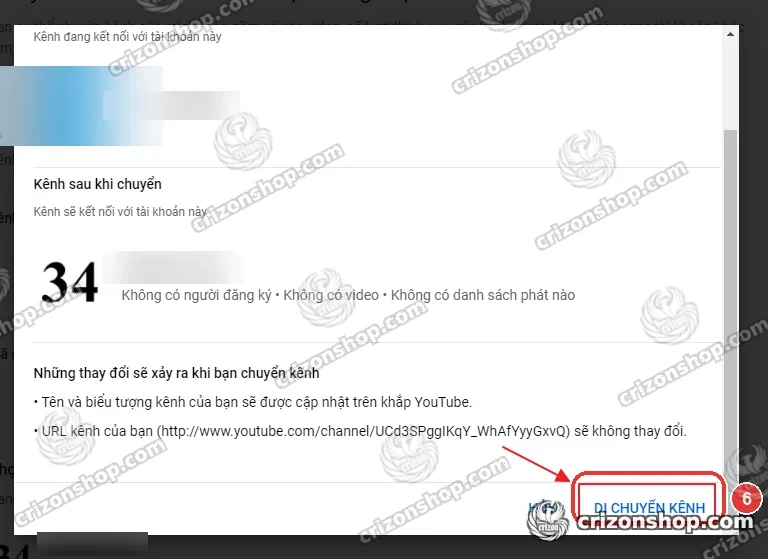
Review the channel name, then click MOVE CHANNEL. If you're asked, enter your Gmail password again to confirm.
Part 3. Invite your new Gmail as an owner
Once the channel is in a Brand Account, you just need to make your new Gmail an owner. You still do this from your old Gmail.
Sign in with your old Gmail and open the Brand Accounts page.
Under Your Brand Accounts, select the account with your channel's name.
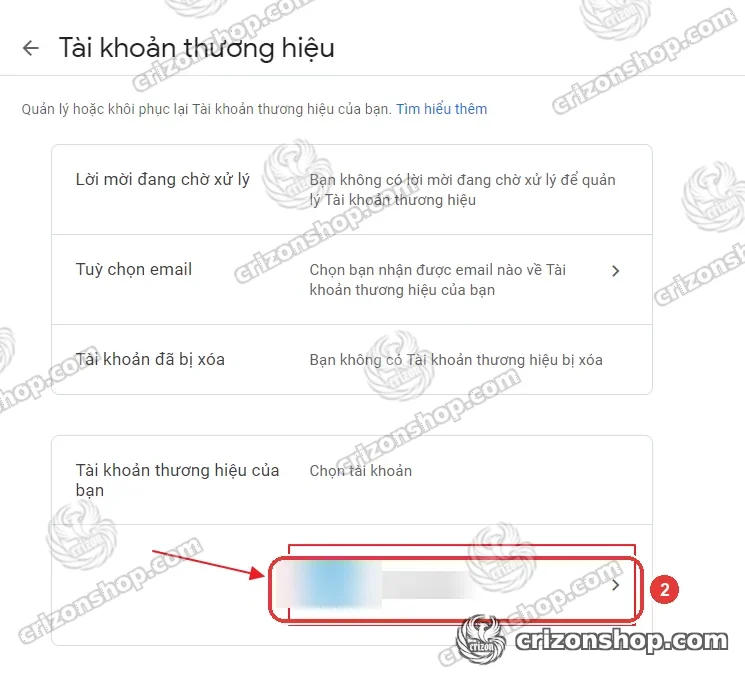
Select your channel's account under Your Brand Accounts (Đỗ Văn Minh in this example). Click Manage permissions.
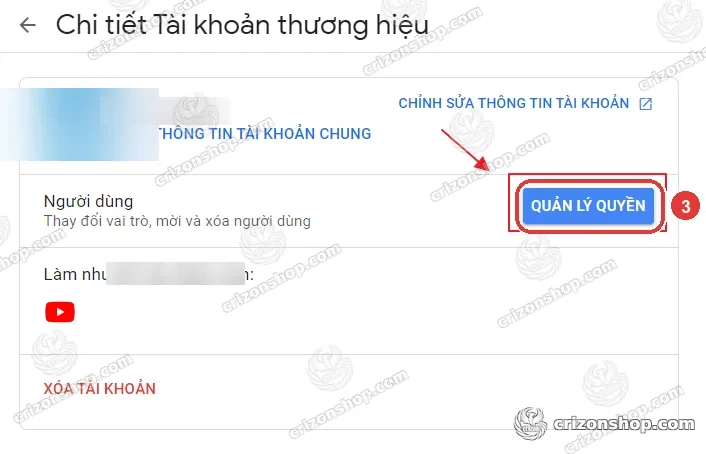
Click MANAGE PERMISSIONS. Click Invite new users.
Enter your new Gmail address.
Below the invitee's name, choose the Owner role.
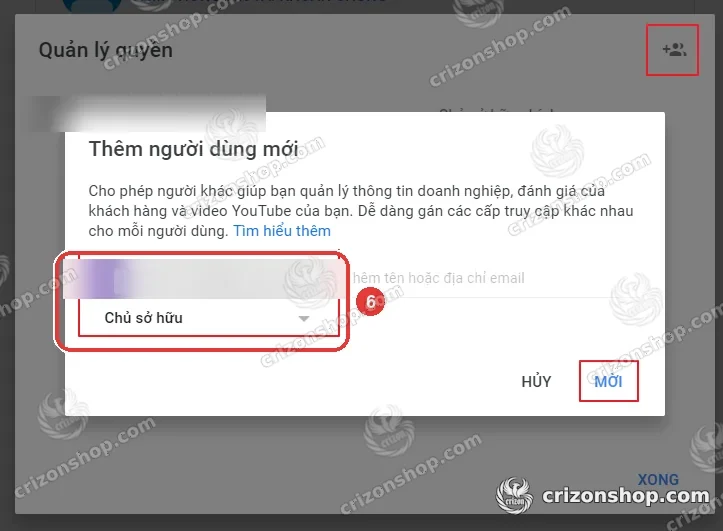
Choose Owner below the invitee's name. Click Invite, then click Done.
Part 4. Accept the invitation and open the channel with your new Gmail
Open your new Gmail inbox and find the email inviting you to manage the Brand Account.
Accept the invitation in the email.
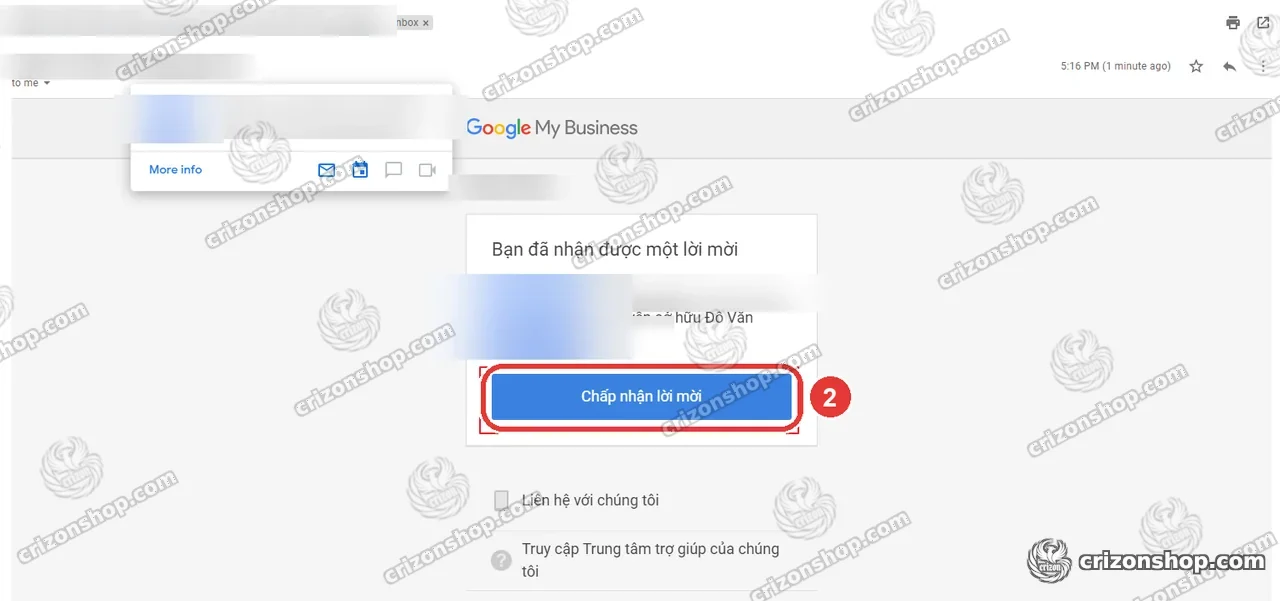
Click Accept invitation. Open YouTube with your new Gmail, click your profile picture, and select Switch account.
Choose your old channel from the list to start using it.
Part 5. Make your new Gmail the primary owner
Every Brand Account needs one primary owner. According to Google, a person has to be an owner for at least 7 days before they can become the primary owner. After your new Gmail accepts the invitation, wait the full 7 days. Then go back to Manage permissions and transfer primary ownership to your new Gmail.
After that, if you don't use your old Gmail anymore, you can remove it from the list of people who manage the account. If you want to move the channel to a third Gmail later, just repeat Parts 3 and 4 with the new address.
Frequently asked questions
Not everything does. Your videos move with the channel. However, YouTube's help page says that moving a channel removes its watch and search history, creator demographics, and gift settings. For other data, such as your subscriptions, open the channel with your new Gmail after the move to check.
This usually means one of the requirements in Part 2 isn't met. The Gmail you're signed in with might not be the primary owner, channel permissions in YouTube Studio might still be on, or the account might be supervised. Also make sure you're signed in to the right account. If your channel is already a Brand Account, you don't need to move it. Just start at Part 3.
YouTube's help page clearly says that the content on the replaced channel is permanently deleted. That's why you should only choose a newly created empty channel as the destination. Read the on-screen details carefully before you click.
The earliest is 7 days after your new Gmail becomes an owner. While you wait, your new Gmail can still access and manage the channel like any other owner.
Related guides
How to Sign In to Your Private YouTube Premium AccountHow to Sign In to YouTube Premium on a TV and Smart BoxHow to Move a YouTube Playlist to Another AccountStill need help?
Send your order code and we can sort it out faster.
