 YouTube · Sign in
How to Sign In to YouTube Premium on a TV and Smart Box
Open YouTube on your TV, select Sign in, then Sign in with your phone. Go to yt.be/activate, enter the code shown on your TV, and sign in with the Google account CrizonShop provided in your order.
This guide shows you how to sign in to the YouTube Premium account from CrizonShop on a Smart TV, Smart Box, or game console so you can watch videos without ads. Both sign-in methods below follow YouTube's official guide.
Before you sign in
Get your account details from your order
Log in to crizonshop.com and go to Account → My orders.
Open the details of the YouTube Premium order you just paid for.
Write down the Google email and password provided.
To see screenshots, open the Guide section right below the product in the order details.
You don't need to give the shop your own Google email or password. Every step below uses the account provided in your order.
Sign in to YouTube on your TV
YouTube lets you sign in with your phone or with your TV remote. Using your phone is faster because you type the password on your phone instead of entering each character with the remote.
On your TV or Smart Box, open the YouTube app.
If you don't see the sign-in screen, open the left menu and select Sign in.
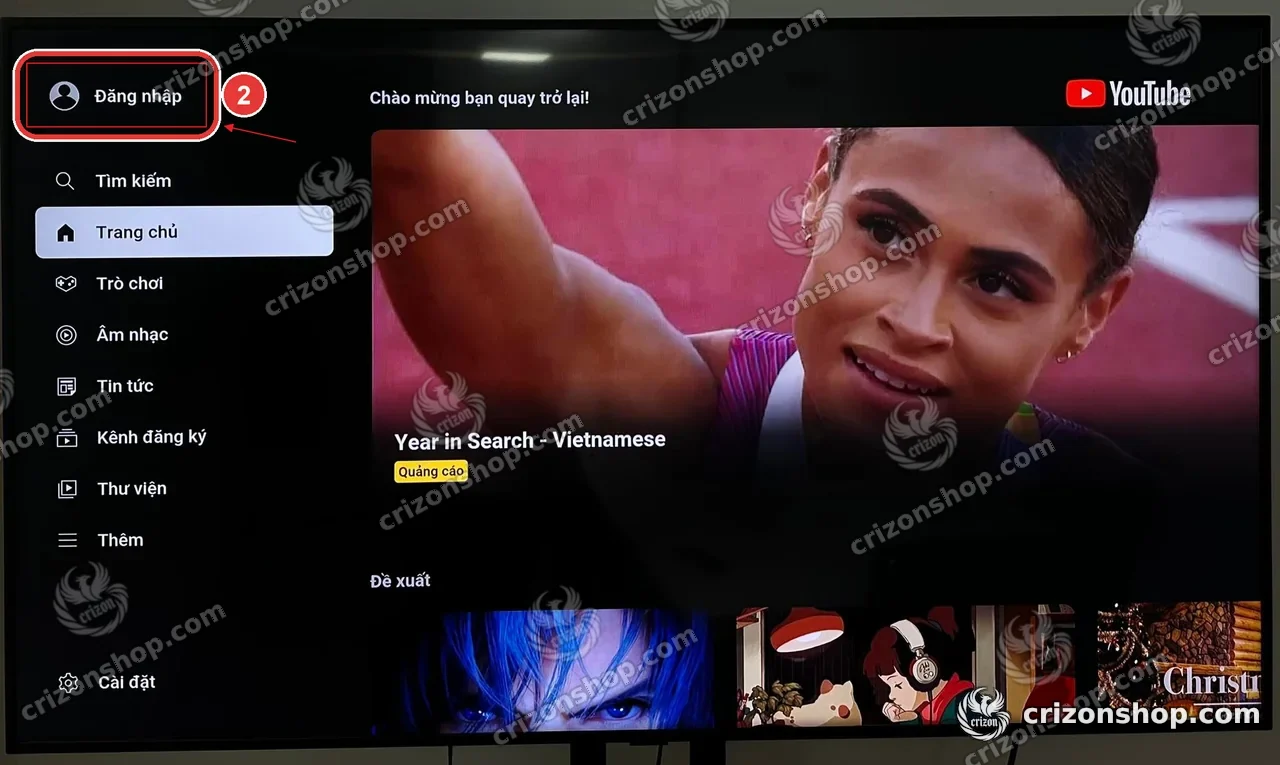
Select Sign in to continue. Select Sign in with your phone. The TV shows a QR code and a code made up of several characters.
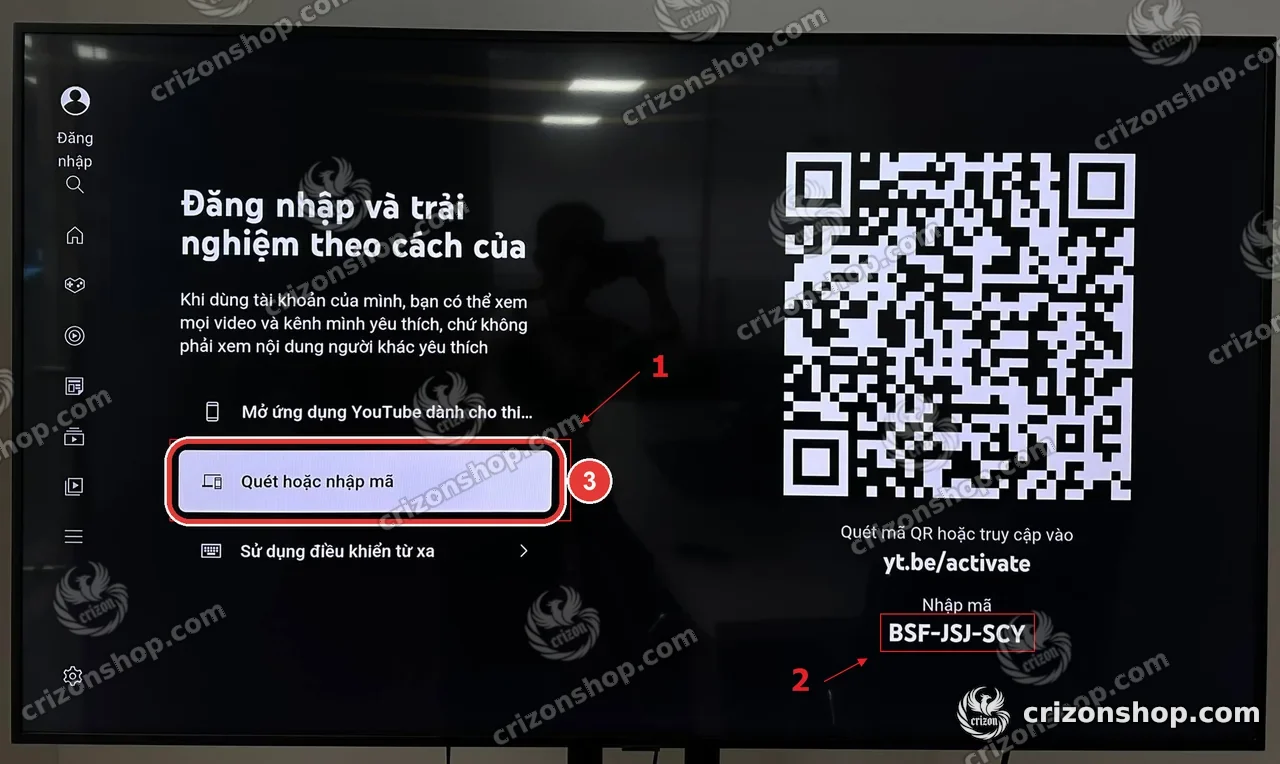
Select Sign in with your phone to continue. On your phone, scan the QR code with your camera, or open a browser, go to
yt.be/activate, and enter the code shown on your TV.Sign in with the Google email and password from your order.
Follow the confirmation steps on your phone until the page says you're signed in.
Look at your TV and wait for the app to reload with the new account.
On your TV or Smart Box, open the YouTube app.
If you don't see the sign-in screen, open the left menu and select Sign in.
Select Sign in with your remote.
Use the on-screen keyboard to type the Google email from your order, then go to the next step.
Type the password and confirm.
Wait for the app to reload with the new account.
Check that Premium is working
If your TV shows Who's watching?, choose the account you just signed in with.
Play a few videos.
If the videos start right away with no ads before them, the account has Premium.
If you still see ads, open the left menu, select your profile picture, and check that the account in use matches the email in your order. In the Accounts tab, select the account provided to you. According to YouTube's page on supported Premium devices, Premium benefits work on Smart TVs, streaming devices, and game consoles when the YouTube app is up to date and signed in to the correct Premium account.
Sign out when switching devices
Your plan plays on only one device at a time. Before you switch to another TV or phone, sign out on the old device by following YouTube's guide.
Open the YouTube app on the old device.
Open the left menu and select your profile picture.
Select the account provided to you.
Select Sign out.
If you no longer have the old device to sign out from, message us via Chat with Support in the corner of crizonshop.com and we'll help you with the next steps.
If you can't sign in
- Connect your TV and phone to the same Wi-Fi network. On your phone, use Wi-Fi instead of mobile data.
- Re-enter the code carefully, one character at a time, or go back to the TV to get a new code.
- Update the YouTube app on your TV, then turn your TV or Smart Box off completely and turn it back on.
- Older Chromecast models don't let you sign in to YouTube directly. Sign in on another TV or Box instead.
- If Google says the password is wrong or asks for extra verification, don't keep trying. Select Report a problem on the product in your order details under Account → My orders.
Frequently asked questions
Yes. The YouTube app on these TVs has the same sign-in option as above. Depending on the TV model, it may take you to a screen for adding a Google account to the TV. Follow the on-screen instructions and choose the email from your order. If your own Google account is already on the TV, switch to the provided account in the YouTube app before you start watching.
No. Your plan plays on only one device at a time. Pick one main device to watch on. When you need to switch, sign out on the old device first, then sign in on the new one.
No. CrizonShop provides a Google account just for you. You'll find the details in your order under Account → My orders. Just sign in to YouTube with that account.
Sign in again using the steps above with the email and password from your order. If you get a wrong password message or still can't sign in, select Report a problem on the product in your order details to get help.
Related guides
How to Sign In to Your Private YouTube Premium AccountHow to Move a YouTube Channel From an Old Gmail to a New OneHow to Move a YouTube Playlist to Another AccountStill need help?
Send your order code and we can sort it out faster.
