 YouTube · Set up
How to Move a YouTube Playlist to Another Account
YouTube doesn't let you change a playlist's owner. To move one, open the playlist on the original account, choose Share → Invite collaborators, then open the invite link with the receiving account so the playlist shows up in its library.

This guide shows how to move a YouTube playlist from one account to another. For example, you can move it from your personal Google account to a YouTube Premium account bought from CrizonShop, so you can play your usual playlists without ads getting in the way.
Before you start
Step 1. Send an invite from the original account
Sign in to YouTube with the account that has the playlist.
Go to You, then open the playlist you want to move.
Select Share.
Select Invite collaborators.
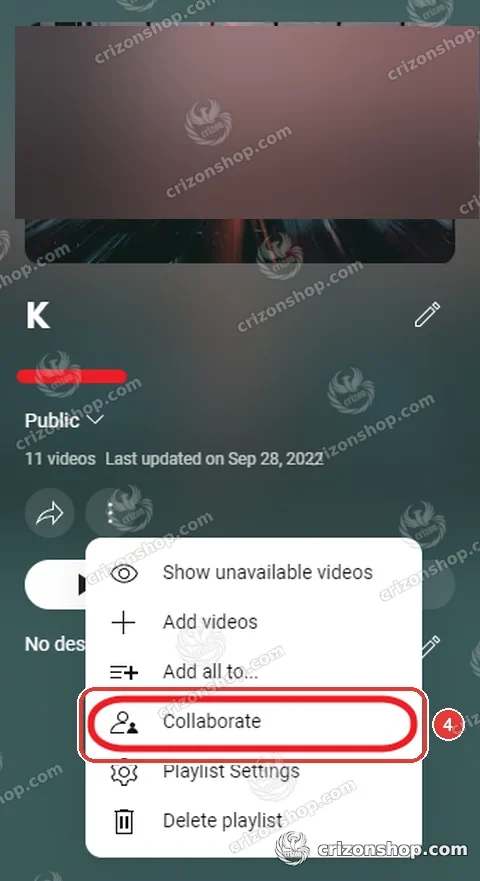
Select “Collaborate” (Invite collaborators) to invite people to collaborate. If the playlist is private, YouTube will ask you to change it to a shareable setting. Choose Unlisted so only people with the link can view it.
Choose how to send the invite. The easiest option is to copy the invite link and open it yourself with the receiving account.
Step 2. Open the invite with the receiving account
Open YouTube in your browser and check the profile picture in the top-right corner to make sure you're on the receiving account.
If the browser is on the original account, click your profile picture and choose Switch account to move to the receiving account.
Paste the invite link into the address bar with Ctrl + V, then press Enter.
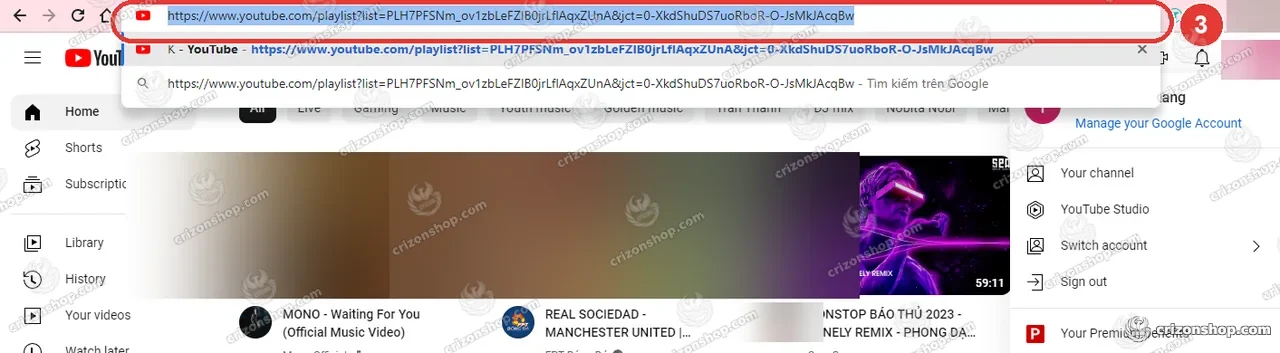
Paste the link into the address bar, then press Enter. Accept the invite to join the playlist when prompted on screen.
Press F5 to reload the page. The playlist will appear under You in the left sidebar.
Open the YouTube app and tap the You tab to check that you're on the receiving account.
Tap the invite link you sent yourself and choose to open it in the YouTube app.
Accept the invite to join the playlist when prompted on screen.
Go back to the You tab. The playlist will show up in your playlists.
What the receiving account can do with the playlist
According to YouTube, once it joins, the receiving account can play the playlist, add new videos to it, and remove videos it added itself. Videos added by the original account can only be removed by the original account. If voting is turned on for the playlist, collaborators can also vote to decide the order of the videos.
Another way if you only need to play the playlist
If you don't need to add videos from the receiving account, you can save the playlist to its library, as described on YouTube's Save playlists page. The playlist must be set to Unlisted or Public for another account to open it.
On the original account, open the playlist, select Share, then copy the link.
Open that link with the receiving account.
Select the bookmark-shaped save icon at the top of the playlist.
Go to the You tab to find the playlist you just saved.
In the Android app, while playing a video from the playlist, you can also tap More (three dots), then select Save.
| Invite collaborators | Save playlist | |
|---|---|---|
| Playlist shows in the receiving account's You tab | Yes | Yes |
| Receiving account can add videos | Yes | No |
| Playlist still belongs to the original account | Yes | Yes |
Things to know when using a CrizonShop YouTube Premium account
Keep your important playlists in your own Google account, then invite the Premium account as a collaborator. Videos you add from the Premium account stay in your playlist, so if you stop using the Premium account, the playlist stays intact in your personal account. A new playlist created directly in the Premium account belongs to that account, not to you.
If you can't sign in to the Premium account, click Report a problem on the product in your order details, or message us via Chat with Support in the corner of the screen on crizonshop.com.
Frequently asked questions
Yes. Neither inviting collaborators nor saving the playlist changes the owner. The playlist stays in the original account, and the original account can still edit it as usual.
Check that the playlist was created by the account you're signed in with, and update the YouTube app to the latest version. The Watch later list is always private, so you can't send invites for it. In that case, create a new playlist and add the videos you want to move to it.
Unlisted playlists don't appear in search results or on your channel. Only people with the link can open them. That's why you should keep the link to yourself.
On the receiving account, open the playlist and select the bookmark icon again to remove it from the library. According to YouTube, videos the receiving account added stay in the playlist.
Related guides
How to Sign In to Your Private YouTube Premium AccountHow to Sign In to YouTube Premium on a TV and Smart BoxHow to Move a YouTube Channel From an Old Gmail to a New OneStill need help?
Send your order code and we can sort it out faster.
