eSIM · Set up
How to Turn On Data Roaming for an eSIM on iPhone and Android
Once you arrive, open Settings, set your travel eSIM as the SIM for mobile data, then turn on Data Roaming for that eSIM. Includes steps for iPhone, Samsung and Pixel.
This guide shows you how to turn on data roaming for your travel eSIM once you arrive, so your phone can get online through a carrier in the country you're visiting. It covers iPhone, Samsung Galaxy and Google Pixel.
Before you start
Turn on data roaming for your eSIM
On iPhone, set the travel eSIM as your data line, then turn on roaming for that same line.
Open Settings.
Tap Cellular (or Mobile Data, depending on your region).
Tap Cellular Data and choose the travel eSIM.
Go back to the Cellular page and tap the travel eSIM in your list of SIMs.
Make sure Turn On This Line is on.
Tap Cellular Data Options.
Turn on Data Roaming.
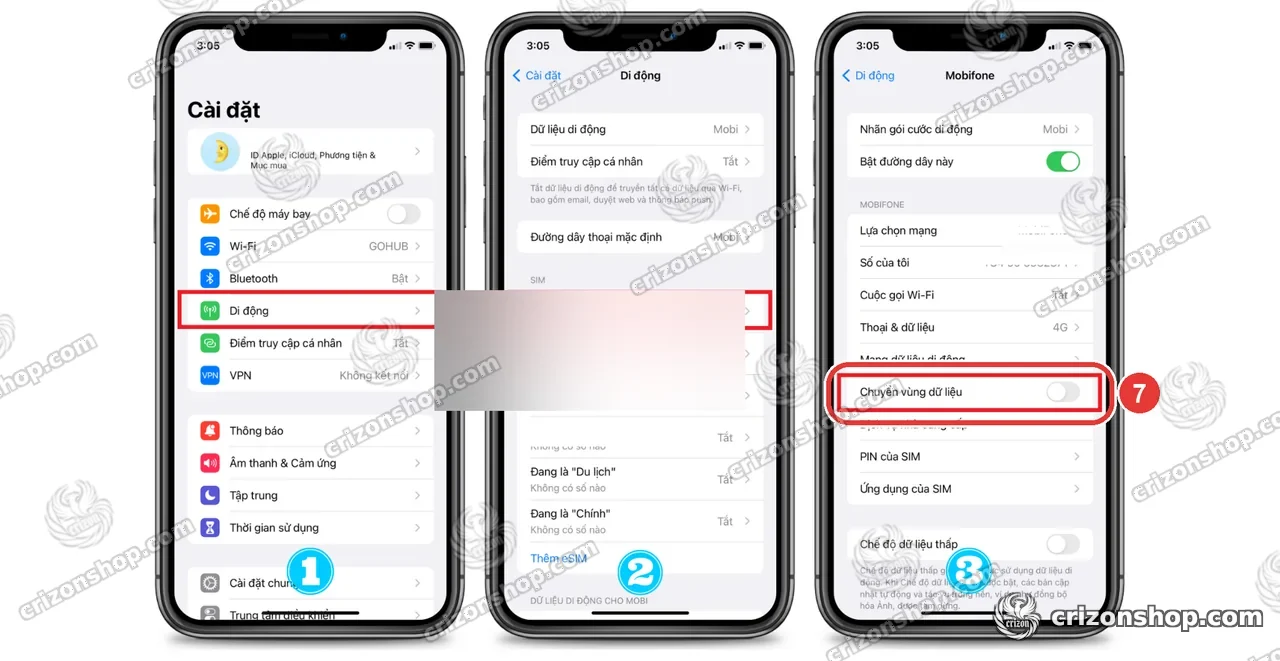
Turn on Data Roaming.
If your phone has only one SIM, go straight to Settings › Cellular › Cellular Data Options and turn on Data Roaming.
Open Settings.
Tap Connections.
Tap Mobile networks.
Turn on Data roaming.
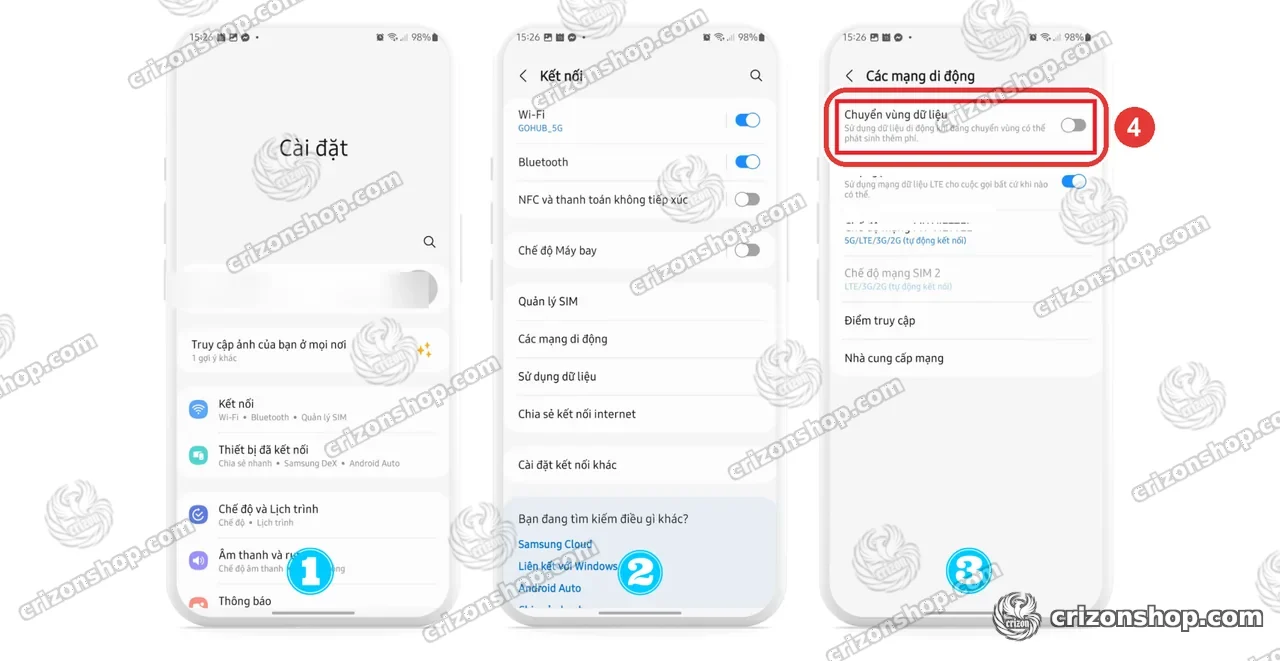
Turn on Data roaming.
If your phone has two SIMs, set the travel eSIM as your data SIM under Mobile data in Settings › Connections › SIM manager.
Open Settings.
Tap Network & internet.
Tap SIMs.
Choose the travel eSIM.
Turn on Roaming.
Tap OK if you're asked to confirm.
Each SIM on a Pixel has its own roaming switch, so make sure you're on the travel eSIM's page. These steps apply to Android 11 and later.
On other Android phones, menu names may be slightly different. You'll usually find the roaming switch under Connections or Mobile network in Settings. For each manufacturer's official instructions, see Apple, Samsung and Google Pixel.
Avoid charges on your Vietnamese SIM
Roaming is on but you still can't get online
- Check that the travel eSIM is selected for mobile data and that roaming is turned on for that eSIM.
- Turn Airplane Mode on and then off, or restart your phone.
- Update your phone's software if an update is available.
- Check that your eSIM plan covers the country you're in, hasn't expired and still has data left.
- If it still doesn't work, contact your eSIM plan provider so they can look into it.
When you get home
On iOS 26 and later, your iPhone turns off the travel eSIM automatically when you return. It's still worth checking: go to Settings › Cellular, tap your primary number to make sure Turn On This Line is on, then choose your primary number again under Cellular Data. On Android, open your SIM management page to set your primary SIM for data again, and turn off the travel eSIM if you no longer need it.
Frequently asked questions
Many travel eSIMs connect through a partner carrier in the country you're visiting. To your phone, that's a network outside the coverage of the carrier that issued the eSIM, so it only uses data on that network when roaming is turned on for the eSIM.
The data you use comes out of the eSIM plan you bought, under the plan provider's terms. Extra charges usually come from your Vietnamese SIM if data roaming is still on for that number, so you should turn off roaming on your primary number.
Yes, if you keep both numbers active on a phone that supports dual SIM. In that case, your carrier may charge roaming fees for calls and texts to your Vietnamese number. On iPhone, if you turn on only the travel eSIM, iMessage and FaceTime stay linked to your primary number, according to <a href="https://support.apple.com/en-us/118227">Apple's guide</a>.
You can install the eSIM while you're still at home, but wait until you arrive before switching data to the eSIM and turning on roaming. Travel eSIMs usually only connect in the countries included in the plan.
Related guides
How to Install and Activate an eSIM on iPhone and AndroidHow to Check If Your Phone Supports eSIM How to Join a Google Family Group by Invitation
Still need help?
Send your order code and we can sort it out faster.
