eSIM · Activate
How to Install and Activate an eSIM on iPhone and Android
To install an eSIM, open Settings, choose the option to add an eSIM, and scan the QR code your provider sent you. This guide covers iPhone, Samsung and Pixel, plus how to turn on data once you arrive.
This guide shows you how to install an eSIM plan, usually a travel eSIM, on your iPhone or Android phone using the QR code or activation link your provider sent you. You'll also learn when to turn on data after you arrive so you can get online.
What you need before you start
Install an eSIM with a QR code
Open Settings and tap Cellular (Mobile Service in some regions).
Tap Add eSIM. Depending on your iOS version, this may say Set Up Cellular or Add Cellular Plan.
Choose Use QR Code.
Point the camera at the QR code your provider sent you.
Follow the on-screen instructions until the plan is added.
When your iPhone asks you to label the new plan, pick a name you'll recognize, like "Travel", so you don't mix it up with your main SIM.
Open Settings and tap Connections.
Tap SIM manager. Some older models call it SIM card manager.
Tap Add eSIM. Older models may show Add mobile plan.
Choose Scan QR code (or Add using QR code) and scan your provider's code.
Wait while the phone downloads and activates the plan. If the new plan still doesn't appear, restart your phone.
Open Settings and tap Network & internet.
Tap SIMs.
Tap Add SIM.
If your phone asks whether you want to download a SIM, choose the option to download an eSIM.
Scan your provider's QR code and follow the on-screen instructions.
Other Android phones, such as Xiaomi, OPPO or vivo, work in much the same way. Only the menu names are different. If you can't find the option, type "eSIM" into the search bar in Settings. You can also check the official guides from Apple, Samsung and Google.
Quick install from a link on iPhone (iOS 17.4 or later)
Some providers send an activation link instead of a QR code. If your iPhone runs iOS 17.4 or later, you can install the eSIM straight from that link without scanning a code.
Open the link on the iPhone you want to install the eSIM on, not on another device.
If the activation page has a quick install button (usually labeled Quick Install), tap it.
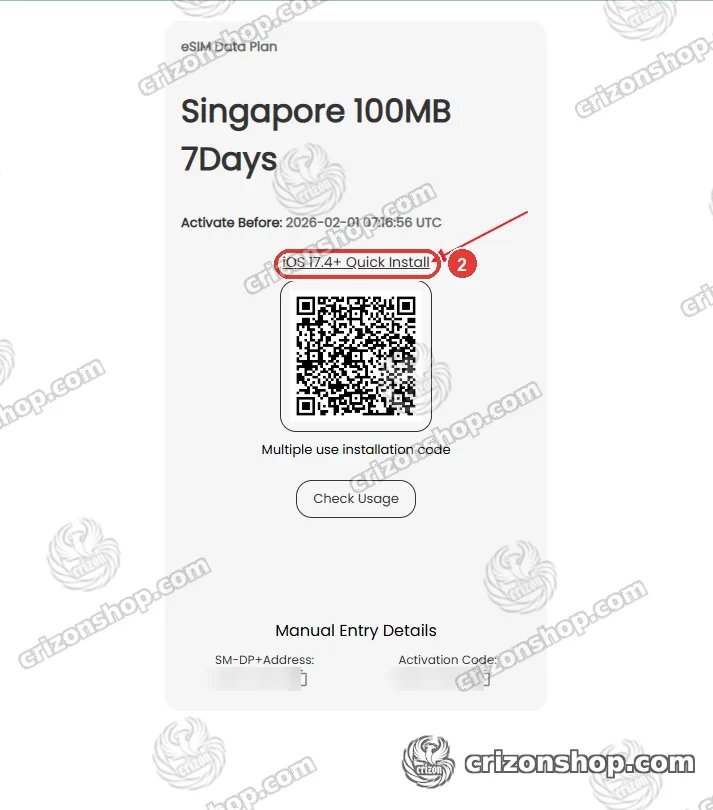
Tap “iOS 17.4+ Quick Install” to install the eSIM quickly. When your iPhone asks, tap Allow.
Follow the remaining on-screen steps to add the plan.
If the page only shows a QR code and has no quick install button, or if you're using an Android phone, open the page on another device and scan the code as described above.
Enter the details manually if you can't scan
If your camera can't read the code, you can still install the eSIM by typing in two details your provider sent with it: the SM-DP+ address and the activation code.
- On iPhone, go to Settings › Cellular › Add eSIM › Use QR Code, then tap Enter Details Manually on the scan screen.
- On Samsung, tap Enter activation code on the Scan QR code screen, then fill in the details you were given.
Turn on data when you arrive
Your eSIM isn't ready to use as soon as it's installed. When you arrive in the country where you'll use it, turn on data roaming for the eSIM and set it as your cellular data line.
Open Settings and tap Cellular.
Tap the eSIM plan you installed, then turn on Turn On This Line if it's off.
Turn on Data Roaming for this eSIM.
Go back to the Cellular screen, tap Cellular Data and choose the eSIM.
Go to Settings › Connections › SIM manager and turn on the eSIM if it's off.
Under Mobile data, choose the eSIM.
Go back to Connections › Mobile networks and turn on Data roaming.
Frequently asked questions
Check that Data Roaming is on for the eSIM and that Cellular Data is set to the eSIM. Then turn Airplane Mode on and off, or restart your phone so it searches for a signal again. If it still doesn't work, contact your eSIM provider and include a screenshot of your cellular settings.
It depends on the provider. Many only let you use each QR code once, so once it's deleted you'll need to ask for a new code. That's why you should only turn off the eSIM line when you're not using it. Don't delete it before your plan expires.
Yes, if your phone supports dual SIM. Keep your main SIM line turned on to receive calls and one-time passcodes (OTPs), and switch only your cellular data to the eSIM. Keep in mind that your carrier may still charge roaming fees for calls and texts on your main SIM while you're abroad.
Every iPhone from the XS onward has eSIM. On Android, check Settings for an Add eSIM option, or look for an EID entry in your phone's info section. If your phone has an EID, it supports eSIM.
Related guides
How to Turn On Data Roaming for an eSIM on iPhone and AndroidHow to Check If Your Phone Supports eSIM How to Join a Google Family Group by Invitation
Still need help?
Send your order code and we can sort it out faster.
