 Spotify · Sign in
How to switch to a new Spotify account and keep your playlists
Change your old Spotify account's email to a different address, use your usual email to create a new account, then copy your playlists and Liked Songs through the old account's public profile.

This guide shows you how to switch to a new Spotify account and still log in with your usual email. You'll also bring your playlists and Liked Songs over from the old account. Everything is done in the Spotify app and on Spotify's account page, so you don't need to install any other tools.
Before you start
Spotify doesn't have a button that moves all your data from one account to another. The method in this guide has four parts. Follow them in order and you won't miss any playlists.
- Turn the playlists and Liked Songs on your old account into public playlists.
- Change the old account's email to a different address so your usual email is free.
- Create a new account with that same usual email.
- Log in to the new account and copy each playlist from the old account's profile.
Have these ready before you begin.
Step 1. Gather your playlists on the old account
Spotify lets you copy playlists from another account's public profile, so the playlists you want to keep need to be public. Do this part in the Spotify desktop app while logged in to your old account.
In your library on the left, right-click a playlist you want to keep.
Select Make public to make the playlist public.
Right-click it again and select Add to profile so the playlist shows on your profile.
Repeat for each of the other playlists.
Turn Liked Songs into a playlist
Liked Songs is a special list, and you can't make it public like a regular playlist. Instead, put its songs into a new playlist, then handle that playlist the same way as above.
Open Liked Songs in your library.
Click any song, then press Ctrl + A to select them all. On a Mac, use Cmd + A.
Right-click the selected songs, choose Add to playlist, then New playlist.
Rename the new playlist so it's easy to recognize.
Make this playlist public and add it to your profile, as in the steps above.
Finally, write down the old account's display name or username so you can find this profile from your new account later. You can see your username on Spotify's account page on the web.
Step 2. Change the old account's email
Your usual email is linked to the old account. To reuse it for the new account, you first need to switch the old account to a different email. The old account keeps its playlists and listening history. Only the login email changes. For more details, see Spotify's guide to changing your email.
Log in to the old account on the Spotify account page.
Open Edit profile.
In the Email field, delete the old email and enter the new one.
Enter your current password to confirm.
Click Save profile.
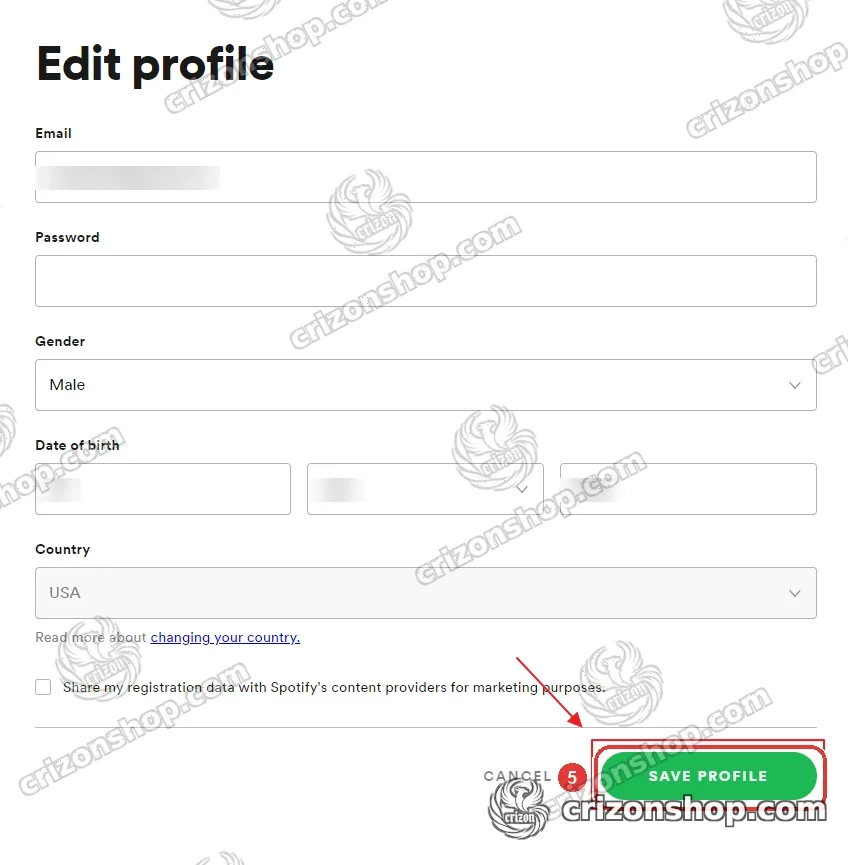
Click SAVE PROFILE.
Tap your profile picture at the top.
Select Settings and privacy.
Select Account.
Tap your email and enter the new one.
Step 3. Create a new account with your usual email
Log out of the old account in the browser or app you're using.
Open the Spotify sign-up page.
Enter the usual email you just removed from the old account.
Set a password and fill in the details Spotify asks for.
If Spotify sends you an email, open it and click the confirmation link.
Step 4. Copy your playlists to the new account
Log in to the Spotify app with your new account. This part works on both phone and computer, and you don't need Premium. To find your old profile, type the old account's display name in the search box. If it doesn't show up, type the line below and replace username with your old account's username.
spotify:user:usernameOpen the old account's profile from the search results.
Go to Public Playlists.
Open a playlist and tap the three dots.
Select Add to other playlist (on desktop, it's Add to playlist).
Choose New playlist to create a copy with all the songs on your new account.
Repeat for each playlist, including the one you made from Liked Songs.
To follow artists again, open the Following tab on your old profile and click Follow for each artist you want to keep. Your followers also need to follow your new account to see your activity.
After you switch
From now on, use the new account on all your devices. Remember to log out of the old account on your phone, computer, or smart speakers, then log in again with the new one. When you buy a Spotify Premium plan at CrizonShop for this account, enter the new account's email or username and password exactly.
After your order is delivered, try downloading a playlist to check that Premium is active. If it isn't, click Report a problem on the product in Account → My orders or message Chat with Support in the corner of the screen.
Frequently asked questions
No. Changing the email only changes the address you log in with. Your playlists, Liked Songs, and listening history stay in the old account. Log in with the new email and you'll see everything.
No. According to Spotify's guide, you can copy playlists through a public profile with a Free account. However, you have to use the desktop app to turn Liked Songs into a playlist.
Those sites ask you to log in and give a third party access to your Spotify account. The method in this guide uses Spotify's built-in features, so you don't have to give anyone access. You also don't have to worry about the site shutting down partway through.
Don't change the email or password on that account yourself. Message Chat with Support or click Report a problem on the product in your order. The shop will check it and tell you the right way to handle it for your plan.
Related guides
How to Set a Spotify Password When You Log In with Google, Facebook, or PhoneHow to Transfer Spotify Playlists from an Old Account to a New OneHow to Upgrade Your Own Spotify Account to PremiumStill need help?
Send your order code and we can sort it out faster.
