 Spotify · Sign in
How to Set a Spotify Password When You Log In with Google, Facebook, or Phone
Open Spotify's password reset page, enter the email linked to your account, then select the link in the email to create a password. Accounts created with a phone number need an email added first.

Many people create their Spotify account with the Google or Facebook button, or with a phone number, so they never get a separate Spotify password. This guide shows you how to link an email and set a password for that account. Your old login methods keep working as before.
When you should set a separate password
- Your account was created with a phone number and you want to use the Spotify desktop app. Spotify doesn't let you log in to the desktop app with a phone number.
- You need to log in on someone else's device or in a browser that isn't signed in to Google or Facebook.
- You're buying a Spotify Premium upgrade for your own account from CrizonShop. When you order, you have to enter your Spotify email or username along with your account password.
Before you start
Set a password for an account that uses Google or Facebook
Open Spotify's password reset page in your browser.
Enter the email linked to your Spotify account, then select the button to send the link.
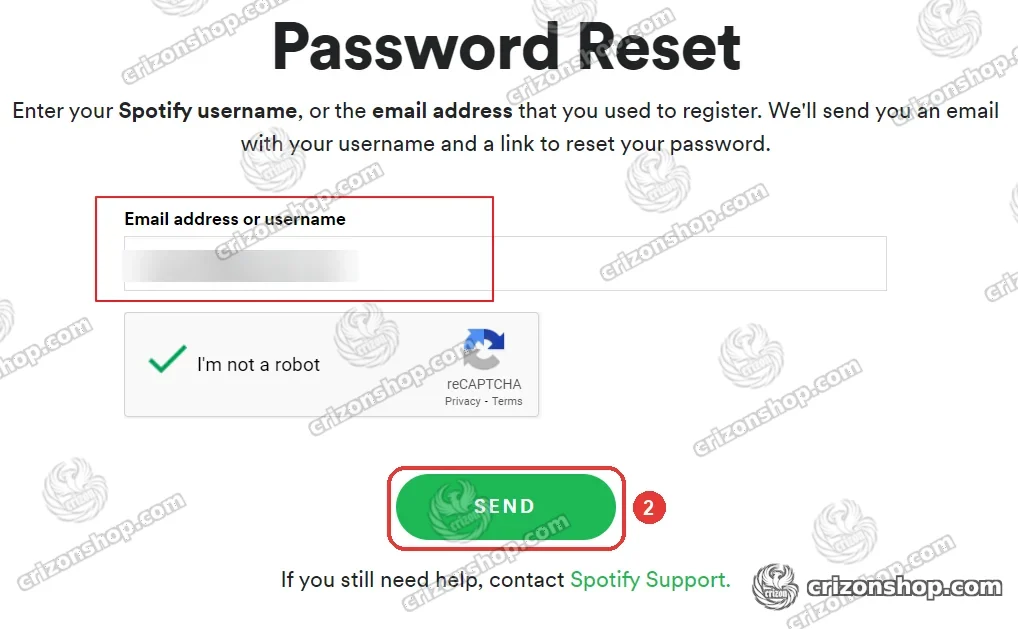
Select SEND to get the password reset link. Open that email's inbox and find the email Spotify just sent.
Select the link in the email to open the page for creating a password.
Enter a new password that meets the requirements on the page, then confirm.
Log out of Spotify, then log back in with the email and password you just created to make sure everything worked.
Accounts created with a phone number
An account created with a phone number logs in with a code Spotify sends by SMS, so it has neither an email nor a password. You need to add an email to the account first, then set a password for that email.
Open the Spotify account page and log in with your phone number, entering the SMS code you receive.
Select Edit profile. If the page is in another language, choose the matching option for editing your profile.
Enter the email you want to use, then save your changes.
Open the password reset page and enter the email you just added.
Continue from step 3 in the Google and Facebook section above.
View and manage your login methods
The Login methods page lists every way you currently use to get into your account, such as email and password, Google, Facebook, Apple, or phone number. After setting your password, it's a good idea to open this page and check.
Add a login method
On the Login methods page, select Edit login methods.
Select Add next to the login method you want to add.
Verify as prompted on screen, for example by signing in to that Google or Apple account.
When you're done, the new login method appears under Current login methods.
If you see Edit instead of Add next to a login method, select it and verify first, then continue.
Remove a login method
Select Edit login methods.
Select Remove next to the login method you want to remove.
Select Yes, remove to confirm.
You can read more in Spotify's guide to login methods on its official support site.
Things to know when buying a Spotify Premium upgrade for your own account
CrizonShop's Spotify Premium upgrade is applied directly to your own Spotify account, so your playlists and saved music stay as they are. When you order, you have to enter your Spotify email or username and password. So if your account currently logs in with Google, Facebook, or a phone number, set a password using the steps above before you buy.
Frequently asked questions
Yes. Setting a password just adds email as a login method. Google and Facebook still work, as long as you don't remove them on the Login methods page.
Check the Spam or Promotions folder in your inbox. If it's still not there, you may have entered an email that isn't linked to any Spotify account. Log in again the way you used to, check the email in your profile, then send the request again.
Send a new request on the password reset page, then select the link in the newest email. If it still doesn't work, copy the link and open it in a private (incognito) browser window. If the page says you've tried too many times, wait a while and try again, or switch to a different browser or device.
No. Spotify doesn't let you log in to the desktop app with a phone number. You need to add an email and set a password as described above, or use Google, Facebook, or Apple if your account is already linked to one of them.
Related guides
How to switch to a new Spotify account and keep your playlistsHow to Transfer Spotify Playlists from an Old Account to a New OneHow to Upgrade Your Own Spotify Account to PremiumStill need help?
Send your order code and we can sort it out faster.
