 Spotify · Fix a problem
How to Fix Spotify Losing Premium After an Upgrade
If Spotify switches back to Free, check your account page in a browser and make sure you're logged in to the right account. If Premium is still gone, click Report a problem in your order so CrizonShop can upgrade it again.
This guide helps if a Spotify account you upgraded to Premium at CrizonShop suddenly drops back to the Free plan. It also covers accounts that can't be upgraded again because Spotify limits plan changes to once every 12 months. Usually you just need to confirm you're on the right account, then report the problem so we can upgrade it again on your own account.
Check whether your account has really lost Premium
The Spotify app sometimes takes a while to update your plan status, or you may be logged in to a different account by mistake. Before you report a problem, go through these checks in order.
Open a browser, go to the Spotify account page, and log in with the exact email or username you entered when you bought the plan.
Check the plan name shown on the overview page. If it still says Premium, you haven't lost your plan.
In the app, log out and log back in so the app syncs with your account.
Try downloading a playlist. If it downloads, Premium is working.
Report a problem so CrizonShop can upgrade you again
If the account page in your browser also shows Free while the plan you bought is still active, the warranty covers it. We upgrade your own account again, so your playlists, liked songs, and library stay as they are.
Log in to crizonshop.com and go to Account → My orders.
Open your active Spotify Premium order.
Click Report a problem on the Spotify item in the order.
Briefly describe the issue, for example the date the account switched to Free and whether you've tried logging in again.
Watch for our reply in the order. If you have more questions, use Chat with Support in the corner of the screen.
If your account hits Spotify's 12-month limit
According to Spotify's Family plan support page, members of a Premium Family plan can only switch plans once every 12 months. The limit applies both to joining a new plan and to leaving your current one. If your account recently left or changed plans within that window, Spotify may not let it join a new plan until the 12 months are up.
If we tell you your account has hit this limit, you have two options.
- Keep your current account. We keep working on it under warranty. If we can't fix it, you get a refund for the time left on your plan.
- Switch to a new Spotify account. This gets you listening again sooner. Only do it after we've confirmed through Chat with Support that your order can be upgraded on the new account.
Switch to a new Spotify account and keep your old email
There are two main parts. First, change the email on your old account to a different address. Then use your old email to sign up for a new account. That way you still log in with the email you're used to. Your old account isn't lost. You just log in to it with the new email address instead.
Step 1. Make your old account's playlists public
Log in to your old account in the desktop or mobile app.
Open each playlist you want to keep and make it public so it shows on your profile.
Open your old account's profile and copy the profile link so you can open it later from the new account.
Step 2. Change the email on your old account
Choose another email address whose inbox you can still access. You'll need it if you ever want to get back into the old account.
Go to the Spotify account page and log in to your old account.
Select Edit personal info.
Enter the new address in the Email field.
Enter your password to confirm.
Click Save profile.
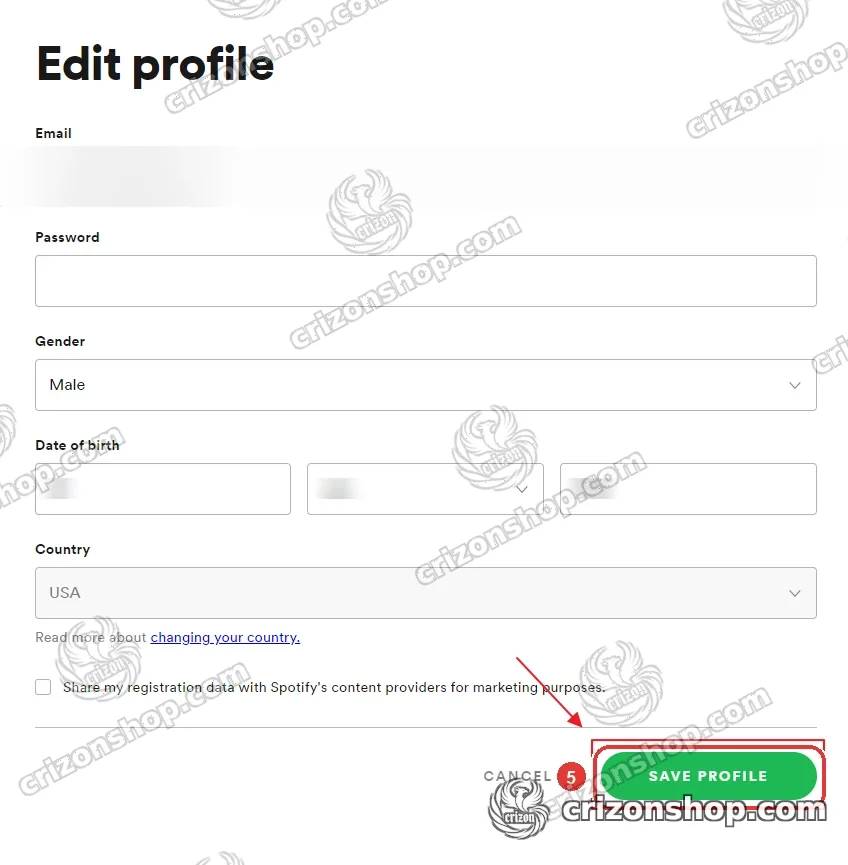
Click SAVE PROFILE to save your profile.
Tap your profile picture at the top of the screen.
Select Settings and privacy.
Select Account.
Tap your current email, then enter the new address.
Step 3. Sign up for a new account with your old email
Go to the Spotify sign-up page and sign up with your old email.
Right after signing up, open your inbox and confirm your email.
Log in to the new account and open the old account's profile link you saved in Step 1.
Open each public playlist and save it to the new account's library, or add the songs to a new playlist of your own.
Step 4. Ask us to upgrade the new account
Use Chat with Support, or add a note under Report a problem in your order, to let us know the new account is ready. Then follow our instructions to update the login details for the order. When we confirm it's done, log in to the new account in the app and try downloading a playlist to check that Premium is working.
Frequently asked questions
No. We upgrade your own Spotify account again, so your playlists, liked songs, and followed artists stay exactly as they are. If music you downloaded to your device won't play offline, open the playlist and download it again.
Log out of the app and log back in. Then follow the steps at the start of this guide to make sure you're using the right account. Premium removes audio ads when you listen to music, but some podcasts may still have ads that the creators built into the episode.
Spotify only lets Family plan members switch plans once every 12 months, so the clock starts from the last time your account joined or left a Family plan. If you don't remember when you last switched, just click Report a problem in your order and we'll check for you.
We save the password you entered at checkout so we can upgrade your account and handle warranty claims. If you change it, we can't log in to fix things if your plan runs into a problem. Use Chat with Support and we'll show you how to add the new password to your order.
Related guides
How to Set a Spotify Password When You Log In with Google, Facebook, or PhoneHow to switch to a new Spotify account and keep your playlistsHow to Transfer Spotify Playlists from an Old Account to a New OneStill need help?
Send your order code and we can sort it out faster.
