 Proton · Sign in
How to Sign In to Proton Pass Plus on Desktop and Mobile
Sign in to Proton Pass Plus with the Proton Account that has the Plus plan. You can sign in on the web, in the browser extension or in the mobile app. This guide also covers entering your 2FA code or extra password if you've turned them on.
Proton Pass Plus doesn't have its own separate account. It's a plan attached to your Proton Account. This guide shows how to sign in to that account on the web, in the browser extension and in the mobile app. It also explains what to do if you're asked for a two-factor authentication code or an extra password.
What you need
How to sign in
Open pass.proton.me in your browser. If you're not signed in, you'll be taken to the Proton sign-in screen.
Enter your Proton email or username in the Email or username field.
Enter your Proton Account password in the Password field.
Click Sign in.
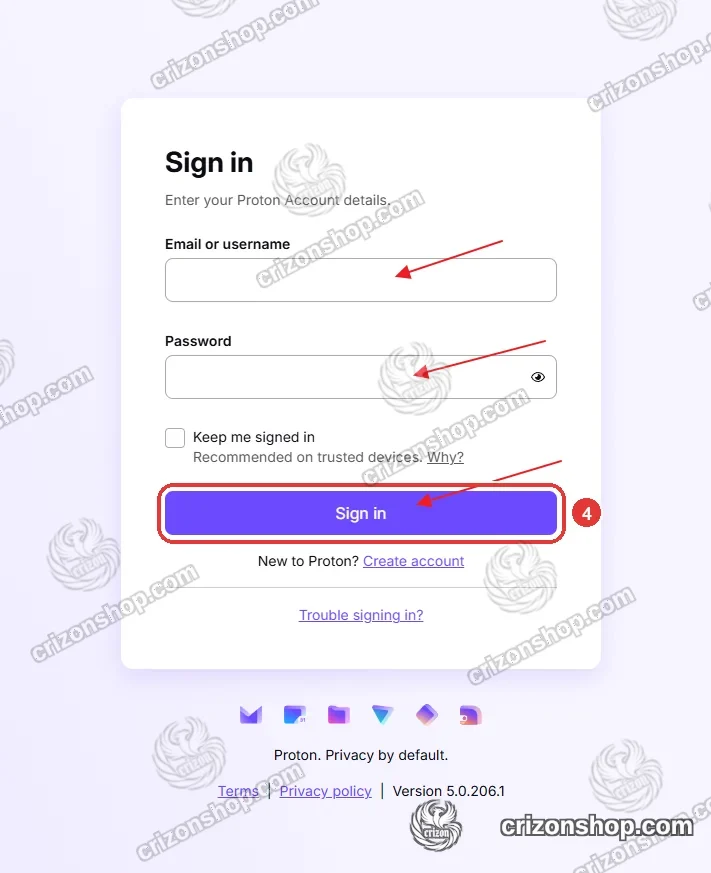
Click “Sign in” to log in. If you're asked for a verification code, open your authenticator app. Enter the 6-digit code for your Proton account, then click Authenticate.
If you've set an extra password for Proton Pass, enter it to unlock your vault.
Proton Pass has extensions for Chrome, Firefox and Safari. It also works in browsers built on the same platforms, such as Edge, Brave, Opera and Vivaldi. You'll find download links for each browser on Proton's Proton Pass setup page.
Install the Proton Pass extension for the browser you use.
After it's installed, your browser opens the Proton Pass welcome page. Click Sign in with Proton.
Enter your Proton Account email or username and password, then click Sign in.
Enter your 2FA code and extra password if asked.
In Safari, click the Proton Pass icon in the toolbar to open the sign-in screen.
Download the Proton Pass app by Proton from Google Play or the App Store.
Open the app and tap Sign in.
Enter your Proton Account email or username and password, then tap Sign in.
Enter your 2FA code and extra password if asked.
The Proton Pass apps for Windows, macOS and Linux use the same sign-in steps as the web.
Check that you're using the account with Plus
If you have more than one Proton account, it's easy to sign in to a Free one by mistake. Free accounts can still use Proton Pass, but they're limited in how many hide-my-email aliases they can create. They also show upgrade prompts when you reach that limit.
Sign in to account.proton.me with the same account.
Open your account settings and select Subscription.
Check your current plan. It should be Pass Plus, or a bigger plan that includes Proton Pass, such as Proton Unlimited.
If you can't sign in
Your 2FA code is rejected
An Incorrect login credentials error at the 2FA step usually means the time on the phone with your authenticator app doesn't match the device you're signing in on. Turn on automatic date and time on both devices, then try again with the newest code.
You lost the phone with your authenticator app
At the 2FA step, you can enter one of the recovery codes you saved when you turned on 2FA. Each code works only once. If your account has a security key, select the Security key tab, then insert or tap your key to sign in.
You forgot your Proton Account password
Click Trouble signing in? on the sign-in screen. Then follow the steps to recover your account using the recovery email or phone number you set up earlier.
Frequently asked questions
No. Pass Plus is a plan attached to your Proton Account. You sign in with your Proton email or username and password, just like with Proton Mail or Proton VPN.
That's the extra password you turned on to protect Proton Pass. Each time you sign in to Proton Pass, you need both your Proton Account password and this extra password. To remove it, go to the Profile tab and select your account name. Then select the three-dot menu and choose Manage account. You'll need to enter your current extra password to confirm.
Yes. Proton Pass data is encrypted and synced with your account. When you sign in to the right Proton Account on a new device, your vault shows up just like before.
Yes. The website, the extension in each browser and the mobile app are all separate. You need to sign in to each one once with the same Proton account.
For more details, see Proton's official guides to the Proton Pass browser extension and two-factor authentication with an authenticator app.
Related guides
 How to Activate Avast BreachGuard with a Sign-in Key
 How to Activate AVG AntiTrack Premium with an Activation CodeHow to Activate a Gilisoft Audio Recorder Pro Key on Windows
Still need help?
Send your order code and we can sort it out faster.
