Gilisoft · Activate
How to Activate a Gilisoft Audio Recorder Pro Key on Windows
Download the installer from Gilisoft's official site, open Audio Recorder Pro, click Register, and enter the exact email and key from your license to unlock the full version on Windows.
This guide shows you how to download Gilisoft Audio Recorder Pro from the developer's site and enter your email and key to turn the trial into the full version. At the end, you'll find what to do if the app says it can't verify your code.
Before you start
Download and install the app
Download the installer directly from Gilisoft. That way you get the latest version and nothing unexpected gets installed with it. The download is the trial version. Once you enter your key, this same installation becomes the full version, so you don't need a different installer.
Open the Gilisoft Audio Recorder Pro product page.
Click Download Trial For Windows to download
audio-recorder-pro.exe.Open the downloaded file. If Windows asks for administrator permission, choose Yes.
Follow the setup wizard until the installation finishes.
Enter your email and key to activate
Open Gilisoft Audio Recorder Pro from the desktop icon or the Start menu.
Click Register on the app's main screen.
Enter the email that came with your license in the email field.
Paste your key into the Registration Code field.
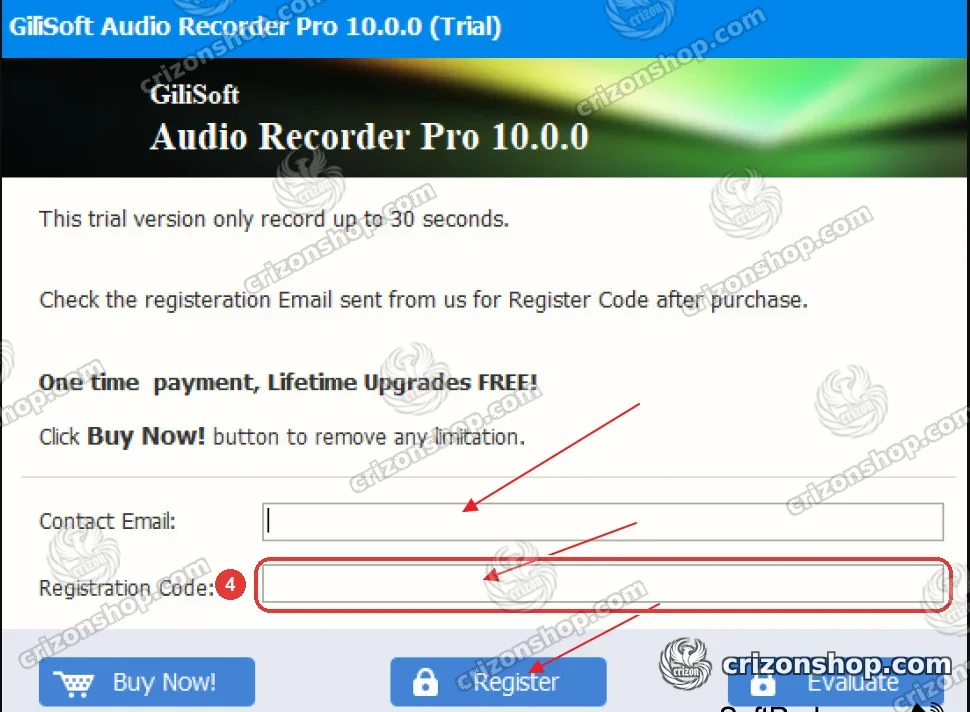
Paste your key into the Registration Code field. Click Register in the dialog to send the code for verification.
Wait for the app to confirm that registration succeeded, then close the dialog.
Check that activation worked
In the trial, Gilisoft locks some settings and the Auto Record feature. After you register, open these options again to check that they work now. For a quick test, choose an audio source, click Record, and play some music or speak into your mic for a few seconds. Then stop recording and play back the saved file. For detailed recording steps, see Gilisoft's user guide.
If the app can't verify your code
The message The registration code cannot be verified through the network means the app can't connect to Gilisoft's servers. According to Gilisoft's guide, a common cause is a cracking tool that has edited the Windows hosts file to block the gilisoft.com domain. Check your internet connection first. If your connection is working, follow these steps.
Press Win + R and type
notepad.Press Ctrl + Shift + Enter to open Notepad as administrator. Choose Yes when Windows asks.
In Notepad, choose File › Open and go to the folder below.
C:\Windows\System32\drivers\etcAt the bottom of the dialog, change the file type to All Files so the hosts file shows up. Select it and click Open.
Delete any lines that contain
gilisoft.com.Choose File › Save.
Reopen Gilisoft Audio Recorder Pro and register again with your email and key.
Frequently asked questions
It depends on the license you bought. Gilisoft's product page mainly sells a lifetime license for 1 PC. It also offers yearly, 3-PC, and team licenses. Check your license type before you install the app on a second computer.
No. The installer from Gilisoft's site works for both the trial and the full version. Just enter the correct email and key, and the locked features will open up.
Check that the email you entered is the one that came with your key. Then remove any extra spaces at the start and end of the key and try again. If the message says the code can't be verified through the network, follow the hosts file fix above.
Right now, Gilisoft's product page only offers a Windows installer. If you use a Mac, ask Gilisoft before you buy a license so you don't end up with one you can't install.
Related guides
How to Activate a Gilisoft EXE Lock Key on WindowsHow to Activate Gilisoft USB Lock with a License KeyHow to Activate Your Gilisoft Private Disk License with Email and CodeStill need help?
Send your order code and we can sort it out faster.
