Gilisoft · Activate
How to Activate Gilisoft USB Lock with a License Key
Install Gilisoft USB Lock from the official site and set an admin password. Then open the program, click Register, and enter the email you used to buy the key along with your license key.
This guide shows you how to install Gilisoft USB Lock on a Windows PC and enter your key to upgrade from the trial to the licensed version. The last section covers a common error that appears when the program can't verify your key over the network.
Before you install
Step 1. Download and install USB Lock
You can get the installer from Gilisoft's USB Lock product page. You can also download usb-lock.exe directly from Gilisoft's download server. The trial and the licensed version use the same installer. You enter the key after installation.
Open the
usb-lock.exefile you downloaded.If Windows asks whether you want to allow the app to make changes to your device, choose Yes.
When the installer asks, enter the admin password you want to set for USB Lock.
Enter your email address for password recovery, then click Next.
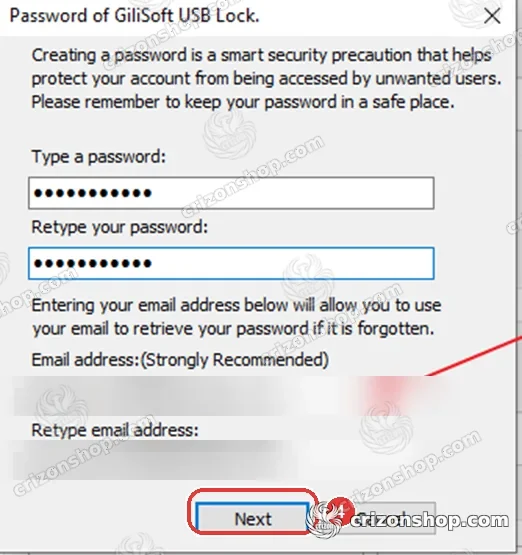
Enter your recovery email, then click Next. Click Install and wait for the installation to finish.
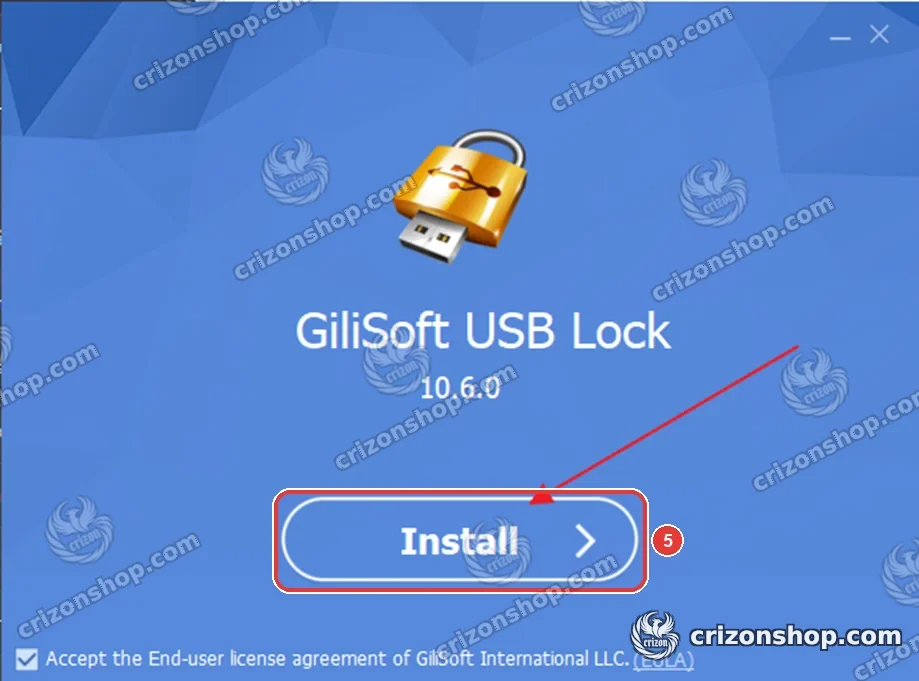
Click Install and wait for the installation to finish.
Step 2. Enter your key to register
Open Gilisoft USB Lock and enter the admin password you just set.
In the main window, click Register.
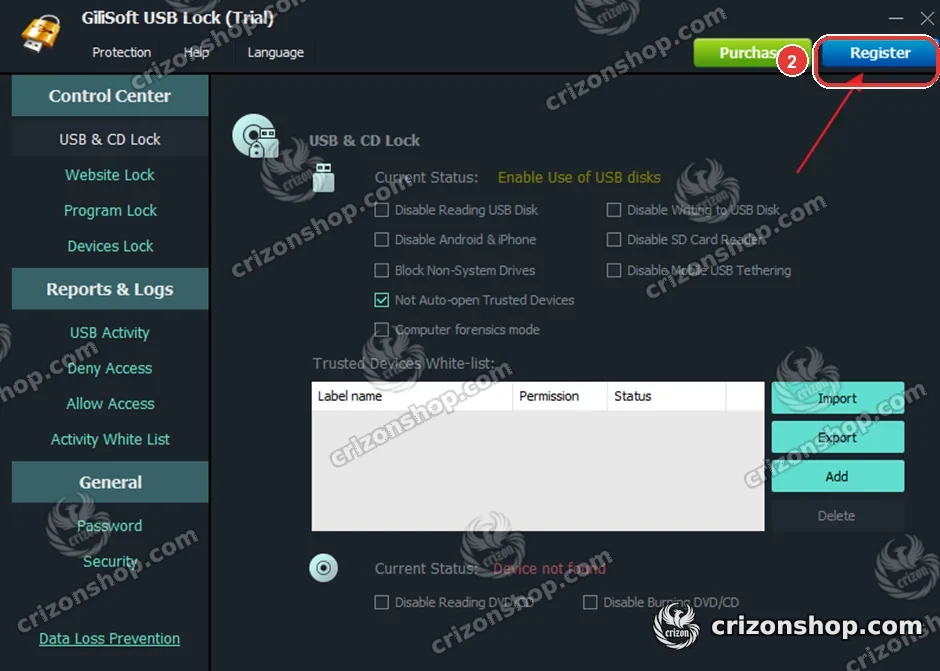
Click Register to continue. In the email field, enter the email you used to buy the key.
Paste your key into the registration code field.
Click Register to send your details for verification.
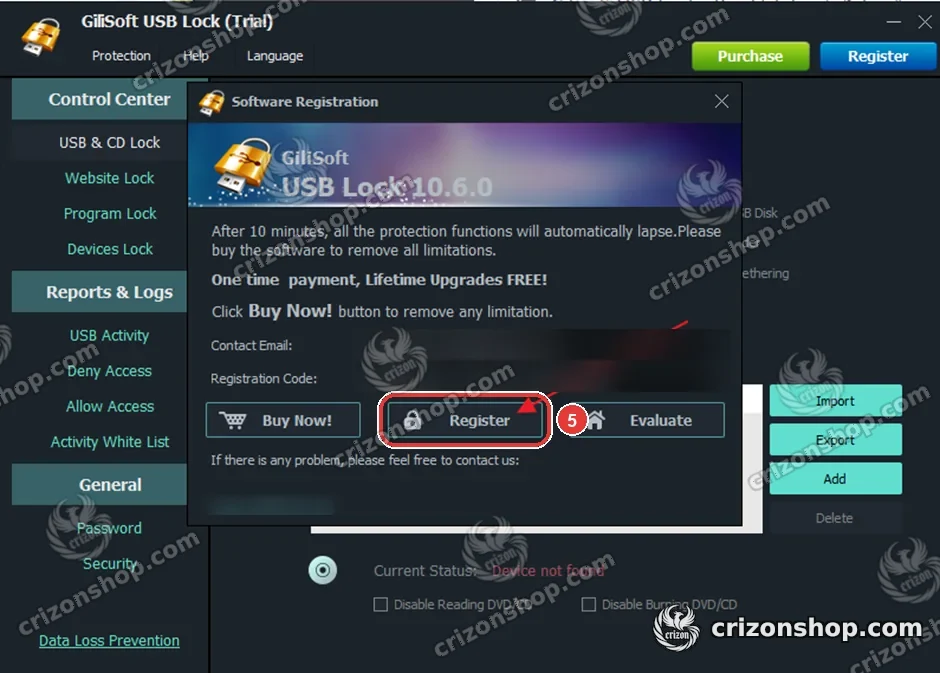
Click Register to send your details for verification.
The program connects to Gilisoft's server to verify your key. After registration succeeds, USB Lock switches to the full version, and the trial limits no longer apply to any feature.
Fix "The registration code cannot be verified through the network"
According to Gilisoft's guide, this error usually means a cracking tool has changed the Windows hosts file, which stops your computer from reaching gilisoft.com. The hosts file is in the folder below. You can copy this path and paste it into the Open dialog.
C:\Windows\System32\drivers\etcPress Win + R and type
notepad.Press Ctrl + Shift + Enter to open Notepad as administrator.
In Notepad, choose File › Open.
Change the file type filter to All Files.
Go to the folder above and open the
hostsfile.Find and delete every line that contains
gilisoft.com.Choose File › Save to save your changes.
Reopen USB Lock and try registering your key again.
Change the admin password or recovery email
After installation, you can change your password and email inside the program. See Gilisoft's USB Lock user guide for details.
Open USB Lock and go to General › Password.
Enter a new password in the New password field.
Enter the same password again in the Confirm password field.
Click Change Password to save.
To change your recovery email, use the Change Email section on the same page.
Frequently asked questions
Check that the email you entered matches the one you used to buy the key, and make sure your computer is connected to the internet. Then try the hosts file fix above. If it still doesn't work, contact the seller you bought the key from, or email Gilisoft support at [email protected].
Yes. Gilisoft checks keys online against its own server, so your computer must be online when you click Register. If you're behind a company firewall, you may need to ask your IT department to allow connections to gilisoft.com.
If you entered an email during installation, use the program's email password recovery feature. If you never entered one, contact Gilisoft support for help. USB Lock is built so that people without the password can't remove its blocking settings.
Yes. You can download a free trial from Gilisoft's product page. Once you have a key, just click Register in the program you already installed. You don't need to uninstall and reinstall it.
Related guides
How to Activate a Gilisoft Audio Recorder Pro Key on WindowsHow to Activate a Gilisoft EXE Lock Key on WindowsHow to Activate Your Gilisoft Private Disk License with Email and CodeStill need help?
Send your order code and we can sort it out faster.
