 Mathway · Sign in
How to Sign In to Mathway Premium on the Web and on Your Phone
Go to mathway.com, click Sign In in the top-right corner, and enter your Mathway or Chegg email and password. On your phone, sign in with the same account you upgraded to use Premium.
This guide shows you how to sign in to your own Mathway account in a desktop browser and in the mobile app. Once you're signed in to the account you upgraded, you can see Premium's step-by-step solutions.
Before you sign in
How to sign in
Open mathway.com in your browser.
Click Sign In in the top-right corner of the page.
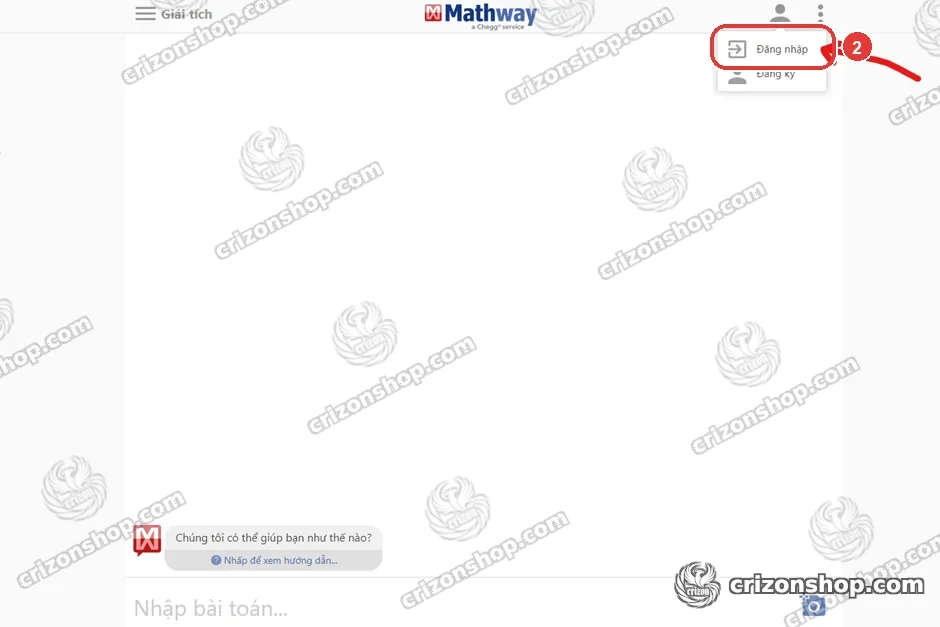
Click Sign In to continue. Enter your email in the top field.
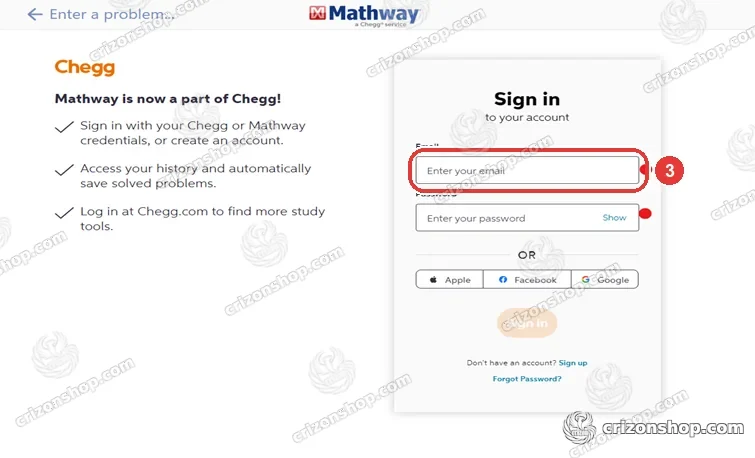
Type your email in the “Enter your email” field. Enter your password in the field below.
Click the sign-in button to open your account.
Enter a test problem and check that the full step-by-step solution appears.
Install the Mathway app from the App Store or Google Play.
Open the app and go to the menu or the app's settings.
Tap Sign In.
Enter the same email and password you use on the web.
Confirm to sign in, then solve a test problem to check that Premium is active.
Signed in but Premium isn't showing
This usually happens when you've signed in to the wrong account or the app hasn't picked up your subscription yet. Try these fixes in order.
Make sure the email you're signed in with is the one you used to upgrade.
If you upgraded inside the mobile app, open the Mathway app settings and tap Restore Subscription so the app picks up your plan again.
On the web, scroll to the bottom of mathway.com and click Manage Subscription to check your plan status.
Sign out, fully close the browser or app, then sign in again.
If it still doesn't work, send a request to Mathway through their contact page.
Change your password while signed in
Sign in to Mathway in your browser.
Go to mathway.com/settings.
Expand the Password section.
Follow the on-screen instructions to set a new password.
Frequently asked questions
In the sign-in box, use the password reset link and enter your account email to get a reset email. If it's not in your inbox, check your Spam or Promotions folder too. If you still don't receive it, contact Mathway through their <a href="https://www.mathway.com/contact">contact page</a>.
Yes. Mathway's sign-in page accepts Chegg emails and passwords. However, Premium only shows up if the account you sign in with is the one that was upgraded.
Check that the app is signed in with the same email you use on the web. If it's the right account and Premium still isn't there, sign out and sign back in, or try <strong>Restore Subscription</strong> in the app's settings.
Related guides
 How to Sign In to DataCamp and What to Do When You Can't Get In
 How to Log In to Your JetBrains Account on the Web and in the IDE
 How to Log In to Bookmate with Email or Google
Still need help?
Send your order code and we can sort it out faster.
