 JetBrains · Sign in
How to Log In to Your JetBrains Account on the Web and in the IDE
Open account.jetbrains.com/login, enter your email and password, and click Log in. In the IDE, go to Help | Manage Subscriptions, click Log in to JetBrains Account, then choose Activate.
This guide shows you how to log in to your JetBrains Account in a browser and in JetBrains IDEs such as IntelliJ IDEA, PyCharm, and WebStorm. Logging in from inside the IDE is the fastest way to get the IDE to pick up the license linked to your account.
Before you start
Log in to your JetBrains Account in a browser
Enter your JetBrains account email and password.
Click Log in.
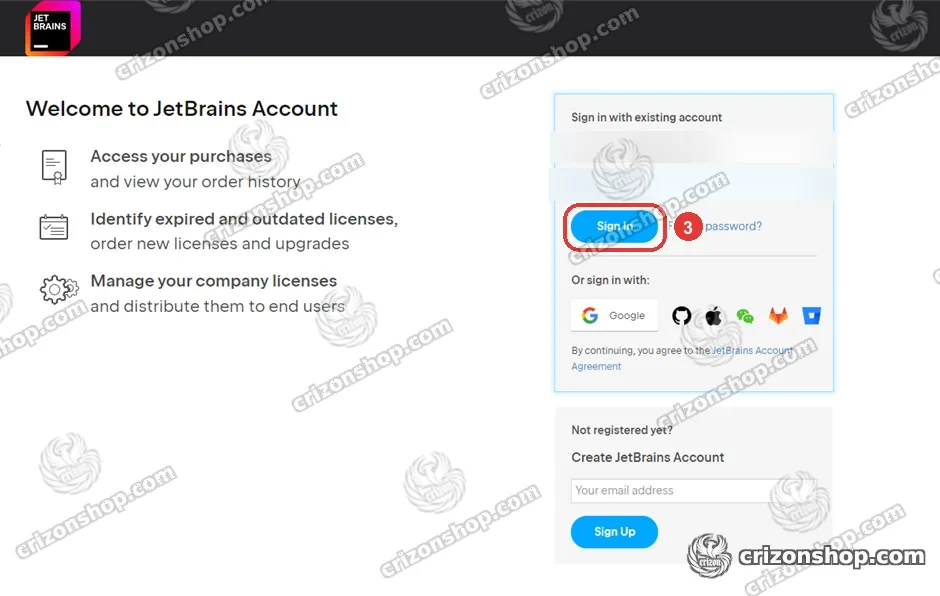
Click Sign In (Log in) to sign in. If two-factor authentication is turned on, enter the one-time code shown in the authenticator app on your phone.
Once you're in your account, check that the license you need appears in your list of licenses.
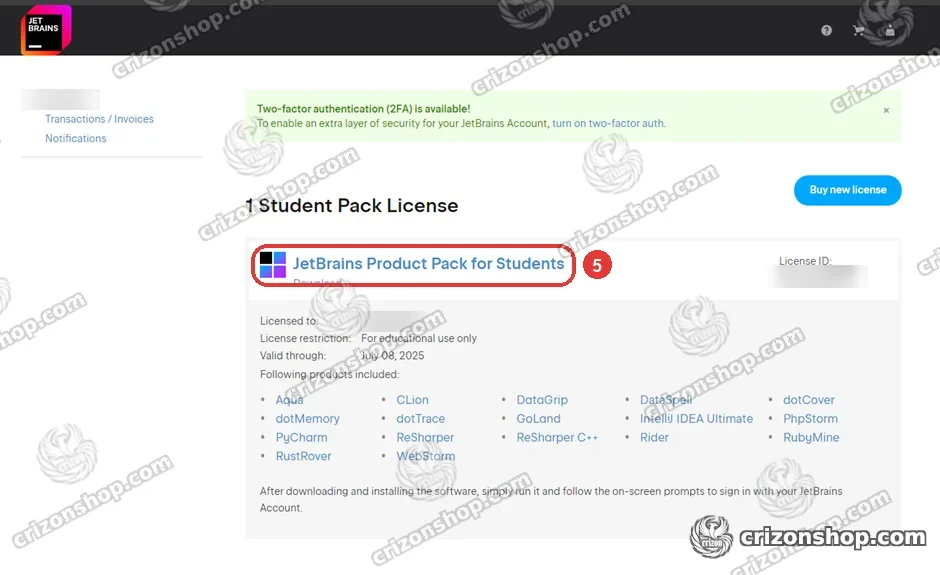
Check for the JetBrains Product Pack for Students license.
If you originally created your account with Google, GitHub, or another sign-in service, click that service's icon on the login page instead of entering a password.
Log in from the IDE to activate your license
All JetBrains IDEs are activated the same way. The steps below follow the IntelliJ IDEA activation docs. Other IDEs use similar menu names.
Open the IDE on your computer.
From the main menu, select Help | Manage Subscriptions.
Click Log in to JetBrains Account.
Your browser opens the JetBrains Account page. Log in with your email and password, or with Google or GitHub as described above.
When the page says you've logged in successfully, go back to the IDE window.
Your account name appears in the lower-left corner of the dialog, along with your licenses and their expiration dates.
Select the license you want to use and click Activate.
If the browser can't send you back to the IDE
Some corporate networks and firewalls stop the browser from passing the login result back to the IDE. In that case, log in with an authorization token instead.
In the IDE's login dialog, click Copy link.
Paste the link into your browser and log in to your JetBrains Account.
Generate an authorization token by following the instructions on the page, then copy it.
Go back to the IDE, paste the token into the authorization token field, and click Check token.
Once the token is verified, click Get Started to start using the IDE.
Switch to a different JetBrains account in the IDE
Go to Help | Manage Subscriptions.
Click your account name in the lower-left corner of the dialog.
Select Log Out.
Click Log In in the lower-left corner and log in with the other account.
Common problems
| Problem | What to do |
|---|---|
| The IDE says There are no valid licenses associated with the account | The license is linked to a different email. Log in with that email, or link it to your current account. If your company provided the license, ask your administrator which email it was assigned to. |
| Forgot your password | Click Forgot password on the login page and follow the instructions in the email JetBrains sends you. |
| Lost the phone with your authenticator app | Enter a recovery code where you'd normally enter the one-time code. |
| No internet on your computer | Use an offline activation code instead of logging in to your account. |
Frequently asked questions
Check whether the license belongs to the account you just logged in to. If it's under a different email, log in again with that email or link it to the same account. Then click Refresh license list in Help | Manage Subscriptions. For more details, see JetBrains' activation guide.
On the login page, enter your email and password, click Log in, and then enter a recovery code in place of the one-time code. If you have no recovery codes left, contact JetBrains Support by following their guide for locked-out accounts. Once they confirm you own the account, JetBrains will turn off two-factor authentication so you can log in with just your password again.
Yes. Logging in with a JetBrains Account needs an internet connection, so on an offline computer, use an offline activation code. Follow JetBrains' instructions.
Yes, if your JetBrains Account was created with or linked to that service. On the login page, click the service's icon instead of entering your email and password. This also works when the IDE opens your browser for you to log in.
Related guides
How to Transfer JetBrains IDE Settings to Another Account How to Sign In to DataCamp and What to Do When You Can't Get In
 How to Log In to Bookmate with Email or Google
Still need help?
Send your order code and we can sort it out faster.
