 Bookmate · Sign in
How to Log In to Bookmate with Email or Google
Go to bookmate.com, click Log In in the top-right corner, choose the method you used to create your account (Email, Google, Facebook, or Twitter), then enter your details to log in.
This guide shows you how to log in to your own Bookmate account on the website. It also covers how to reset a forgotten password and what to do if you see a device limit message.
Before you log in
- Remember how you created your account: with an email and password, or with a Google, Facebook, or Twitter account.
- Use an up-to-date version of Chrome, Firefox, Edge, or Safari so the site runs smoothly.
- If you read on your phone, it needs iOS 14 or later, or Android 5.0 or later.
Log in on the Bookmate website
Open bookmate.com in your browser.
Click Log In in the top-right corner of the screen.
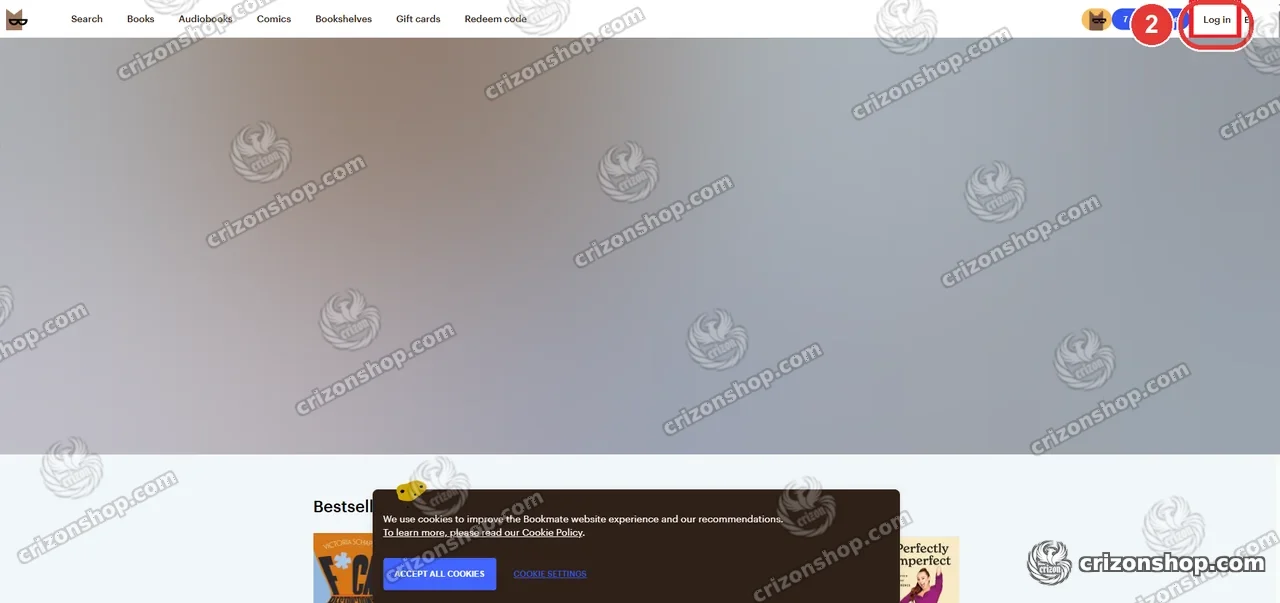
Click “Log in” to sign in. Choose how to log in from the list: Email, Facebook, Twitter, or Google.
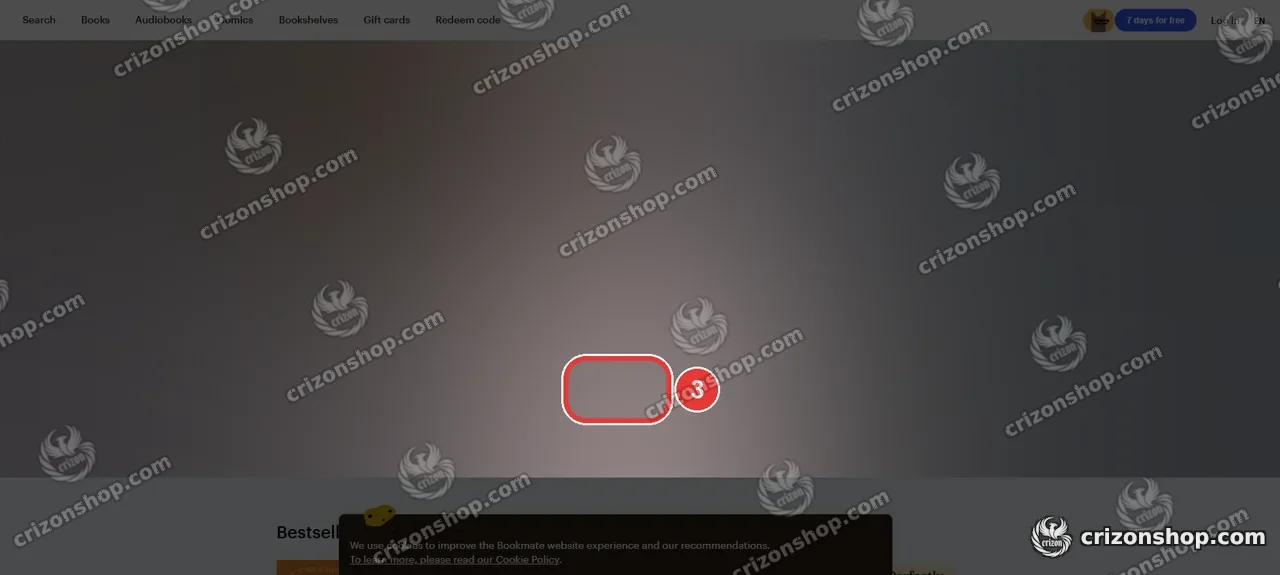
Click “Email” to choose your sign-in method. If you chose Email, enter your account's email address and password, then click the Log in button in that box.
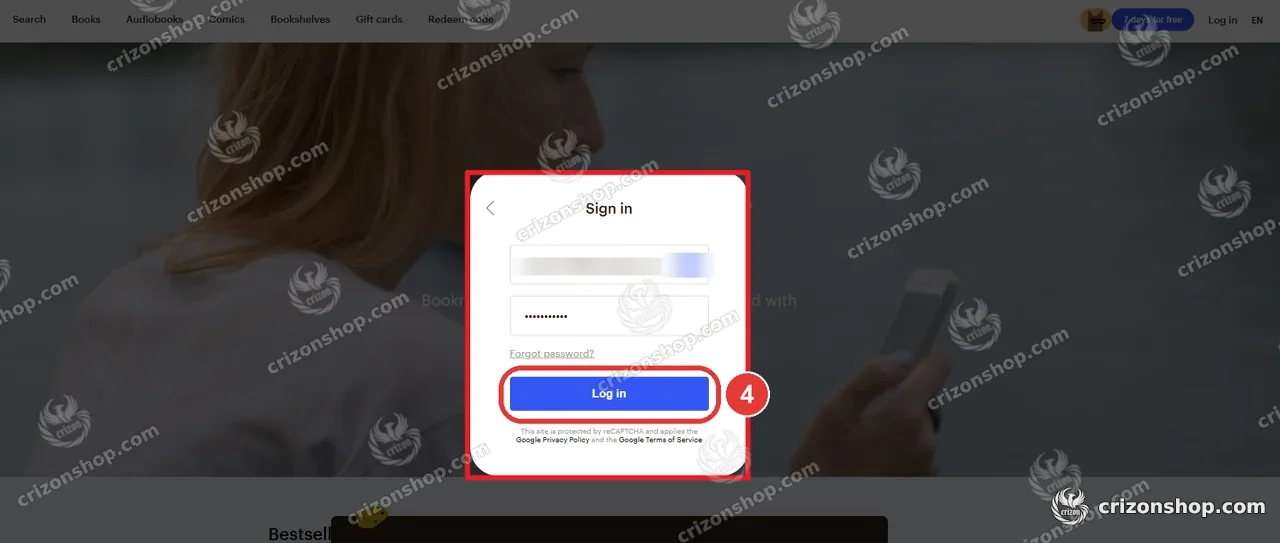
Click “Log in” to sign in with email. If you chose Google, Facebook, or Twitter, sign in in that service's window and allow Bookmate to access your account.
Use Bookmate on your phone
The Bookmate app for iOS and Android uses the same account as the website. When you open the app, choose the same sign-in method you use on the web to get into the same account.
Reset a forgotten password
This method is for accounts that log in with email. If you use Google, Facebook, or Twitter, your password is managed by that service, so you need to reset it there.
Click Forgot password? next to the password field.
Enter the email address linked to your Bookmate account.
Click Reset password.
Open your inbox and find the password reset email from Bookmate.
Follow the instructions in the email to create a new password, then log in again.
If you see a device limit message
Each Bookmate account can read and listen to subscription books on up to 3 devices. The table below sums up how Bookmate handles each case.
| Situation | What happens |
|---|---|
| You log in on a fourth device and open a book from your subscription | The oldest device is automatically removed from your active devices |
| The device you're reading on says you've reached the limit | Log out, then log back in on that same device |
| You read free books, podcasts, or books you uploaded yourself | No device limit applies |
You can view and manage your connected devices under My devices in your profile settings on the Bookmate website.
FAQ
Search the inboxes you use most for any email from Bookmate. The address that received it is usually the one linked to your account. If you can't find one, try Google, then Facebook, then Twitter with the accounts you use most. If you still can't get in, contact Bookmate support through its Help Center.
If you're using fewer than 3 devices, your old device keeps working as usual. When you open a subscription book on a fourth device, Bookmate automatically removes the oldest device from your active list.
Bookmate only plays audiobooks in its iOS and Android apps. In a desktop browser, you can only read ebooks and comics.
Yes. Go to your profile settings on the web and click Disconnect next to the social network you want to remove. However, Bookmate won't let you unlink it if it's the only way to log in to your account. In that case, click Add email in the Email field, enter an email and password, and click Save first. Then unlink the account.
Related guides
 How to Sign In to DataCamp and What to Do When You Can't Get In
 How to Log In to Your JetBrains Account on the Web and in the IDE
 How to Log In to Your Busuu Account on the Web and on Your Phone
Still need help?
Send your order code and we can sort it out faster.
