 Busuu · Sign in
How to Log In to Your Busuu Account on the Web and on Your Phone
Open busuu.com or the Busuu app, tap Log in, then choose the same method you used to sign up (email, phone number, Google, Facebook or Apple) to get into your account.

This guide shows you how to log in to your Busuu account in a desktop browser and in the mobile app. It also covers how to reset your password if you forget it. The steps follow the Busuu Help Center.
Choose the right login method
You can log in to Busuu with an email address, a phone number, Google, Facebook or an Apple ID. Email and phone number logins need a password. With the other three, you just confirm your Google, Facebook or Apple account.
Busuu's login guide says to use the same details you signed up with. If you've since added another email address or phone number to your account, you can log in with those too.
Log in on a computer or phone
Open the Busuu login page in your browser, or go to busuu.com and click Log in.
Choose the login method you used when you signed up.
If you use an email address or phone number, enter it with your password, then click Log in.
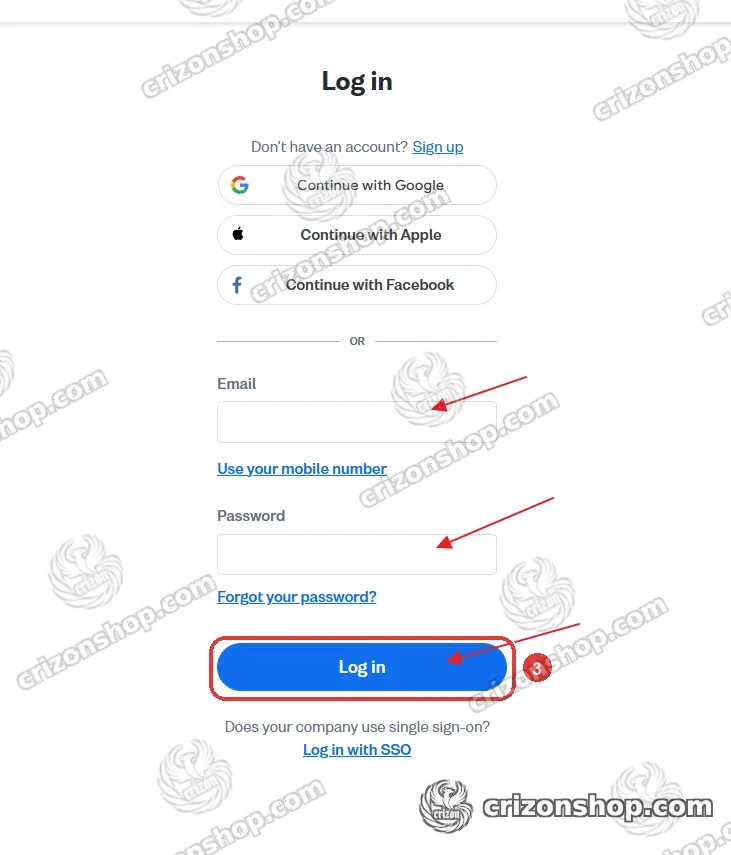
Enter your email or phone number and your password, then click Log in. If you use Google, Facebook or Apple, click the matching button and confirm your account in the window that opens.
When the page switches to your course, you're logged in.
Download the Busuu app from the App Store on an iPhone or iPad, or from Google Play on Android. Make sure the app is published by Busuu.
Open the app and tap Log in on the welcome screen. Don't choose the option that starts a new learner on a course.
Choose the login method you used when you signed up.
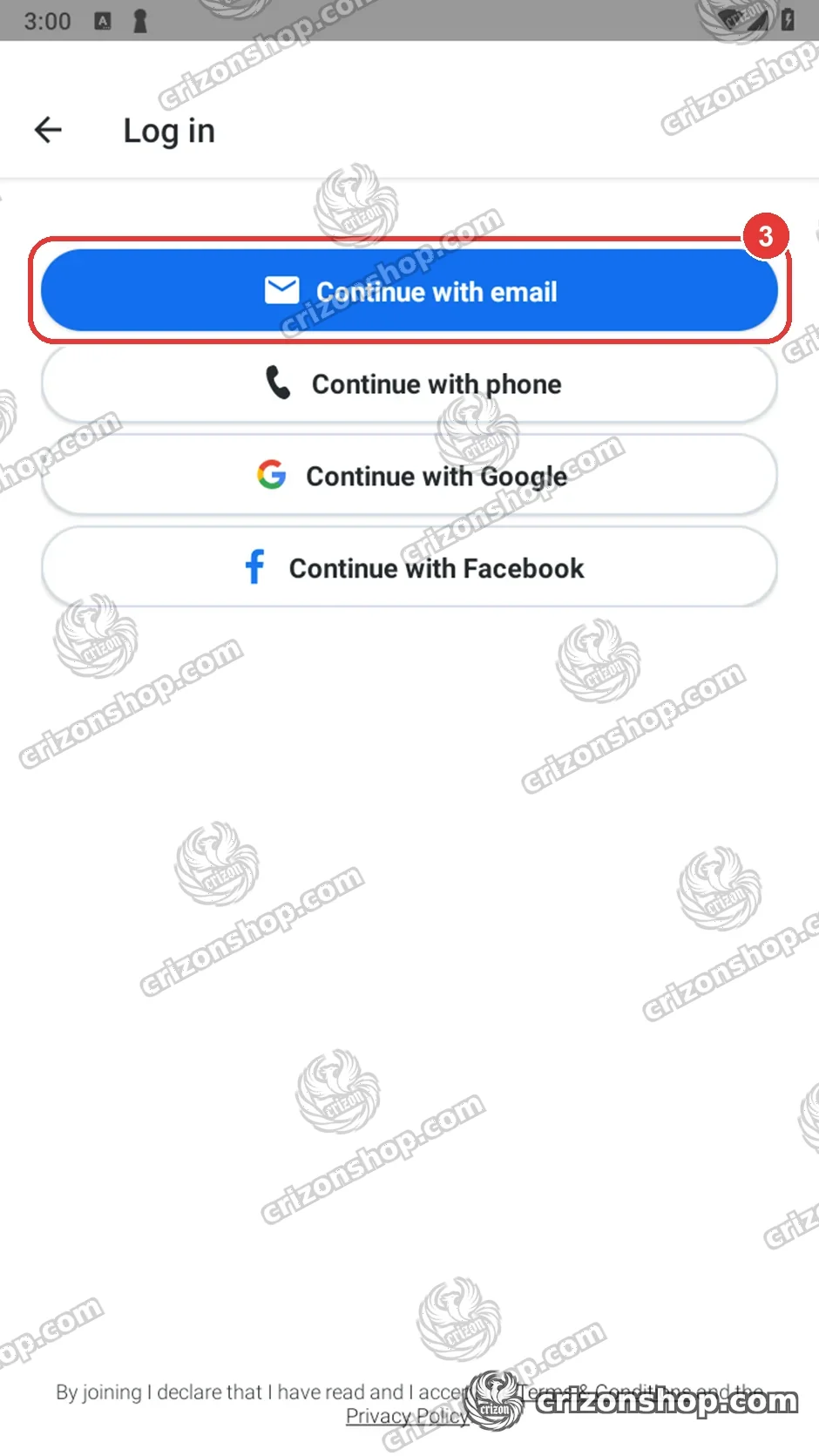
Tap Continue with email to log in with your email. Enter your email or phone number and your password. If you use Google, Facebook or Apple, confirm that account when the app asks.
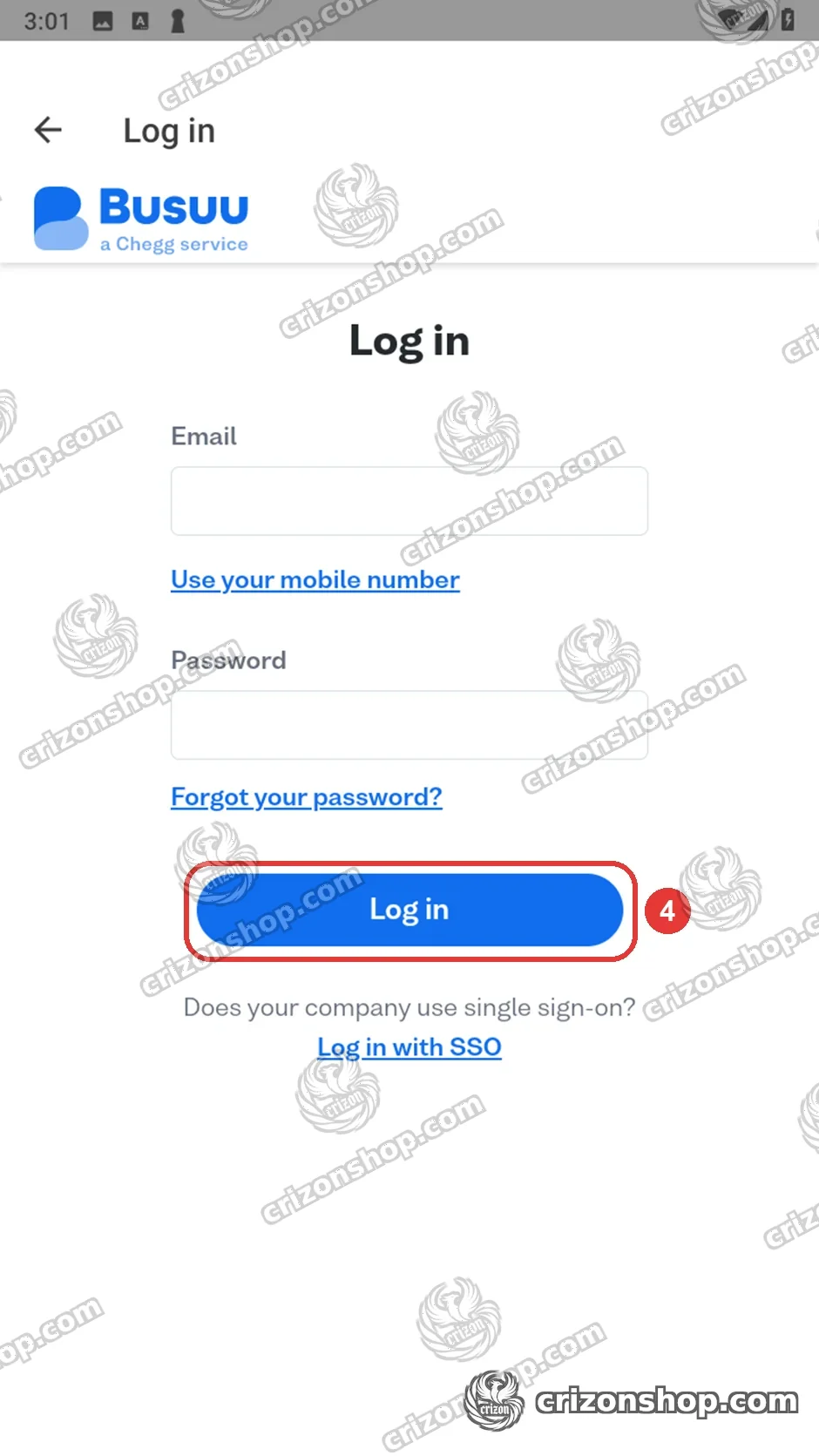
Enter your login details, then tap Log in. When the app shows your course and progress, you're logged in.
Reset a forgotten password
This only applies to accounts that use an email address and password. If you log in with Google, Facebook or Apple, you don't need to reset a Busuu password. Just use the same button you signed up with.
Go to the login page and click Forgot your password?.
Enter the email address linked to your Busuu account.
Open your inbox, find the email from Busuu, and follow the steps in it to set a new password.
Go back to the login page and log in with your email and new password.
For more details, see Busuu's forgotten password guide.
FAQ
On the login page on your computer, choose to log in with Apple and enter the Apple ID you use on your iPhone. Don't type your email into the regular email field. Your account is linked to Apple, not to a Busuu password.
If you log in with Facebook, or with Apple and chose to hide your email (Hide My Email), Busuu gives your account a random email address. You can see it in your profile. This is normal. Just keep logging in with the Facebook or Apple button as before.
This usually means you're in a different account from the one you bought the plan on. For example, you signed up with Google but logged in with email this time. Log out and try again with the login method you used when you bought the plan. If you still can't see it, contact Busuu support through the Help Center.
Check your Spam or Promotions folder. Also make sure the email you entered is the one linked to your Busuu account. If your account was created with Google, Facebook or Apple, it has no password to reset. Just log in with the matching button.
Related guides
 How to Sign In to DataCamp and What to Do When You Can't Get In
 How to Log In to Your JetBrains Account on the Web and in the IDE
 How to Log In to Bookmate with Email or Google
Still need help?
Send your order code and we can sort it out faster.
