 DataCamp · Sign in
How to Sign In to DataCamp and What to Do When You Can't Get In
Go to datacamp.com, click Sign In in the top-right corner, enter your email and click Next, then enter your password. This guide also covers signing in with Google or SSO and resetting your password.
This guide shows you how to sign in to your DataCamp account in a browser. You can use your email and password or a Google, Microsoft, LinkedIn, Facebook or Apple account. Later sections cover resetting your password and what to check if you sign in but don't see your Premium plan.
Sign in with email and password
Open datacamp.com in your browser.
Click Sign In in the top-right corner.
Enter the email you signed up with in the E-mail address field, then click Next.
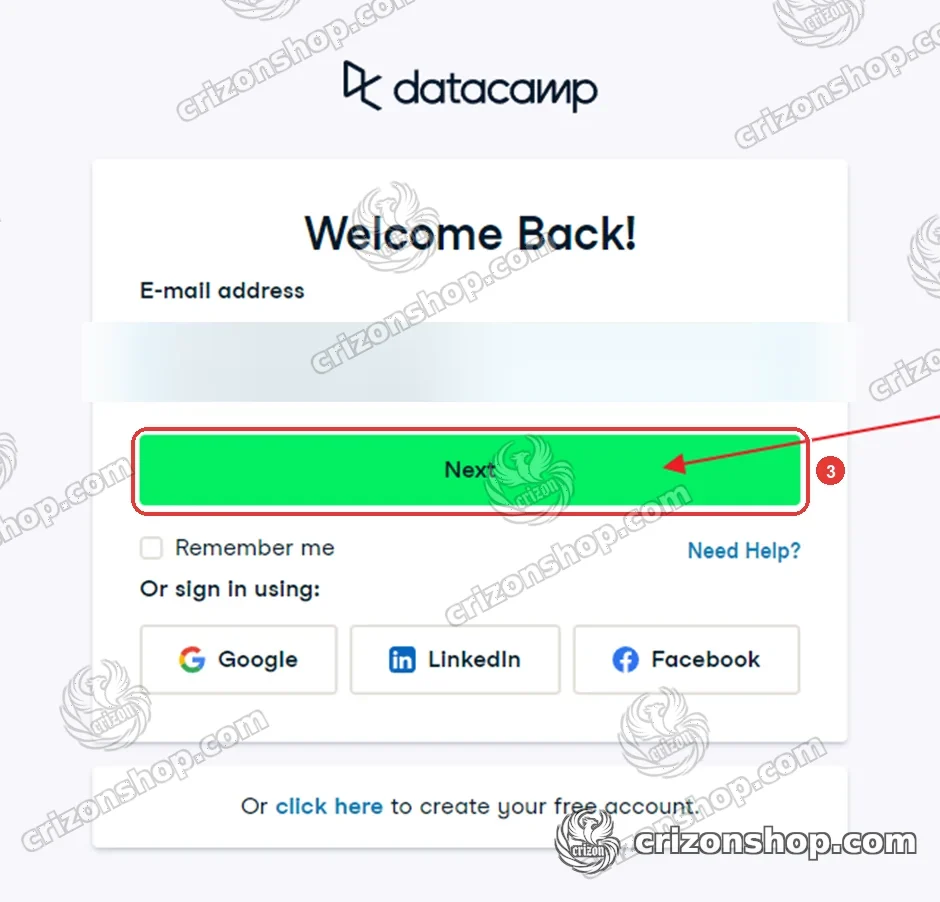
Click Next on the E-mail address screen to continue. Enter your password in the Password field, then click Sign In.
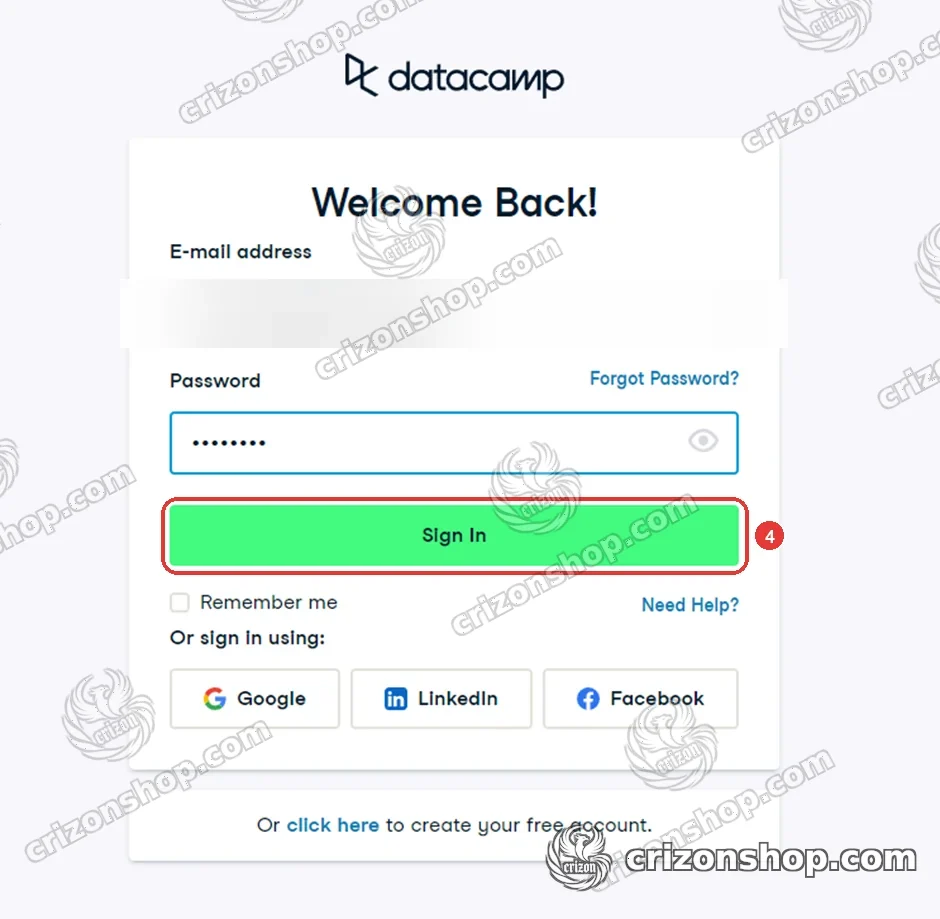
Enter your password in the Password field, then click Sign In. If DataCamp shows an extra screen asking about you, fill it in and click Continue. If you'd rather not fill it in, click Skip.
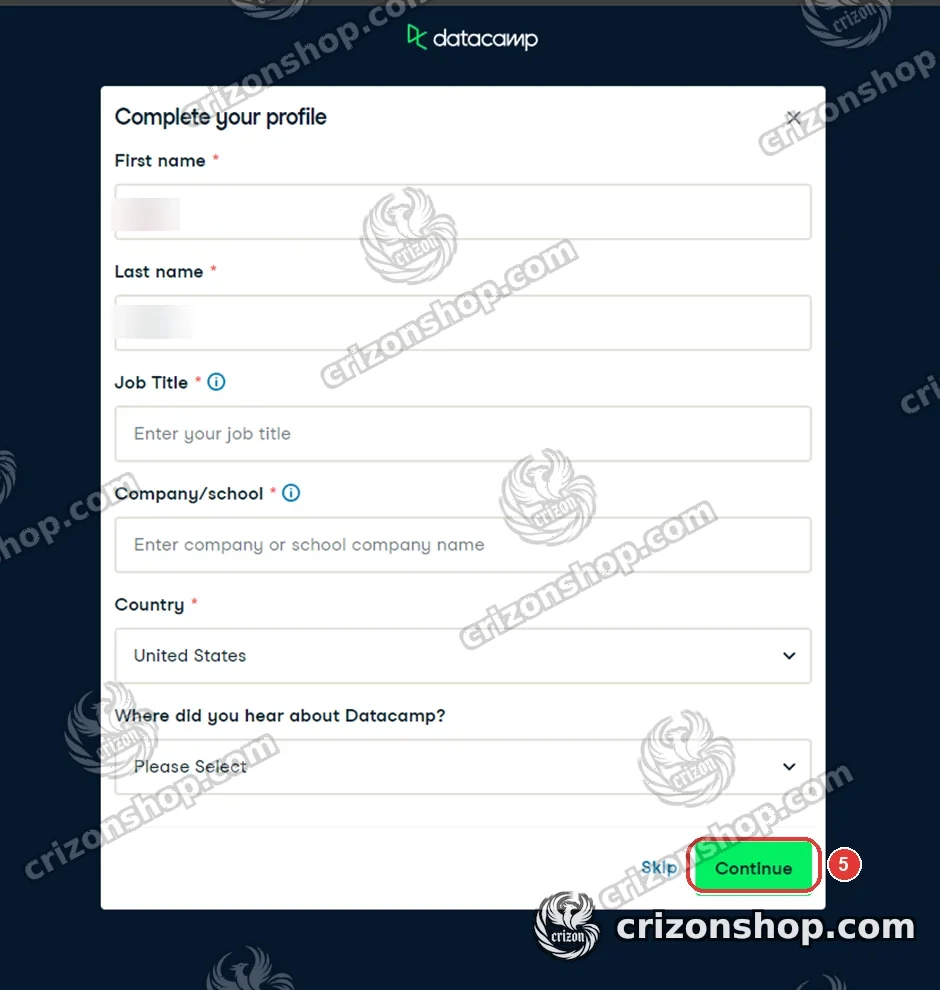
Click Continue, or Skip, to move on.
Sign in with Google, Apple or another account
Did you create your account by clicking the Google, Microsoft, LinkedIn, Facebook or Apple icon instead of setting your own password? Then you have to sign in the same way every time. On the Sign In page, click the matching icon and confirm on that provider's screen. DataCamp doesn't store the passwords for these accounts.
Accounts from your school or company
If your organization uses single sign-on (SSO), you can't use the usual email and password sign-in. Click Use SSO on the sign-in page, or open the exact sign-in link your organization sent you. Then sign in with your organization account. If you forget these sign-in details, ask your school's or company's DataCamp admin to reissue them.
Reset a forgotten password
Open datacamp.com and click Sign In.
Click the Forgot Password? link.
Enter the email you signed up with and click Reset my password.
Open your inbox, click the link DataCamp sent you and set a new password.
For more details from DataCamp, see Reset your password.
Signed in but can't see your Premium plan
Usually this means you're in a different account from the one that has the plan. This happens when you sign in with a different email or method from the one you paid with. Go through these checks in order.
Sign out of DataCamp.
Clear your browser cache, or open a private (incognito) window.
Sign in again with the exact email or method (Google, Apple, LinkedIn…) you used to pay.
Go to Account Settings › Subscription and wait one to two minutes for the page to update.
Open any course and try Chapter 2 or later. If the content is still locked, this account doesn't have Premium.
A failed payment can also put your account back on the Basic plan, so check your bank or wallet to make sure you were actually charged. Still no plan after all this? Contact support through the Where is my DataCamp subscription? page. Include your account email, payment method, the date and amount charged, and the last four digits of your card.
Frequently asked questions
Yes, but only through DataCamp support. To verify you, they'll ask for details such as the last four digits of the card you paid with, your old email, an invoice number or the date of your last charge. Once you're verified, DataCamp changes the account email to your new address. Then use Forgot Password? to set a new password. For more, see DataCamp's guide.
No. Accounts created with Google, LinkedIn or Facebook don't have a separate DataCamp password. Just click the Google icon on the sign-in page. If you forgot your Google password, recover it with Google, then come back and sign in to DataCamp as usual.
These accounts usually use SSO. Sign in with the Use SSO button or your school's own sign-in link, using the account your school gave you. If you still can't get in, ask your school's DataCamp admin. Only they can reissue or reset your sign-in details.
Related guides
How to Activate DataCamp with a Group Invitation How to Log In to Your JetBrains Account on the Web and in the IDE
 How to Log In to Bookmate with Email or Google
Still need help?
Send your order code and we can sort it out faster.
