 LinkedIn · Sign in
How to Sign In to LinkedIn Learning (Formerly Lynda) on Your Phone
The Lynda app no longer works. Download the LinkedIn Learning app, tap Sign in, then sign in with your account email, or choose Sign in with your library card if your library gives you access.
Lynda.com is now LinkedIn Learning, and you can no longer sign in to the old Lynda app. This guide shows you how to install the LinkedIn Learning app on your phone and sign in with your own account. If your library supports it, you can sign in with a library card instead.
Before you sign in
Method 1: Sign in with your account email
Use this method if you already have a LinkedIn Learning account with learning access, such as one provided by your company or school.
Open the LinkedIn Learning app.
Tap Sign in.
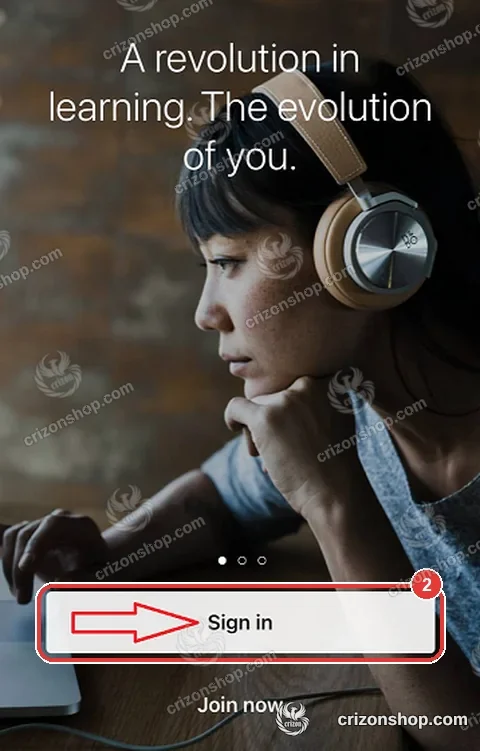
Tap “Sign in” to continue. Tap Continue in the small pop-up that appears.
Enter your account email address, then tap Continue.
Enter your password on the next screen to start learning.
Method 2: Sign in with a library card
Many public libraries let their members use LinkedIn Learning for free with a library card. You don't need a LinkedIn profile for this method. You only need your own card number and PIN.
Open the LinkedIn Learning app and tap Sign in.
Tap Sign in with your library card just below the email field.
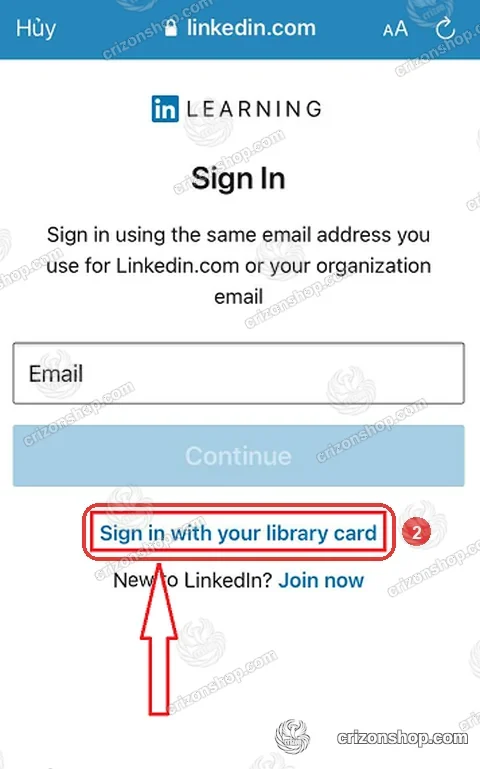
Tap “Sign in with your library card.” In the Enter your library ID field, type your library ID after the URL that's already filled in.
Tap Continue.
Enter your library card number and PIN.
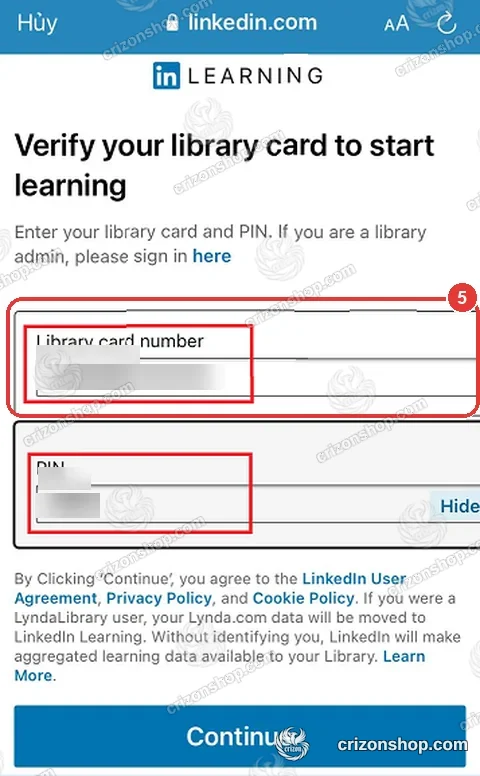
Fill in “Library card number” and “PIN,” then tap “Continue.” Tap Continue to start learning.
Your library ID is the last part of the LinkedIn Learning sign-in URL that your library gives you. The URL looks like the one below. Type only the part where libraryID appears.
www.linkedin.com/learning-login/go/libraryIDDownloading courses and staying signed in
Once you're signed in, you can download courses to watch offline. You can only do this in the mobile app, not on a computer, and your learning access must still be active.
Open the course you want to download.
Tap Download.
Open the course you want to download.
Tap DOWNLOAD NOW to download the whole course.
To download only some videos, open the Contents tab and select each video.
Frequently asked questions
No. Lynda has moved entirely to LinkedIn Learning, so you can no longer sign in to the Lynda app. Install the LinkedIn Learning app and sign in with one of the two methods above.
It's at the end of the LinkedIn Learning sign-in URL that your library provides. You can usually find it on the library's online resources page. If you still can't find it, ask a librarian. LinkedIn also explains this on its library card help page.
No. You only need your library card number and PIN. If you forget your PIN, contact your library for a new one. LinkedIn doesn't manage this information.
No. A new card number creates a separate LinkedIn Learning account, and the two accounts can't be merged. Use the same card number for as long as you're learning.
Related guides
How to Log In to LinkedIn Learning (Formerly Lynda)How to Activate IObit Driver Booster PRO with a License Code How to Leave a Microsoft 365 Family Group
Still need help?
Send your order code and we can sort it out faster.
