 LinkedIn · Sign in
How to Log In to LinkedIn Learning (Formerly Lynda)
Lynda is now LinkedIn Learning. Sign in at linkedin.com/learning with a LinkedIn account whose Premium plan includes Learning, with a library card, or with your school or work email.
Lynda.com has been merged into LinkedIn Learning, so the former Lynda courses now live at linkedin.com/learning. This guide helps you pick the right way to sign in based on the type of access you have, and fix a few common problems.
Where does your access come from?
How you sign in depends on who gives you access. Use the table below to find your case, then follow the matching section.
| Where your access comes from | What you need | How to get in |
|---|---|---|
| Individual LinkedIn Premium plan that includes Learning | Your LinkedIn email and password | LinkedIn home page or linkedin.com/learning |
| Public library | Library ID, card number, and PIN | Sign in with your library card button |
| School or company | Email issued by your organization | linkedin.com/learning, then you're redirected to your organization's sign-in page |
Sign in with a LinkedIn Premium account
With an individual Premium plan, LinkedIn Learning is tied to your LinkedIn profile, so you don't need a separate account.
Sign in to LinkedIn with your email and password.
In the top-right corner of the home page, click the App launcher icon (the grid).
Choose Learning from the list that appears.
Some accounts show Learning right in the top-right corner. If you see it, just click it. You can also type linkedin.com/learning straight into your browser.
Install the LinkedIn Learning app from the App Store or Google Play.
Open the app and tap Sign in.
Enter the email you use for LinkedIn, then follow the verification steps on the screen.
Sign in with a library card
Many public libraries let their members use LinkedIn Learning for free with a library card. Each library has its own code, called a Library ID. If you don't know it, ask a librarian or check the library's website.
Open the LinkedIn Learning sign-in page.
Click Sign in with your library card below the email field.
Enter your Library ID after
www.linkedin.com/learning-login/go/, then click Continue.Enter your library card number and PIN, then click Continue.
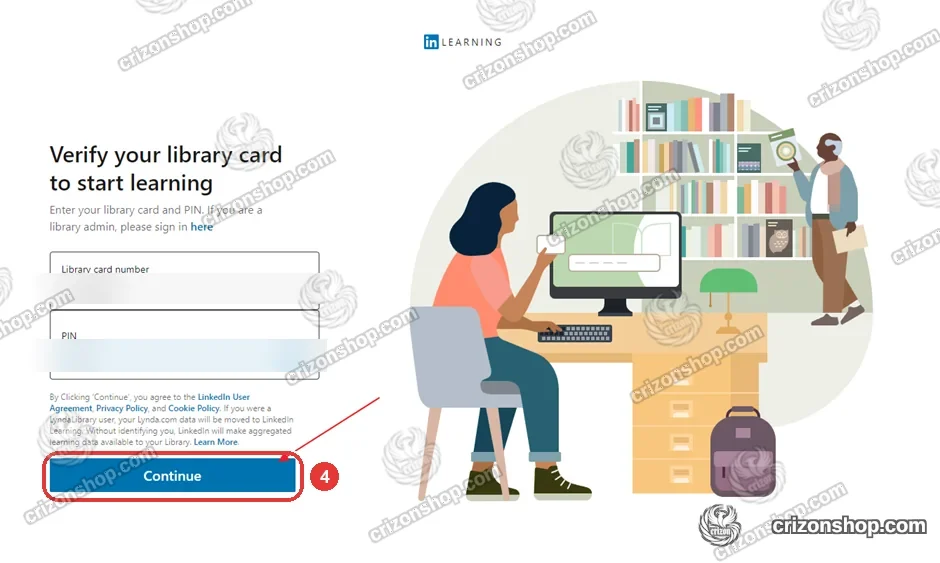
Click Continue to proceed.
Open the LinkedIn Learning app.
Tap Sign in with your library card.
Enter your Library ID, card number, and PIN, the same way you would on a computer.
If your library has given you its ID, you can type the address below straight into your browser. Replace the last part with your library's ID.
www.linkedin.com/learning-login/go/<library ID>Sign in with a school or work account
Go to linkedin.com/learning and click Sign in.
Enter the email your school or company gave you.
You'll be redirected to your organization's sign-in portal. Enter your username and password there.
Once you're verified, you're taken back to LinkedIn Learning.
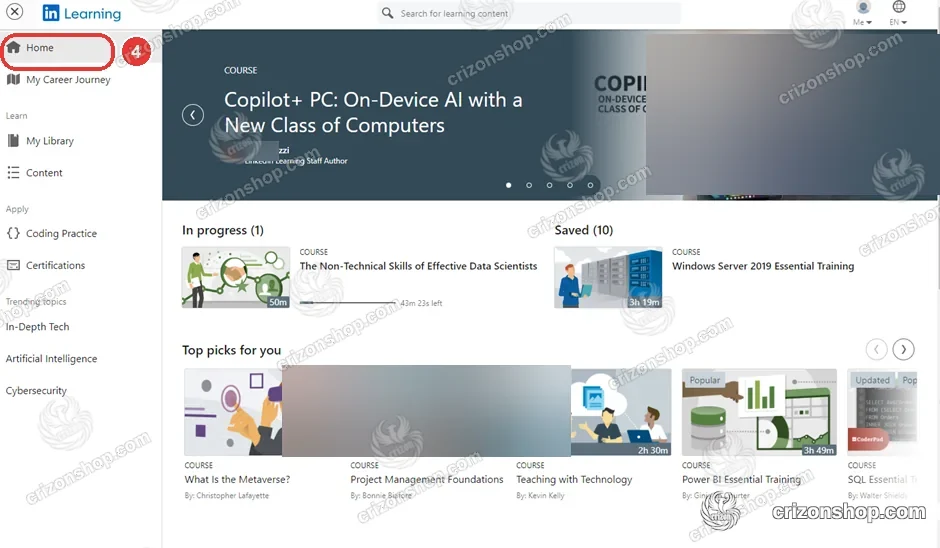
Click Home to stay on the LinkedIn Learning page.
In the Android app, tap Sign in with your organization portal and enter your organization email. Some schools and companies have their own learning portal. In that case, use the link your IT team or your organization's Learning admin gives you.
If you can't sign in
- You were signed out without doing anything. Library card accounts are signed out automatically after 60 days. Just sign in again with your card number and PIN.
- You don't know your Library ID or forgot your PIN. Only the library that issued your card can give you these details, so contact a librarian there.
- Your school or work account says you don't have access. Ask your organization's Learning admin or IT support to give you access.
- You can get into LinkedIn but don't see Learning. Your Premium plan may not include LinkedIn Learning. Check your plan's benefits.
For more details, see LinkedIn's official guide to using a library card on the LinkedIn Help page, and how to access Learning with Premium or an organization account on the LinkedIn Learning Help page.
Frequently asked questions
Lynda.com no longer runs as a separate site and has fully moved to LinkedIn Learning. Sign in at linkedin.com/learning using the method that matches where your access comes from: a Premium plan, a library card, or a school or work account.
No. You only need the Library ID, card number, and PIN from your library to sign in and start learning.
If you sign in with a library card, LinkedIn signs you out automatically after 60 days. This is normal. Just sign in again with your card number and PIN.
No. Your learning history is tied to the old card number, so when you sign in with the new number, your history starts out empty.
Related guides
How to Sign In to LinkedIn Learning (Formerly Lynda) on Your PhoneHow to Activate IObit Driver Booster PRO with a License Code How to Leave a Microsoft 365 Family Group
Still need help?
Send your order code and we can sort it out faster.
