 Microsoft 365 · Sign in
How to Leave a Microsoft 365 Family Group
Sign in at account.microsoft.com/family, click the three dots next to your name, select Leave family group, then click Remove. If you don't see this option, ask the family organizer to remove you from the group.
This guide shows you how to remove your Microsoft account from a family group in your browser. You might need to do this if you no longer want to share someone else's Microsoft 365 Family plan. You might also want to take your account out of an old group so you can manage it yourself.
What you lose when you leave the group
According to Microsoft, anyone who leaves or is removed from a family group loses access to products shared by other members. This includes Microsoft 365 Family. Your Microsoft account stays intact, and only the benefits of the shared plan end. If your account has no other Microsoft 365 plan, here's what to expect:
| Item | After you leave |
|---|---|
| OneDrive files | Kept as they are |
| OneDrive storage | Drops from 1 TB or 2 TB to 5 GB |
| Office apps | View and print files only. You can't edit or create files |
| Family Safety features | No longer available |
How to leave a family group
Do these steps in a web browser. They follow Microsoft's official guide, Leave family group or remove members.
Go to account.microsoft.com/family and sign in with the Microsoft account you want to remove from the group.
In the member list, find the card with your name.
Click the three-dot icon next to your name.
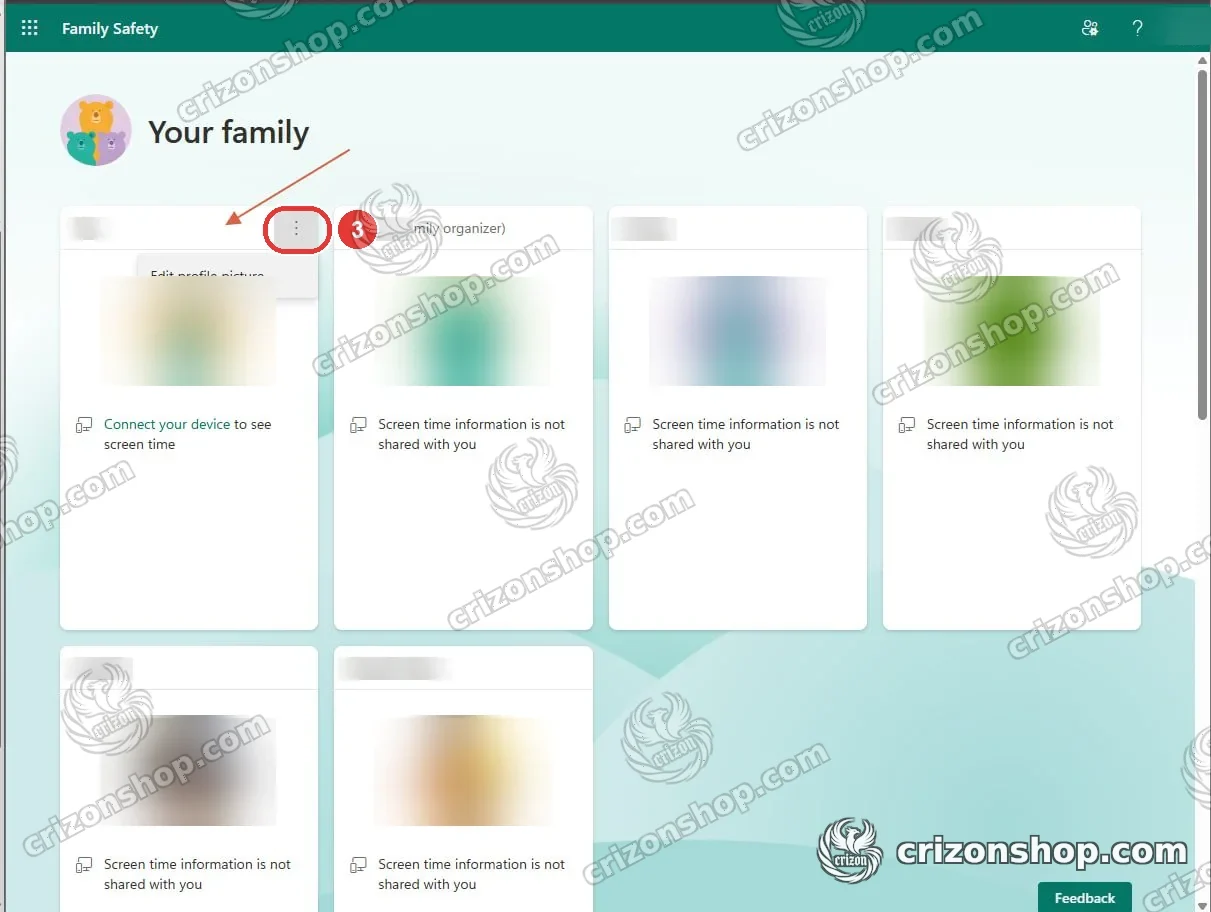
Click ⋮ next to the You card. Select Leave family group.
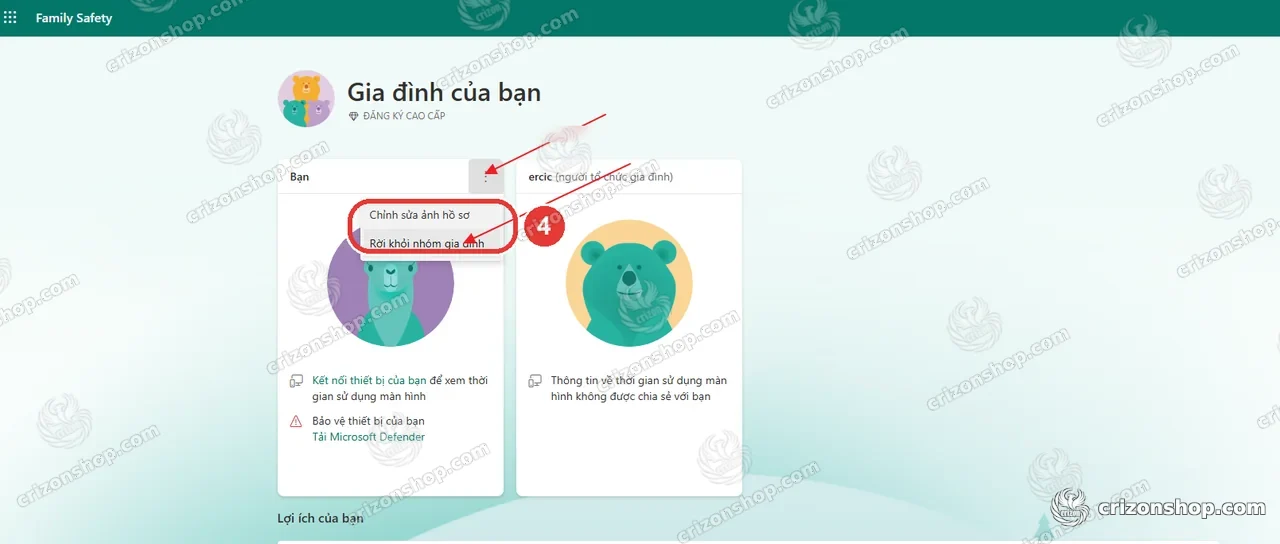
Click Leave family group to leave the group. Click Remove to confirm.
Don't see Leave family group?
Microsoft says this option only appears for the group's organizer. If you're a regular member, you can't leave the group yourself. The organizer has to remove you. Contact the person who invited you or who manages the group, and send them the steps below.
How the organizer removes you
The organizer signs in at account.microsoft.com/family with their own account.
Click the three-dot icon next to your name.
Select Remove from family group.
Click Remove to confirm.
Check that you've left the group
- Reload account.microsoft.com/family. The old group and its members should no longer appear.
- Go to account.microsoft.com/services to see which Microsoft 365 plans are still active on your account.
Are you using a CrizonShop plan that disappeared after you left the group? Go to Account → My orders on crizonshop.com, open that order, and click Report a problem so we can look into it.
Frequently asked questions
No. Microsoft says your files stay as they are, and only the plan's benefits end. Your OneDrive storage will drop to 5 GB. If you're using more than that, delete some files or download the important ones to your device before you leave the group.
Your account is a regular member, not the group's organizer. Only the organizer can add or remove people. Ask them to follow the steps in How the organizer removes you above.
Not by yourself. The group's organizer needs to send you a new invitation. Accept it with the same Microsoft account you used before.
CrizonShop's Microsoft 365 own-account upgrade is applied to the Microsoft account you enter at checkout. We never ask for your password at any step. Once your order is delivered, sign in to Office with that same account. You'll find a guide with screenshots in the Guide section under the product in your order details. Is your account in another family group, and you're not sure whether to leave it first? Ask us through Chat with Support before you order.
Related guides
How to Accept a Microsoft 365 Email Invitation to Activate Your PlanHow to Download and Activate Microsoft 365 on Your Computer and PhoneHow to Uninstall Microsoft 365 and Office from a Windows PCStill need help?
Send your order code and we can sort it out faster.
