 Microsoft 365 · Activate
How to Download and Activate Microsoft 365 on Your Computer and Phone
Sign in at m365.cloud.microsoft/apps with the exact Microsoft account that was upgraded and click Install apps to set up Office. Then open Word and accept the license terms, and Office activates automatically.

This guide shows you how to install Word, Excel, PowerPoint and the other Microsoft 365 apps on your computer and phone. You then activate them with the Microsoft account CrizonShop just upgraded. You don't need to enter a key. Just sign in with the right account and Office picks up the plan automatically.
Before you start
CrizonShop upgrades Microsoft 365 plans directly onto the Microsoft account you entered when you placed your order. We don't create a new account or ask for your password, so you do every step below on your own account.
Install and activate Office on a computer
On both Windows and Mac, you download the installer from the Microsoft 365 Apps page. The steps after that are slightly different, so pick the tab for your computer.
Open your browser and go to m365.cloud.microsoft/apps.
Click Sign in and sign in with the upgraded Microsoft account.
On the Microsoft 365 Apps page, click Install apps.
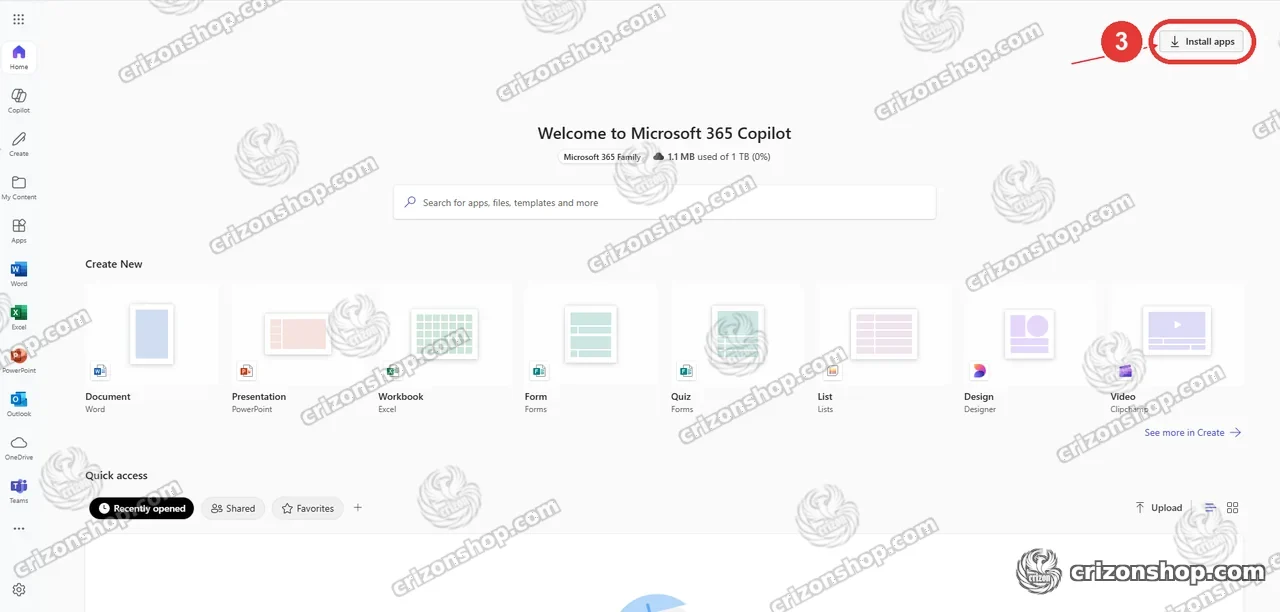
Click “Install apps” to install the apps. Click Install to download the installer. On some accounts, the button says Install apps> instead.
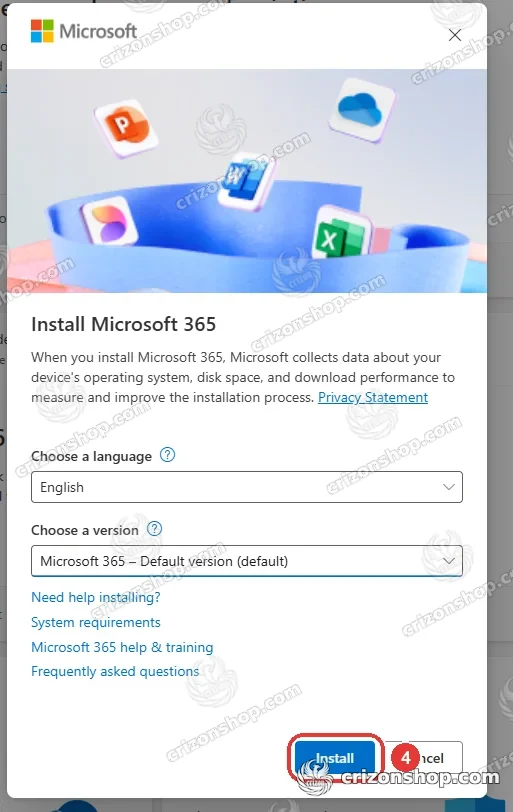
Click “Install” (Install apps>) to download the installer. Open the installer file you just downloaded. In Edge, click Run. In Chrome, click Setup. In Firefox, click Save File and then open the saved file.
When Windows shows the User Account Control prompt, click Yes.
Wait for the installer to finish. When you see You're all set! Office is installed now, click Close.
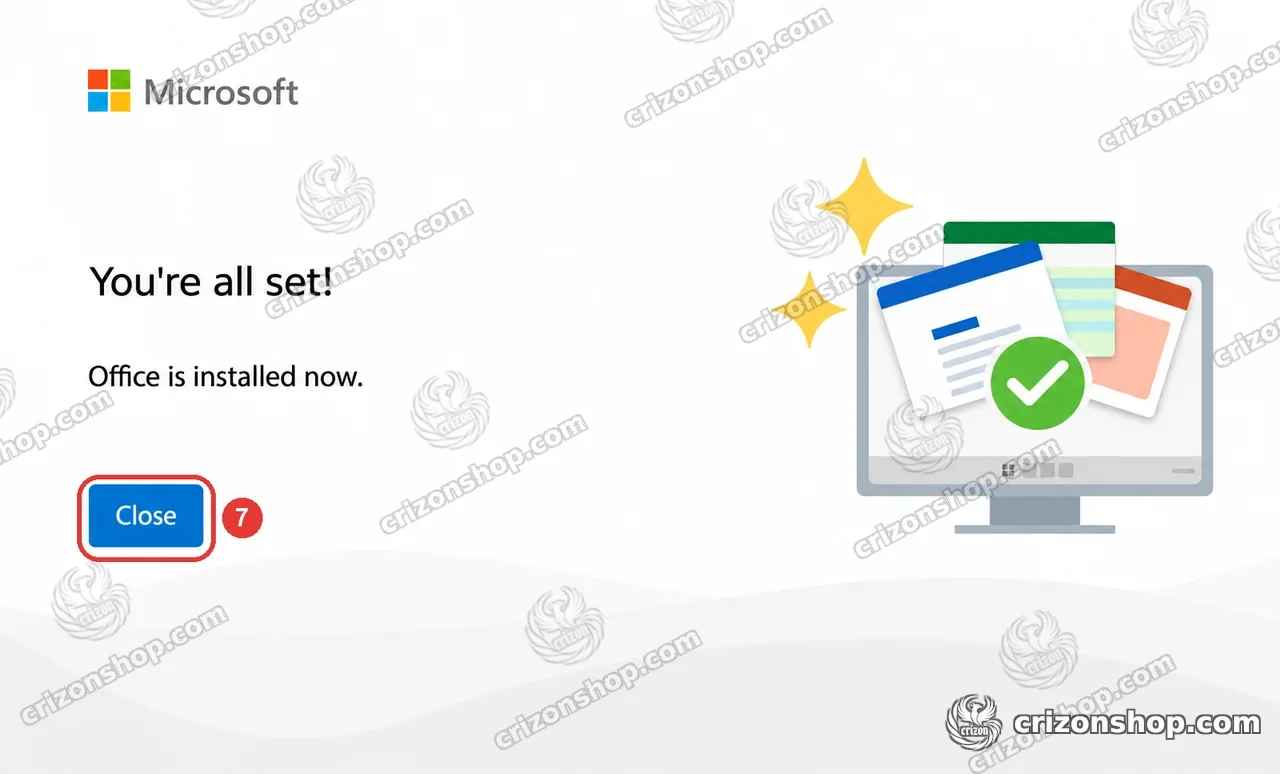
Click “Close” (You're all set! Office is installed now) to close the installer. Open Word, Excel or PowerPoint from the Start menu.
Read and accept the license agreement that appears the first time you open the app. Office is now activated.
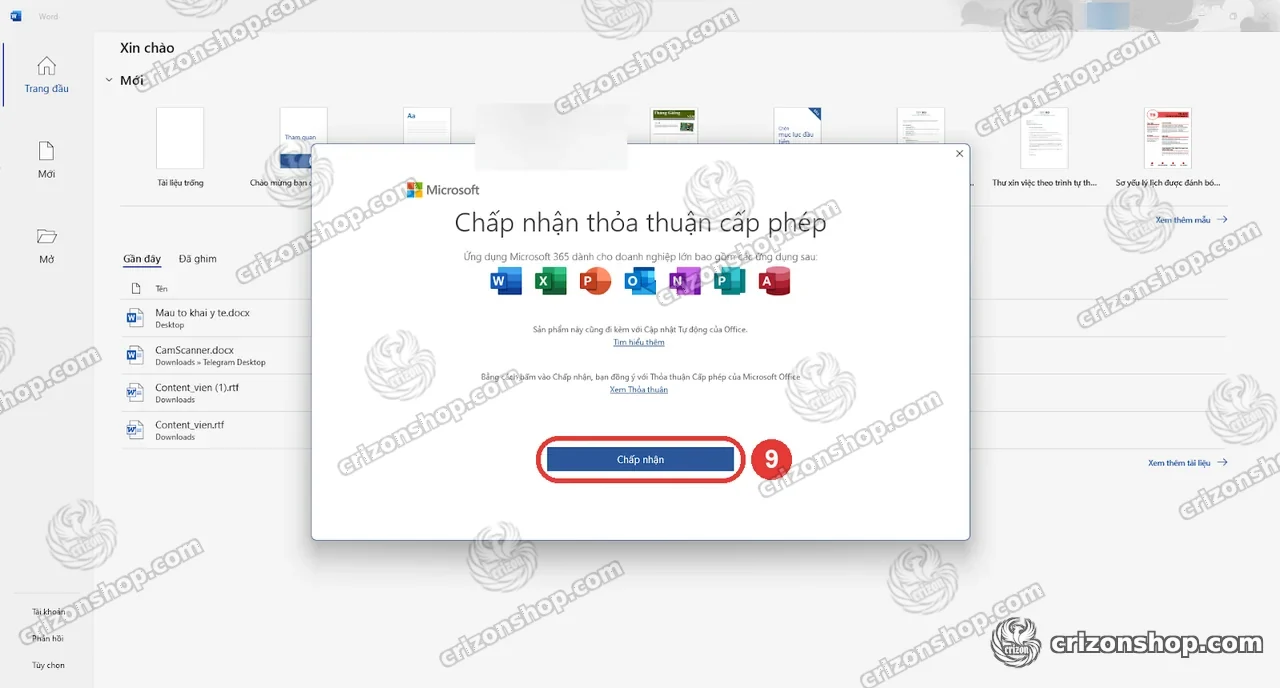
Click “Accept” to finish activating Office.
Go to m365.cloud.microsoft/apps and click Sign in to sign in with the upgraded Microsoft account.
Click Install apps to download the installer.
Open Finder, go to the Downloads folder and double-click Microsoft Office installer.pkg.
Click Continue on the first screen.
Read the license agreement, then click Agree.
Choose how you want to install, then click Continue.
Enter your Mac login password when prompted, then click Install Software.
When the installation finishes, click Launchpad in the Dock and open Microsoft Word.
Click Get Started in the What's New window. If the app asks you to sign in, use the upgraded account.
Use the web version if you'd rather not install
If you only need to make a quick edit, or you can't install software on the computer you're using, you can open the web versions of Word, Excel and PowerPoint at m365.cloud.microsoft. Just sign in with the right account first.
Use Office on phones and tablets
On Android, iPhone and iPad, you don't download an installer from the website. You install the apps directly from your device's app store.
Open Google Play on Android or the App Store on iPhone or iPad.
Search for Word, Excel or PowerPoint and install it. Make sure the publisher is Microsoft Corporation.
Open the app you just installed and choose to sign in.
Enter your upgraded Microsoft account and your password.
Once you're signed in, the app picks up the plan and unlocks the Microsoft 365 subscriber features.
When you sign in to one app, your account also shows up in the other Microsoft 365 apps on the same device. Microsoft also has a single app that combines Word, Excel and PowerPoint. It has been renamed a few times (it used to be called Microsoft Office), so if you can't find it, just install each app separately as described above.
Keep Office activated
- Signing out of an Office app removes the license from that app on that device. To use it again, just sign back in with the upgraded account.
- Your OneDrive files, emails and existing account data stay where they were after the upgrade.
- If you switch computers or reinstall Windows, repeat the installation steps above with the same account.
If Office doesn't pick up the plan
Go to Account → My orders on crizonshop.com and check whether your order shows as delivered.
Sign in to account.microsoft.com/services with the account you entered at checkout. Check that the Microsoft 365 plan is listed and still active.
In Word or Excel, check which account you're signed in with. If it isn't the upgraded account, sign out and sign back in with the right one.
Fully close the Office app, then open it again.
Still not working? Click Report a problem on the product in your order, or message us through Chat with Support in the corner of the screen. Send a screenshot of the error message along with it so we can check faster.
You can also read Microsoft's own installation guide on the Microsoft 365 support page.
Frequently asked questions
No. At checkout you only enter your Microsoft email or username, and we upgrade the plan onto that account. You only need your password when you sign in to Office on your own devices.
We check every order before delivering it and process it within 24 hours. Once your order shows as delivered under My orders, follow the steps in this guide and you can start using Office right away.
The plan stays on your Microsoft account. Only the app on that device loses its license, and it gets it back when you sign in again with the upgraded account.
Yes. Any device that's signed in with the upgraded Microsoft account can use Office, whether it's your work computer, your laptop at home or your phone.
Related guides
How to Leave a Microsoft 365 Family GroupHow to Accept a Microsoft 365 Email Invitation to Activate Your PlanHow to Uninstall Microsoft 365 and Office from a Windows PCStill need help?
Send your order code and we can sort it out faster.
