 Microsoft 365 · Activate
How to Accept a Microsoft 365 Email Invitation to Activate Your Plan
Open the invitation email Microsoft sends to the Hotmail address you entered at checkout. Click Accept, sign in with that same account, then choose Join now. Click Install to set up Office and start using it right away.
When your Microsoft 365 order is upgraded, Microsoft sends an invitation email to the Hotmail address you entered at checkout. This guide shows you how to find that email, accept the invitation and install Office so you can start using Microsoft 365 on your own account.
What you need
Step 1. Find the invitation email from Microsoft
Open the inbox for the same Hotmail address you entered when you bought the plan.
Look for an email from Microsoft with Microsoft 365 in the subject line. It says someone has shared their Microsoft 365 subscription with you.
If it isn't in your Inbox, check your Junk Email or Spam folder.
Step 2. Accept the invitation
These steps follow Microsoft's official guide for people who've been invited to share a subscription. Button labels may be in a different language, depending on your account's language setting.
In the email, click Accept. If the email shows a Get started button instead, click that.
When Microsoft asks you to sign in, choose Sign in and use the Hotmail address that got the email.
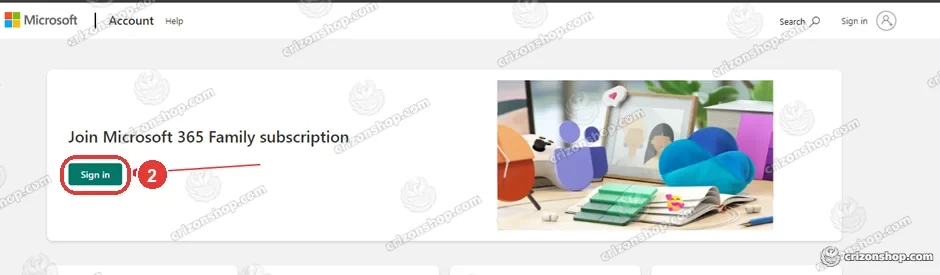
Click Sign in and use the Hotmail address that got the email. Click Join now to join the plan's Microsoft family group.
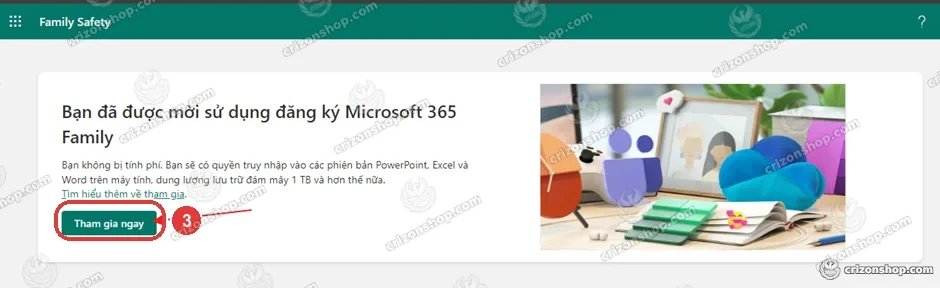
Click Join now to join the family group.
Step 3. Install Office and check your plan
After you join, click Start using Microsoft 365 apps.
Select Install and follow the on-screen steps to download and install Office on your Windows PC or Mac.
Open Word, Excel or PowerPoint and sign in with the Hotmail address you used to join the plan.
To check that it worked, sign in at account.microsoft.com and look for Microsoft 365 in your account's list of services.
Troubleshooting
| Problem | What to do |
|---|---|
| No invitation email after your order was delivered | Search for "Microsoft 365" in all folders, including junk. Check the Hotmail address on your order. If you still can't find the email, click Report a problem on the product in your order. |
| A message says your account is already in another family group | A Microsoft account can only be in one family group at a time. Leave your old group by following Microsoft's guide. Then you can accept the new invitation. |
| The button in the email says the invitation has expired, or it won't open | Invitations expire after 48 hours. Click Report a problem on the product in your order and we'll send you a new one. |
| You've joined, but Office still asks you to buy or activate | Sign out of Office, then sign back in with the Hotmail address you used to join the plan. Then check your plan at account.microsoft.com. |
If you still need help, message us through Chat with Support in the corner of the screen on crizonshop.com. Include your order ID or a screenshot of the error so we can look into it faster.
FAQ
No. At checkout, we only ask for the Hotmail address you want to upgrade. You sign in yourself on Microsoft's website when you accept the invitation, and we never ask for your password at any step.
No. The plan is added to the Microsoft account you already use. Your inbox, OneDrive files and other data stay where they are.
According to Microsoft, AI features and extra storage are only for the subscription owner. They aren't shared with invited members. You can still use the desktop versions of Word, Excel, PowerPoint and Outlook, plus the plan's OneDrive storage.
Yes. Install Office on that device, then sign in with the Hotmail address you used to join the plan. If you sign out of an Office app on a device, the license is removed from that device.
Related guides
How to Leave a Microsoft 365 Family GroupHow to Download and Activate Microsoft 365 on Your Computer and PhoneHow to Uninstall Microsoft 365 and Office from a Windows PCStill need help?
Send your order code and we can sort it out faster.
