 Google One · Sign in
How to Sign In to Google Drive and Check Your Google One Storage
Sign in to Google Drive with the same Gmail address you entered when buying your Google One plan. You don't need a new account or password. Then open the Storage page to check whether your upgrade has been added.
This guide shows you how to sign in to Google Drive with the Gmail account CrizonShop upgraded to Google One. You'll then check whether your 2 TB or 5 TB of storage has been added. You sign in the same way you open Drive every day.
Before you sign in
Sign in to Google Drive on your device
Open your browser and go to drive.google.com.
If you see the Google Drive welcome page, click Sign in.
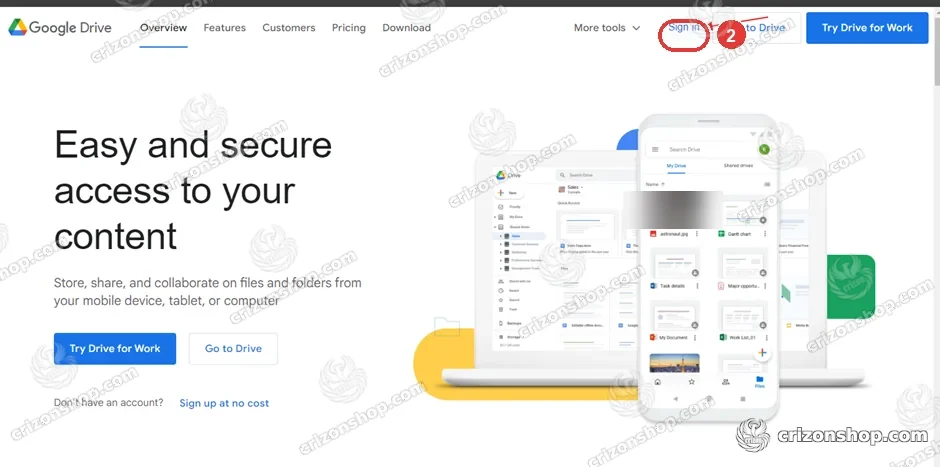
Click “Sign in” to continue. Enter your upgraded Gmail address and click Next.
Enter your password, click Next, and complete verification if Google asks.
Once Drive opens, check the profile picture in the top-right corner to make sure you're using the right Gmail account.
If your browser is already signed in to a different Gmail account, click the profile picture in the top-right corner and choose the right account from the list. If that account isn't listed, click Add another account and sign in using the steps above.
Open the Google Drive app. If you don't have it, install it from Google Play.
Tap your profile picture in the top-right corner.
Choose your upgraded Gmail account from the list.
If that account isn't on your phone yet, tap Add another account at the bottom of the list, then enter your email and password.
Install Google Drive from the App Store and open it.
The first time you open it, tap Sign in, then choose or add your upgraded Gmail account.
Enter your password and complete verification if Google asks.
If Drive is open with a different Gmail account, tap your profile picture in the top-right corner to switch to the right one.
Check your storage after the upgrade
Google One storage is shared across Google Drive, Gmail and Google Photos. You only need to check one place to see whether your plan is active.
In your browser, sign in to the upgraded Gmail account.
Look at the total storage shown on the page. Once your plan is active, it shows 2 TB or 5 TB, depending on the plan you bought.
In Drive on a computer, you can also click Storage in the left menu to see how much space you've used and which files are largest.
On your phone, the quickest way is to open the storage link above in your browser while you're signed in to that Gmail account. If your Android phone has the Google One app, open the app and check the storage section.
New storage not showing yet?
- Go to Account → My orders on crizonshop.com to check whether your order has been paid and delivered.
- Compare the Gmail address you're signed in with to the one in your order. If even one character is different, it's a different account.
- Open the storage page in an incognito window (in Chrome, press Ctrl+Shift+N) and sign in to that Gmail account again.
- On Android, restart your phone and update the Google One app to the latest version.
- If more than 24 hours have passed and you still don't see the new storage, click Report a problem on the product in your order, or message us through Chat with Support in the corner of the screen.
Frequently asked questions
No. The plan is added to your own Gmail account. We don't know or keep your password, so it stays the same. Change it only if you decide to for your own security.
No. Storage is tied to your Google Account, not to a device. Every phone, tablet or laptop signed in to that Gmail account uses the same storage, and that storage covers Drive, Gmail and Google Photos.
No. The plan only works with personal Gmail accounts. If you open Drive with a work or school email, your organization manages that account's storage, and buying a plan won't change it.
When your plan expires, your account goes back to the free 15 GB. If your data takes up more than that, you won't be able to upload new files, and Gmail may stop receiving emails. Renew your plan or free up space before it expires. Google explains this in more detail on its page about how Google storage works.
Related guides
How to Move Google Drive Data to Another Google AccountHow to Activate IObit Driver Booster PRO with a License Code How to Leave a Microsoft 365 Family Group
Still need help?
Send your order code and we can sort it out faster.
